How to fix
Microsoft office error code 0x2-0x0
on Windows
Resolve Microsoft Office error code 0x2-0x0 on Windows 10 or 11 effortlessly. Quick fixes and expert-tested solutions await you! Fixed in minutes.

What causes How to fix Microsoft office error code 0x2-0x0 in Windows?
- Corrupted license data
- Networking issues preventing connectivity to activation servers
- Conflicts from third-party applications such as antivirus programs
- Corrupted Windows files
- Prior Office installations
- Regional setting mismatches
Repairs Windows system files, removes malware, and restores a clean OS state — without reinstalling.
I've been trying to activate my Microsoft Office 365 on my Windows 11 machine, but whenever I enter my product key, I get an error code 0x2-0x0 with the message Sorry, something went wrong. I've already checked my internet connection and signed out and signed back in, but the error persists, and I cannot use Word or Excel. What is the reason behind this?
Microsoft Office, which includes software like Word, Excel, and PowerPoint, is a core productivity package available to Windows 10 and Windows 11 users. It offers users tools to edit documents, analyze data, and present. Whether through a Microsoft 365 subscription or a stand-alone purchase like Office 2024, it is widely used for personal and business use, relying on smooth activation and licensing to function. However, users can encounter issues like the 0x2-0x0 error code, which halts the activation process and prevents users from accessing Office programs.
The 0x2-0x0 error most often occurs while activating Microsoft Office, typically with a Sorry, something went wrong message, following the entry of a product key or the logon to a Microsoft account. Those affected can't open Office apps, with some getting a Product Deactivated message despite having a valid license. Others reported getting this error code 0x2-0x0 after installing a Windows update or when switching between Microsoft 365 plans, with one user reporting it persisted even after re-installing Office.
This is a common error related to activation issues, e.g., problems with the Office Licensing Service, which validates your license on Microsoft servers. The reasons are possibly corrupted license data, networking issues preventing connectivity to activation servers, or conflicts from third-party applications such as antivirus programs. Corrupted Windows files, prior Office installations, or regional setting mismatches are also possible causes.
There are a few troubleshooting steps that can repair the 0x2-0x0 error, such as fixing Office, clearing licensing data, or having accurate network connectivity. The following are eight step-by-step solutions to activate Microsoft Office and have it back to its usual condition.
In order to scan your computer for the problems that lie hidden beneath, you can use a strong PC fix tool [d1], which might be able to repair your Windows automatically.

Fix 1. Update Windows
Microsoft frequently resolves bugs linked to numerous concerns, so make sure you update Windows to the most recent version to guarantee that all bug solutions are applied.
- In Windows search, type Updates and hit Enter.
- In the new window, click Check for updates and wait till everything is installed.
- Make sure you also install any available optional updates.
- When done, restart your system to implement the changes.

Fix 2. Check network connectivity
The 0x2-0x0 error can occur if Office cannot connect to Microsoft’s activation servers due to network issues. Verifying your connection ensures a stable activation process.
Windows 11
- Type Troubleshoot in Windows search and hit Enter.
- Select Other troubleshooters.
- Locate Network & Internet troubleshooter from the list and click Run.
- Wait till the process is finished and apply the recommended fixes.
- Restart your device.

Windows 10
- Right-click on Start and pick Settings.
- Go to the Network & Internet section.
- On the right side, find the Advanced network settings section.
- Click Network troubleshooter and wait.
- The fixes will be automatically applied.
Fix 3. Repair Office
Corrupted Office files can cause activation failures, leading to errors like 0x2-0x0. Repairing the installation can fix these issues without affecting your data.
- Type Control Panel in Windows search and press Enter.
- Select Programs > Programs and Features.
- Select Microsoft Office and click on Change.
- Choose the option for Online Repair and click Repair.
- Follow the prompts to finish the process.

Fix 4. Update Office to the latest version
An outdated Office installation might have bugs that cause activation errors. Updating ensures you have the latest fixes for licensing issues.
- Open any Office app, such as Microsoft Word.
- Click on the File tab in the top-left corner.
- Select Account from the menu.
- Under the Product Information section, click on Update Options.
- Choose Update Now to check for and install any available updates.
- Restart the Office application after the update is complete to see if the issue is resolved.

Fix 5. Clear Office cache data
Corrupted licensing data can prevent Office from activating properly. Clearing this data forces Office to revalidate your license.
- In Windows search, type %localappdata%\Microsoft\Office\16.0\OfficeFileCache and press Enter to navigate to the OfficeFileCache folder.
- Delete all files within the OfficeFileCache folder - press Shift + Del for quick action.
- After clearing the cache, restart your computer and attempt the Office installation again.

Fix 6. Use Microsoft Support and Recovery Assistant
This free tool from Microsoft can help people to resolve various issues with Office apps.
- Open your browser and go to the official Microsoft support website.
- Scroll down and click Download under Uninstall and reinstall Office.
- Once downloaded, double-click SetupProd_OffScrub.exe to launch it.
- When prompted, click Install.
- Once installed, launch Microsoft Support and Recovery Assistant.
- Select Office & Office Apps and click Next.
- Next, choose I have Office 365 subscription, but I'm having trouble installing it (or another appropriate option) option and click Next.
- Click Yes to begin a scan.
- Follow instructions after the scan is finished.

Fix 7. Disable third-party antivirus
Third-party antivirus software can block Office from communicating with activation servers. Temporarily disabling it can help.
- Open your antivirus program and disable real-time protection temporarily.
- If using a firewall, turn it off temporarily in Settings > Privacy & Security > Windows Security > Firewall & Network Protection.
- Retry the installation, and re-enable security settings after completing the process.
Fix 8. Reinstall Office
If the Office installation is severely corrupted, it might fail to activate properly. Reinstalling it ensures a fresh setup of all components.
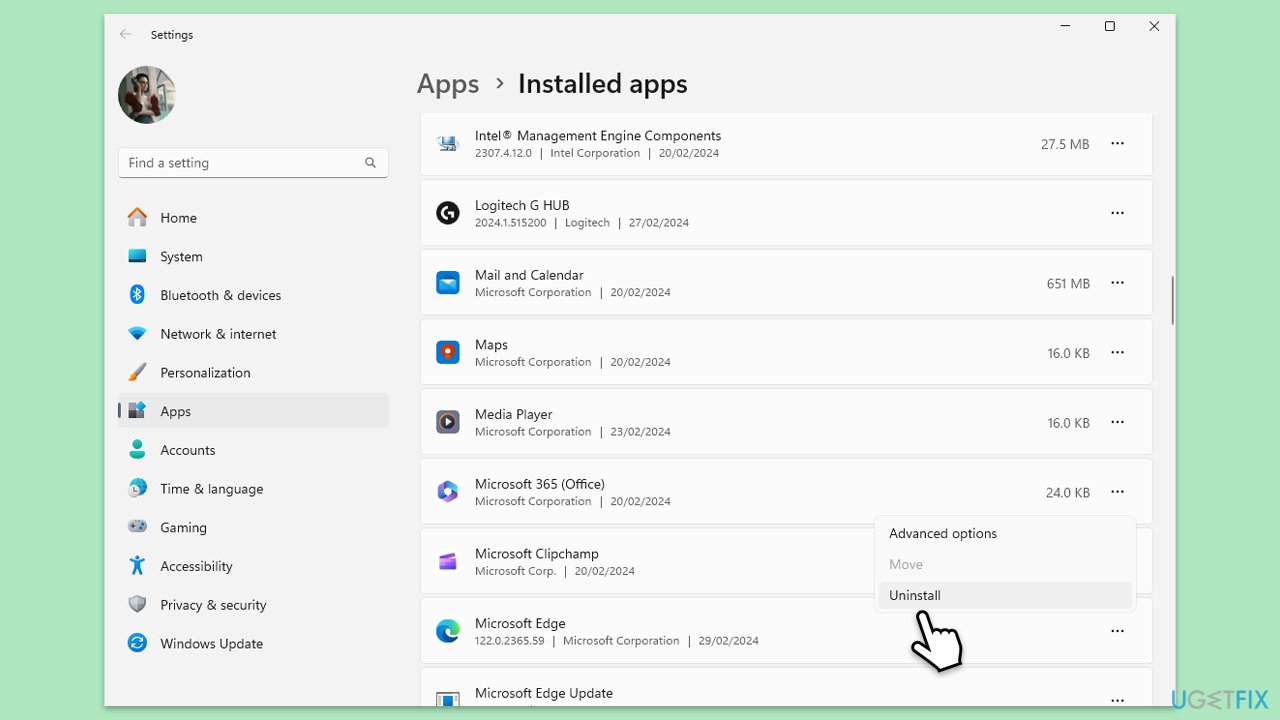
- Right-click on Start and pick Apps and Features/Installed apps.
- Scroll down to find the MS Office installation.
- Click Uninstall and confirm with Uninstall.
- Follow on-screen instructions to remove the app completely.
- Press Win + E to open File Explorer.
- Navigate to the following location and delete its contents:
C:\Program Files\Microsoft Office - Next, type regedit in Windows search and press Enter.
- Go to the following locations in the Registry Editor and delete these items:
Computer\HKEY_LOCAL_MACHINE\SOFTWARE\Microsoft\AppVISV
Computer\HKEY_LOCAL_MACHINE\SOFTWARE\Microsoft\Office\ClickToRun
Computer\HKEY_CURRENT_USER\Software\Microsoft\Office - Reboot your device and then reinstall Microsoft Office.
Bottom line
To fix the 0x2-0x0 error, you can try repairing Office, clearing licensing data, or ensuring accurate network connectivity. If these solutions do not resolve the issue, consider further troubleshooting or seeking assistance from Microsoft support.
Frequently asked questions
The error code 0x2-0x0 typically indicates an issue with the installation of Microsoft Office, often due to corrupted files or incomplete installation.
To fix the error, try repairing your Office installation through the Control Panel or by using the Office Repair tool available in Windows Settings.
To prevent the error in the future, ensure that your Windows 10 system and Microsoft Office are always updated to the latest versions and avoid using multiple antivirus programs that might interfere with installations.




Report an issue
What's wrong with this guide? We review every report and update or remove content.
Report received — thank you. We'll review and fix it.
You need a free account to submit a report.
Be the first to comment