How to fix
DISM RestoreHealth stuck at 62.3%
on Windows
Resolve DISM RestoreHealth getting stuck at 62.3% in Windows 10/11 with our expert-tested solutions. Fix issues quickly and efficiently!

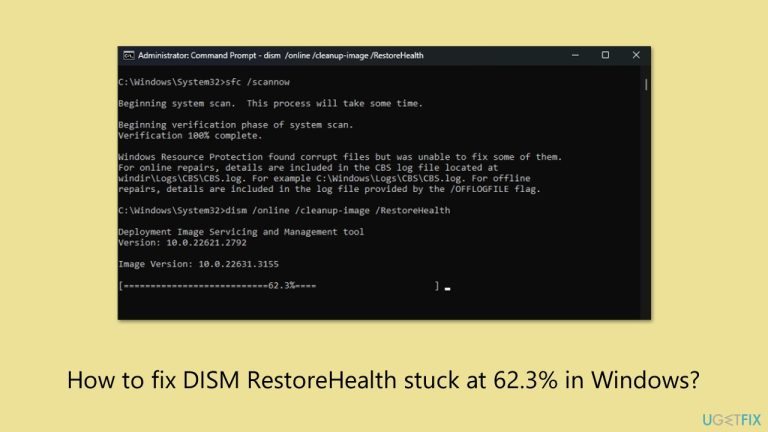
What causes How to fix DISM RestoreHealth stuck at 62.3% in Windows?
- DISM appears stuck but is still running
- Background checks and data downloads are ongoing
- Component corruption introduced during recent cumulative updates
- Certain internal packages or outdated metadata components may trigger health check failures
- Interruption before completion may restart the process
Repairs Windows system files, removes malware, and restores a clean OS state — without reinstalling.
So I had some problems with Bluetooth connection and I ran SFC and DISM scans, as advised online. The first one went completely fine, but DISM got stuck at 62.3% and is not moving for hours now. What can I do?
DISM, or Deployment Imaging Service and Management Tool, is one of the most commonly used utilities to repair corrupted system files in Windows. The command /RestoreHealth is particularly helpful when used alongside the System File Checker (sfc /scannow), especially in situations where the system image has been damaged. However, a recurring problem has been frustrating users: DISM getting stuck at 62.3%.
Reports of this issue have been appearing for some time and continue even on newer Windows 11 builds, including 24H2. The percentage appears to freeze during the execution of DISM /Online /Cleanup-Image /RestoreHealth, causing concern among users who believe the process has halted or failed entirely. However, this is often a misleading symptom, and in many cases, the system is still working silently in the background.
The problem: DISM appears stuck but is still running
The situation is common across several Windows versions and not isolated to a particular update. Users typically notice that DISM reaches 62.3% and then remains there for a long time, sometimes for 20 minutes or even several hours. This delay gives the impression that the process is frozen, but the truth is that DISM is still performing background checks, downloading data (if run online), and repairing corrupted components.
This behavior has especially been observed after recent cumulative updates, where component corruption can be introduced during the upgrade process. Certain internal packages such as photon or outdated metadata components might trigger health check failures during a scan, extending the duration of the repair phase.
If interrupted before completion, the next DISM run may restart the process entirely, leading to repeated delays and unnecessary frustration.
How to fix RestoreHealth stuck at 62.3% issue?
If DISM /RestoreHealth is stuck at 62.3%, it does not necessarily mean that the process has failed. In many cases, it is still actively performing checks and applying fixes in the background. Terminating the process prematurely can result in incomplete repairs or repeated issues the next time you attempt it.
To monitor actual progress and verify that the tool is still running, you can track updates in real-time using PowerShell. Open PowerShell as Administrator and run the following command:
Get-Content C:\Windows\Logs\CBS\CBS.log -tail 10 -wait
This will display the last 10 lines of the CBS.log file and keep updating the output as new entries are written. If you see regular updates, it confirms that DISM is still running and making progress.
But if no new lines are showing up for a very, very long time, or if DISM doesn't work out in the end, you may have to seek deeper for system corruption or unhandled package issues. In some cases, replaced or unreclaimable Windows pieces can remain on the system, which can't be swept clean until some eventual update (such as 25H2).
To prevent time wastage and system instability, consider using a stand-alone PC repair tool like [d1] to scan and fix system-level damage that DISM and SFC are unable to fully restore by themselves.

Other solutions
There are several other strategies you could try in order to fix the problem. Follow the steps below.
Fix 1. Wait for DISM to finish
- If DISM /RestoreHealth seems stuck at 62.3%, do not terminate the process right away.
- Depending on your system speed, storage, and network performance, it may take 20 minutes or more to complete.
- Monitor real-time log updates to confirm it's still working.
Fix 2. Monitor DISM progress using CBS log updates
When DISM is running, it writes everything it does into a file called CBS.log. This file is stored inside the C:\Windows\Logs\CBS folder on your computer. To check if DISM is still working, you can open the CBS.log file and watch if new lines are being added - here's how:
- Open Windows search box.
- Type PowerShell, then right-click on it and select Run as administrator.
- Once PowerShell opens, type this command exactly:
Get-Content C:\Windows\Logs\CBS\CBS.log -Tail 10 -Wait - Press Enter.
- You will now see lines from the CBS.log file appearing in real time at the bottom of the window.
- If new lines keep appearing, that means DISM is still running in the background.
- If nothing happens for several minutes and no new lines show up, the process might actually be stuck.

Fix 3. Clean up the component store before using DISM
This process removes unneeded update files and may help fix the problem where DISM stops at 62.3%.
- Type cmd in Windows search.
- Right-click on Command Prompt and choose Run as administrator.
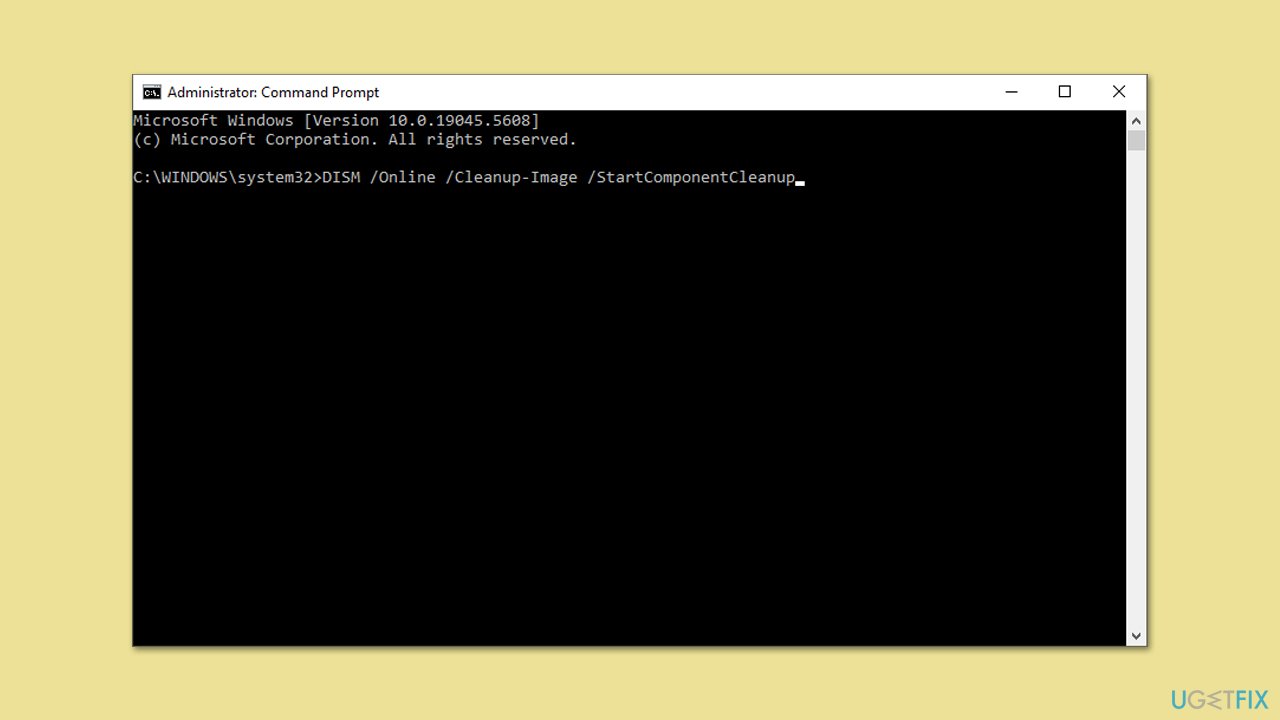
- In the Command Prompt window, type this command:
DISM /Online /Cleanup-Image /StartComponentCleanup - Press Enter.
- Wait for the cleanup to complete. This may take a few minutes.
- Once it finishes, you can go ahead and run the RestoreHealth scan again.
Fix 4. Use Safe Mode to avoid conflicts
Boot into Safe Mode with Networking to reduce interference from drivers and services.
- Right-click on Start and select Settings.
- Go to System.
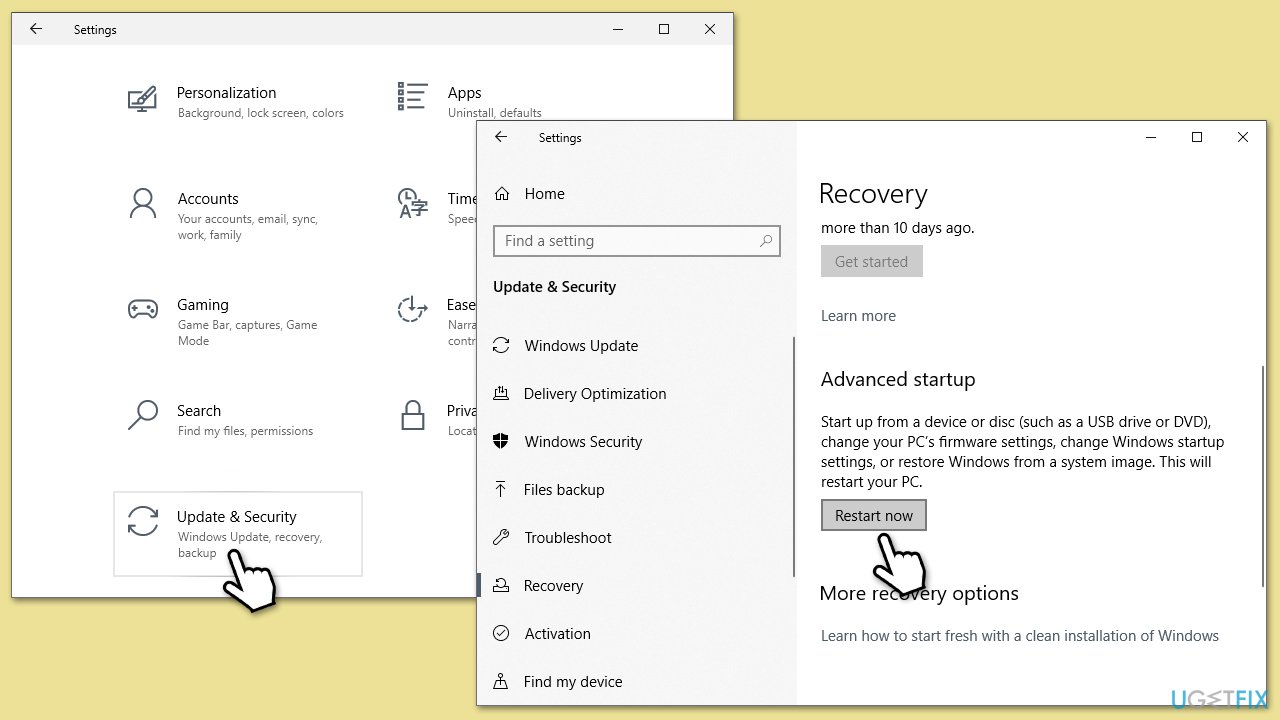
- Under Recovery options, next to Advanced Startup, click Restart now.
- After a reboot, you will be presented with several options - pick Troubleshoot.
- Go to Advanced options > Startup Settings and then pick Restart.
- After a reboot, pick either 4/F4 for Safe Mode or 5/F5 for Safe Mode with Networking.
- Run DISM again.
Fix 5. Uninstall the recent update
As an alternative, you could uninstall the update, which caused issues with DISM.
- Type Control Panel in Windows search and press Enter.
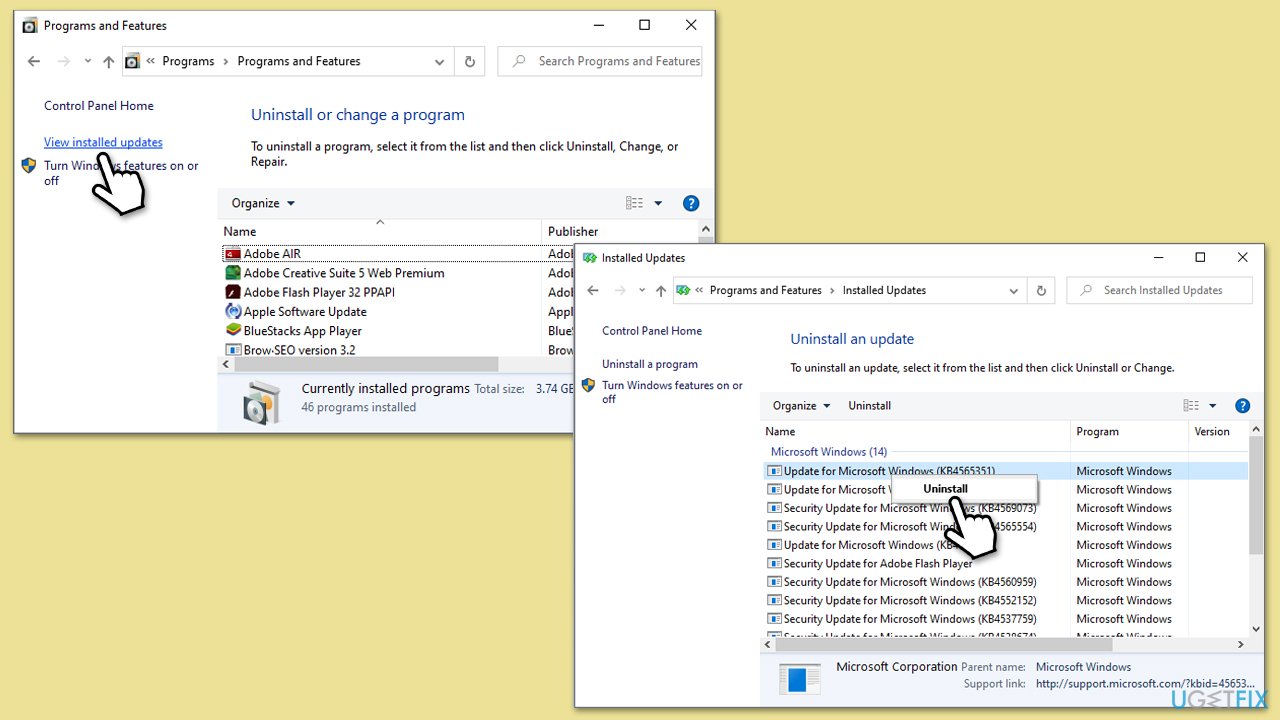
- Select Programs > Uninstall a program.
- Click on View installed updates on the left side of the window.
- Sort all the updates by date.
- Right-click on the most recent update and select Uninstall.
- Proceed with on-screen instructions.
- Then, type Updates in Windows search and press Enter.
- Click Pause the updates for 7 days (in Windows 11, you can pick a different time period).
Bottom line
If DISM /RestoreHealth is stuck at 62.3%, it may still be actively performing checks and applying fixes. Users should allow more time for the process to complete, and if necessary, consider running the command again or checking for updates. If none of these solutions work, further troubleshooting may be required.
Frequently asked questions
Try running the command 'sfc /scannow' in Command Prompt to check for system file integrity issues, then attempt the DISM command again. If the issue persists, consider running Windows Update Troubleshooter.
Yes, you can boot into the Windows Recovery Environment and use the Command Prompt to run DISM commands, which may help resolve the issue. Make sure to select the option to repair your computer.
You can try disabling your internet connection temporarily, as a slow or unstable connection can cause the process to hang. Additionally, ensure that your Windows 10 or Windows 11 system has enough disk space.




Report an issue
What's wrong with this guide? We review every report and update or remove content.
Report received — thank you. We'll review and fix it.
You need a free account to submit a report.
Be the first to comment