How to fix
Microsoft account login error 0x80048820
on Windows
Resolve the Microsoft account login error 0x80048820 on Windows 10 and 11 effortlessly. Expert-tested solutions to get you back online in minutes.


What causes How to fix Microsoft account login error 0x80048820 in Windows?
- System date or time being out of sync
- Problems with Windows credentials
- Damaged profile settings
- Malfunctioning account tokens
- Updates undermining essential authentication services
Repairs Windows system files, removes malware, and restores a clean OS state — without reinstalling.
Every time I try to sign in to Outlook on my Windows 11 laptop, I keep getting error 0x80048820. I haven’t changed anything recently, and my internet is working fine. It just won’t let me log in with my Microsoft account. Is this a Windows issue or something with my Outlook app?
Error code 0x80048820 is a Windows-specific error that will typically pop up when users attempt to log in using their Microsoft account - usually aiming at services like Outlook, OneDrive, or even Windows Store and Windows login itself. This problem usually manifests as an unsuccessful login attempt message, with little else to go on. It is not an issue inherent to any single version of Windows but has become more prevalent more recently after cumulative updates in Windows 11.
This login failure is particularly frustrating as it denies the access of core Microsoft services employed by many on a daily basis. To individuals who log in through their Microsoft account for syncing settings, viewing cloud storage files, or signing into apps like Microsoft Teams, it essentially keeps them out of their work space. While others have found that the problem developed after there was a modification in network settings, others encountered it with no recent change.
As with the majority of Microsoft login issues, error 0x80048820 may have several possible reasons. The system date or time being out of sync is one of the more common culprits, as it will prevent Windows from establishing a secure connection to Microsoft servers. Similarly, problems with Windows credentials, damaged profile settings, or malfunctioning account tokens may also be the reason. Rarely, the error may arise following updates undermine essential authentication services or alter the behavior of background operations pertaining to the login process.
Whether it's a short-term service glitch or a more systemic long-term issue, this is not something users should be required to suffer through for very long. If you're currently facing Microsoft login error 0x80048820, below is a sequence of solutions. You may also want to run [d1] to scan for and automatically repair deeper Windows issues.

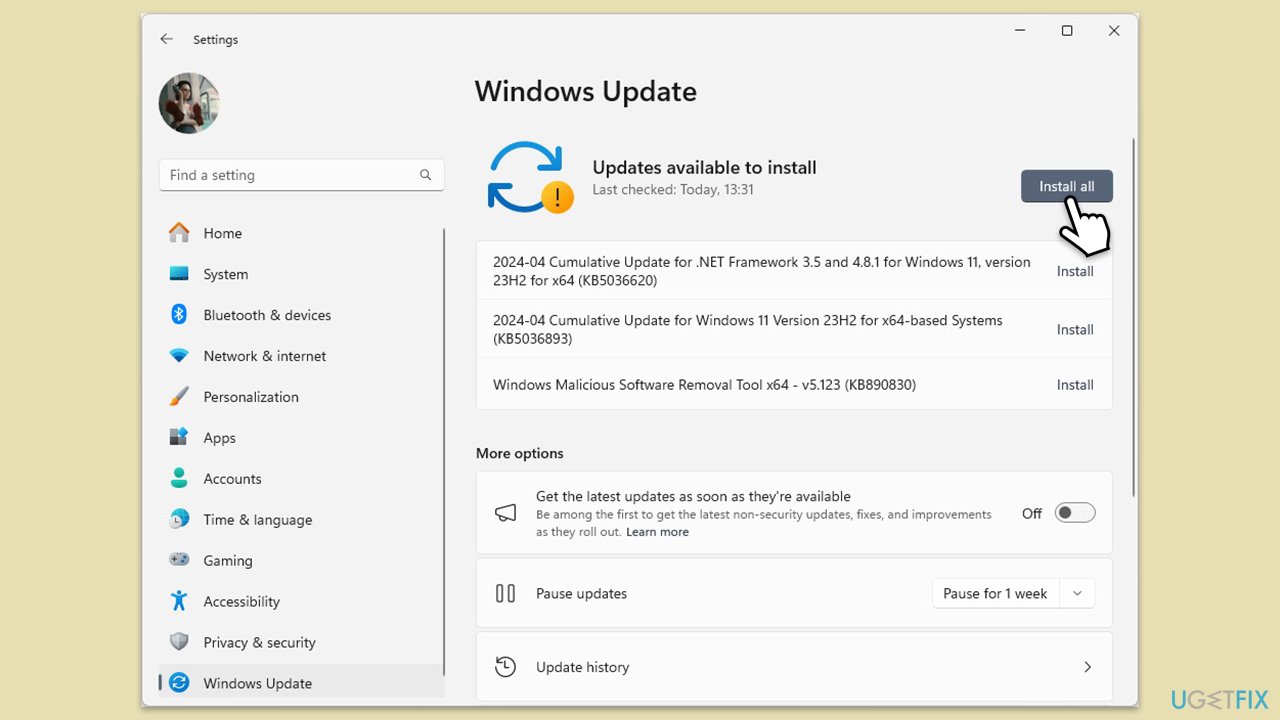
Fix 1. Update Windows to the latest version
Login issues may arise from outdated system components or account services that are no longer compatible.
- Type Updates in Windows search and press Enter.
- In the new window, click Check for updates.
- Wait till all the necessary files are downloaded and installed.
- If optional updates are available, install them as well.
- When done, reboot your system to apply updates.
Fix 2. Reset Microsoft Store cache
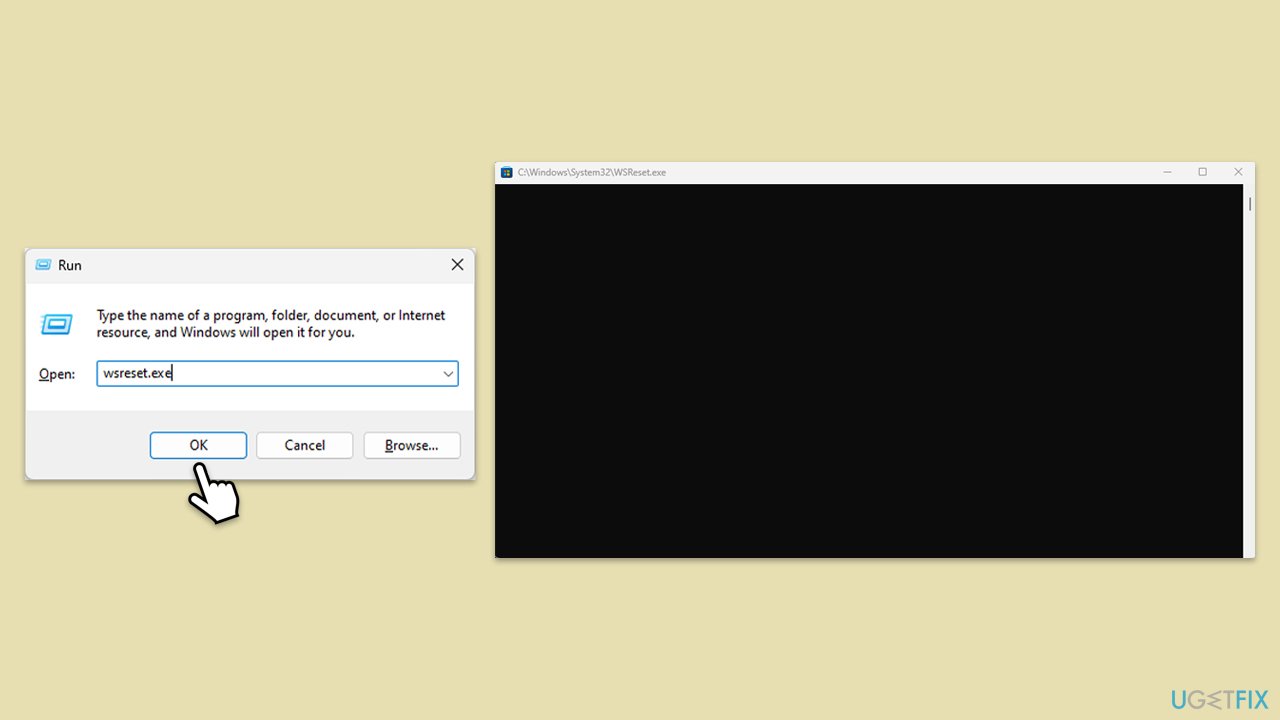
If the login error is linked with Store-related services like Mail or Calendar, resetting the cache might help.
- Press the Win + R on your keyboard to open the Run dialog box.
- In the dialog box, type wsreset.exe and then hit Enter or click OK.
- A blank Command Prompt window will open (do not close it), and after about ten seconds, the window will close, and the Microsoft Store will open automatically.
Fix 3. Check date and time settings
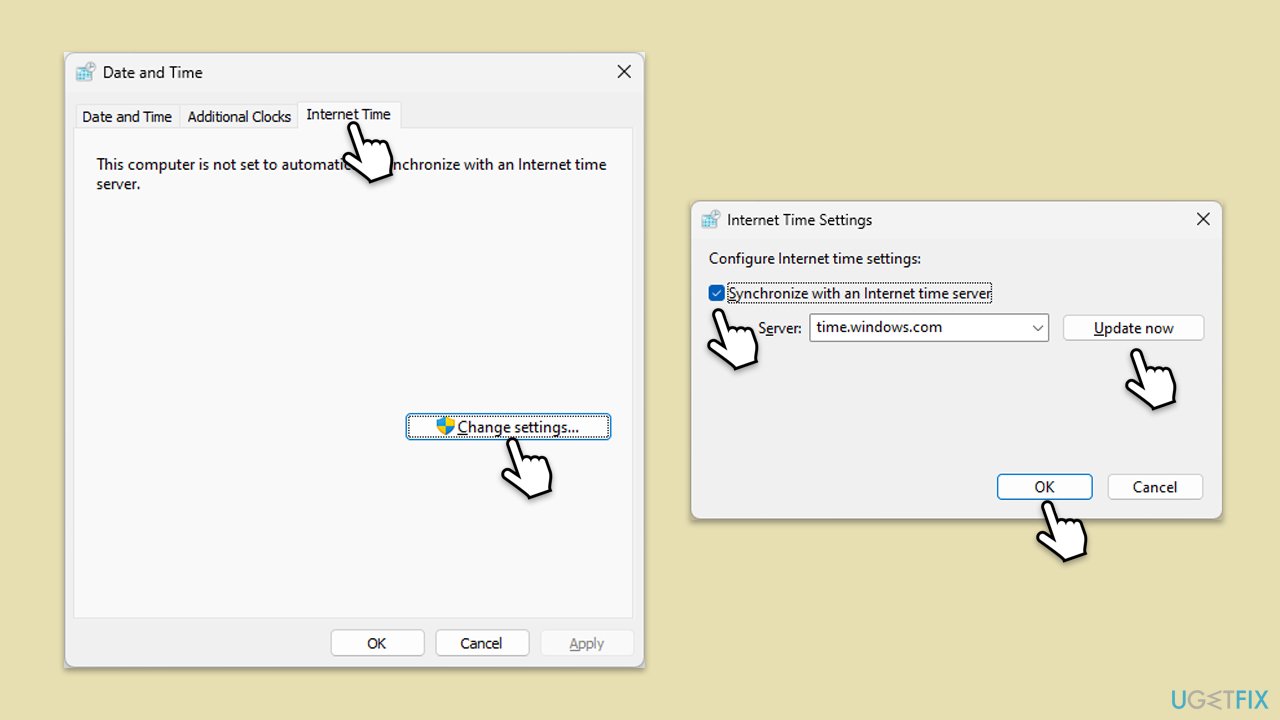
Incorrect date or time can prevent account authentication services from working correctly.
- Type in Control Panel in Windows search and press Enter.
- Go to Clock and Region and click on Date and Time.
- Pick the Internet Time tab and select Change Settings.
- Make sure that the Synchronize with an Internet time server box is ticked.
- Click Update now and OK.
Fix 4. Check Microsoft servers
Sometimes the login error can appear due to temporary service outages on Microsoft's end. If the servers are experiencing issues, signing in might fail until services are restored.
- Open your web browser and visit the Microsoft Service Status page.
- Look for any alerts related to account login, Outlook, or Microsoft 365 services.
- If services are down, wait for Microsoft to fix the issue before trying again.

Fix 5. Remove and re-add the Microsoft account
Removing and re-adding your Microsoft account can help reset broken links between the system and your credentials.
- Right-click on Start and pick Settings, then go to Accounts.
- Click on Your info.
- Verify that you are signed in with the correct Microsoft account.
Fix 6. Disable proxy or VPN
A VPN or proxy can sometimes block the authentication services required for login.
- Right-click on Start and pick Network connections.
- Navigate to the VPN section and disable it if it's connected.
- Then back and select Proxy.
- Here, disable Proxy if it's enabled.

Fix 7. Repair corrupted files
Corrupted system files can interfere with account sign-in functionality. Scanning and repairing these files may fix the issue.
- Type cmd in Windows search.
- Right-click on Command Prompt and select Run as administrator.
- The User Account Control (UAC) window will ask whether you want to allow changes to your computer - click Yes.
- In the Command Prompt window, paste the following command and hit Enter:
sfc /scannow - Next, use the following commands, pressing Enter each time:
Dism /Online /Cleanup-Image /CheckHealth
Dism /Online /Cleanup-Image /ScanHealth
Dism /Online /Cleanup-Image /RestoreHealth
(Note: if you get an error executing this last command, add /Source:C:\RepairSource\Windows /LimitAccess to it and try again). - Reboot your system.

Bottom line
To resolve Microsoft account login error 0x80048820, you can check and correct your system date and time, review Windows credentials, and repair any damaged profile settings. If these solutions do not work, consider running a deeper Windows issue scan or checking for further updates.
Frequently asked questions
Try resetting your network settings by going to Settings > Network & Internet > Status and clicking on 'Network reset'. Additionally, ensure that your date and time settings are correct in Windows 10.
Yes, you can try using the Windows Troubleshooter for accounts by going to Settings > System > Troubleshoot > Other troubleshooters and selecting 'Windows Store Apps' to diagnose potential issues.
If you suspect the issue is password-related, try resetting your Microsoft account password online and then attempt to log in again on Windows 10 or Windows 11.




Report an issue
What's wrong with this guide? We review every report and update or remove content.
Report received — thank you. We'll review and fix it.
You need a free account to submit a report.
Be the first to comment