How to fix
ELEX II is crashing on startup
on Windows
Resolve ELEX II startup crashes on Windows 10 and 11 effortlessly. Get expert tips and proven fixes to play without interruptions, updated 2025.

What causes How to fix ELEX II is crashing on startup in Windows?
- Graphics settings issues
- Corrupted configuration files
- Compatibility issues with DirectX modes
- Problems in the ELEX2DX11 folder
- Corrupted ConfigUser file
- Switching between DirectX versions
Repairs Windows system files, removes malware, and restores a clean OS state — without reinstalling.
I have recently finished Elex, and I was truly excited to jump into the second game, Elex II. Earlier today, I played the game for hours with no problems. I came back now and tried to continue, but it is not crashing on startup non-stop, and I have no clue why this is happening. Any advice for me?
ELEX II is an open-world action RPG developed by Piranha Bytes and published by THQ Nordic. It was released in March 2022 as the sequel to the original ELEX, expanding on its mix of sci-fi and post-apocalyptic fantasy. The game offers an open world with jetpack-assisted exploration, faction-based progression, and a reputation system that reacts to your choices. While ELEX II built on the cult following of the first game, its PC version hasn’t been smooth sailing for everyone.
Some players have reported that ELEX II is crashing on startup in Windows, with the game either freezing on a black screen or shutting down without an error message. This issue can be especially frustrating since it prevents the game from launching at all. A number of users have posted about the problem on the Steam Community forums, with no single solution working for everyone.
Why is ELEX II crashing on startup?
There are several reasons why ELEX II might be crashing on startup in Windows, and many of them are related to graphics settings, corrupted configuration files, or compatibility issues with the game’s DirectX modes.
Some players found that ELEX II is crashing due to problems in the ELEX2DX11 folder, which stores settings related to DirectX 11. Deleting this folder and letting the game regenerate it has helped some users get past the crash. Others have reported that removing the ConfigUser file from the game’s configuration directory in AppData fixed the issue - this file can sometimes become corrupt, especially after driver or Windows updates.
Another potential cause is related to switching between DirectX versions. A few users have managed to fix the crash by verifying game files and then copying files from the DX11 folder over to the DX12 folder, suggesting there may be a bug with how the game handles DirectX 12 on some setups.
In addition to these game-specific problems, more general issues like outdated graphics drivers, software overlays (from apps like Discord, Steam, or GeForce Experience), and aggressive antivirus programs can also cause ELEX II to crash at launch. Running the game in fullscreen mode or with incompatible display settings may contribute to the issue as well.
Together, these causes make the ELEX II crash on startup a tricky problem, but fortunately, several workarounds have been shared by the community and can be tried easily.
How to fix ELEX II crashing issues
Below is a list of solutions that may help prevent ELEX II from crashing on startup in Windows. The step-by-step instructions are provided in the section below.
If you want a quick fix, you can also use the [d1] PC repair tool to automatically check your system for any corrupted files or misconfigurations that could cause the ELEX II crash.
Fix 1. Delete the ELEX2DX11 folder
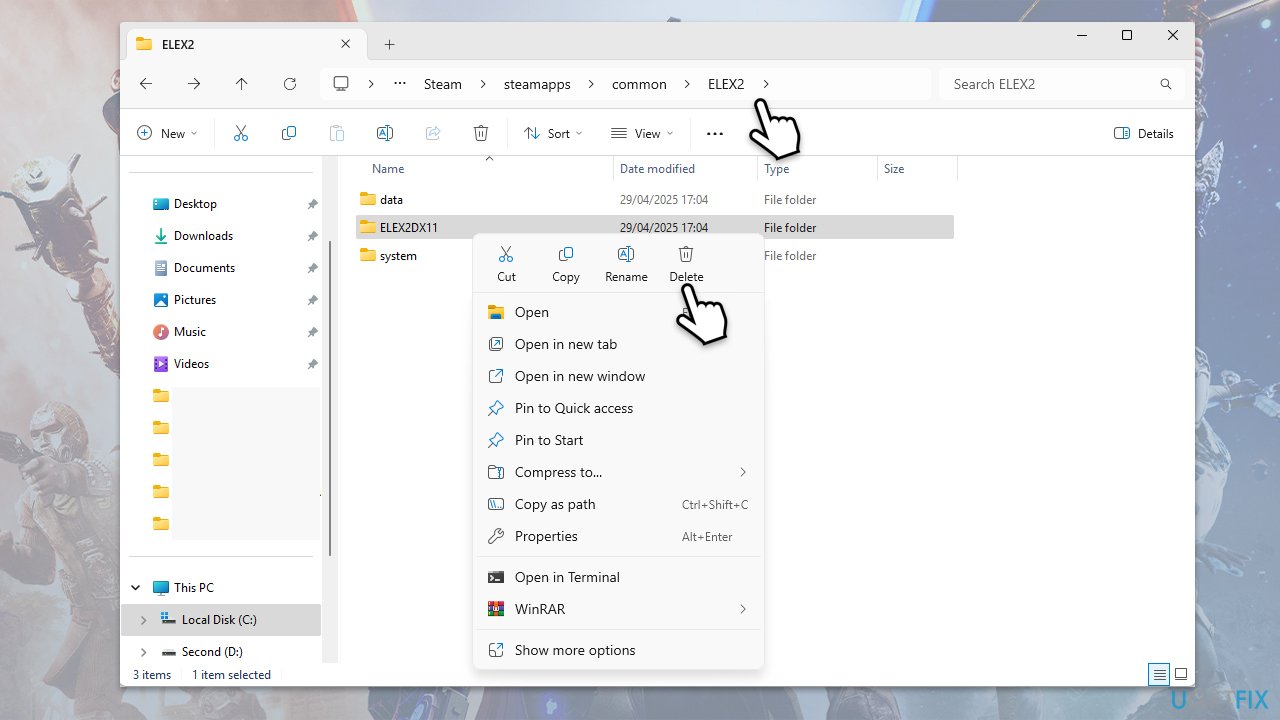
Corrupted DirectX 11 configuration files can prevent the game from launching. Deleting the folder forces the game to regenerate fresh files.
- Access the game file folder. By default, it should be in the following location:
C:\Program Files (x86)\Steam\steamapps\common\ELEX2 - Right-click on the ELEX2DX11 folder and pick Delete.
- Make sure you remove it from the Recycle Bin.
- Launch ELEX II and check if the crash still occurs.
Fix 2. Remove the ConfigUser file
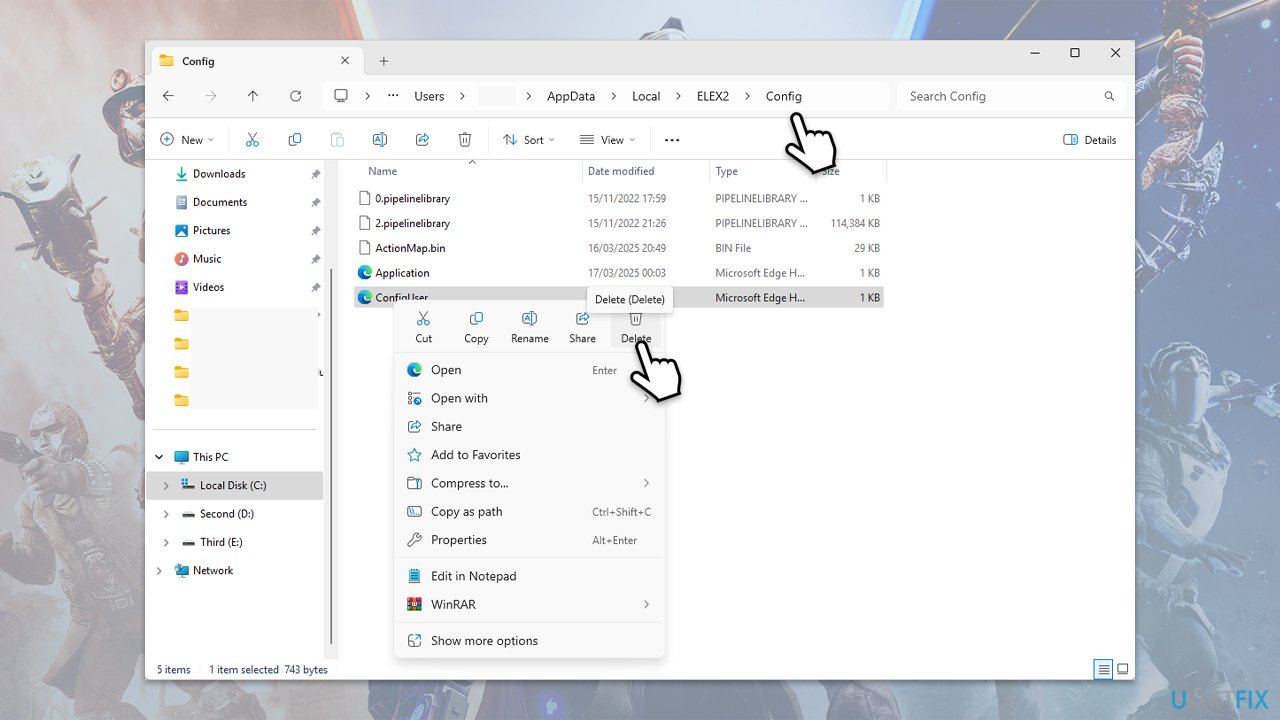
This file stores custom settings and may cause crashes if it becomes corrupted after updates or hardware changes.
- Type %localappdata% in Windows search and press Enter.
- Navigate to the following location:
C:\Users\USERNAME\AppData\Local\ELEX2\Config - Delete the ConfigUser file.
- Restart the game to generate a clean configuration.
Fix 3. Update graphics drivers
Outdated or buggy GPU drivers are a common cause of crashes in modern games. If you don't want to bother with a manual method, you can always employ tools like [rev id="DriverFix"] for automatic driver updates.
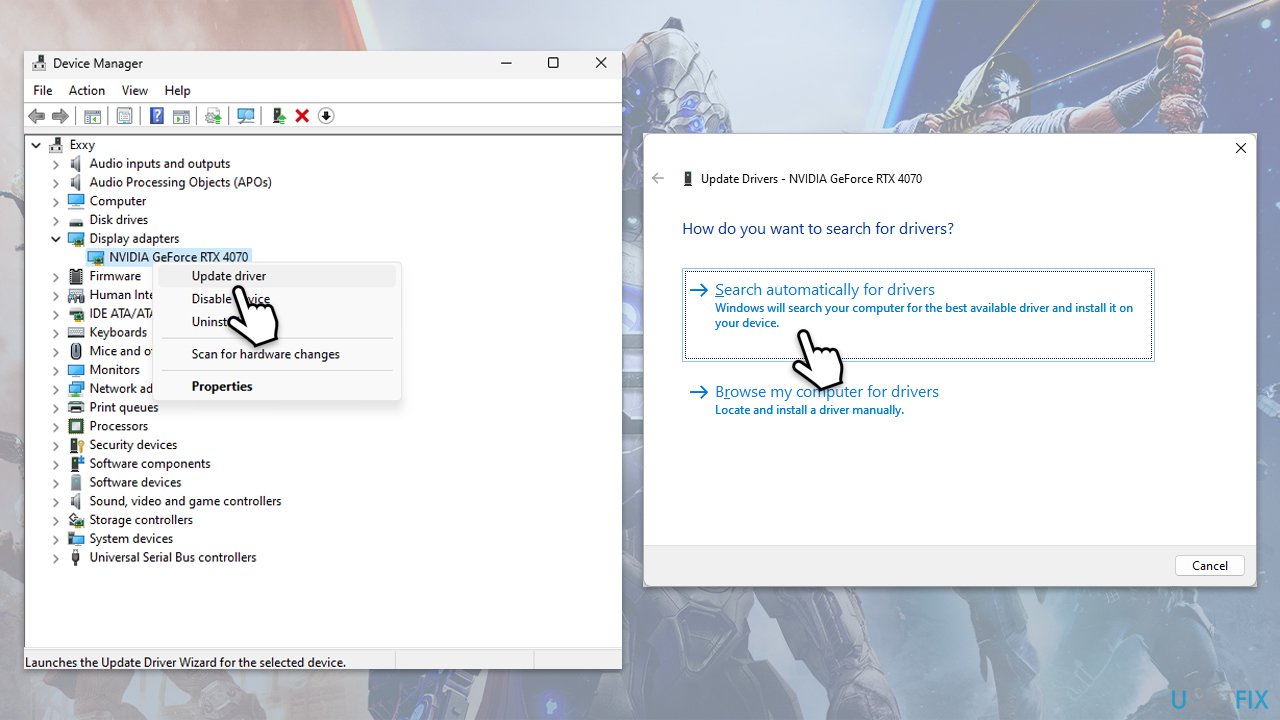
- Right-click on the Start button and select Device Manager from the menu.
- Expand the Display adapters section.
- Right-click on your device and select Update driver.
- Pick Search automatically for drivers.
- If updates are found, allow them to install.
- Restart your computer after updating all necessary drivers.
Fix 4. Disable overlay and background applications
Overlays from apps like Discord, Steam, and GeForce Experience can interfere with the game’s startup.
Steam
- Open your Steam client.
- Go to your game library and right-click on FF16.
- Select Properties.
- Disable the Enable the Steam Overlay while in-game option location in General settings.
Discord
- Open Discord and click on the gear icon next to your username.
- Scroll down to the Activity Settings section and click on Game Overlay.
- Toggle off the switch next to Enable in-game overlay.
- Restart Discord to ensure the changes take effect.
Game Bar
- Right-click on Start and select Settings.
- Go to Gaming.
- Under Xbox Game Bar, toggle off Enable Xbox Game Bar for things like recording game clips, chatting with friends, and receiving game invites.
- Restart your computer to ensure the overlay is completely disabled.
Fix 5. Verify game files in Steam
Missing or corrupted files can prevent the game from loading properly. Steam can detect and repair these files.
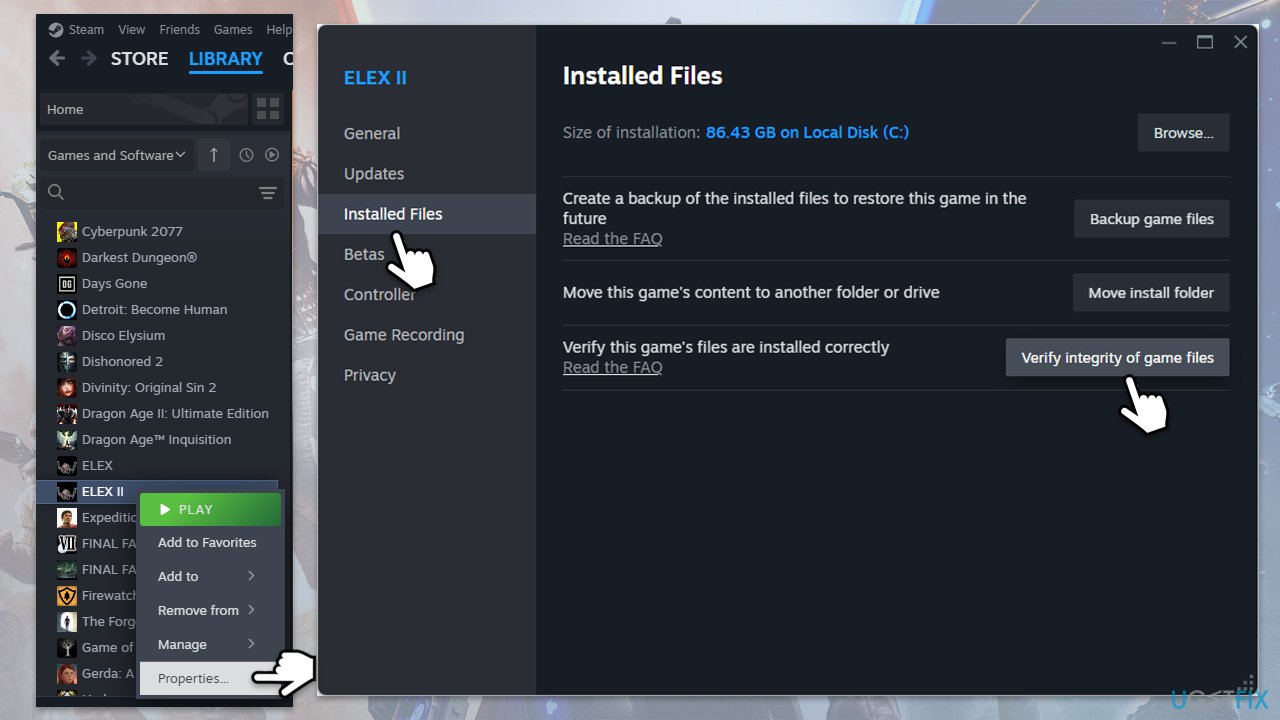
- Open Steam and go to your Library.
- Right-click on Elex II and pick Properties.
- Go to the Installed Files section and click Verify integrity of game files.
- Wait till the scan is finished and attempt to launch the game again.
Fix 6. Copy DX11 files to the DX12 folder
Some users fixed the crash by overwriting DirectX 12 settings with stable DX11 versions.
- First, delete the ELEX2DX11 folder as shown in Fix 1.
- Open Steam and verify the integrity of game files, as explained in Fix 5.
- Open the regenerated ELEX2DX11 folder.
- Copy all files inside.
- Navigate to the ELEX2DX12 folder.
- Paste and overwrite the files when prompted.
- Launch the game and test for crashes.
Fix 7. Reinstall the game
You can also try reinstalling the game and see if that works for you.
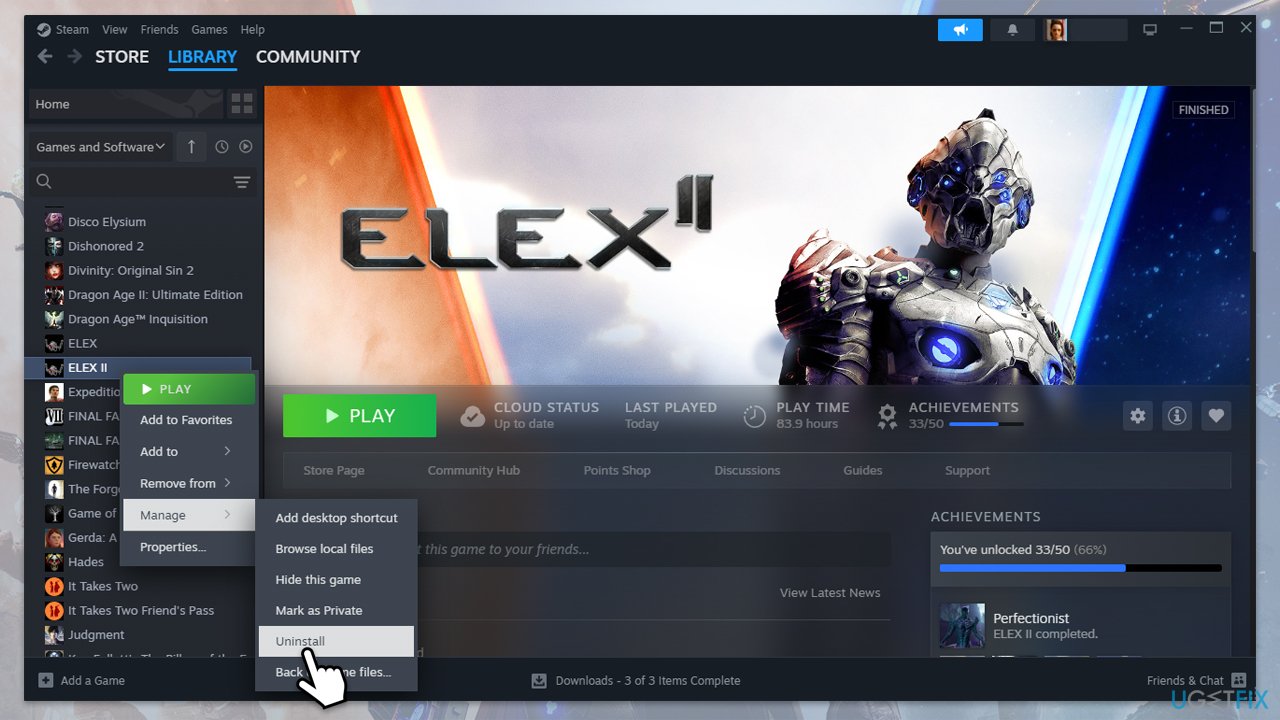
- Open Steam and go to your Library.
- Right-click the affected game and select Uninstall.
- Confirm the uninstallation and restart Steam.
- Reinstall the game from your Library and check if the issue is resolved.
Bottom line
To fix ELEX II crashing on startup, try deleting the ELEX2DX11 folder to allow the game to regenerate it, or remove the ConfigUser file from the AppData directory. Additionally, verify game files and copy files from the DX11 folder to the DX12 folder. If none of these solutions work, consider seeking further assistance on gaming forums.
Frequently asked questions
First, ensure that all your drivers are updated, especially your graphics drivers. If the issue persists, try rolling back the Windows update to see if that resolves the crashing problem.
To check compatibility, visit the game's official website or Steam page for system requirements and ensure your Windows 11 meets them. Additionally, verify that any necessary updates for Windows 11 are installed.
Common fixes include verifying the game files through Steam, adjusting graphics settings, and running the game as an administrator in Windows 10 or 11.




Report an issue
What's wrong with this guide? We review every report and update or remove content.
Report received — thank you. We'll review and fix it.
You need a free account to submit a report.
Be the first to comment