How to fix
Windows update error 0x80190003
on Windows
Resolve Windows update error 0x80190003 quickly and efficiently. Follow our expert-tested solutions for smooth updates on Windows 10 and Windows 11.


What causes How to fix Windows update error 0x80190003?
- Corrupted update files
- Incorrect date and time settings
- Intervention from third-party antivirus software
- Network malfunction with Microsoft servers
Repairs Windows system files, removes malware, and restores a clean OS state — without reinstalling.
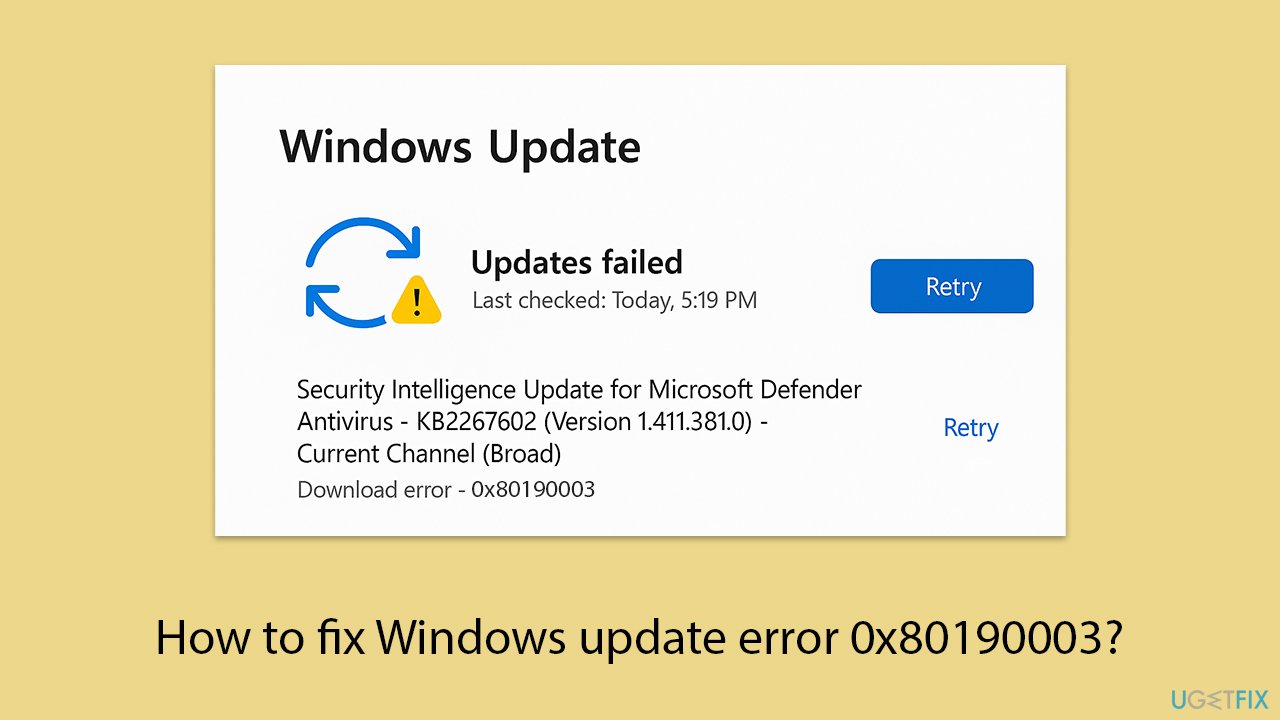
I’ve been trying to install the latest Windows 11 update on my PC, but I keep getting a 0x80190003 update failed error that halts the process. I’ve checked my internet connection and restarted my system, yet the issue persists. What's the problem here?
The Windows update issue 0x80190003 is a frustrating issue that prevents users from downloading or installing the latest Windows updates, typically encountered during feature updates for Windows 10 or Windows 11. The error typically indicates that the update procedure has failed, and systems are left behind, potentially exposed to security risks, as experienced in recent cases by users upgrading their systems.
The problem can be created by corrupted update files, an incorrect date and time setting calculation, intervention from third-party antivirus software, or network malfunction with Microsoft servers, all of which result in the 0x80190003 update failed error.
A corrupted system file can be repaired by running internal tools like SFC or DISM, and date and time discrepancies could be manually resolved, and antivirus interference may be avoided by temporarily switching off the software. Windows Update cache flushing or update component resets may also resolve file corruption problems, and ensuring that a stable internet connection has been established can resolve server issues.
The instructions below provide eight solutions to repair the Windows update error 0x80190003. If you prefer a faster fix, we recommend that you try [d1], a PC repair program that can automatically repair file corruption, system setup, and other problems causing the 0x80190003 error.
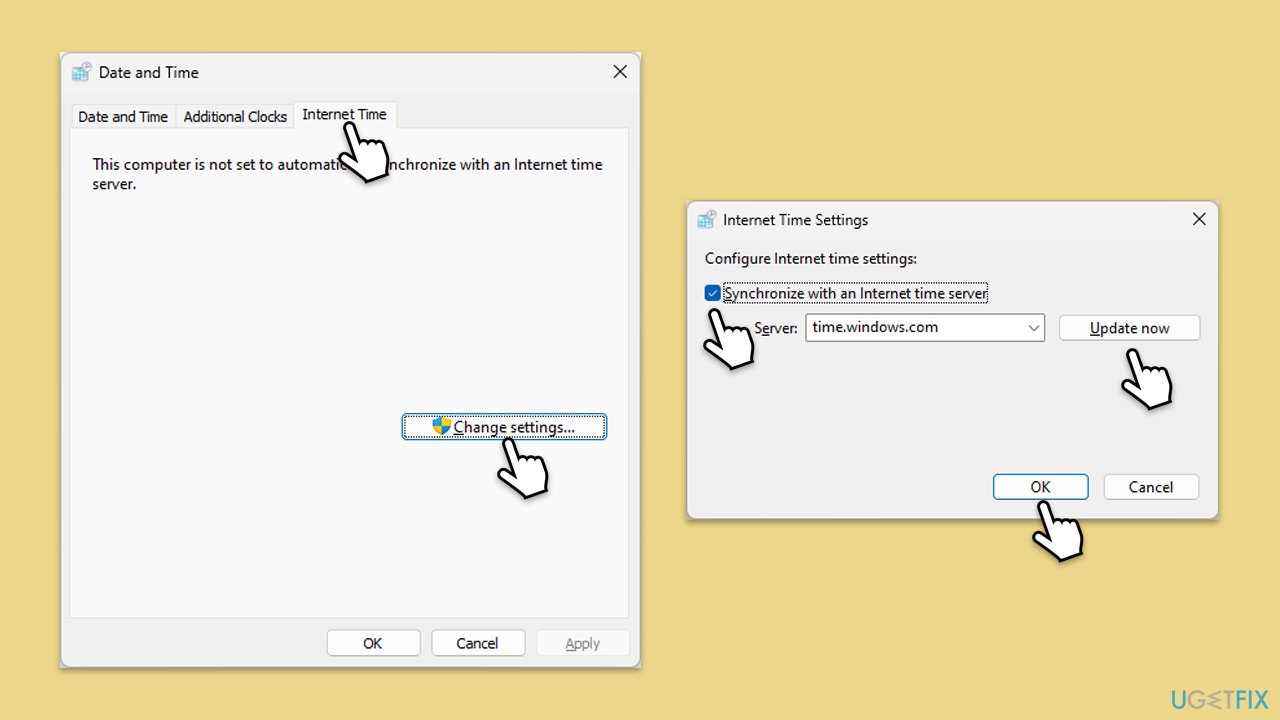
Fix 1. Adjust date and time settings
Incorrect date and time can cause the 0x80190003 error.
- Type in Control Panel in Windows search and press Enter.
- Go to Clock and Region and click on Date and Time.
- Pick the Internet Time tab and select Change Settings.
- Make sure that the Synchronize with an Internet time server box is ticked.
- Click Update now and OK.
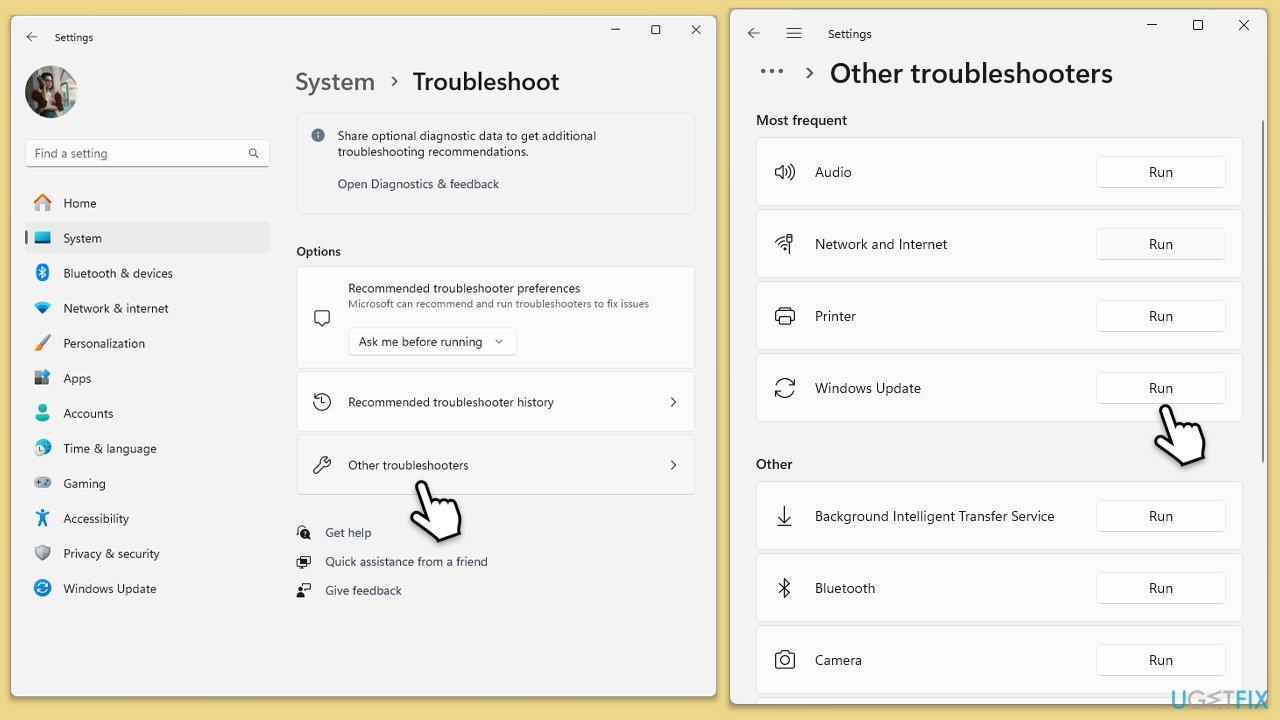
Fix 2. Run Windows Update troubleshooter
The built-in troubleshooter can detect and fix update issues.
- Type Troubleshoot in Windows search and hit Enter.
- Select Additional troubleshooters/Other troubleshooters.
- Find Windows Update from the list and click Run the troubleshooter/Run.
- The troubleshooter will automatically scan your system for potential problems and display any issues it finds.
- If the troubleshooter finds any issues, it will provide recommended solutions.
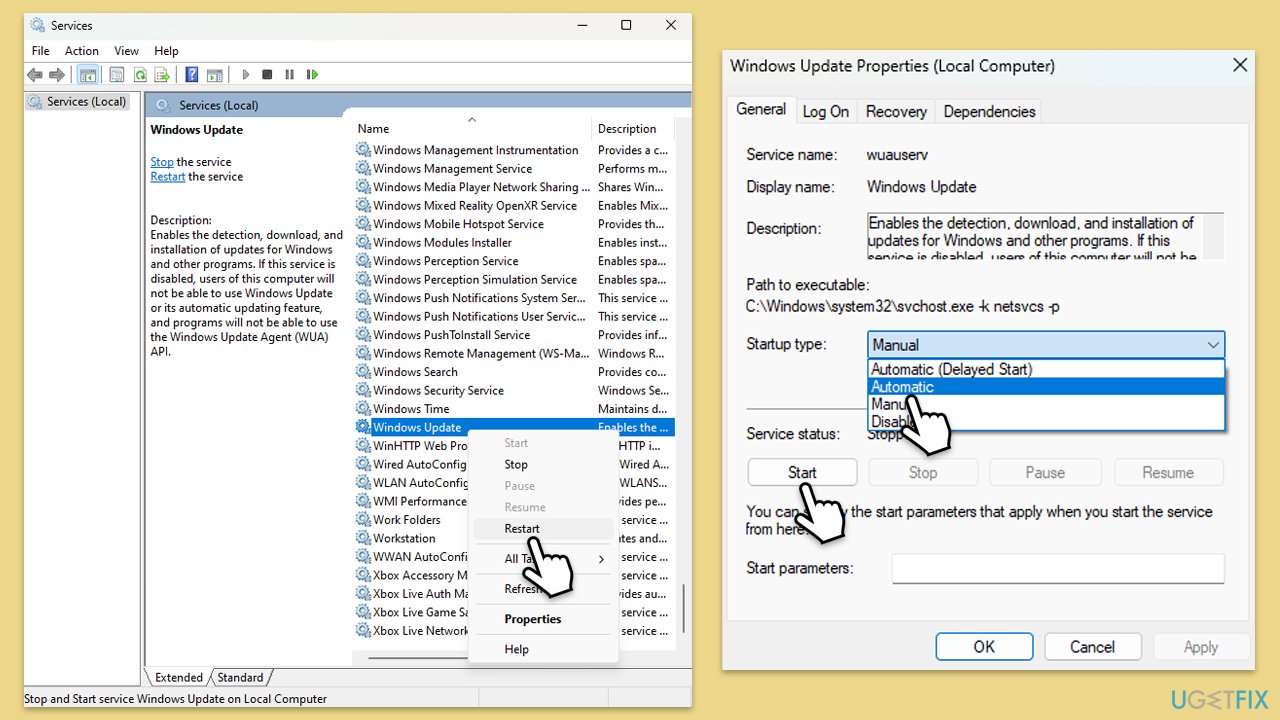
Fix 3. Check services status
Ensure the servers that are mandatory for the update are running.
- Type in Services in Windows search and press Enter.
- Find Background Intelligent Transfer Service (BITS).
- If it is already running, right-click and pick Restart.
- If the service is not running, double-click it, and select Automatic under the Startup type from the drop-down menu.
- Click Start, Apply, and OK.
- Repeat this process for Windows Update and Cryptographic services.
Fix 4. Disable third-party antivirus
Disable security software to ensure that the update process proceeds successfully. To do so, find the icon of your security application in the system tray, right-click on it, and select Disable/Pause. Then, try installing the update again. Don't forget to re-enable the security app after this.
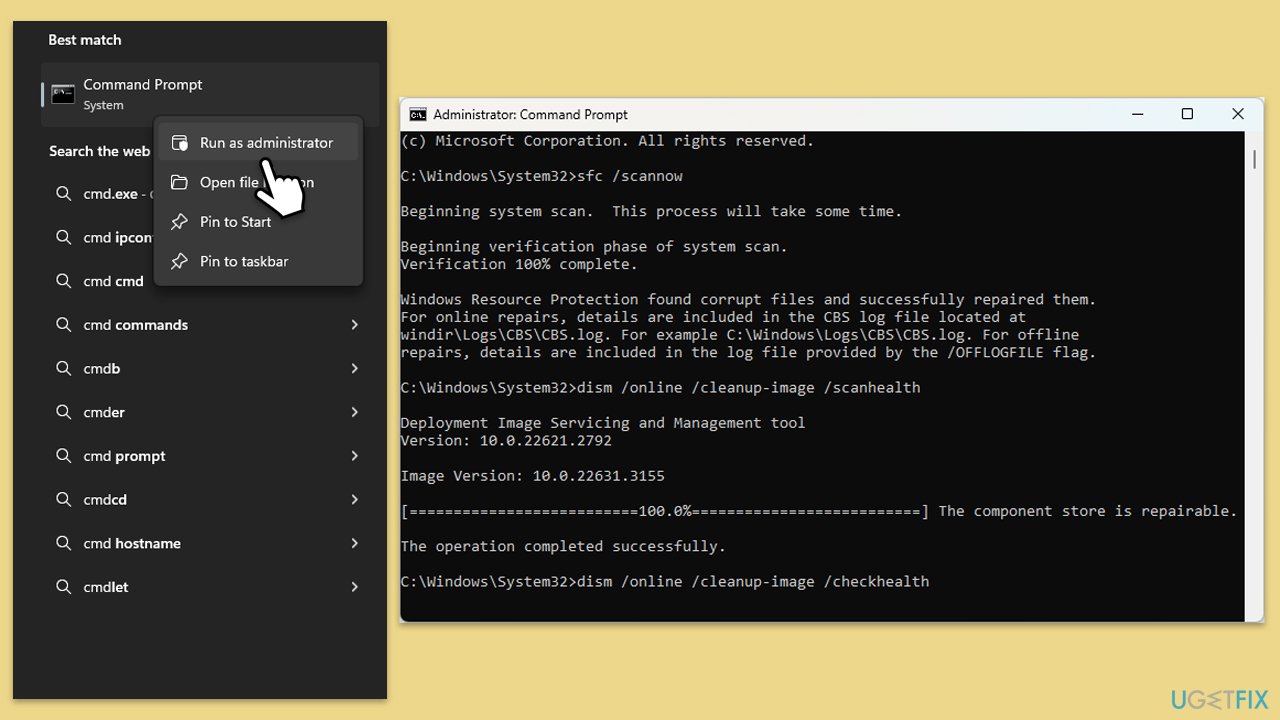
Fix 5. Run SFC and DISM scans
Corrupted system files can cause the error, so run commands in elevated Command Prompt to address this.
- Type cmd in Windows search.
- Right-click on Command Prompt and select Run as administrator.
- When User Account Control shows up, click Yes.
- In the Command Prompt window, paste the following command and press Enter:
sfc /scannow - Wait for the scan to complete.
- Once the SFC scan is finished, run the following set of DISM commands, pressing Enter after each one:
DISM /Online /Cleanup-Image /CheckHealth
DISM /Online /Cleanup-Image /ScanHealth
DISM /Online /Cleanup-Image /RestoreHealth
(Note: if you get an error executing this last command, add /Source:C:\RepairSource\Windows /LimitAccess to it and try again). - After completing the DISM commands, restart your system.
Fix 6. Reset Windows Update components
Resetting update components can resolve persistent issues.
- Open Command Prompt as administrator.
- When User Account Control (UAC) window shows up, click Yes.
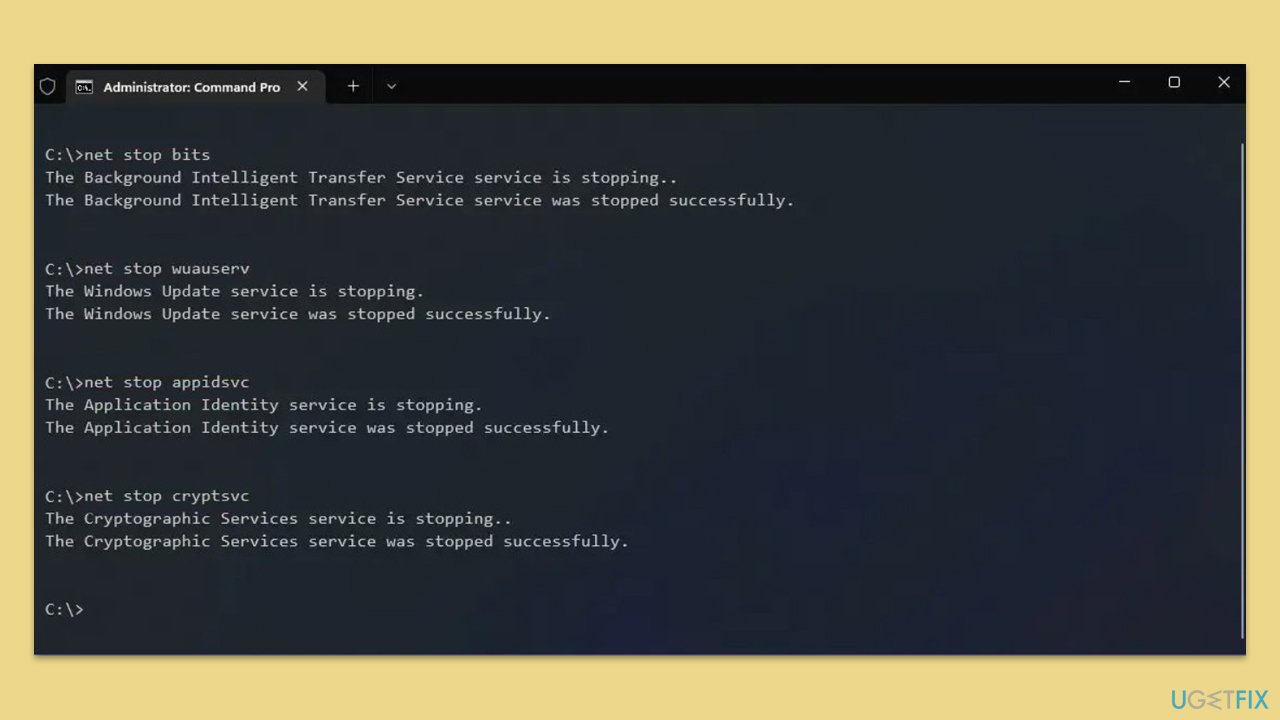
- Paste in each of these commands, pressing Enter every time:
net stop bits
net stop wuauserv
net stop appidsvc
net stop cryptsvc
Del “%ALLUSERSPROFILE%\Application Data\Microsoft\Network\Downloader\*.*”
rmdir %systemroot%\SoftwareDistribution /S /Q
rmdir %systemroot%\system32\catroot2 /S /Q
regsvr32.exe /s atl.dll
regsvr32.exe /s urlmon.dll
regsvr32.exe /s mshtml.dll
netsh winsock reset
netsh winsock reset proxy
net start bits
net start wuauserv
net start appidsvc
net start cryptsvc - Restart your computer.
Fix 7. Manually install the update
You can try installing the update manually if automatic methods fail.
- Type Updates in Windows search and hit Enter.
- Click View update history.
- Here, note down the KB number that failed to install with the error code 0x80190003.
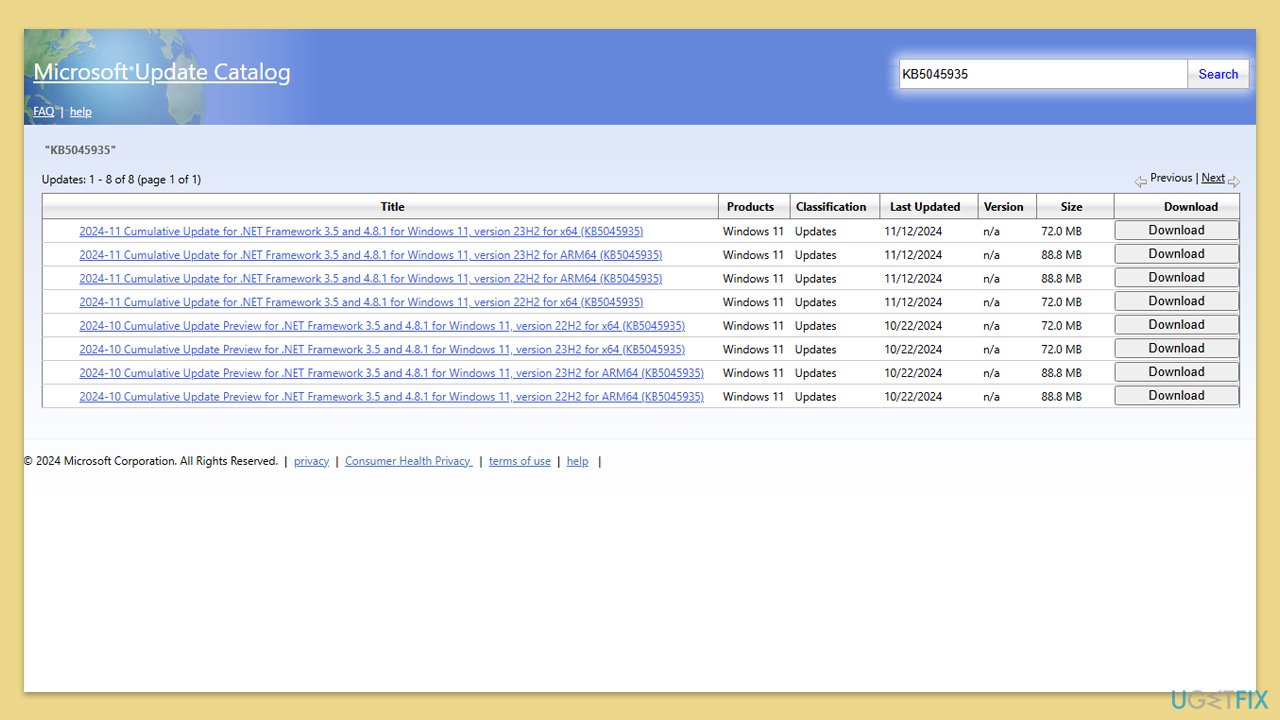
- Go to the official Microsoft Update Catalog website.
- Type the KB number into the search bar, and press Enter or click Search.
- You will find many different versions on the update – you need to find the one that matches your PC specs and Windows version (as a home user, ignore Windows server versions).
- Right-click on Start and pick System.
- Under Device specifications, check the System type section: it should either be 64-bit or 32-bit.
- Scroll down to Windows specifications and check the Version section.
- With all this information, pick the correct version for your device.
- Go back to the Microsoft Update catalog, download the appropriate version, and install it.
Bottom line
To fix the Windows update error 0x80190003, you can adjust your date and time settings, run the Windows Update troubleshooter, and flush the Windows Update cache. If these solutions do not resolve the issue, consider using a PC repair program to automatically repair file corruption and other related problems.
Frequently asked questions
The error 0x80190003 indicates a problem with the Windows Update process, often caused by corrupted files or network issues in Windows 10 or Windows 11.
To fix the 0x80190003 error on Windows 10, try running the Windows Update Troubleshooter and resetting the Windows Update components using Command Prompt.
Yes, you can fix the 0x80190003 error on Windows 11 by clearing the SoftwareDistribution folder and ensuring your internet connection is stable.




Report an issue
What's wrong with this guide? We review every report and update or remove content.
Report received — thank you. We'll review and fix it.
You need a free account to submit a report.
Be the first to comment