How to fix
Xbox app error 0x80004005
on Windows
Resolve Xbox app error 0x80004005 on Windows 10 and 11 effortlessly. Get expert-tested solutions to play games without interruptions! Fixed in minutes.


What causes How to fix Xbox app error 0x80004005 in Windows?
- Corrupted app cache
- Connectivity issues with Microsoft servers
- Corruption of game or system files
- Outdated versions of the app or Windows
- Interference from third-party antivirus programs
Repairs Windows system files, removes malware, and restores a clean OS state — without reinstalling.
I have Game Pass Ultimate subscription but every time I try to log in to Xbox app, it always says We couldn't sign you in to Xbox Live," and an error code of 0x80004005. It sometimes also shows a message saying I'm not connected to the internet, which is weird because my internet works fine everywhere else - I checked it.
Xbox app error 0x80004005 is a persistent issue that frustrates Windows users who attempt to play games or manage their Xbox collection, most commonly found on Windows systems. The error typically manifests as a "Something went wrong" notification that halts game launches or updates and leaves gamers frustrated because they are unable to play their games. It disrupts the seamless compatibility between Windows and the Xbox platform, thus it is a massive hindrance for those who rely on the application for gaming.
There are many causes for the 0x80004005 Xbox app error, each with a unique solution to rebuild functionality. A corrupted app cache could be preventing the Xbox app from functioning, but a reset of the cache will remove faulty information and allow for a restart.
Connectivity issues with Microsoft servers can prevent authentication or downloading, normally corrected by verifying an available internet connection or network update. Corruption of game or system files can also be responsible and correcting them using built-in tools or revalidating files can address the cause.
Further, old versions of the app or Windows may not have needed patches, thus updates to match the current server requirements may be required, while that of third-party antivirus programs can be avoided by deactivating them for a while to avoid blocking legitimate app processes.
The following instructions give a number of solutions to fix the 0x80004005 error, tailored to solve these diverse problems effectively. For getting it done quickly, we recommend using [d1], a PC repair tool capable of automatically fixing app cache, file corruption, and connectivity issues that could be the root cause of different Windows problems.

Fix 1. Install the latest Windows updates
Let's start with the basics: making sure that your system is updated to the latest versions and all possible bugs are ironed out in case that's the reason for these issues.
- Type Updates in Windows search and hit Enter.
- In the new window, click Check for updates/Install all and wait till everything is installed.
- Make sure you also install any available optional updates.
- When done, restart your device to implement the changes.

Fix 2. Clear Microsoft Store cache
If cache files of the Microsoft Store are bugged in some ways, clearing them might resolve the 0x80004005 error.
- Type wsreset.exe in the Windows search box and press Enter.
- Wait till a black window shows up – do not close it.
- Once it's gone, Microsoft Store should restart.
- Try using the Store again.

Fix 3. Ensure a stable internet connection
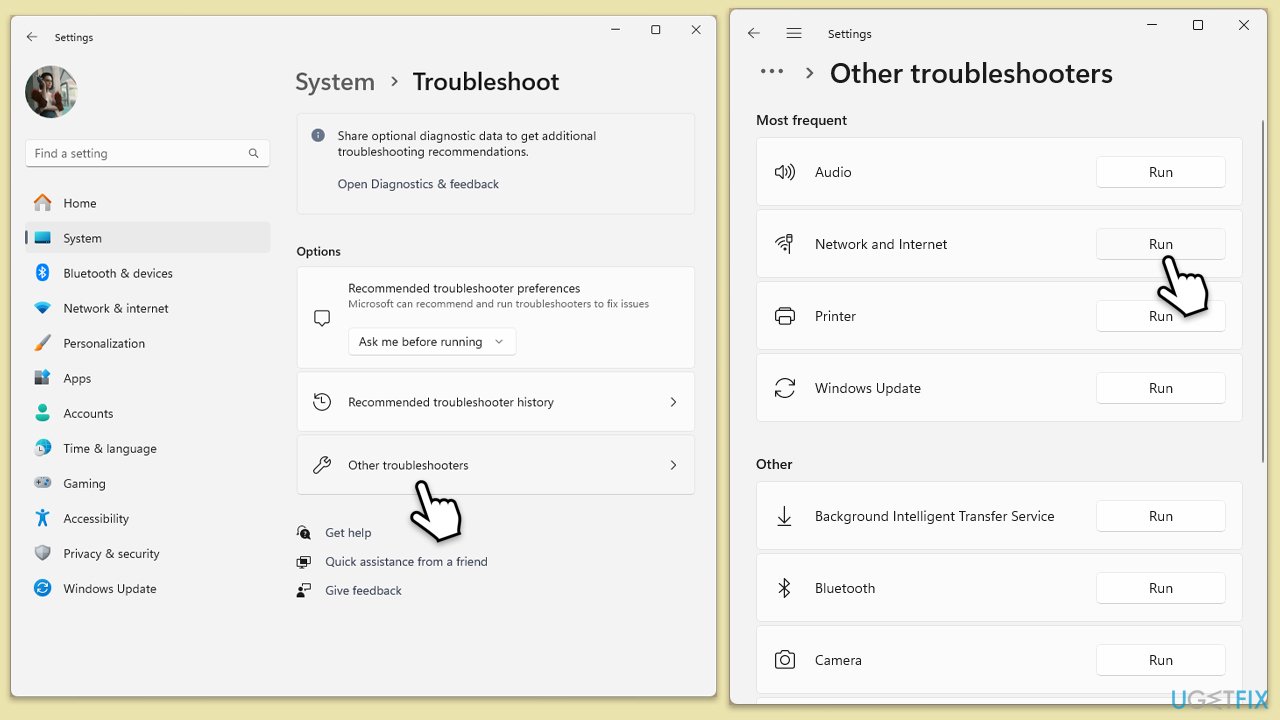
Even if your internet seems to be working fine, the root cause could be its stability. Running the Network troubleshooter could address these problems.
Windows 11
- Type Troubleshoot in Windows search and hit Enter.
- Select Other troubleshooters.
- Find Network & Internet from the list and select Run.
- Wait till the scan is finished.
Windows 10
- Right-click on Start and pick Settings.
- Go to the Network & Internet section.
- On the right side, find the Advanced network settings section.
- Click Network troubleshooter and wait.
- The fixes will be automatically applied.
Fix 4. Repair or reset the Xbox app and other components
This method does a deep reset of the app, potentially solving problems with it.
- Right-click on Start and pick Apps & Features.
- Scroll down to locate the Xbox app and click Advanced options.
- Click Terminate and Repair.
- If that does not help, try the Reset option instead.
- Repeat the same with Gaming Services and Microsoft Store.

Fix 5. Check the services
For the Xbox app to function correctly and for games to be able to connect to Microsoft's servers, some Windows services are mandatory. You can either restart them if they are already running or make sure that they are set to automatic start.
- Type Services in Windows search and hit Enter.
- Scroll down to find Gaming Services.
- Right-click on it and select Restart.
- If it is grayed out, double-click the service to open its Properties.
- Under Startup type, select Automatic from the drop-down menu.
- Click Start, Apply, and OK.
- Repeat this process with the following services:
Windows Update
Microsoft Store Install Service
Xbox Live Auth Manager
Xbox Live Game Save
Xbox Live Networking Service
Gaming Services.

Fix 6. Reinstall the Xbox app
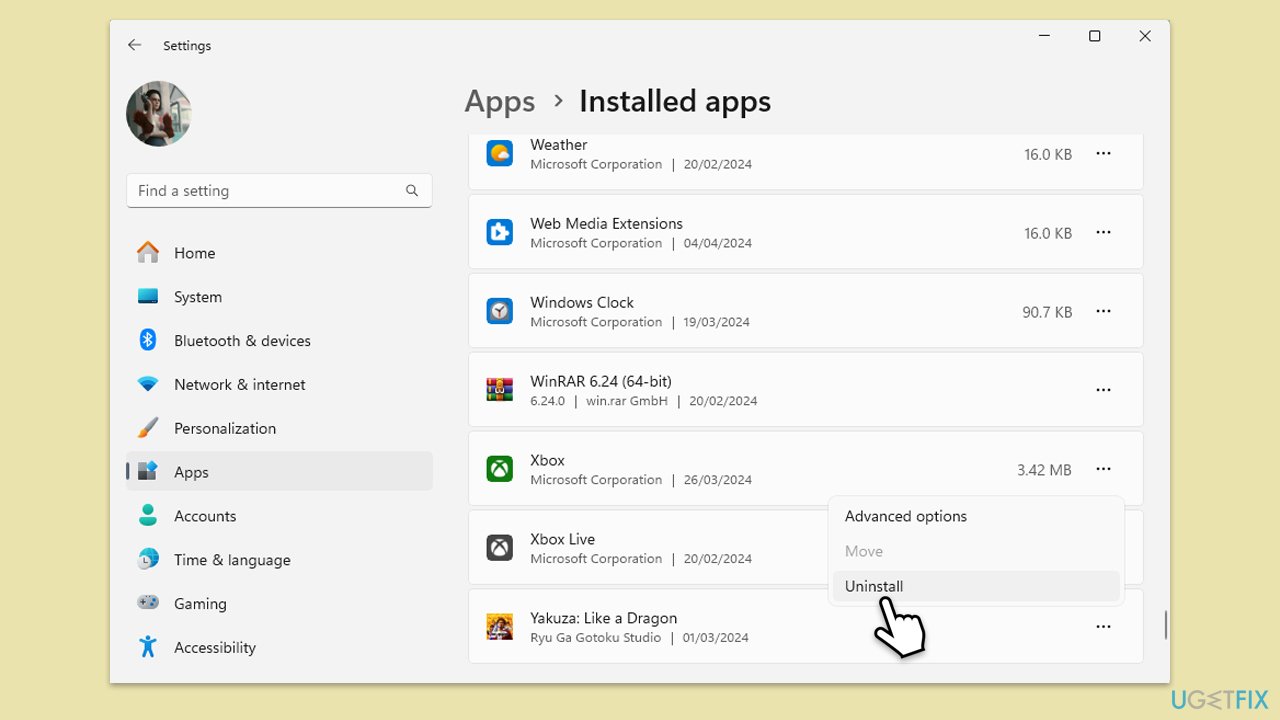
Uninstall Xbox app using Settings:
- Right-click on Start and pick Apps & Features/Installed apps.
- Scroll down to the Xbox app, select it (or click three vertical dots), and click Uninstall.
- Confirm any prompts and follow on-screen instructions.
- Restart your PC.
- Reinstall the app from the Microsoft Store.
Uninstall Xbox app using PowerShell:
- Ensure the Microsoft Store and Xbox App are closed.
- Type PowerShell in Windows search.
- Right-click on the result and select Run as administrator.
- When User Account Control shows up, click Yes.
- Copy and paste the following command, pressing Enter after each:
Get-AppxPackage *Xbox* | Remove-AppxPackage
Get-AppxPackage *xboxapp* | Remove-AppxPackage - Close down PowerShell and proceed with the next steps.
Fix 7. Reinstall Gaming Services using PowerShell
Reinstalling Gaming Services in PowerShell may help update app dependencies if the issue continues.
- Ensure the Microsoft Store and Xbox App are closed.
- Type PowerShell in Windows search.
- Right-click on the result and select Run as administrator.
- When User Account Control shows up, click Yes.
- In the new window, copy and paste the following commands and hit Enter:
get-appxpackage Microsoft.GamingServices | remove-Appxpackage –allusers
Remove-Item -Path "HKLM:\System\CurrentControlSet\Services\GamingServices" -recurse
Remove-Item -Path "HKLM:\System\CurrentControlSet\Services\GamingServicesNet" -recurse - Close down PowerShell and restart your system.
- Next, install Gaming Services from the Microsoft Store.

Bottom line
To fix the Xbox app error 0x80004005, you can try installing the latest Windows updates, resetting the app cache, or checking your internet connection. If these solutions do not resolve the issue, consider using a PC repair tool or checking for file corruption.
Frequently asked questions
This error typically occurs due to corrupted files, network issues, or problems with the Xbox app installation itself.
You can reset the Xbox app by going to Settings > Apps > Apps & features, selecting the Xbox app, and clicking on 'Advanced options' to find the 'Reset' button.
Yes, uninstalling and then reinstalling the Xbox app can help fix the error by ensuring you have the latest version and that all files are intact.




Report an issue
What's wrong with this guide? We review every report and update or remove content.
Report received — thank you. We'll review and fix it.
You need a free account to submit a report.
Be the first to comment