How to fix
Clair Obscur: Expedition 33 save files dissapeared
on Windows
Restore your missing Clair Obscur: Expedition 33 save files effortlessly on Windows 10 or 11. Expert-tested solutions to fix your gaming woes in minutes.

What causes How to fix Clair Obscur: Expedition 33 save files dissapeared?
- Cloud syncing might not be functioning properly
- Sync process fails if the app was closed improperly
- PC was shut down too quickly after exiting the game
- Network connection dropped while saving
- Glitch related to how the Xbox app handles local cache and sync folders
Repairs Windows system files, removes malware, and restores a clean OS state — without reinstalling.
So I have been having my grand time with Expedition 33 recently, as it's an amazing game. Something bad happened today, and I'm scared I might lose all my progress, sadly, so I'm writing you with the hopes you could help. I tried to play the game today again, and I saw that all my Expedition 33 save files disappeared, even though my 42 achievements and game progression remain active. I am around 50 hours in and I don't wanna lose my progress!
Clair Obscur: Expedition 33 is a turn-based RPG developed by Sandfall Interactive, combining richly stylized visuals with strategic gameplay and a mysterious, emotional story. Released in 2025, the game quickly gained attention for its unique art direction and combat system that blends traditional RPG mechanics with timing-based action elements. Players step into the surreal world of Clair Obscur, where every decision in battle and exploration shapes the journey of a group of characters fighting against fate itself.
Unfortunately, not everyone’s experience has been smooth. Some players have reported a serious issue where Clair Obscur: Expedition 33 save files have disappeared. This problem seems to affect those playing through the Xbox app on Windows, and possibly on Xbox consoles as well. For many, the issue starts when launching the game after closing it or after a system restart, only to find their progress completely gone. The game either loads as if it were being played for the first time or reverts to an earlier point with major progress lost.
In several community threads, users mentioned that even cloud saves were affected, which adds to the frustration. For those playing on Game Pass via the Xbox app, it appears that cloud syncing might not be functioning properly. Some suggest the sync process fails if the app was closed improperly, if the PC was shut down too quickly after exiting the game, or if the network connection dropped while saving. Others speculate it could be a glitch related to how the Xbox app handles local cache and sync folders.
While there’s no official fix yet, some players have successfully recovered their lost save files using manual file replacements. This includes restoring cloud saves from the Game Pass sync folder or recovering backups from the local save directory. These methods can be a bit technical, but have helped many players fully restore their progress.
Until a patch is released to prevent this issue, it’s recommended to exit the game cleanly and avoid shutting down the system or the Xbox app immediately after playing. If your save disappears, follow the recovery instructions provided below to try and restore it manually.
Fix 1. Recover the local save using the backup folder
If you’re using the regular PC version (non-Game Pass), you can restore your save from the backup folder in the local save directory.
- Start a new game, skip the opening cutscene, and open the menu.
- Return to the title screen but do not click Continue.
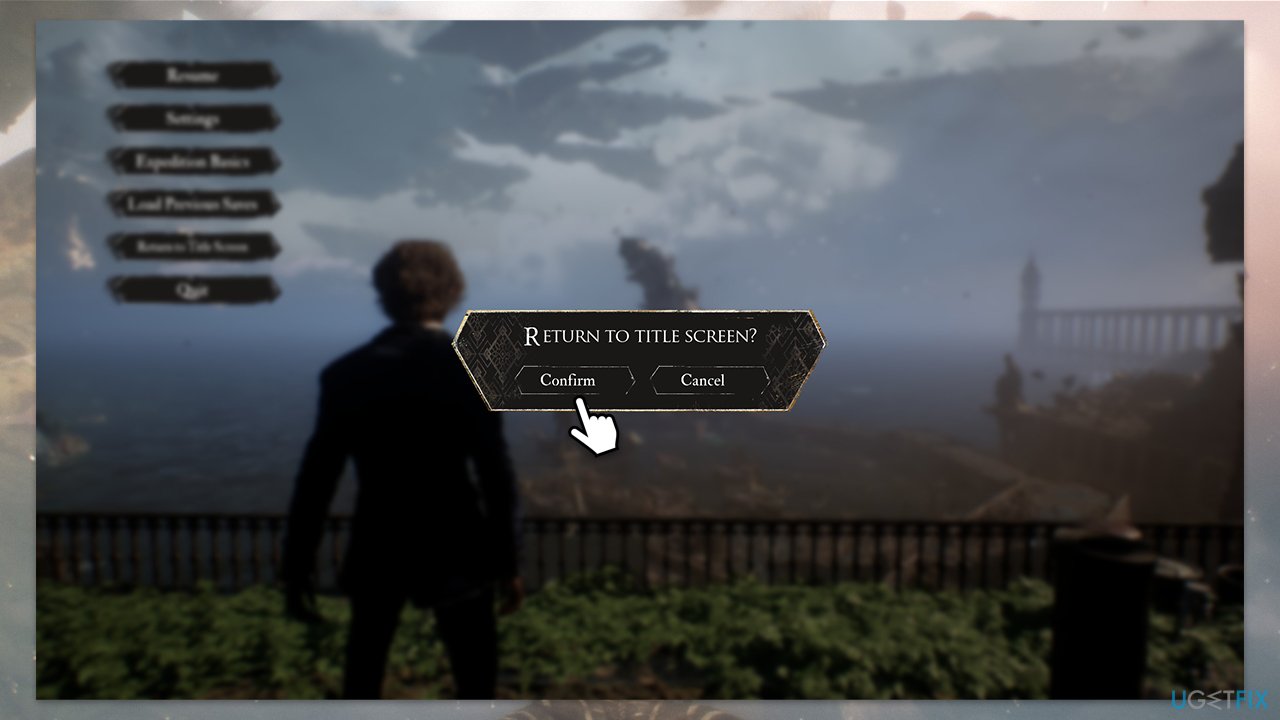
- Press ALT+TAB to switch to the desktop and leave the game open in the background.
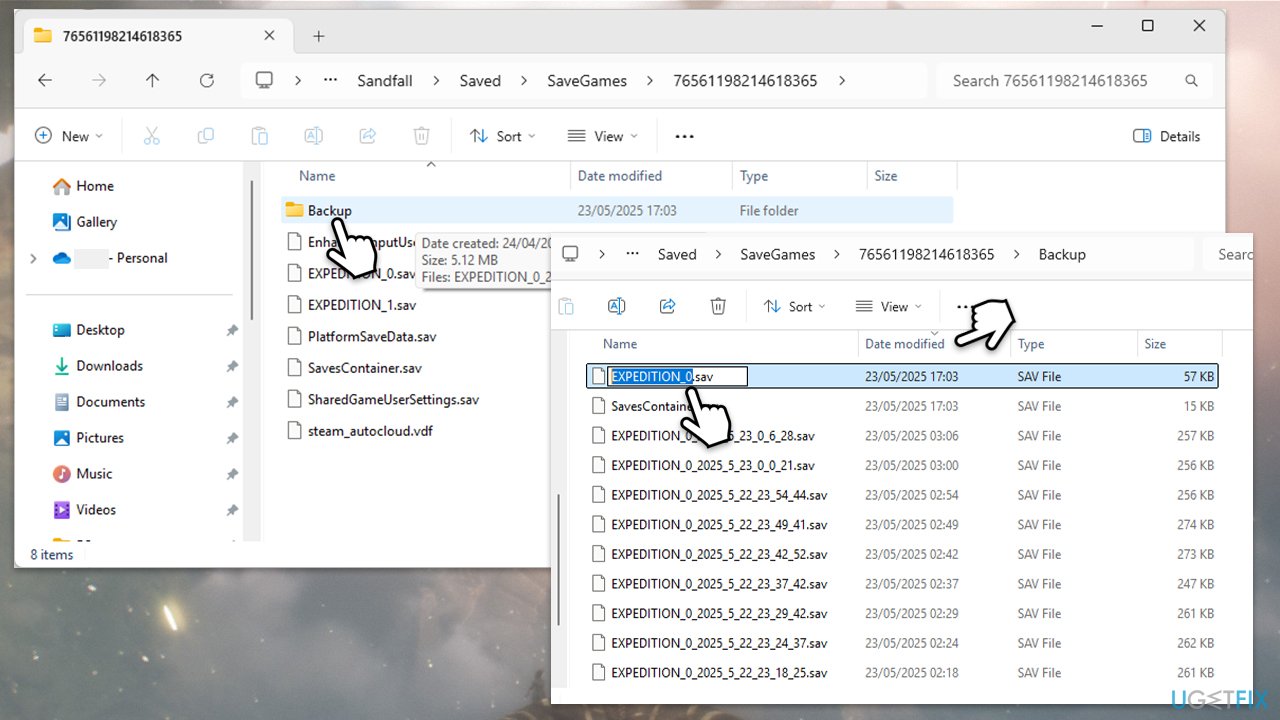
- Open File Explorer and go to:
C:\Users\YourUsername\AppData\Local\Sandfall\Saved\SaveGames\YourGameFolder - Open the backup folder.
- Rename the latest save file to EXPEDITION_0.sav.
- Copy both EXPEDITION_0.sav and SavesContainer.sav from the backup folder.
- Paste and overwrite these two files in the main save folder (one level up from backup).
- Return to the game and select Continue.
- It may look like the new save, but once it loads, you should see your original progress restored.
Fix 2. Recover the cloud save using the Game Pass folder
If you’re using the Game Pass version, your old save may still exist in the local cloud sync folder and can be restored manually.
- Launch the game from the Xbox app.
- Start a new game and begin the Prologue.
- Exit the game as soon as the Prologue starts.
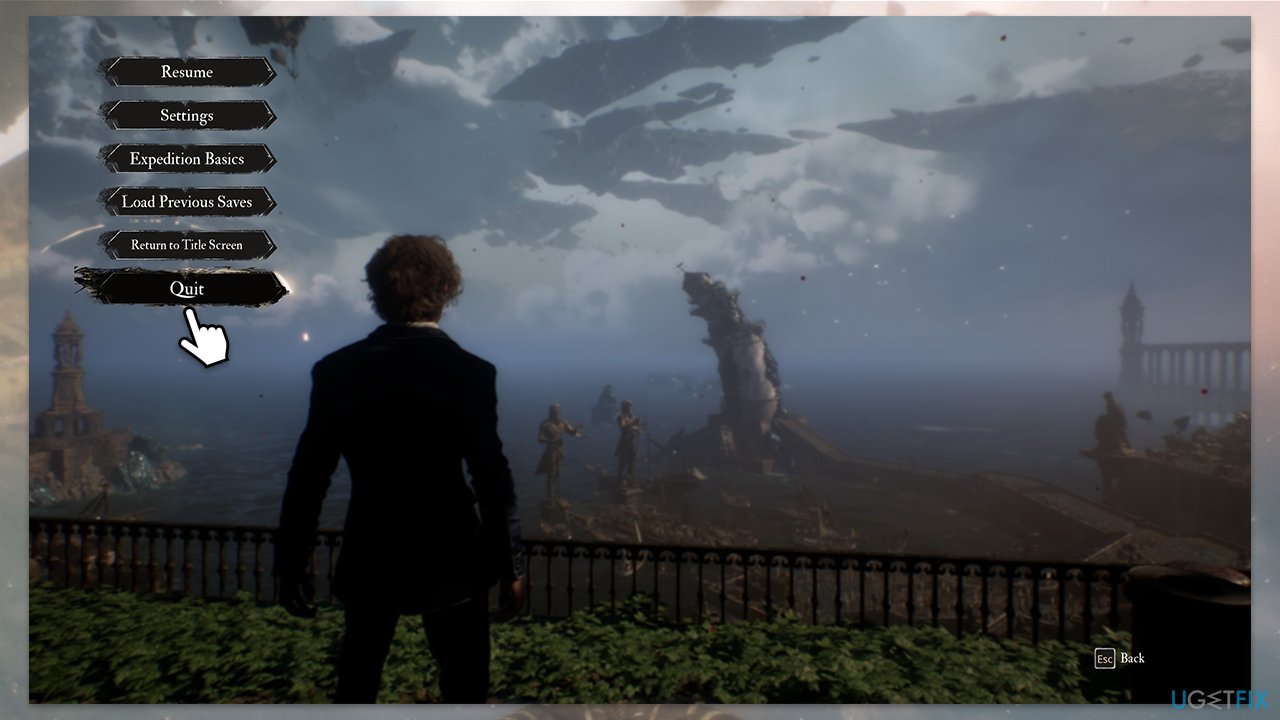
- Open File Explorer and go to:
C:\Users\YourUsername\AppData\Local\Packages\KepplerInteractive.Expedition33...\SystemAppData\wgs - Look for the newest modified folder that contains a file named container.1 (this may differ; can be container.2 for example).
- Then, browse older folders in the same directory until you find another folder that also includes a container.1 file - this is likely your lost save.
- Copy both files from the older save folder and paste them into the newer save folder you found earlier.
- When prompted, replace the container.1 file.
- Open the game again and choose Continue.
- It will show the new Prologue save, but this is expected.
- Press X or choose the option to browse previous saves.
- Your old save should now appear in the list. Select it to resume your progress.
Bottom line
While there is no official fix yet, some players have successfully recovered their save files by ensuring proper app closure and maintaining a stable network connection. If these suggestions do not work, consider checking community forums for additional troubleshooting steps.
Frequently asked questions
Save files can disappear due to corrupted game data or improper shutdowns. Ensure your game is updated and check the save file location for any missing files.
You can try recovering lost save files by checking your Windows 11 Recycle Bin or using file recovery software. Additionally, verify if the game has a cloud save feature that might restore your progress.
Make sure your Windows 10 or Windows 11 system is running the latest updates and verify the integrity of the game files through the game launcher. If issues persist, consider reinstalling the game.




Report an issue
What's wrong with this guide? We review every report and update or remove content.
Report received — thank you. We'll review and fix it.
You need a free account to submit a report.
Be the first to comment