How to fix
Windows activation error 0xC004B100
on Windows
Resolve Windows activation error 0xC004B100 effortlessly. Follow our expert-tested solutions for Windows 10 and 11 to get your system activated in minutes!

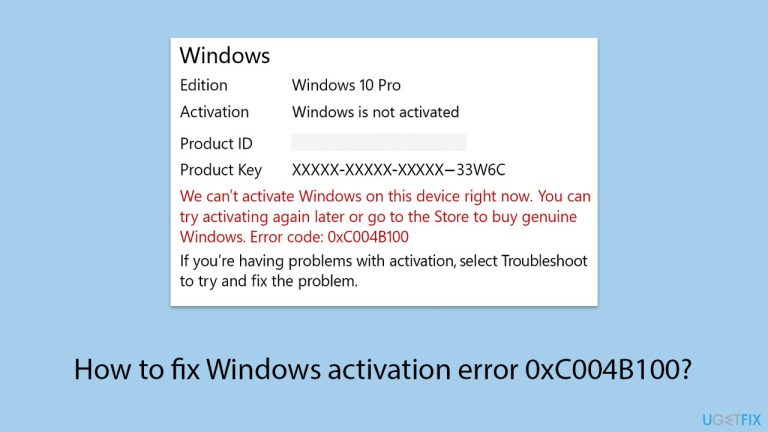
What causes How to fix Windows activation error 0xC004B100?
- Significant hardware changes such as motherboard replacement
- Using a product key for a different version or edition of Windows
- Using a MAK that has used up its activation count
- Reinstalling Windows on a computer with a digital license
- Conflicts with the activation status due to hardware changes
Repairs Windows system files, removes malware, and restores a clean OS state — without reinstalling.
I'm trying to activate Windows but keep getting error code 0xC004B100. It says the activation server determined the computer could not be activated. I recently replaced some hardware - could that be the reason?
Windows activation error code 0xC004B100 is a common issue that arises when the system cannot verify your license key through Microsoft's activation servers. The error here typically means the activation request was rejected because the system's hardware or license details did not match those on the server.
It's most often encountered after significant hardware changes, such as motherboard replacement, processor upgrade, or installation of a new hard drive, which makes the system appear to be a completely different machine as far as Microsoft is concerned.
The majority of users come across this error while reinstalling Windows on a computer after carrying out such upgrades, especially if the activation had been tied to a digital license before. The second most common cause is attempting to activate with a product key that belongs to a different version or edition of Windows.
In an enterprise or volume license environment, using a MAK (Multiple Activation Key) that has used up its activation count is also most likely to result in error 0xC004B100.
Some users have resolved the issue by enabling the Activation Troubleshooter, which can detect whether hardware changes are conflicting with the activation status and attempt to reactivate the system through a linked Microsoft account. Others have had success by attempting phone activation or contacting Microsoft Support directly to manually re-verify the license.
If none of the default solutions work or the cause remains unidentified, utilizing a professional PC repair tool like [d1] is a possible solution. These tools possess the ability to automatically scan for underlying system problems, restore critical services, and repair activation-related configuration problems that may be causing the error.
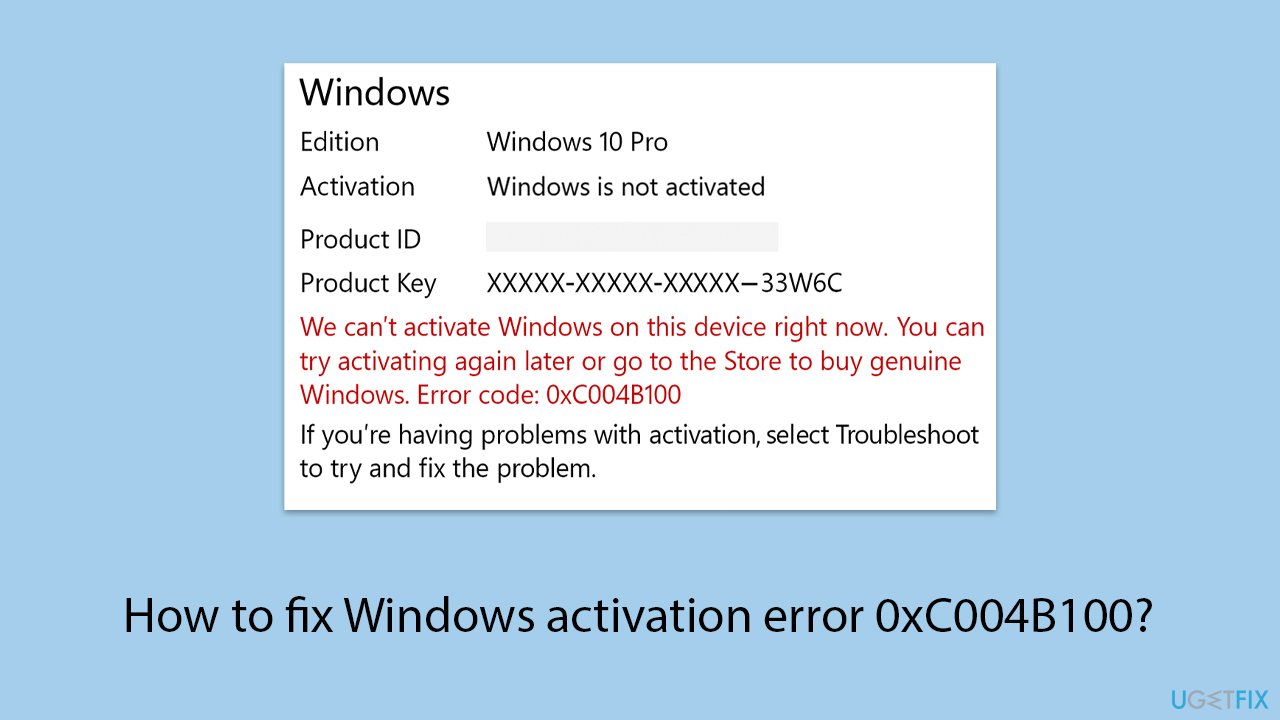
Fix 1. Run the Windows Activation Troubleshooter
The built-in troubleshooter can automatically detect and resolve activation issues, especially after hardware changes or system reinstalls.
- Right-click on Start and pick Settings.
- Select Update & Security > Activation on Windows 10 or System > Activation on Windows 11.
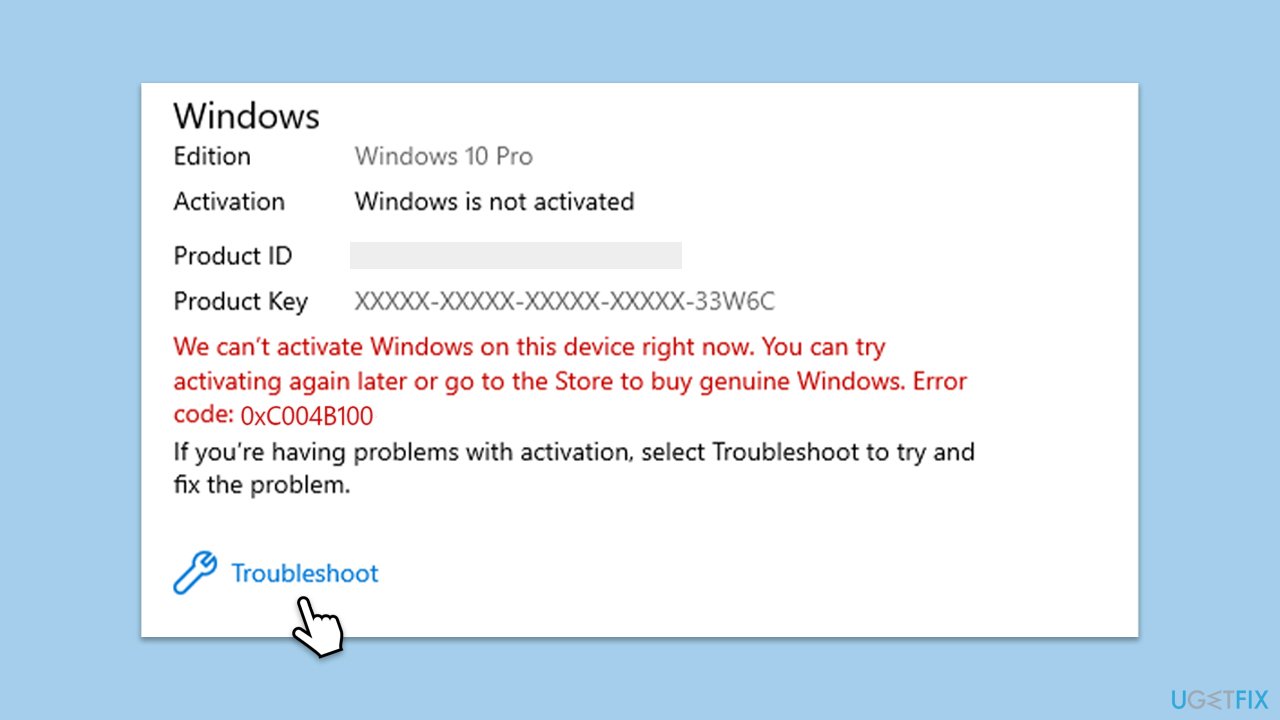
- Here you will see the error (click on the Activation State on Win 11).
- Click on Troubleshoot.
- Follow the on-screen instructions.
- Restart your device as required.
Fix 2. Sign in with your Microsoft account
If your Windows license is linked to your Microsoft account, signing in can help revalidate the activation after hardware changes.
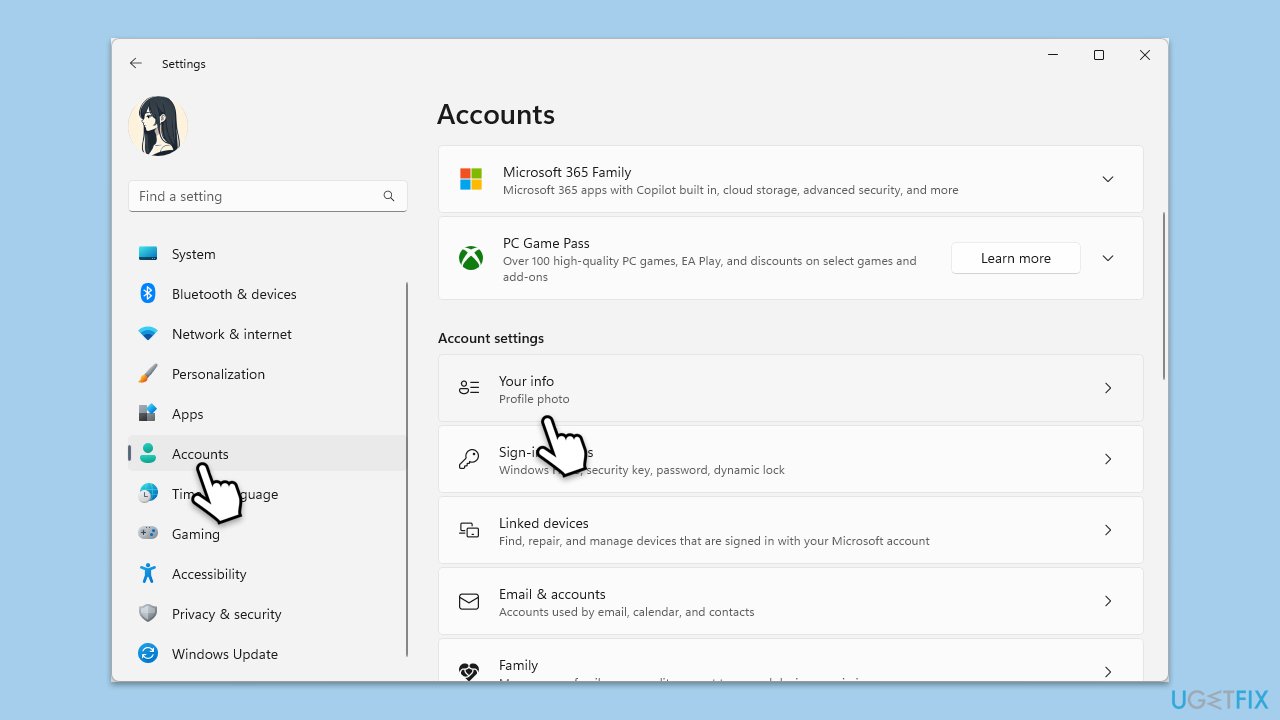
- Right-click on Start and pick Settings, then go to Accounts.
- Select Your info and confirm you’re signed in with a Microsoft account.
- If not, click Sign in with a Microsoft account instead.
- After signing in, go back to Activation and click Troubleshoot.
- Follow the prompts to match your device with your license.
Fix 3. Use phone activation
When online activation fails, the phone method can often bypass the error by verifying the product key manually.
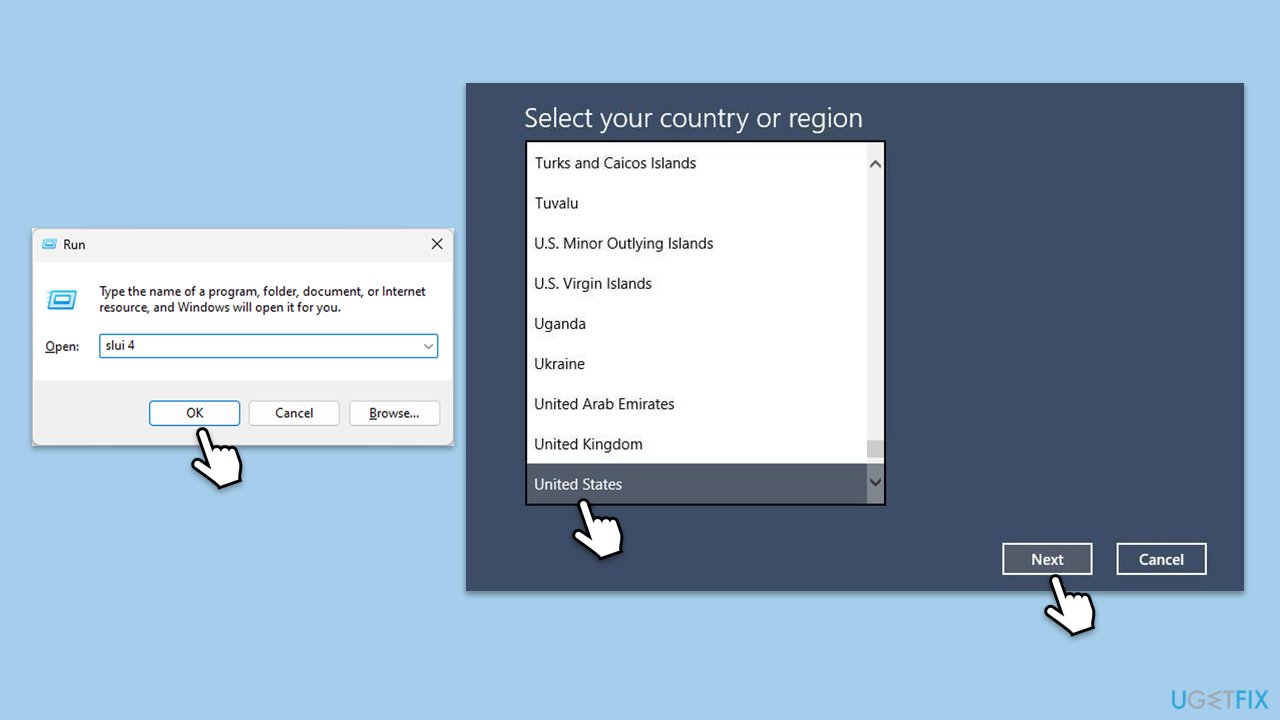
- Press Win + R on your keyboard and type slui 4, then press Enter.
- Select your country and click Next.
- Call the toll-free number provided.
- Follow the automated instructions or speak to a representative. Make sure you have your Windows product key/digital license number ready.
Fix 4. Check if the product key matches your Windows edition
Using a product key meant for a different edition (like Pro instead of Home) will trigger error 0xC004B100.
- Type winver in Windows search and press Enter to check your Windows edition.
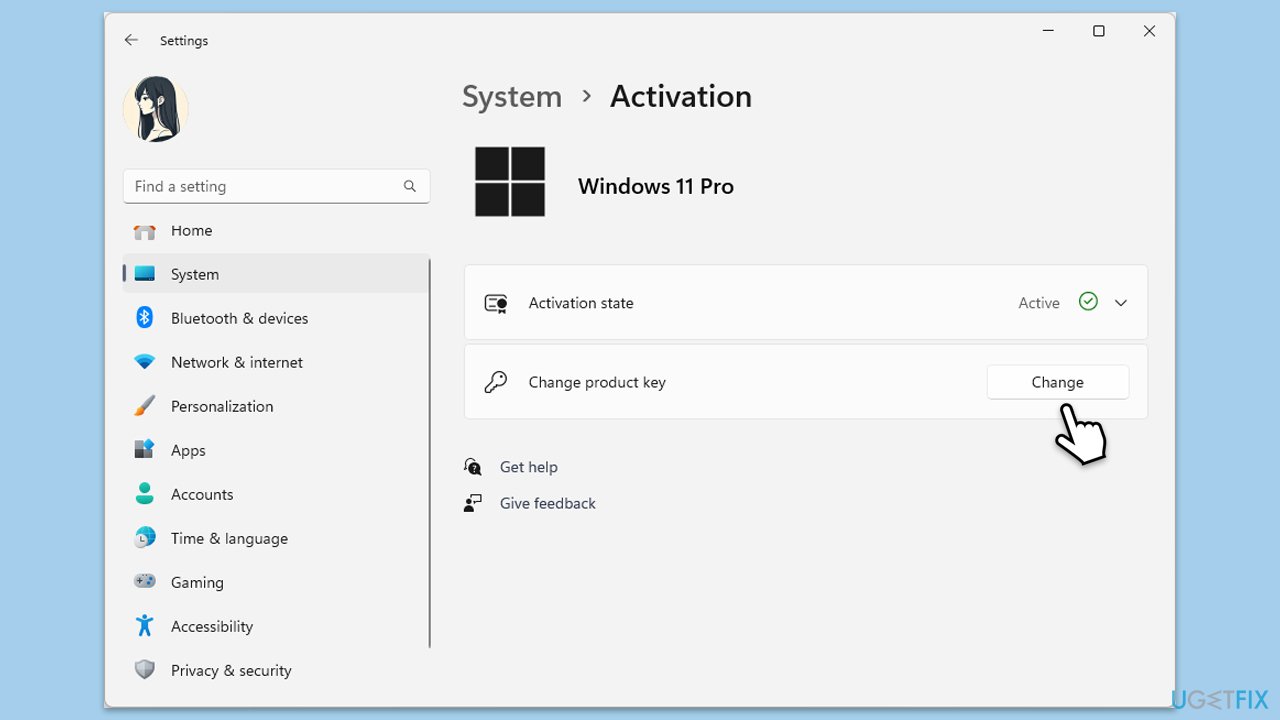
- Go to Settings > Update & Security > Activation.
- Click Change product key/Change.
- Enter a valid key for the correct edition.
- Follow the activation steps and restart your system.
Fix 5. Reactivate after hardware change using linked license
If your digital license is tied to your Microsoft account, you can reassign it after a major hardware upgrade.
- Right-click on Start and pick Settings.
- Select Update & Security > Activation on Windows 10 or System > Activation on Windows 11.
- Here you will see the error (click on the Activation State on Win 11).
- Click on Troubleshoot.
- When prompted, pick the I changed hardware on this device recently option.
- Sign in with your Microsoft account.
- Choose your device from the list and confirm reactivation
Fix 6. Use the Command Prompt to activate Windows
Resetting the activation settings can resolve any related configuration problems.
Digital license:
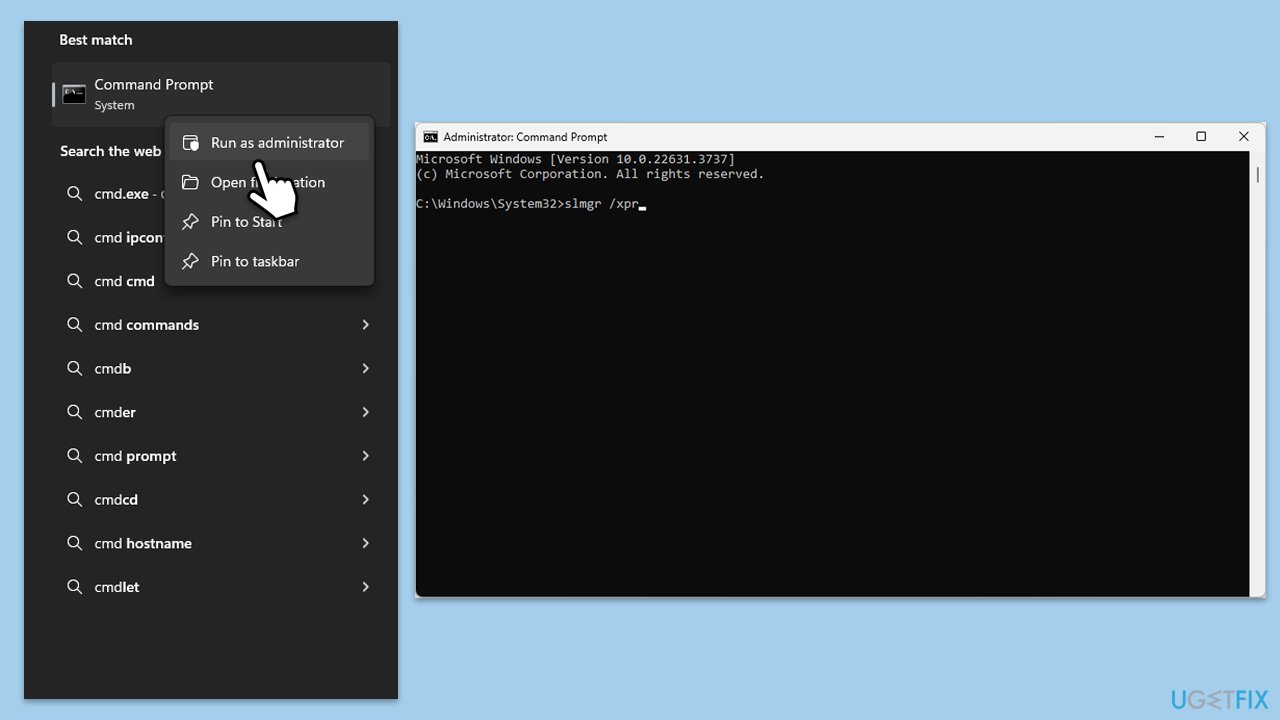
- Type cmd in Windows search.
- Right-click on Command Prompt and pick Run as administrator.
- User Account Control window will show up - click Yes when prompted.
- Once Command Prompt opens, copy and paste the following command:
slmgr /xpr - Press Enter and click OK.
Product key:
- Open Command Prompt as administrator and use the following command:
wmic path softwarelicensingservice get OA3xOriginalProductKey - Paste the slmgr.vbs.ipk <product key> into the window, and press Enter
- Finally, use slmgr.vbs/ato command and hit Enter
- Restart your PC and see if the problem persists.
Bottom line
To fix the Windows activation error 0xC004B100, you can run the Windows Activation Troubleshooter, attempt phone activation, or contact Microsoft Support for manual re-verification. If these solutions do not resolve the issue, consider using a professional PC repair tool to scan for underlying problems.
Frequently asked questions
The error 0xC004B100 typically means that the Windows operating system is not able to find a valid activation key, which can occur in both Windows 10 and Windows 11.
To fix the error on Windows 10, try running the Activation Troubleshooter from the Settings app under Update & Security, and follow the prompts to resolve any issues.
Yes, you can open Command Prompt as an administrator and run the command 'slmgr.vbs /ato' to attempt to re-activate Windows 11.
2 comments

Ah, cheers for sharing this! I’ve been meaning to figure out these error codes, especially when doing a bit of tinkering with hardware. I know this is probably obvious, but can anyone confirm if using the Troubleshooter really works after a motherboard swap? Just want to make sure I’m not missing anything. Sound advice, thanks!
Leave a reply




This activation error 0xC004B100 is indeed common, particularly after hardware modifications. When significant changes like a motherboard replacement occur, the machine's identity from an activation standpoint can shift dramatically, prompting Microsoft’s servers to reject the activation request. It's also worth noting that if your license was previously tied to a digital entitlement, ensuring you're logged into the correct Microsoft account can facilitate a smooth reactivation. The guidance to use the Activation Troubleshooter is prudent, as it may identify misalignment between your current hardware and the license details stored on Microsoft’s side. Persisting issues might warrant direct contact with Microsoft Support for a more tailored resolution. Be cautious with third-party repair tools; while they can be helpful, reliance on them can sometimes obscure the root cause of the problem.