How to fix
CD/DVD-ROM Failure to Recognize a Disk
on Windows
Resolve CD/DVD-ROM recognition issues on Windows 10 or 11 with expert tips and detailed solutions. Get your drive working again, fixed in minutes!


What causes How to Fix CD/DVD-ROM Failure to Recognize a Disk?
- Damaged CD-ROM tray
- Faulty components of the CD/DVD drive
- Registry files causing issues
- Missing or corrupted drivers
- Hardware malfunction in the tray
Repairs Windows system files, removes malware, and restores a clean OS state — without reinstalling.
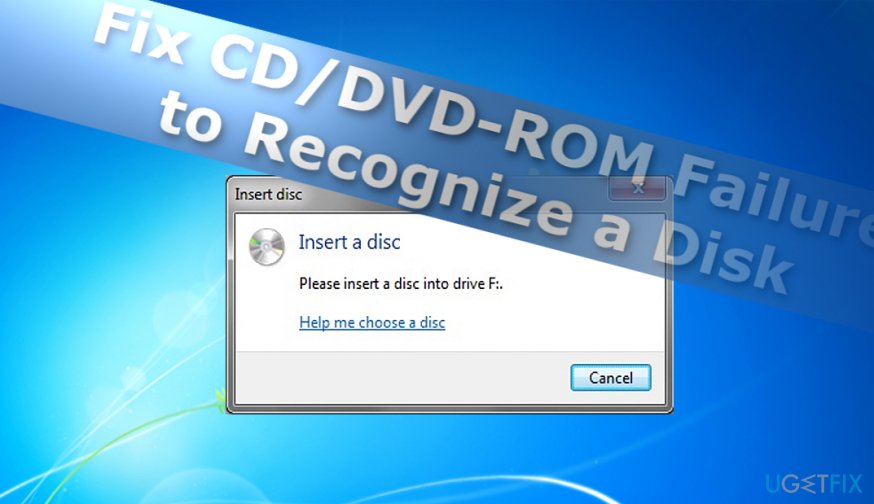
Despite which, CD or DVD, disk I insert into the hard drive, the disc does not appear on a computer. It sometimes shows “Insert a disk” error message. How can I solve this?
Unrecognized CD or DVD disk is a common issue[ref en-1] both, in older versions as well newer Windows versions[ref en-2]. The failure to recognize a disk might be the result of a damaged CD-ROM tray or its components.
You should not exclude the possibility that certain registry files might be at fault for this issue. Below you will find a couple of system-related suggestions to solve unrecognized DVD or CD disk problem. Let us begin with the most basic method – reinstalling hard drives.
Option 1. Uninstall CD and DVD drivers
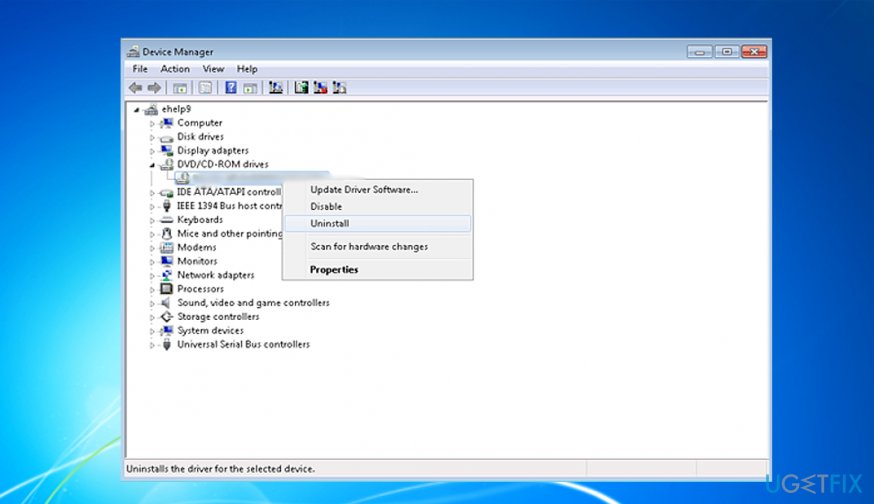
Whether you use Windows 7 or 10 operating system, fix the problem via the Device Manager.
- Open Device Manager. Windows 7 users can launch the application via the Control Panel. Windows 10 users can launch the program by clicking on the Start button and typing Device Manager.
- Expand the entry DVD/CD-ROM drives.
- Right-click on the entry and choose Uninstall.
- Restart the computer.
- Windows 10 OS automatically installs the missing drivers. Windows 7 users will have to do it manually.
- Click on Action and click on Scan for hardware changes.
- It will reinstall the drivers.
Option 2. Use Registry Editor to delete certain files
- Close all open programs.
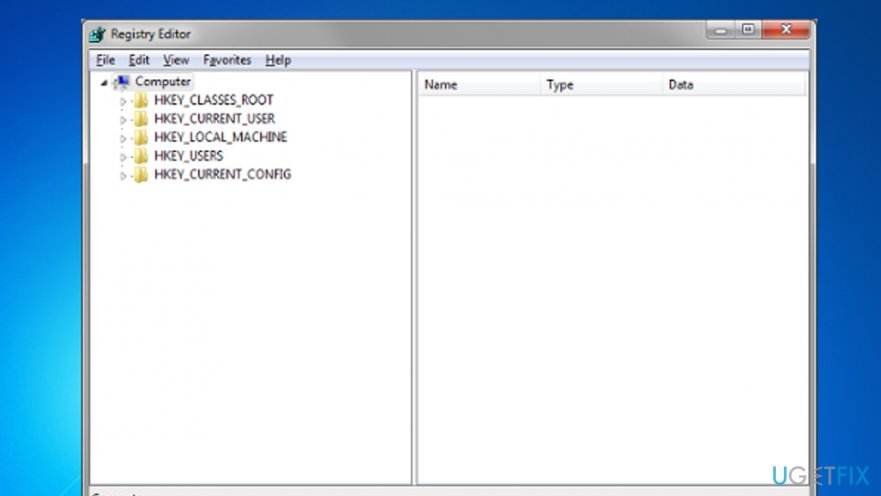
- Click Windows+R and type regedit in the Run prompt box.
- Go to the following location: HKEY_LOCAL_MACHINE
SYSTEM/CurrentControlSet/Control/Class/{4D36E965-E325-11CE-BFC1-08002BE10318}. - This is the folder of the DVD/CD-ROM Drive Class Description. Look for the below-listed files on the right-side column: UpperFilters, LowerFilters, UpperFilters.bak, LowerFilters.bak.
- If you find any, eliminate them.
- Close the registry and reboot the system.
Option 3. Fix DVD/CD-ROM tray
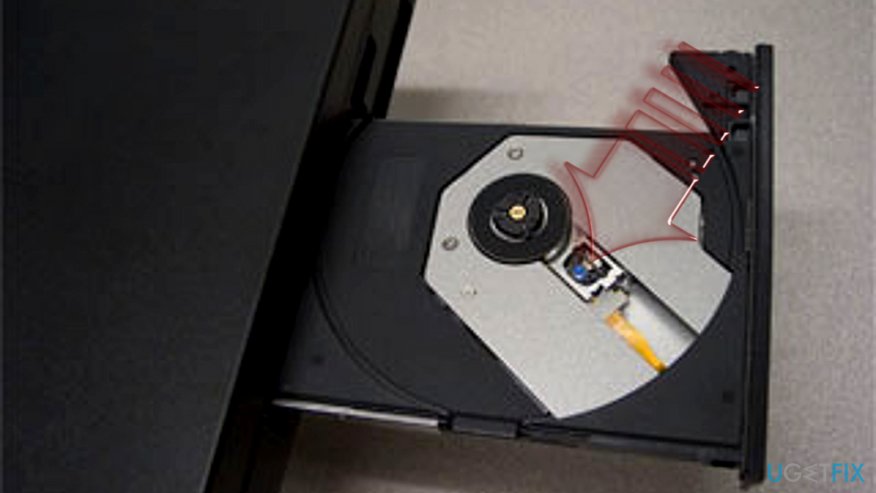
In some cases, the issue lies in the hardware. This solution might be more helpful for laptop owners as the tray is more fragile and thus more sensitive to external factors[ref en-3].
- Eject DVD/CD-ROM tray.
- In laptops, you will see a black fixator near the spindle. Push it closer to the spindle.
- This action should increase the sensitivity of the tray. Likewise, it may recognize the disk faster.
It would be unwise to exclude the possibility of malware. Keep key system apps updates and perform regular scans.
Bottom line
To resolve the CD/DVD-ROM failure to recognize a disk, you can uninstall and reinstall the CD/DVD drivers via Device Manager, delete specific registry files using the Registry Editor, or fix the DVD/CD-ROM tray if it's a hardware issue. If none of these solutions work, further hardware diagnostics may be necessary.
Frequently asked questions
First, ensure that the disk is clean and free of scratches. Then, check if the drive appears in Device Manager and try updating the driver.
You can run the Hardware and Devices troubleshooter to detect issues, or try uninstalling and reinstalling the CD/DVD drive in Device Manager.
Yes, you can check for Windows updates, as missing updates might cause compatibility issues, or try using a different disk to rule out disk-related problems.




Report an issue
What's wrong with this guide? We review every report and update or remove content.
Report received — thank you. We'll review and fix it.
You need a free account to submit a report.
Be the first to comment