How to fix
Mac App Store Error 100
on Windows
Resolve Mac App Store Error 100 effortlessly with our expert tips. While focused on Windows 10 and 11 troubleshooting, enjoy clear solutions backed by e…

What causes How to Fix Mac App Store Error 100?
- Connectivity issues
- Temporary error
- App Store needs to be restarted
- User needs to sign out and sign in again
- Force quitting the App Store
Repairs Windows system files, removes malware, and restores a clean OS state — without reinstalling.
I wanted to download particular apps from Mac App store. However, I received an error message saying:
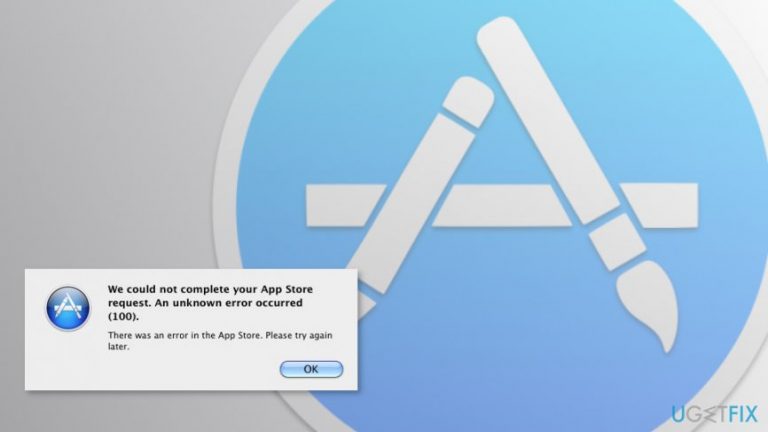
“We could not complete your App Store request. An unknown error occurred (100). There was an error in the App Store. Please try again later.”
I tried to launch the download several times, but the error showed up again. What does it mean?
App Store Error 100 is an old error message[ref en-1] that might pop up on any Mac OS X[ref en-2] computer or laptop when you download a necessary app. The specific source of error is unknown. However, it is often related to connectivity issues. Thus, as soon as this error pops up on the screen, you should check if your Wi-Fi or cable connection is fine.
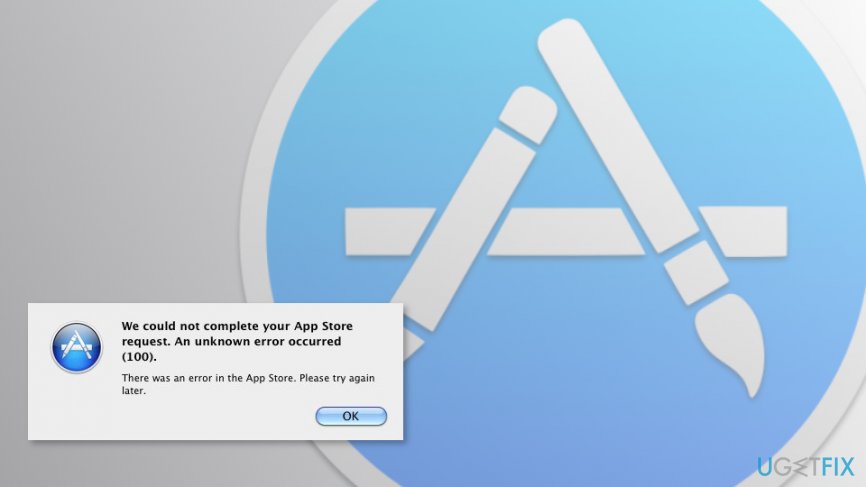
Sometimes the error is temporary. Thus, once you hit OK button and try again after a couple of minutes, you can download needed applications. Restarting Mac might help to solve the issue as well. However, if the problem remains, you have to put a little bit more effort in order to fix App Store Error 100.
Fortunately, it’s not a hard and complicated task. Thus, within few clicks, you should be able to download a necessary app from the Store.
The guidelines for fixing App Store Error 100
App Store Error 100 is one of the errors that are not hard to fix. Often it’s enough to quit or force quite[ref en-3] App store and open it again or sing out and sing in again.
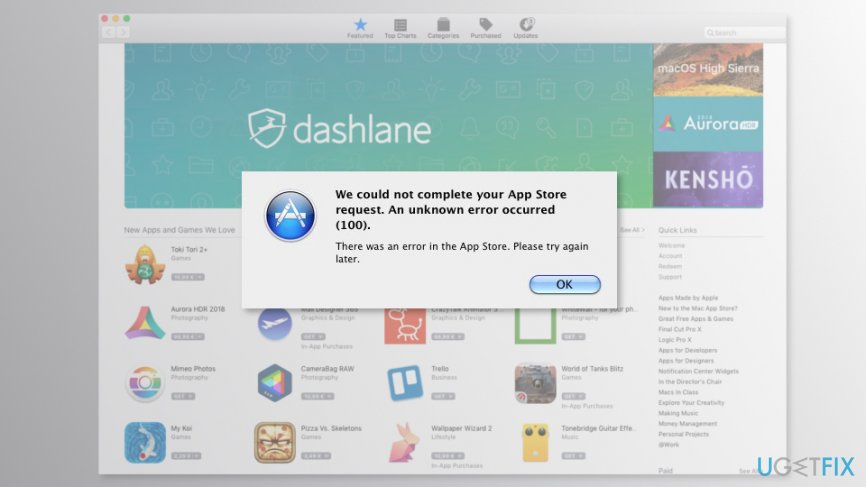
Method 1. Force close Mac App Store
- Once you receive an error when trying to download app, keep Mac App Store opened and hit these keys simultaneously: Command + Q
- Hold these keys for about 10 seconds and then release them.
- Launch the Mac App Store again.
Find and try to download a necessary app. Hopefully, now you will succeed. If not, try the second method to fix Mac App Store Error 100.
Method 2. Sign out and sing into the App Store
Before following the steps below, you should force quit Mac App Store as explained in the method above. If you already did it, log out and log in to the store:
1. Open Mac App Store.
2. Click Store button in the top menu bar.
3. Choose Sign out option.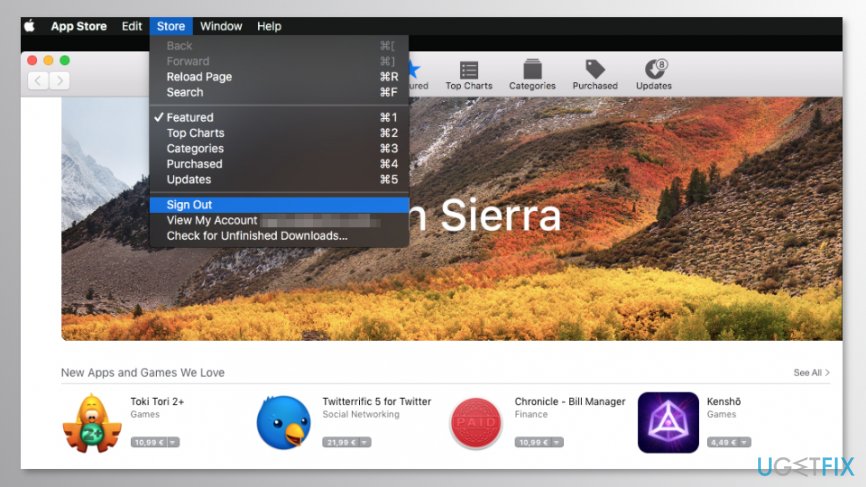
4. Click again the Store button.
5. From the appeared menu choose Sign in and enter your password.
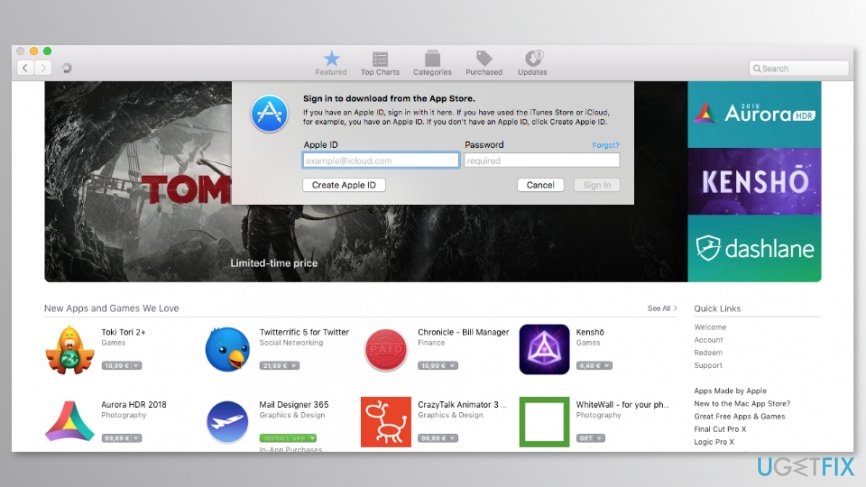
Once these steps are completed, you should not encounter Mac App Store error 100 anymore. Thus, you should be able to download the necessary apps.
Method 3. Sing out from App Store and User account
The third option to fix Mac App Store error 100 requires signing out from both - App Store and Mac OS X user account.
- Open Mac App Store and click Store button at the top menu bar.
- From the appeared drop-down menu choose Sign out option.
- Once you are logged out, click the Apple in the top menu bar.
- From the drop-down menu choose Log Out option.
- Once you are logged out, sing in again.
- Open Mac App Store and log in again.
Try to download an app now. If the error occurs again, you should reboot the computer and then try again. Users report that they were able to fix Mac App Store error 100 only after rebooting their Macs.
Bottom line
To fix App Store Error 100, you can try force quitting the Mac App Store and reopening it, or signing out and signing back in. If the issue persists, check your internet connection and consider restarting your Mac. If none of these solutions work, further troubleshooting may be required.
Frequently asked questions
No, Mac App Store Error 100 is specific to macOS and cannot be directly fixed on Windows 10 or Windows 11. However, you can troubleshoot similar app store issues on your Windows system.
You can try resetting the Windows Store cache, checking your internet connection, or running the Windows Store Apps troubleshooter to resolve app store errors.
Yes, you can visit the Microsoft support website or use the built-in troubleshooting tools to find solutions for app-related errors on your Windows system.




Report an issue
What's wrong with this guide? We review every report and update or remove content.
Report received — thank you. We'll review and fix it.
You need a free account to submit a report.
Be the first to comment