How to fix
“Webhostoid.com has expired. Renew now” error
on Windows
Resolve the “Webhostoid.com has expired. Renew now” error on Windows 10 and 11 quickly and easily for a seamless experience. Expert-tested solutions await!

What causes How to fix “Webhostoid.com has expired. Renew now” error?
- Adware infection
- Reckless installation of free applications
- Browser hijacker activity
- Potentially unwanted program presence
- Expired domain registration
Repairs Windows system files, removes malware, and restores a clean OS state — without reinstalling.
When I try to open Hotmail emails, I get a strange error window saying “Webhostoid.com has expired. Renew now.” The pop-up doesn’t allow me to read messages. A couple of days I got the same error when trying to open a random website. Could someone please help?
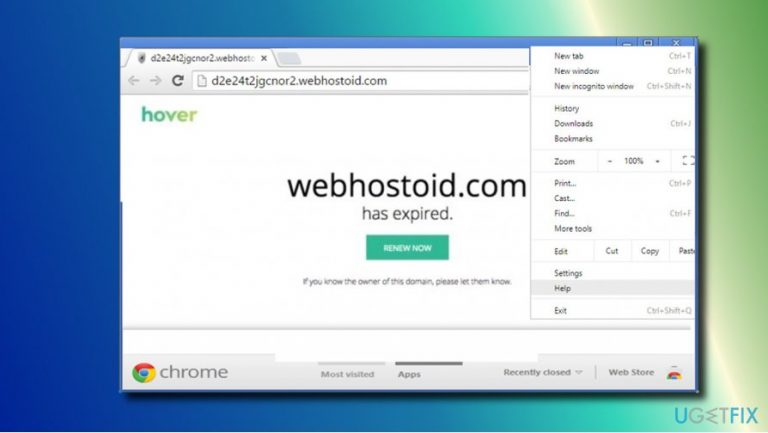
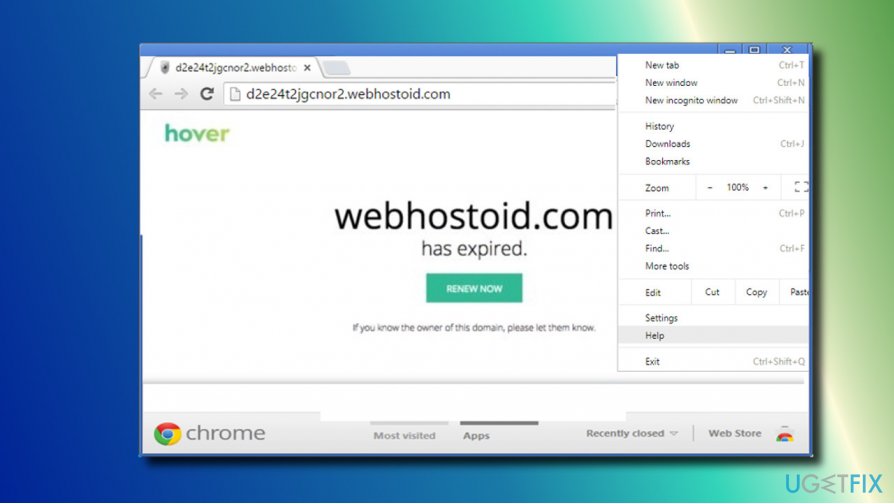
“Webhostoid.com has expired. Renew now” is an error message that people may encounter when browsing on Google Chrome, Mozilla Firefox, Microsoft Edge, or any other legitimate web browser. Typically, it shows up in a form of a pop-up window generated by the d2e24t2jgcnor2.webhostoid.com URL.
The reason why people encounter this error is simple - adware[ref en-1] infection. Initially, thousands of Internet users were forced to visit Webhostoid.com domain after reckless installation of free applications. This website is classified as a Browser Hijacker and Potentially Unwanted Program (PUP) due to the aggressive interception of web browser’s start page and search engine.
As a search engine, Webhostoid.com virus cannot be trusted under any circumstances as it has been developed for promoting shady third-party domains. Besides, it may collect personally non-identifiable information[ref en-2] (email address, browsing history).
While this rogue search engine has been actively spreading up-till-now, it seems that it’s not active anymore. Our research team has initiated a research on this domain and fund out that the domain’s registration has expired on 04 Sep 2017. Consequently, people, whose computers, are still infected by potentially unwanted program, now can receive an error “Webhostoid.com has expired. Renew now” error.
The Webhostoid.com is Hosted in Toronto, ON, but the vast majority of visitors is form India, US, Nigeria, Malaysia, and Indonesia. Not surprisingly, its server does not support HTTPS[ref en-3] and HTTP/2, meaning the owner of the website prefers insecure connection between web browsers and server. This way, data collection and distribution of unwanted programs is much easier.
In a nutshell, even if your web browser’s settings haven’t been changed to Webhostoid.com, but you received the “Webhostoid.com has expired. Renew now” pop-up while web browsing, you should remove malware from your PC immediately.
Fixing “Webhostoid.com has expired. Renew now” error
The “Webhostoid.com has expired” pop-up on your web browser indicates the fact that the system is infected by a PUP, be it adware or browser hijacker. According to 2-spyware experts, the Webhostoid.com virus is closely related to Genius Box adware, RocketTab hijacker, and BrowserSafeguard. Therefore, you should check the system for these programs and uninstall them.
However, beware that the list of PUPs associated with the “Webhostoid.com has expired. Renew now” finite, so check the list of programs on your PC attentively.
Besides, to remove “Webhostoid.com has expired” pop-up, it’s a must to reset web browser’s settings. If you don’t know how to do that, the following instructions will guide you:
Step 1. Remove PUPs
Automatic removal
The fastest and easiest way to remove potentially unwanted and malicious programs from the computer is to run a full system scan with a professional anti-malware. We recommend using [d1]. This software utility will kill two birds with one stone by removing malware and fully optimizing the system.
Manual removal
Restart your computer into Safe Mode and then eliminate all suspicious programs from Programs and Features list.
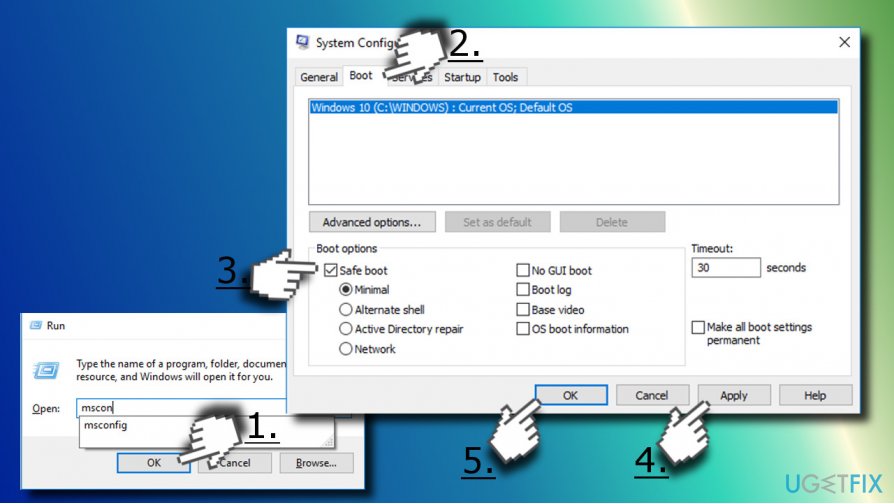
- Press Windows key + R to open Run prompt and then type msconfig into the provided Open: box. Press OK.
- Now, go into Boot tab and select Safe Boot option. Select Safe Boot option.
- Then press Apply and OK.
Method1 - You will get a prompt asking whether you want to reboot the computer now. Click Restart.
- When the system restarts, navigate to Control Panel and open Programs and Features section.
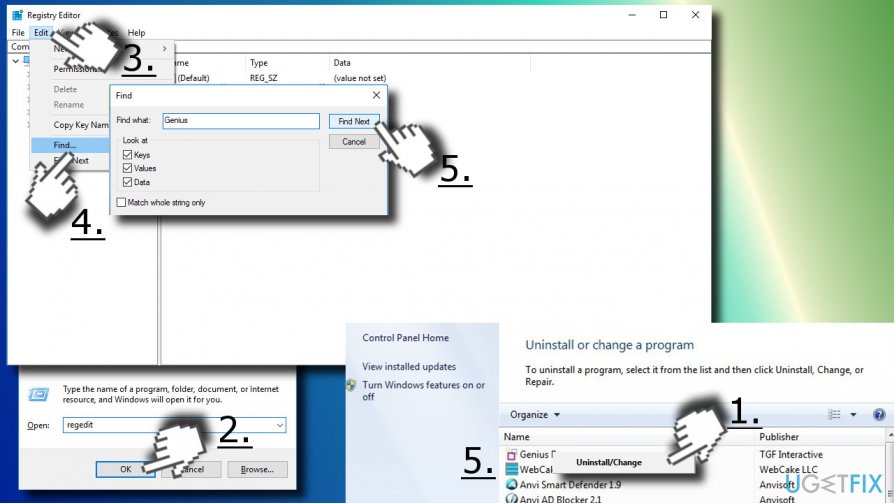
- Look for suspicious entries (e.g. Genius box). Right-click on them (one at a time) and select Uninstall.
- Then, to check if all related files have been successfully removed, open Windows Registry Editor. Click Windows and R keys simultaneusly, type regedit, and press Enter.
- Open Edit tab at the top left of the window and select Find.
- Enter the name of a program that you have uninstalled before and press Find Next.
Method2 - Remove all found entries.
Step 2. Reset web browser
- If you are currently seeing the “Webhostoid.com has expired. Renew now” pop-up, close the current tab reopen your web browser (The following instructions explain how to reset Google Chrome).
- Open Google Chrome's Menu.
- Select Settings and scroll down until you see Advacned. Click an arrow to see Advanced Settings.
- Now scroll down to the very buttom and click Reset. Confirm your selection by clicking Reset button.
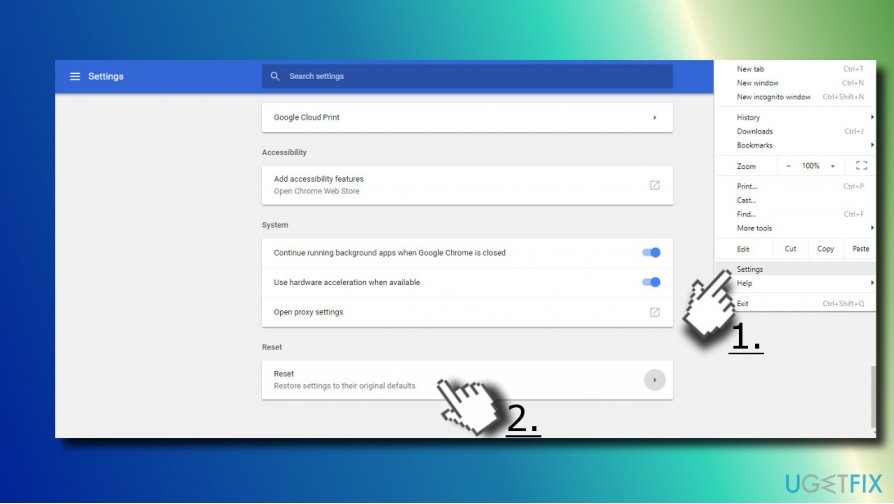
Method3 - Finally, close your web browser and reboot the system.
If you are using other web browser, you can find the instructions on how to reset web browsers by clicking on the following links:
Bottom line
To fix the 'Webhostoid.com has expired' error, it is essential to remove any adware or potentially unwanted programs from your PC. You can do this by using reputable antivirus software or following manual removal steps. If these solutions do not work, consider seeking professional assistance.
Frequently asked questions
This error typically occurs when the website's hosting service has expired, which can affect your browsing experience on Windows 10. It may also indicate issues with your DNS settings or browser cache.
To fix this error on Windows 11, try clearing your browser cache and cookies, and check if the website is accessible from another device. Additionally, you can reset your DNS settings by flushing the DNS cache.
Yes, you can use online tools like Down For Everyone Or Just Me to check the status of Webhostoid.com from Windows 10 or Windows 11. This will help you determine if the issue is with the website itself or your connection.




Report an issue
What's wrong with this guide? We review every report and update or remove content.
Report received — thank you. We'll review and fix it.
You need a free account to submit a report.
Be the first to comment