How to fix
“Unknown layout specified in manifest” error
on Windows
Fix the “Unknown layout specified in manifest” error on Windows 10 or 11 effortlessly. Get expert-tested solutions that work, with detailed screenshots.

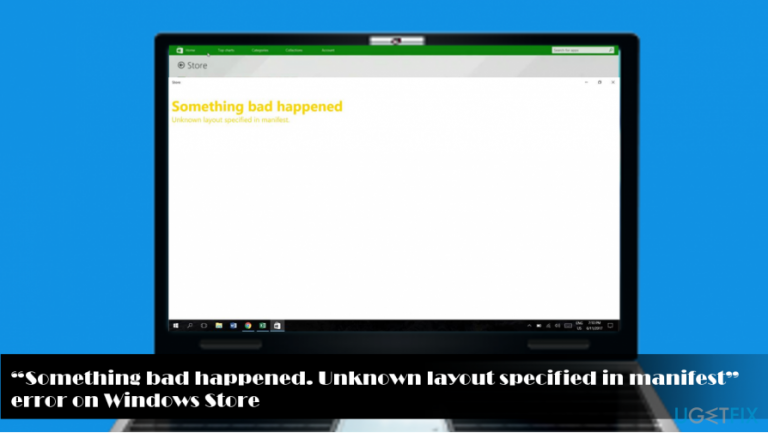
What causes How to fix “Unknown layout specified in manifest” error?
- Windows Store errors
- Manifest layout mismatch with OS regional settings
- Corrupted system files
- Cache issues with Windows Store
- Incorrect Language and Region settings
Repairs Windows system files, removes malware, and restores a clean OS state — without reinstalling.
Hello, all. It a month already counts when I’m not able to use Windows Store. I can open it and download some of the apps, but sometimes either the download or installation process fails with this error: “Something bad happened. Unknown layout specified in manifest.”
I tried installed Windows Updates, but in vain, tried clearing Windows Store cache, and ran the Troubleshooter for Windows Apps. None of these fixes helped. What else can I try?
For the last couple of month, Microsoft Windows community members keep reporting an error “Something bad happened. Unknown layout specified in manifest.” The bug falls into the category of Windows Store[ref en-1] errors due to the fact that it occurs only when accessing Windows Store.
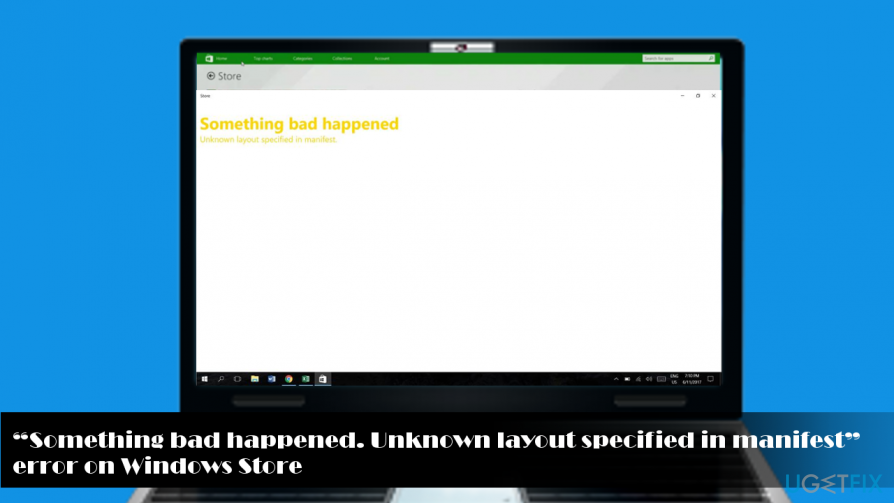
The error emerges without an apparent reason (no updates installed lately, no software installed/removed, no virus infection, etc.). Nevertheless, Windows Store stops providing the service.
“Unknown layout specified in manifest” error blocks both downloads and installation of new apps, as well as updating Windows OS and already running apps. Nevertheless, Windows Store and apps provided on it can be accesses as usually.
Microsoft has already officially acknowledged the error and promised to fix it with the upcoming update. One of the moderators reported, that the bug is in Windows 10 V1703 and V1709.[ref en-2] The manifest for the Windows Store seems to be different from the OS regional settings. Therefore, changing the location to US may help temporarily.
Few Microsoft community members approved this fact by saying:
I’m in Panama but the language, region and time zone all had to match. Set it all to US and everything works.
Just changed my region country to United States and it works like charm.
I set my Region and Language settings correctly and that fixed the problem for me.
If changing Language and Region settings did not help to fix “Something bad happened. Unknown layout specified in manifest” error, we would recommend checking the system for corrupted files, clearing Windows Store cache, and resetting the Store app. The instructions are provided down below.
NOTE: if none of the fixes worked, the only solution is to wait until Microsoft releases the patch update.[ref en-3] If, unfortunately, “Something bad happened” impacted the Windows Update service as well, you will have to install the update manually from the official Microsoft’s website.
Method 1. Change Language and region settings
If you were out for holidays in another country, your region might have been automatically changed to the location where you’ve been settled temporarily. Sometimes, people change the region by accident, so to fix “Something bad happened. Unknown layout specified in manifest” error on Windows Store, change the region to US.
Sometimes, setting the region back to normal (e.g. Germany, UK, Spain) also helps. However, note that this fix is temporary and you should opt for the official fix as soon as Microsoft releases it.
- Press Windows key + I and select Time & Language.
- Open Region & Language section and check if your Country/Region is set correctly.
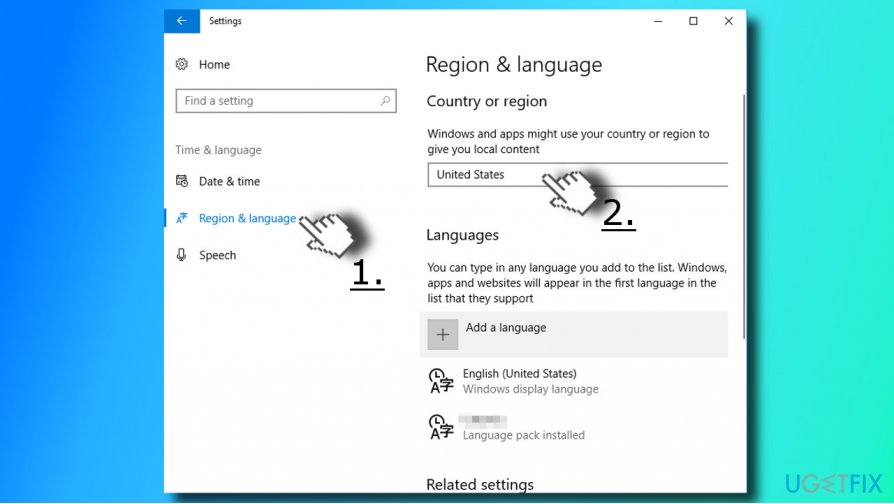
- Then check if the appropriate Language Pack is installed. If you see a notification “Language pack available” under your default language, click it and select Options.
- Then, on the left pane, click Download.
Method 2. Remove Windows Store cache
If the previous method did not help, try the simple fix, which is to clear Windows Store cache:
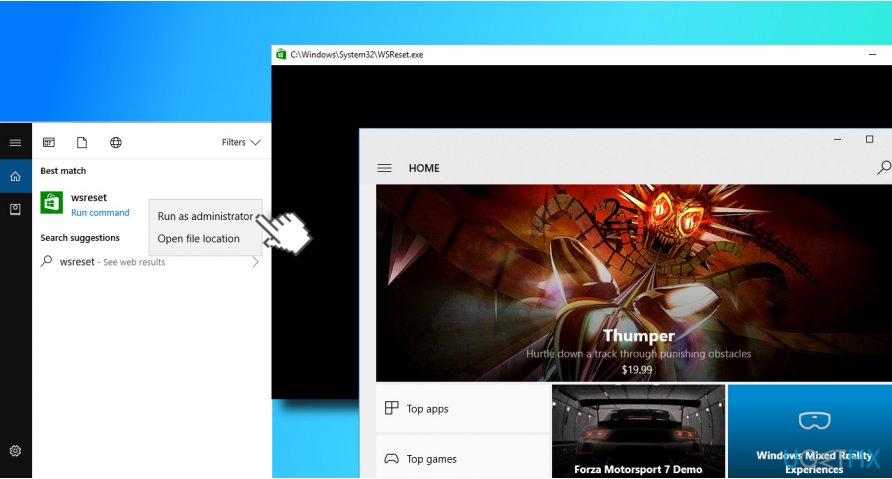
- Press Windows key and type wsreset.
- Right-click on the wsreset option and select Run as administrator.
- Now wait for the Command Prompt appears followed by Windows Store window. It means that the command has successfully been executed.
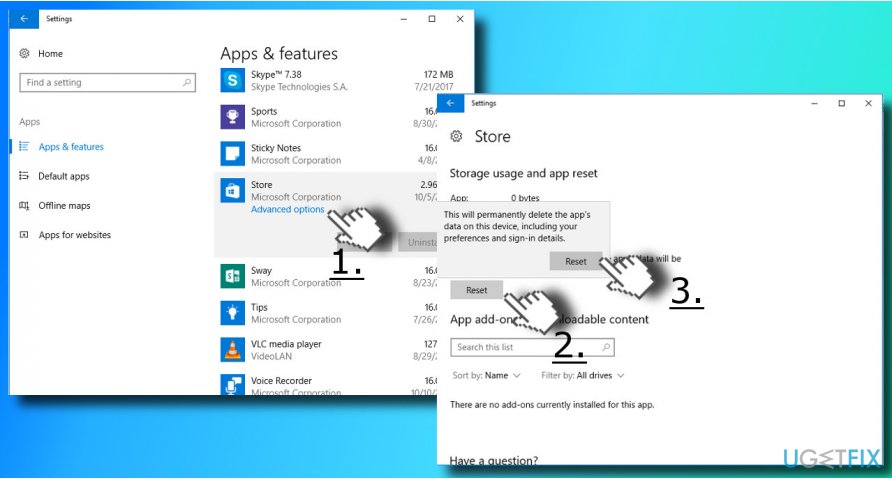
Method 3. Reset Windows Store app
- Press Windows key + I and select Display.
- On the left pane, select Apps & features and scroll down until you find Store app.
- Click on the Store entry and select Advanced options.
- Click Reset button and then restart Windows.
Method 4. Check the system for corrupted files
If none of the methods provided above helped to resolve the problem, we would recommend running a deep system scan with a professional utility, such as [d1]. This program will check the system for both malware and corrupted system files and, if any infections or deteriorations are found, fixes all of them automatically.
Bottom line
To fix the 'Unknown layout specified in manifest' error, you can try changing your Language and Region settings to match the US, checking for corrupted files, clearing the Windows Store cache, and resetting the Store app. If none of these fixes work, further assistance may be needed.
Frequently asked questions
This error typically indicates that there is a problem with the application manifest file, which may contain unsupported or incorrectly specified layout settings. It often prevents the application from launching correctly on your Windows system.
To fix this error, try editing the manifest file to correct the layout settings or reinstalling the application to restore the default manifest. Additionally, ensure your Windows 10 or Windows 11 is up to date to avoid compatibility issues.
Yes, this error can frequently occur with certain third-party applications that have not been updated to meet the layout specifications of newer Windows versions. Always check for updates or patches from the software developer.




Report an issue
What's wrong with this guide? We review every report and update or remove content.
Report received — thank you. We'll review and fix it.
You need a free account to submit a report.
Be the first to comment