How to fix
“We could not complete your purchase” error
on Windows
Struggling with the "We could not complete your purchase" error on Windows 10 or 11? Get expert-tested solutions to resolve it fast and hassle-free!


What causes How to Fix “We could not complete your purchase” error on Mac?
- Problems with the Internet connection
- Issues with Wi-Fi router
- Incorrect DNS settings
- Unverified Apple ID
- Installation of apps that are not signed by Apple
- Problems with a cache
Repairs Windows system files, removes malware, and restores a clean OS state — without reinstalling.
I cannot download apps from the Mac App Store. It gave me "We could not complete your purchase.” I tried to purchase different applications, but the error still shows up. What can I do about it?
"We could not complete your purchase” is one of Mac App Store[ref en-1] errors that have been bothering Mac OS users since 2017. At the time, the error seemed to be bound to the macOS Catalina and stem due to iCloud account problems on Mac App Store.
Nevertheless, the need for We could not complete your purchase error fixes resurfaced in 2020 when Mac users started actively updating from Catalina 10.15 to Mojave 10.14[ref en-5]. According to reports, people cannot finish their purchases on the App Store as the mentioned error occurs at the final stage and indicates that the process is canceled. In most of the reports, people claim that they are not able to download updates for apps that are already installed on the system.
The problem related to We could not complete your purchase error is currently under investigation. However, there might be several issues that cause the error, such as:
- problems with the Internet connection;
- issues with Wi-Fi router;
- incorrect DNS settings;
- unverified Apple ID;
- installation of apps that are not signed by Apple;
- problems with a cache.
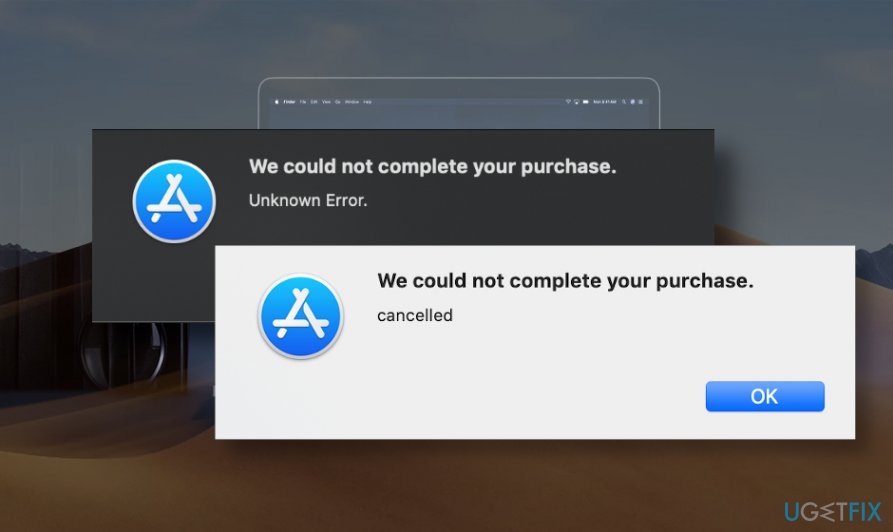
If one of these problems occur, the Mac App Store delivers a pop-up message saying:
We could not complete your purchase.
Unknown Error.
or
We could not complete your purchase. Canceled.
However, the second line of the error message might also warn about other issues, for instance:
- A server with the specified hostname could not be found.
- The product distribution file could not be verified. It might be damaged or was not signed.
- [Application name] is already installed on this Mac.
- [Application name] cannot be installed on this computer.
- Failed to verify the preflight file. It is not signed by Apple.
Fortunately, like the majority of Mac App Store errors, this one can be fixed as well. There are several ways how you can fix "We could not complete your purchase” Mac error starting from connecting to the different Wi-Fi and finishing with changing your Apple ID password.
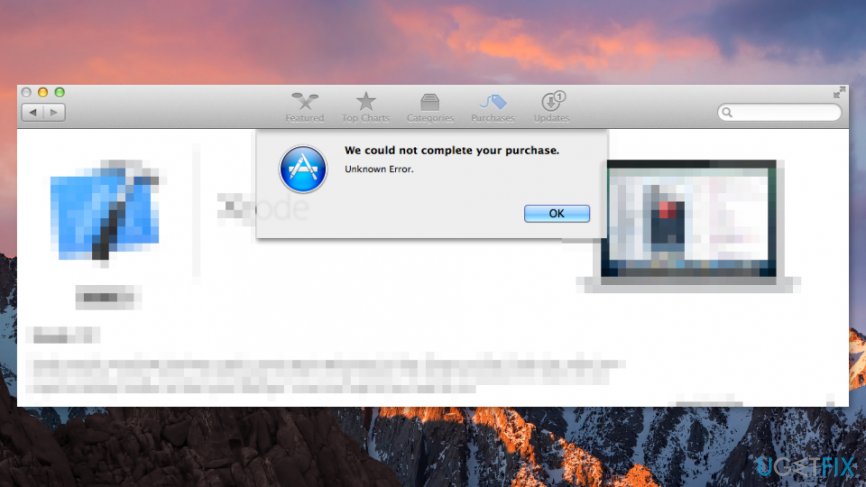
Methods that can help to fix "We could not complete your purchase” error on Mac
We want to point out that not all of these methods can solve the error. As you already know the error might be triggered by numerous reasons. Thus, there are tons of ways to solve them. However, if you found another method that helped you, let us know!
Method 1. Solve issues related to the Internet connection
Connectivity problems often trigger app Store errors. Thus, you have to make sure that your connection works properly. If you use Wi-Fi, try to connect using a cable and vice versa. Additionally, if you can, you should try to connect to a different Wi-Fi network.
Sometimes there might be some router problems.[ref en-3] Thus, checking if the "We could not complete your purchase” error show ups when you connect to a different network helps to figure it out.
Additionally, some users reported that changing DNS settings[ref en-2] also helped to solve the error.
Method 2. Reset your Apple ID password
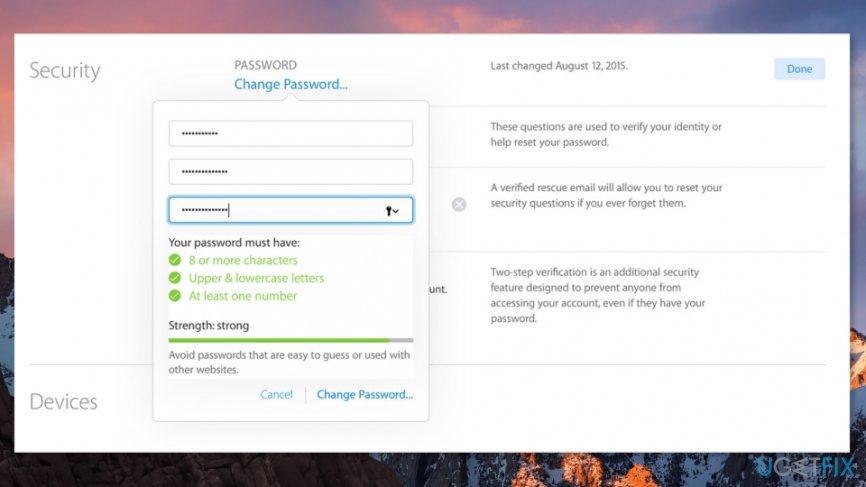
- Sign in to your Apple ID account page.
- Go to the Security section.
- Click Change Password option.
- Enter your current password and a new one.
- Confirm changes by clicking the Change Password button.
- Restart your Mac.
- Sign in with a new password and try to download necessary apps from the App Store to check if it helped to solve "We could not complete your purchase” error.
If this did not help, you should follow the additional steps:
- Open Finder.
- From the Finder menu bar click Go and choose Go to Folder.
- Enter this path: ~/Library/Cookies
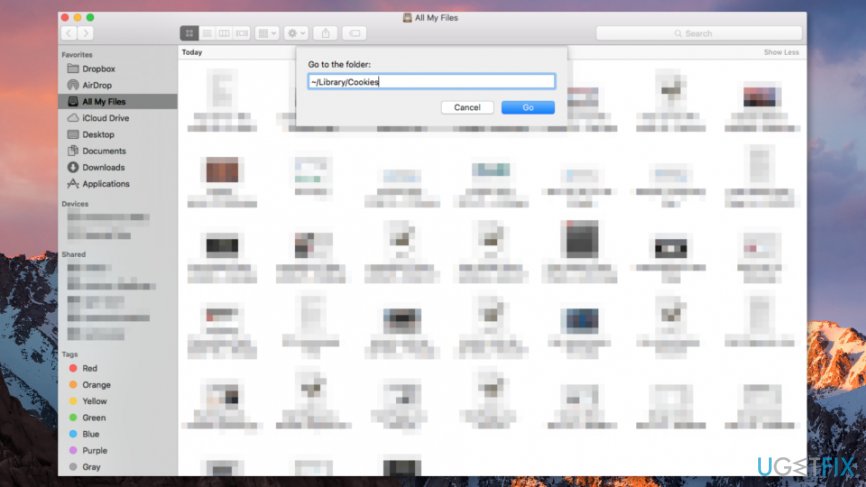
Reset apple id password - Click Go.
- Move these files to the Trash:
com.apple.appstore.plist
Cookies.plist - Restart the Mac and try to download the app again.
Method 3. Verify the Apple ID in Use is the Same in iTunes and App Store
- Make sure that you are logged in with the same Apple ID account in both Mac App Store and iTunes.
- Quit iTunes and Mac App Store.
- Open App Store again and check if "We could not complete your purchase” error is gone.
Method 4. Accept iTunes Terms and Conditions
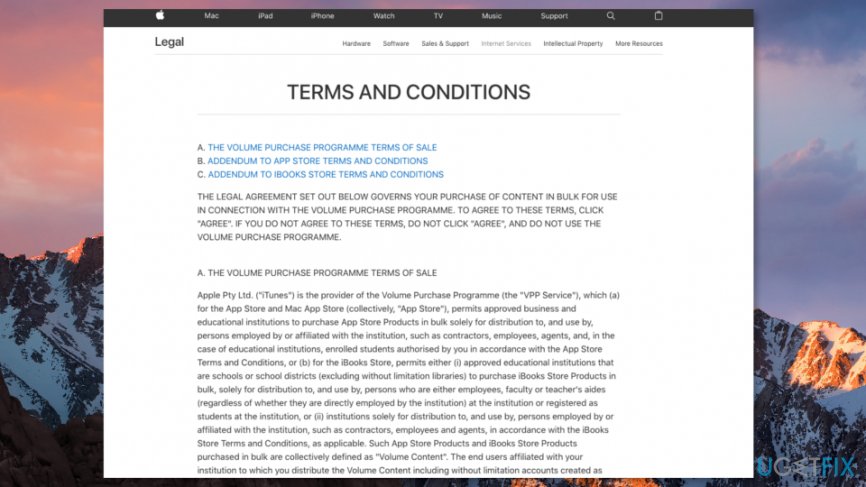
No matter how strange it might seem, but you may not have agreed with iTunes Terms and Conditions.[ref en-4] Therefore, you should check if you have actually accepted it. It’s especially important if Apple updated them recently:
- Open iTunes (however, if you have updated it, you should first quit and then relaunch it).
- Accept new Terms and Conditions (you should read them as well).
- Quit iTunes.
- Launch iTunes again and check if it helped to fix "We could not complete your purchase” error.
Method 5. Delete Cache associated with Mac App Store
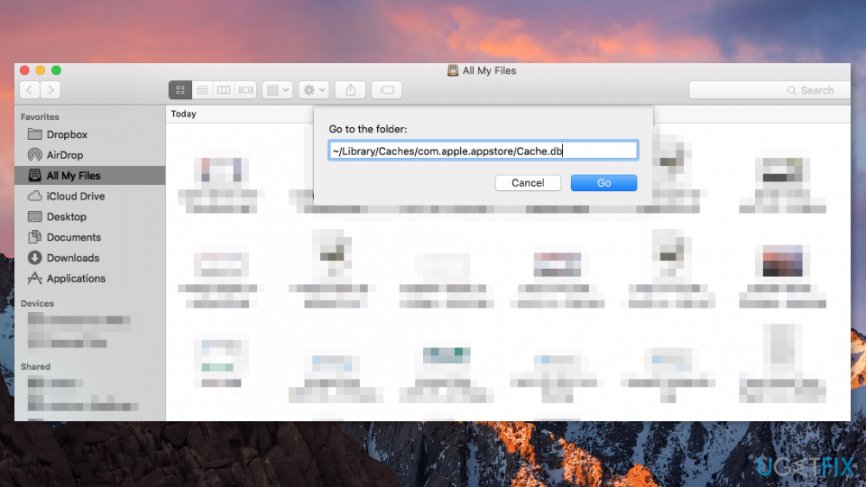
- If the Mac App Store is opened, quit it.
- Open the Finder.
- From the Finder, menu click Go and choose Go to Folder option.
- Enter this address:
~/Library/Caches/com.apple.appstore/Cache.db - Click Go.
- Move Cache.db file to the Trash.
- Open the App Store and try to purchase the application. Hopefully, the "We could not complete your purchase” error will no longer appear.
Method 6. Remove content from the cache directories
Note: removing the content from the /var/folders and /private/var/folders can't harm the device because these locations are used for storing per-user temporary files and caches only.
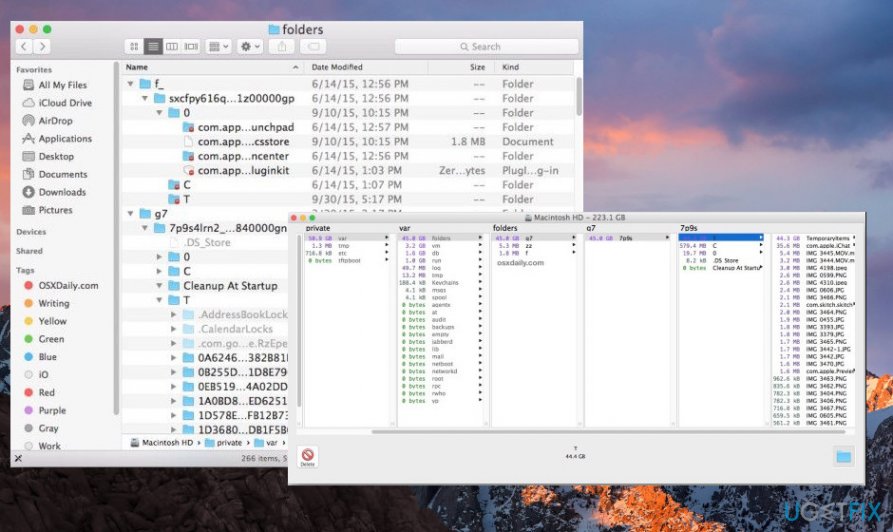
- Open the terminal and run the following command in it:
sudo rm -fr /var/folders/**
sudo rm -fr /private/var/folders/**
Bottom line
To fix the "We could not complete your purchase" error, you can check your Internet connection, reset your Wi-Fi router, verify your Apple ID, and clear the cache. If none of these solutions work, consider contacting Apple Support for further assistance.
Frequently asked questions
Yes, while this error is typically associated with Mac, Windows 10 and Windows 11 users might experience similar purchase issues due to account settings or payment method problems.
To fix purchase errors on Windows 11, check your payment information in the Microsoft Store, ensure your account is in good standing, and update your Windows to the latest version.
Absolutely, you can troubleshoot account issues by signing out and back into your Microsoft account, verifying your payment methods, and checking for any account restrictions.




Report an issue
What's wrong with this guide? We review every report and update or remove content.
Report received — thank you. We'll review and fix it.
You need a free account to submit a report.
Be the first to comment