How to fix
SoundMixer.exe Error
on Windows
Resolve SoundMixer.exe errors on Windows 10 or 11 effortlessly. Get quick, expert-tested solutions to fix audio issues with ease! Fixed in minutes.


What causes How to Fix SoundMixer.exe Error on Windows?
- Soundmixer.exe file is missing or corrupt
- File name is not correct
- Soundmixer.exe is identified as a potentially unwanted program (PUP)
- Malware activation fails without constituent parts
- Anti-virus software fails to recognize the problem
Repairs Windows system files, removes malware, and restores a clean OS state — without reinstalling.
Hello, all. I have an irritating piece of bug, which emerges on startup or when I attempt to run Command Prompt as administrator. The error reports Soundmixer.exe file error.
It started showing right after installing Autodesk app manager, so I guess the program broke something. I can’t find a tutorial on how to fix it, so maybe you could help me?
For the past couple of weeks, Windows 10 users created several threads reporting a Soundmixer.exe error. The error says that the soundmixer.exe file is missing or corrupt or that the file name is not correct.
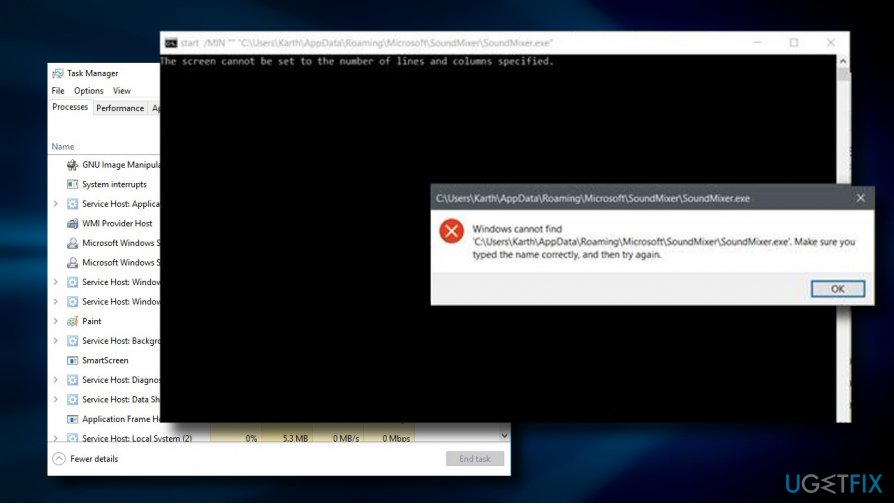
The error shows up on Windows 10 startup[ref en-1] or when trying to launch Windows Command Prompt as Administrator. In the latter case, the error pop-up does not indicate much about the problem, except that provide a full path of the file location and requires specifying the file name.
Actually, the Soundmixer.exe can also be found as smvss.exe or Sound Mixer. Cyber security experts have already included it to the list of potentially unwanted programs (PUPs) and recommend avoiding it. The SoundMixer virus and its components are usually added by DEDLER-G TROJAN.[ref en-2]
The problem is that anti-virus software often fails to recognize the problem. Most of the affected PCs were running McAfee antivirus.[ref en-3] The McAfee detected the unwanted soundmixer.exe file and included it into the quarantined files list. However, even if the soundmixer.exe file is deleted by anti-virus, the other components of the malware are left intact.
As a consequence, the removal of the soundmixer.exe file triggers the error pop-up during startup saying that the .exe file is missing. That’s because the malware gets activated during Windows startup and the activation fails without one of the constituent parts.
Fixing Soundmixer.exe error on Windows 10
If your PC throws a Soundmixer.exe error, you should immediately run a scan with a professional anti-malware utility. That’s because the problem is not the missing SoundMixer files, but rather the presence of potentially unwanted program on your PC.
If the current anti-virus fails to recognize or quarantine the malware,[ref en-4] we would highly recommend using [d1] or running Windows Defender Offline.
Run Windows Defender Offline
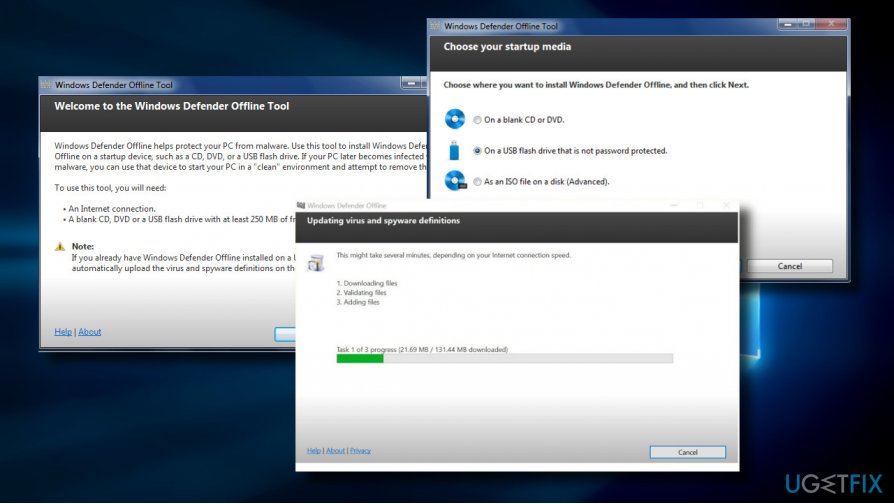
If Reimage and other tools are blocked by malware on your PC or fail to remove the pests, we would recommend running Windows Defender Offline. First of all, save any unfinished work and close currently running programs. Once done, perform the following steps:
- Press Windows key + I and open Update & Security section.
- Select Windows Defender from the left pane and click Scan Offline.
The deep scan with Windows Defender Offline usually last up to 15minutes. Delete all the potentially unwanted files detected. In case Update & Security section does not provide a Windows Defender scan offline, please try the following:
- Find a free CD, USB, or another portable data storage device. Download and run Windows Defender Online (32-bit version or 64-bit version). The tool will help you create a removable media.
- Restart your PC using the Windows Defender Offline media and scan the computer for malware and spyware.
- Eliminate detected software from the system.
Run Windows Registry Editor
If anti-malware fails to fix the error, please follow these steps:
- Press Windows key + R, type %appdata% in the run and press Enter.
- Open Microsoft folder and locate the SoundMixer folder.
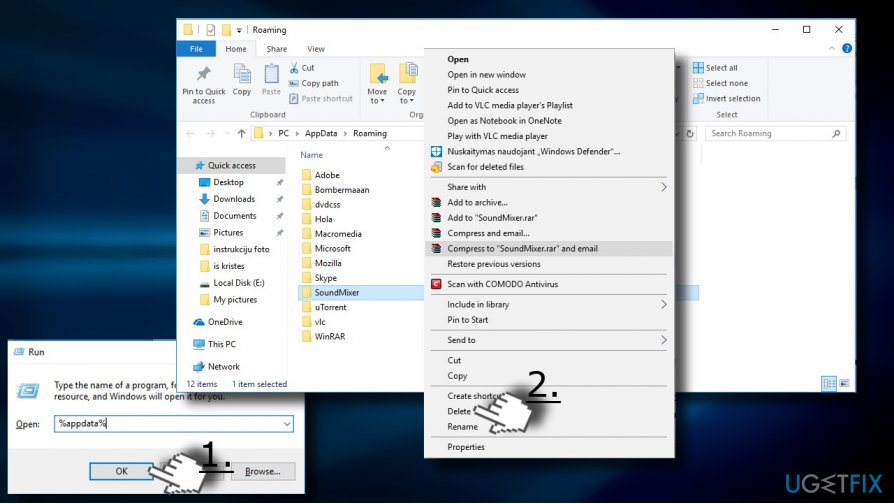
- After that, press Windows key + R to open run again and type regedit.
- Press Enter to open Windows Registry Editor.
- Locate the registry entry mentioned in the OP ([HKEY_CURRENT_USER\\Software\\Microsoft\\Command Processor]) and remove it.
- Now navigate to the ([HKEY_CURRENT_USER\\Software\\Microsoft\\WindowsNT\\CurrentVersion\\Winlogon] directory and open winlogon registry entry.
- Check the shell sub-key and change its value to explorer.exe.
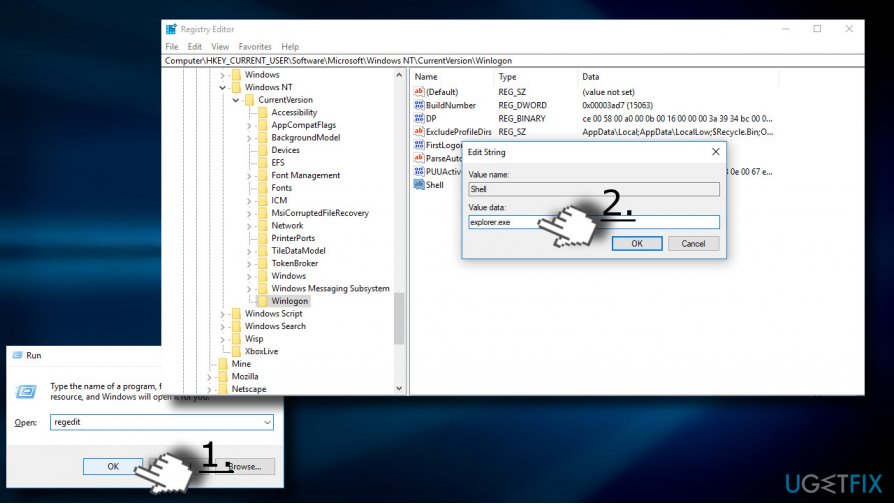
- Finally, close Windows Registry Editor and reboot the system.
Bottom line
To fix the Soundmixer.exe error on Windows 10, run a scan with a professional anti-malware utility to remove the potentially unwanted program. If your current anti-virus fails to quarantine the malware, consider using a different solution. If none of these fixes work, further investigation into the system may be necessary.
Frequently asked questions
The SoundMixer.exe error can be caused by corrupted system files, outdated audio drivers, or conflicts with other software. Identifying the specific cause is crucial for effective troubleshooting.
To update audio drivers, go to Device Manager, expand the 'Sound, video and game controllers' section, right-click your audio device, and select 'Update driver.' Follow the prompts to search automatically for updated driver software.
Yes, you can run the System File Checker tool by opening Command Prompt as an administrator and typing 'sfc /scannow' to repair corrupted files that may be causing the SoundMixer.exe error.




Report an issue
What's wrong with this guide? We review every report and update or remove content.
Report received — thank you. We'll review and fix it.
You need a free account to submit a report.
Be the first to comment