How to fix
Non-Working Hyperlinks
on Windows
Resolve non-working hyperlinks on Windows 10 and 11 effortlessly. Follow our expert-tested tips to restore functionality quickly and efficiently.

What causes How to Fix Non-Working Hyperlinks on Windows?
- Corrupted system file
- Unsuccessful Windows Update process
- Browser hijacker
- Adware
- Improper registry keys
Repairs Windows system files, removes malware, and restores a clean OS state — without reinstalling.
Hello, I am not sure whether it is the fault of Windows Update, or my computer got a virus, but hyperlinks do not activate in Word documents or in my browser. I scanned the computer with an anti-virus app and ran the sfc /scannow command. Any advice would be helpful.
Malfunctioning hyperlink function might be the result of a corrupted system file[ref en-1], urlmon.dll, responsible for the operation of such links.
System files might get corrupted due to unsuccessful Windows Update process. Thus, make sure all updates were installed correctly. Furthermore, determine whether the problem of non-working hyperlinks occurs in all browsers.
It might be well the case that your browser got compromised with an odd browser hijacker or adware.[ref en-2] In that case, reset the settings. If the issue persists, try implanting the registry keys from a fully-functioning system.
Step 1. Import the registry file in the malfunctioning computer
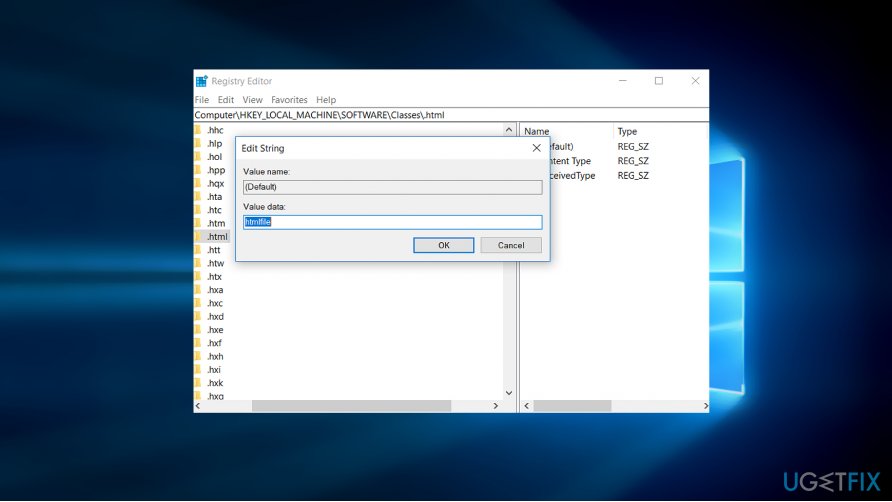
- Press Windows key+ R and type regedit.
- Once Registry Editor launches, go to Edit, Find Next.
- Locate the following key – HKEY_LOCAL_MACHINE\\Software\\Classes\\htmlfile\\shell\\open\\command.
- Click on File and then Export.
- Save the file to a flash drive.
- Plug into the problematic device.
- Launch Registry Editor, click on File and then Import.
- Import the saved key.
- Close the Registry Editor and then reboot the system.
Note. Make sure that the imported keys contain the proper string. The file named “Default” must contain the htmlfile value. Check it by right-clicking on the file and choosing Modify. Check the information indicated under “Value Data.”
Step 2. Run regsvr32 urlmon.dll command
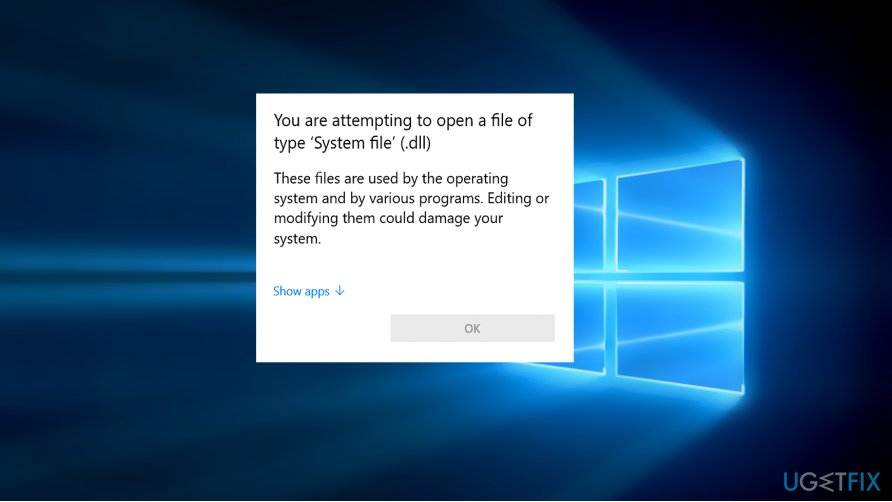
Urlmon.dll is responsible for managing hyperlinks. You can try resetting it.
- Press Windows key+R and type regsvr32 urlmon.dll [ref en-3].
- Press Enter.
Step 3. Use Command Prompt to solve the problem
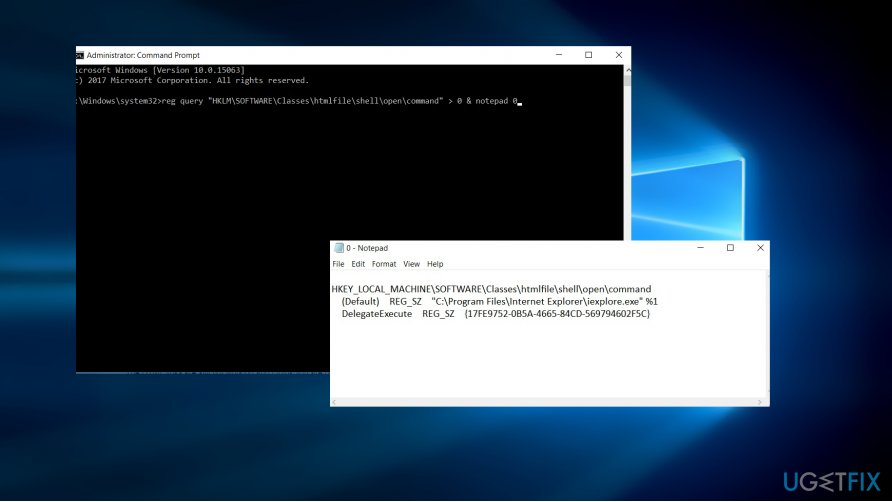
If this does not work, you may try entering the following two commands in the Command Prompt.
- Click on the Start button and then type cmd.
- Right-click on the entry and choose “Run as administrator”.
- Once Command Prompt opens, type and press Enter subsequently[ref en-3]:
- reg query "HKLM\\SOFTWARE\\Classes\\htmlfile\\shell\\open\\command" > 0 & notepad 0
- reg query "HKCR\\.html" > 1 & notepad 1
Once you do that, the Notepad will open with the HKLM responses. You can use them to compare with the registry files present in the Registry Editor in the problematic computer. Import the correct keys into the problematic computer as described in the step 1.
Bottom line
To fix non-working hyperlinks, ensure all Windows updates are correctly installed, reset browser settings, and import the correct registry keys. If the issue persists, run the regsvr32 urlmon.dll command and use Command Prompt to check registry entries. If none of these solutions work, further investigation may be needed.
Frequently asked questions
Hyperlinks may stop working in Windows 10 due to issues with the default web browser settings, corrupted system files, or outdated browser extensions. Ensuring your browser is set as the default and checking for updates can help resolve the issue.
In Windows 11, you can fix non-working hyperlinks by resetting the default apps for web browsing or repairing the browser installation. Additionally, checking for recent updates or running the Windows Troubleshooter may identify and fix the problem.
Yes, sometimes adjusting the registry settings related to the default web browser can fix hyperlink issues in Windows. However, be cautious when editing the registry, as incorrect changes can cause system problems.




Report an issue
What's wrong with this guide? We review every report and update or remove content.
Report received — thank you. We'll review and fix it.
You need a free account to submit a report.
Be the first to comment