How to fix
“Your DNS server might be unavailable”
on Windows
Resolve the "Your DNS server might be unavailable" error on Windows 10 and Windows 11 effortlessly. Expert-tested solutions ensure a smooth experience!

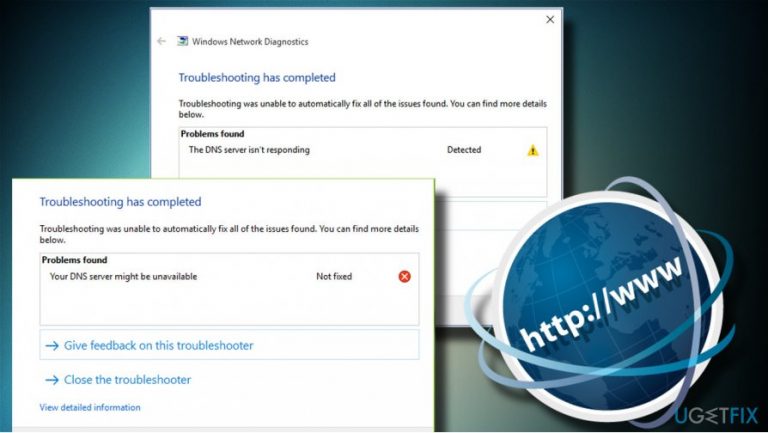
What causes How to fix “Your DNS server might be unavailable”?
- Inappropriate DNS configuration
- Incorrect DNS address
- Network configuration issues
- Internet crashes
- Pages restarting or not available
Repairs Windows system files, removes malware, and restores a clean OS state — without reinstalling.
I can’t access Internet. None of the websites is loaded successfully because of the “Your DNS server might be unavailable” error. How can I fix this problem?
DNS server explained
While we all know much about the Internet, not many of its users have at least background knowledge about the Domain Name System (DNS).[ref en-1] Actually, these two definitions are inseparable from one another. The DNS server works in the background and converts human-readable website names[ref en-2] into computer-readable numerical IP addresses.
In other words, DNS performs as a mediator between the computer and its user. We, as Internet users, use domain names to access the websites that we need, for example, the domain name of Google is google.com, so we type this domain name in the address bar and hit Enter to access the website.
However, PC does not understand the domain name as such and here’s where DNS server unavailable error appears. It determines what IP address[ref en-3] is associated with the domain name and translates it into the computer-readable code, so that the system could open the required website.
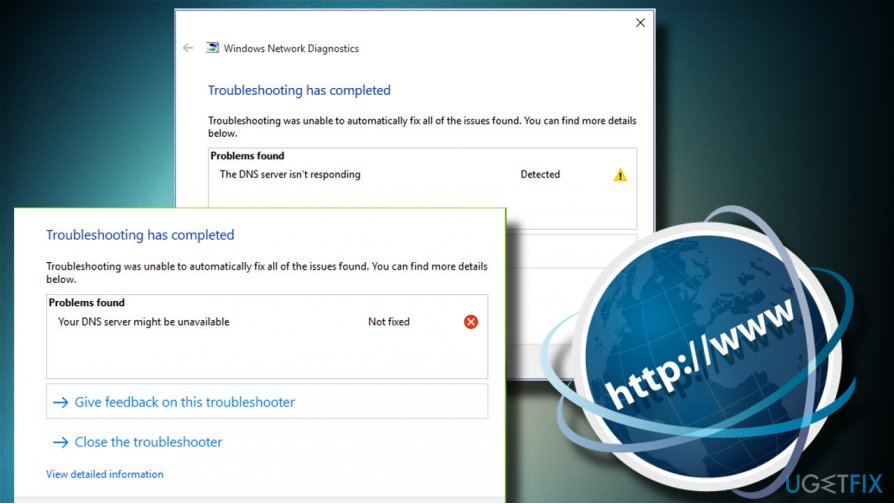
DNS server unavailable typically ends with lost Internet connection
In a nutshell, we would not be able to browse the Internet without DNS server working properly. In this case, the web browser may return the “Can’t connect to website address” or similar error messages when trying to access any website. For some people, the Internet connection seems to be accessible, while the others may get the “Limited access” notification.
However, the system seldom reports the unavailable DNS server explicitly. To isolate the culprit of the lost Internet connection, the PC’s owner has to open Windows 10 Settings app -> Update and Security -> Connection Troubleshooter. Alternatively, people can get to Control Panel and run the network diagnostics there. Both ways, the scan may return the error message saying that “Your DNS server might be unavailable.”
Here’s a list of applicable methods that can help to fix DNS server unavailable error and other DNS-related problems on Windows.
Fixing DNS server unavailable error
DNS server problems are extremely tiresome as they prevent people from connecting to the Internet and performing everyday tasks. Thus, DNS problems have to be addresses as soon as possible if you want to use the Internet normally.
Since one of the common DNS error causes is virus or malware infection, we would strongly recommend running a scan with a professional security program. We would recommend [d1] due to the fact that it will check for malware and scan for system’s integrities, check the system’s settings, registry entries, configurations, and other important aspects.
If system’s scan did not help, you should try these simple solutions at first:
Fix 1. Reset your router to fix DNS server settings
- Reboot your PC
- Disable or Uninstall third-party antivirus
- Run Network Troubleshooter (Windows key + I - > Update & Security -> Troubleshoot -> Internet Connections)
Fix 2. Flush the DNS to restore the connection
- Right-click on Windows key and select Command Prompt (Admin).
- Copy and paste the following commands on-by-one and hit Enter after each of them: ipconfig /flushdns ipconfig /release ipconfig /renew exit
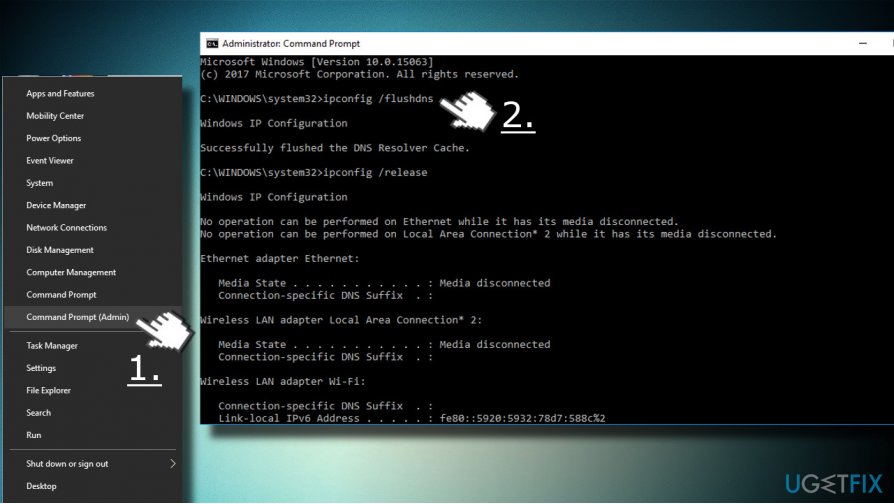
Flush dns
Fix 3. Reset TCP/IP
- Right-click on Windows key and select Command Prompt (Admin).
- Alternatively, if you cannot access Command Prompt, press Windows key, type Powershell and open it as administrator.
- Once Command Prompt or Powershell opens, copy and paste the netsh int ip reset command.
- Press Enter to execute it.
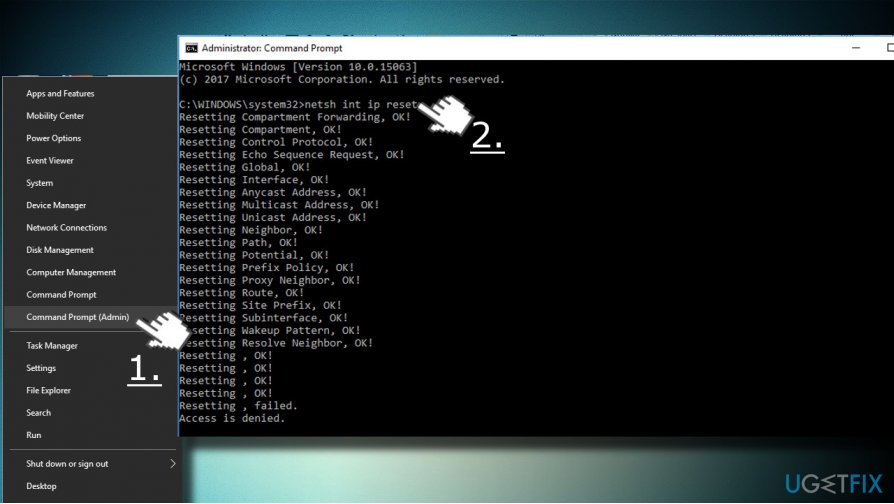
Reset tcp ip
Fix 4. Use open DNS or Google’s DNS
- Press Windows key + r, type ncpa.cpl , and hit Enter.
- Right-click on the Ethernet or Wi-Fi connection depending on which you are currently using.
- Select Properties and select the Internet Protocol Version 4 (TCP/IPv4).
- Click Properties.
- At the bottom of the window, click the Use the following DNS server addresses.
- Now enter 8.8.8.8 as Preferred DNS server and 8.8.4.4 as Alternate DNS server.
- Finally, click OK to save the changes and check if the DNS problems have been resolved.
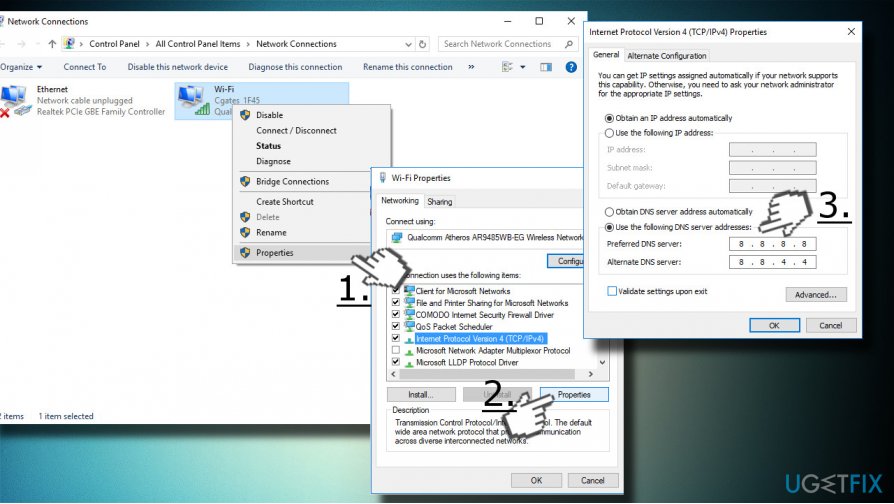
Use google dns
Fix 5. Enter your IP address manually
- Press Windows key + r, type ncpa.cpl , and hit Enter.
- Right-click on the Ethernet or Wi-Fi connection depending on which you are currently using.
- Select Properties and click once on the Internet Protocol Version 4 (TCP/IPv4). Click Properties and open General tab.
- Select Use the following IP address and type in the required IP address, Subnet mask, Default gateway, Preferred DNS server and Alternate DNS server.
- After that, click OK to save the changes.
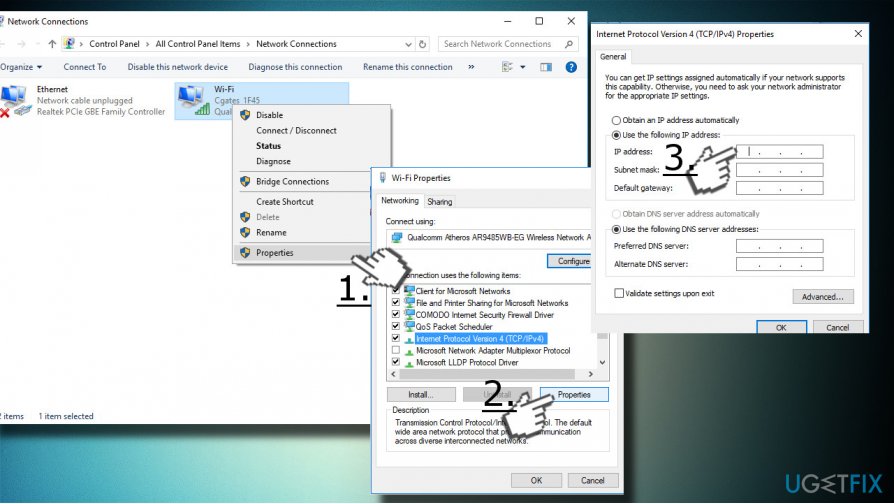
Enter ip address manually
Fix 6. Create a hosts file for the DNS server unavailable fix
If you cannot access one or several websites only because DNS is unavailable, try creating a hosts file, which may allow access into the websites even before the DNS server is not yet configured:
- Press Windows key + S and type Notepad.
- Right-click on the Notepad option and select Run as administrator.
- Now click File -> Open.
- Open the C:\\Windows\\System32\\drivers\\etc\\hosts path. NOTE: when you access etc location, it seems that it’s empty, while it’s actually not. You can enter a work hosts in the File Name box while in etc folder and press Open.
- After that, enter the IP address of the website that you want to access and its domain name at the bottom of the notepad’s window. Save the file and check if you can access the needed website.
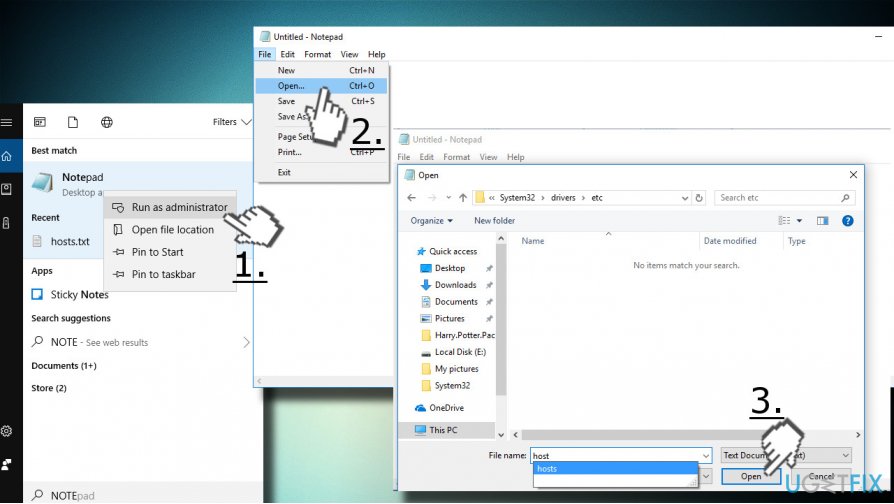
Create hosts file
Bottom line
To fix the 'Your DNS server might be unavailable' error, you can open the Windows 10 Settings app and use the Connection Troubleshooter. Alternatively, you can access Control Panel settings to further diagnose the issue. If none of these solutions work, consider checking your network hardware or contacting your Internet Service Provider.
Frequently asked questions
You can try resetting your network adapter by opening Command Prompt as an administrator and running the commands 'ipconfig /release', 'ipconfig /flushdns', and 'ipconfig /renew'.
Go to Settings > Network & Internet > Status, then click on 'Change adapter options', right-click your connection, select 'Properties', and then manually set your DNS server addresses.
Yes, if other devices are also experiencing DNS issues, try restarting your router or checking its DNS settings.




Report an issue
What's wrong with this guide? We review every report and update or remove content.
Report received — thank you. We'll review and fix it.
You need a free account to submit a report.
Be the first to comment