How to fix
“Unknown Hard Error”
on Windows
Resolve the "Unknown Hard Error" on Windows 10 quickly and efficiently. Expert-tested solutions ensure your system runs smoothly again. Fixed in minutes!


What causes How to Fix “Unknown Hard Error” on Windows 10?
- Corruption of system files
- Corrupted Windows registry
- Hard disk problems
- Issues with hardware
- Corrupted automatic Windows updates
Repairs Windows system files, removes malware, and restores a clean OS state — without reinstalling.
DDE Server Window: explorer.exe - System Warning: Unknown Hard Error. This error turns the screen black and won’t let me do anything, except open Task Manager and try disabling the currently running apps. Reboot won’t help as the problem soon reoccurs. Could someone please help?
Unknown Hard Error is an unpleasant pop-up that might show up on your screen at any time. This Windows 10[ref en-1] alert might show up when you are playing an online game, using various programs, closing or opening apps or doing other activities on your PC. The error stops your activities due to a bunch of different problems:
- corruption of system files,
- some software changes that corrupted Windows registry,
- hard disk problems,
- issues with hardware.
If some of these problems occur, users receive a pop-up alert which often identifies the process or file's location that triggered the error:
DDE Server Window: explorer.exe - System Warning: Unknown Hard Error
The Unknown Hard Error causes a real havoc on the system. As pointed out by people who encountered it, the error turns the screen black, freezes the taskbar, and can make all desktop icons gone. Additionally, some users face various Blue Screen of Death (BSOD) errors.
The error may indicate explorer.exe, sihost.exe,[ref en-2] ctfmon.exe, and other .exe files, so the first thing that you should do is to find out which application is responsible for the running of the mentioned file. If possible, try to update/reinstall that application or uninstall it temporarily.
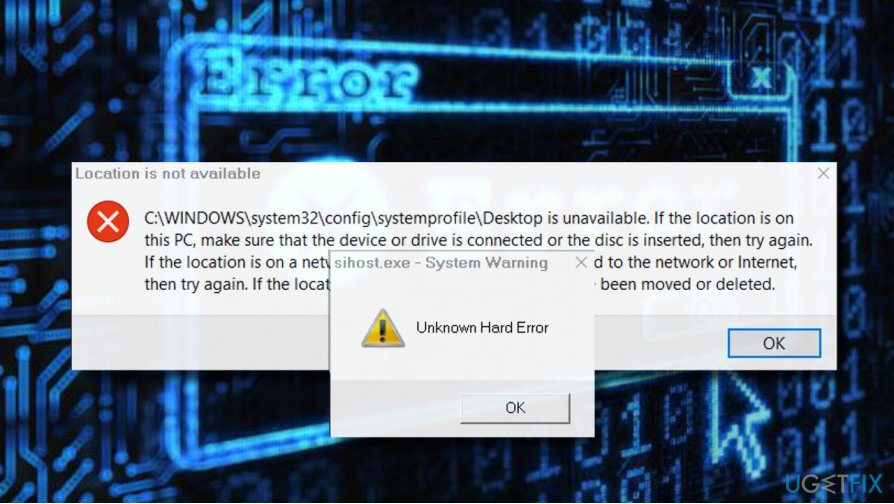
Usually, the System Warning: Unknown Hard Error is triggered by corrupted system’s files or registry entries, so running a full scan with a professional PC optimization utility may be the right solution. In this case, we would recommend using [d1] because it will check the system’s files, registry entries, and malware[ref en-3] at the same time.
The DDE Server Window: explorer.exe - System Warning: Unknown Hard Error can also be caused by automatic Windows updates. Tens of people reported this problem right after the installation of automatic updates, so either your PC’s operating system either was injected by a corrupted update or the update might have damaged some of the system’s files. In this case, try running sfc/scannow and DISM utilities or roll back the update.
The Unknown Hard Error can be fixed in 5 different ways
We have listed possible reasons for the "Unknown Hard Error" on Windows 10. If you already checked the system with anti-virus or anti-malware program and found out that your computer or laptop is virus-free, you need to try the methods below to get rid of this annoying alert.
This video contains useful information:
[youtube KD0GxG70Fyk]
Method 1. Clean boot Windows 10
This method helps to identify the cause of the "Unknown Hard Error." Then you will be able to fix the problems and get rid of the problem. Before following the steps below, do not forget to run Windows 10 as administrator:
- Click Windows key + R and type msconfig.
- On the System Configuration windows open the Services tab.
- Mark Hide all Microsoft services box and select Disable all.
- Open Startup tab and click Open Task Manager.
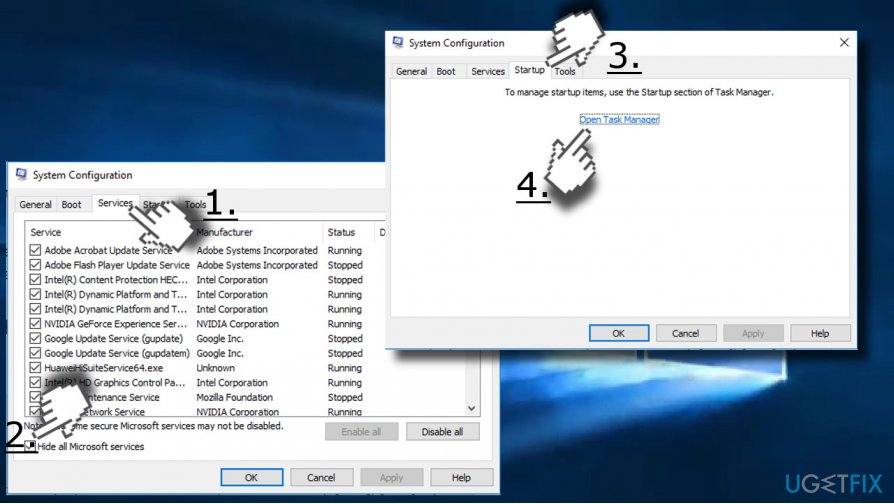
Clean boot - Click on each startup item and select Disable.
- Close Task Manager and click OK on the System Configuration window.
- Reboot the system.
If this fixed the Unknown Hard Error, you should enable the services one by one to find out which one is the culprit. Several people reported the Realtek Audio Service causes all of the problems.
Method 2. Run sfc/scannow
This method is the most primitive one, but do not underestimate the capabilities of the commands. System File Checker and disk scan utilities are quite powerful tools that can fix a lot of internal system’s problems.
- Right-click on Windows key and select Command Prompt (Admin).
- Type sfc /scannow into the dialog box and press Enter to execute it.
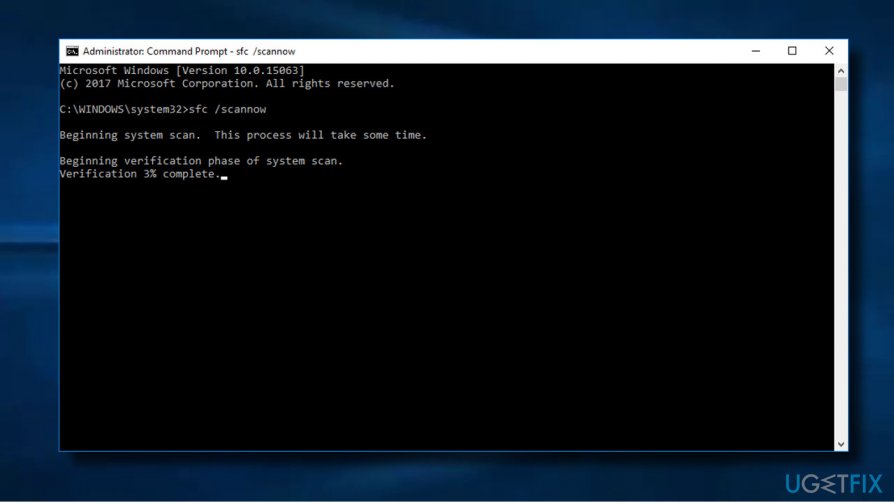
Sfc scannow - After about 20 minutes, the scan is over and sources of the error should be fixed. Otherwise, you should opt for the second method to fix Unknown Hard Error.
Method 3. Roll back the update
Since most of the Windows 10 users encountered the DDE Server Window: explorer.exe - System Warning: Unknown Hard Error after the installation of the eautomatic update, one of the solutions would be to uninstall the update:
- Click Windows key + I to open Settings.
- Select Update & Security and open Update History.
- Select Uninstall Updates.
- The system will open the list of updates in Control Panel applet. Select the update that you want to remove and select Uninstall.
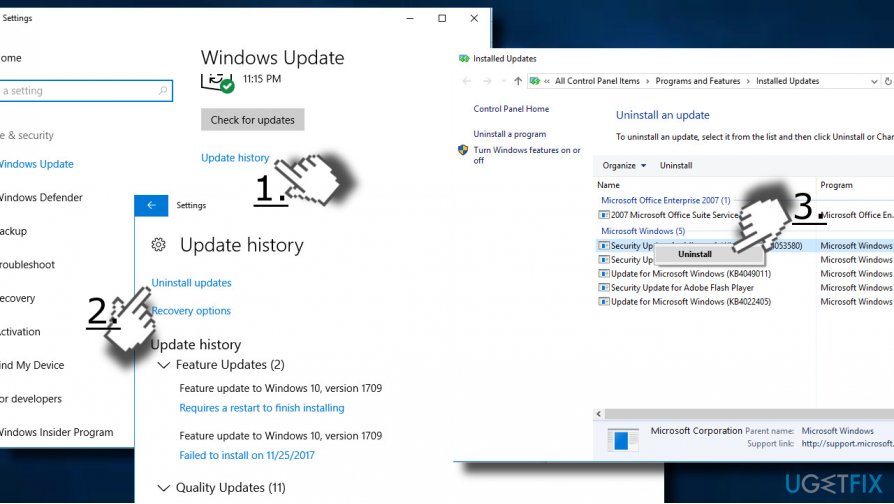
Uninstall updates
In case you are not allowed to uninstall the update via Windows Settings, you may try to enable a System Restore Point. However, make sure that the point you have was created before the Unknown Hard Error started.
- Click Windows key and type Create a Restore point.
- Select System Protection and click on System Restore.
- Press Next and select the restore point that was created before the Windows 10 error started.
- Click Next and Finish.
- Finally, reboot the system.
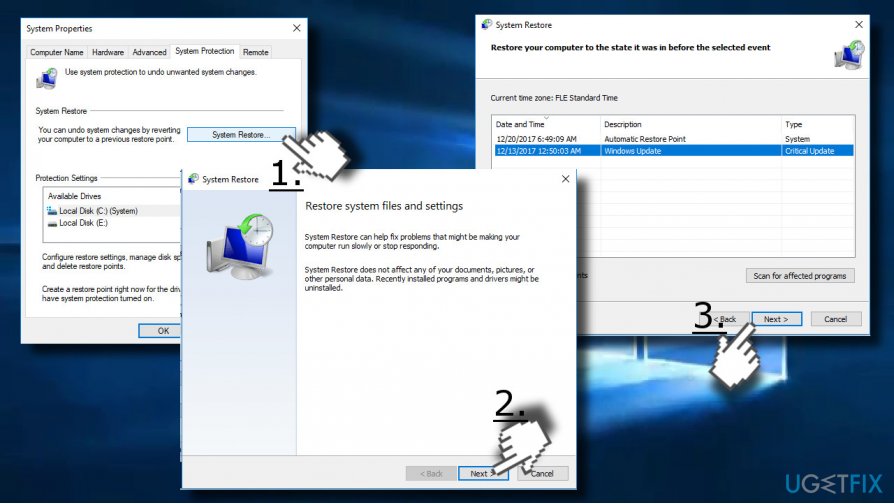
Enable system restore point
Method 4. Run CHKDSK command
Unknown Hard Error on Windows might occur due to the hard disk damage. So, you can run CHKDSK command to check and fix the issue:
- Launch Command Prompt (Admin).
- In the Command Prompt enter this command chkdsk /f /r and click Enter.
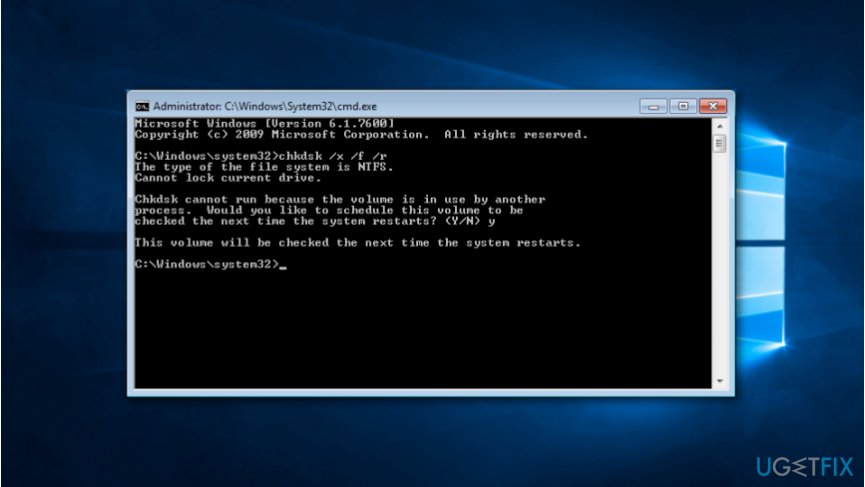
Run chkdsk command - Wait until the system scan is finished. In the end, you will see what problems were fixed.
Method 5. Check recent software changes
If "Unknown Hard Error" on Windows 10 appeared after the installation of a specific program, it might be the problem why this annoying pop-up bothers you. Therefore, you should look through the list of installed programs and uninstall the ones that you obtained before the error occurred. If software removal helps to get rid of the error, you should not reinstall it.
Bottom line
To fix the Unknown Hard Error, users should identify the application responsible for the error and consider updating, reinstalling, or temporarily uninstalling it. Running a full scan with a professional PC optimization utility may also help resolve corrupted files and registry entries. If none of these solutions work, further troubleshooting may be necessary.
Frequently asked questions
The 'Unknown Hard Error' typically occurs due to issues with the hard drive, corrupted system files, or problematic device drivers on Windows 10.
You can run a disk check by opening Command Prompt as an administrator and typing 'chkdsk /f', then pressing Enter to check for and fix any disk errors.
Yes, you can try performing a system restore or using the System File Checker tool by running 'sfc /scannow' in Command Prompt to repair corrupted files without reinstalling.




Report an issue
What's wrong with this guide? We review every report and update or remove content.
Report received — thank you. We'll review and fix it.
You need a free account to submit a report.
Be the first to comment