How to fix
ERR_SPDY_PROTOCOL_ERROR on Google Chrome
on Windows
Resolve the ERR_SPDY_PROTOCOL_ERROR in Google Chrome on Windows 10 or 11 effortlessly. Get expert-tested solutions to surf smoothly, fixed in minutes.

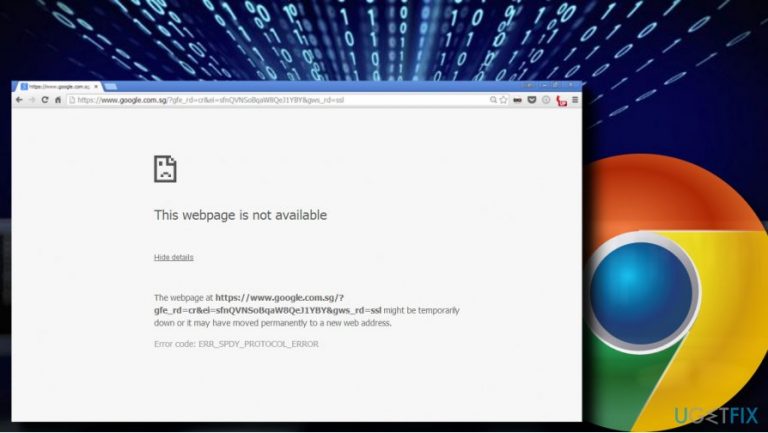
What causes How to Fix ERR_SPDY_PROTOCOL_ERROR on Google Chrome?
- Old version of Google Chrome supporting SPDY protocol
- Anti-virus program blocking specific websites
- Malfunctioning browser due to prolonged use
- Cached data causing conflicts
- Issues with HTTPS enabled websites
Repairs Windows system files, removes malware, and restores a clean OS state — without reinstalling.
I get an ERR_SPDY_PROTOCOL_ERROR on Chrome. It occurs when accessing ransom websites, but all of them are trustful. What could the problem be?
ERR_SPDY_PROTOCOL_ERROR is a Google Chrome[ref en-1] error, which occurs regardless of the OS type, device’s age or other browser-unrelated factors. It affects users who employ Google Chrome web browser as their default web browser only.
The error shows up when trying to access random websites, including YouTube, Gmail, Reddit, Wikipedia or Tumblr. According to people’s reports, it looks like Google-related websites with the HTTPS[ref en-2] enabled return the ERR_SPDY_PROTOCOL_ERROR most frequently.
There are various speculations about the culprit of the ERR SPDY PROTOCOL ERROR, but as the name of the error indicates, it may step from the SPDY protocol.[ref en-3] The latter is a feature developed by Google to speed up the loading time of the websites. However, Google banned the SPDY protocol due to the HTTP 2 Vulnerability.[ref en-4] If you are using an old version of Google Chrome, it may still be supporting SPDY protocol and, consequently, it confronts with the Google-related websites.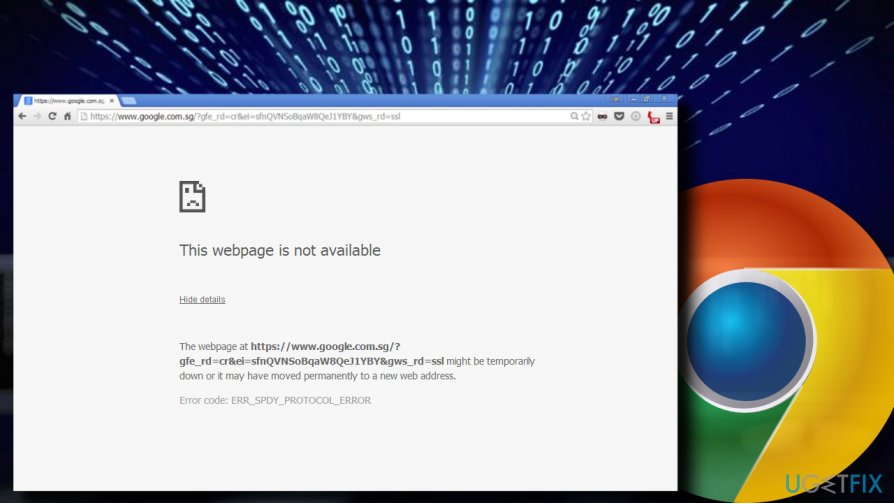
In this particular case, the solution would be to update Google Chrome to the latest version available. If that did not help, the culprit of the Chrome blocking random websites may be related to your anti-virus program, which blocks particular websites for one or another reason. In this case, you should check the blocked items list under your anti-virus settings. If that did not help either, try the following ERR_SPDY_PROTOCOL_ERROR fixes.
Clear browsing data
The easiest way to fix ERR_SPDY_PROTOCOL_ERROR on Google Chrome is to clear browsing data, but before doing that, try restarting the browser. If you tend to leave your browser unclosed for several days or so, it may start malfunctioning.
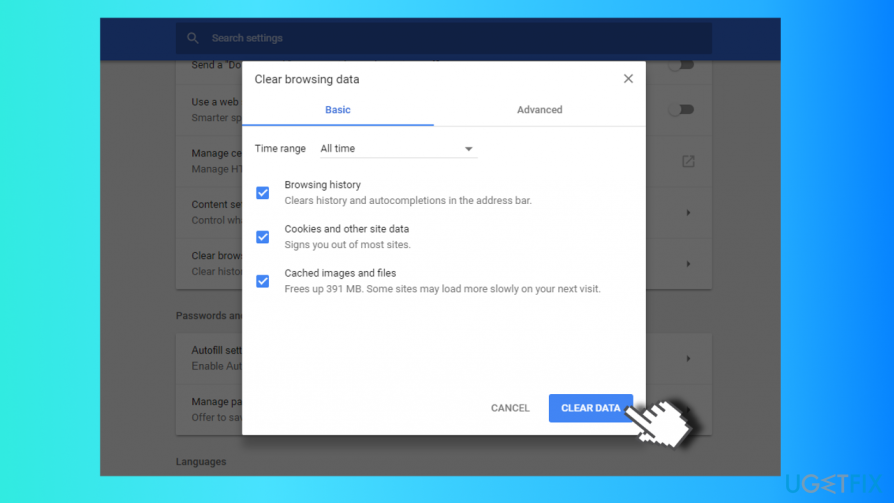
If, however, restarting did not help, clear cookies, plug-in data, cached images and files. These three options will be marked by default once you open the Clear browsing data section on Chrome’s settings.
- Open Google Chrome and click on Menu icon (three vertical dots at the top-right corner of the website).
- Open Settings and scroll down to the bottom.
- Expand the Advanced settings section.
- Locate the Clear browsing data option and click on it.
- Here you’ll see Basic and Advanced tabs at the top. If you are afraid of losing passwords, autofill data, and other customized settings, stick to the Basic data clearance. There you’ll see Browsing history, Cookies and other site data, and Cached images and files options marked by default. Leave them as they are.
- Click Clear data and wait for the process to be finished.
- Finally, restart Chrome and check if that helped.
Check Anti-Virus and Firewall settings
In any antivirus software, you should find a section of active protection and the blocked websites list. If you are encountering a stop error ERR_SPDY_PROTOCOL_ERROR when opening only one website, try to find the blocked sites list and include the one that returns an error into the exclusion list. Besides, try to disable HTTP scanning option, which should be included into the main settings list.
Most of the people who encountered the ERR_SPDY_PROTOCOL_ERROR error were using Avast. If you are using it as well, navigate to Avast GUI > Settings > Active Protection and click on Customize for Web Shield. Under the URLs to exclude list, add the website that it being blocked by the Google Chrome error.
Flush Socket
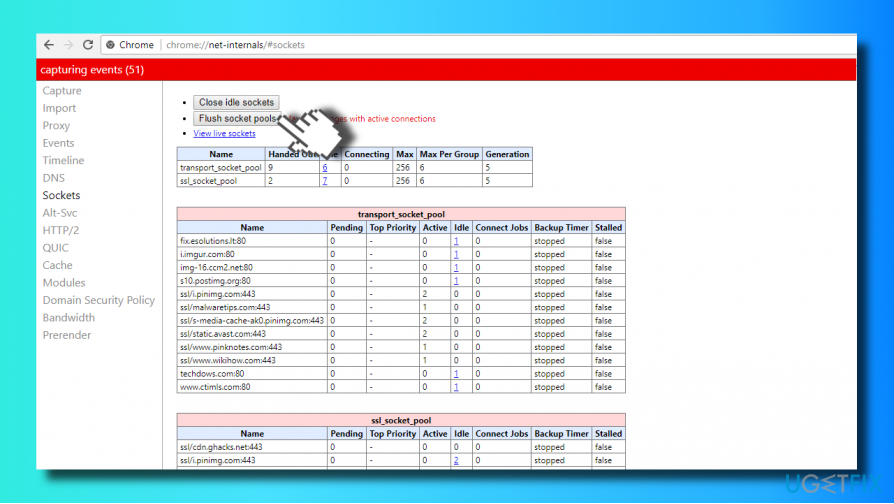
- Open Google Chrome and paste the chrome://net-internals/#sockets in the address bar.
- Press Enter to open Flush Sockets window.
- Click on Flush Socket Pools.
- After that, try to open any website that you were not able to visit before.
Flush DNS
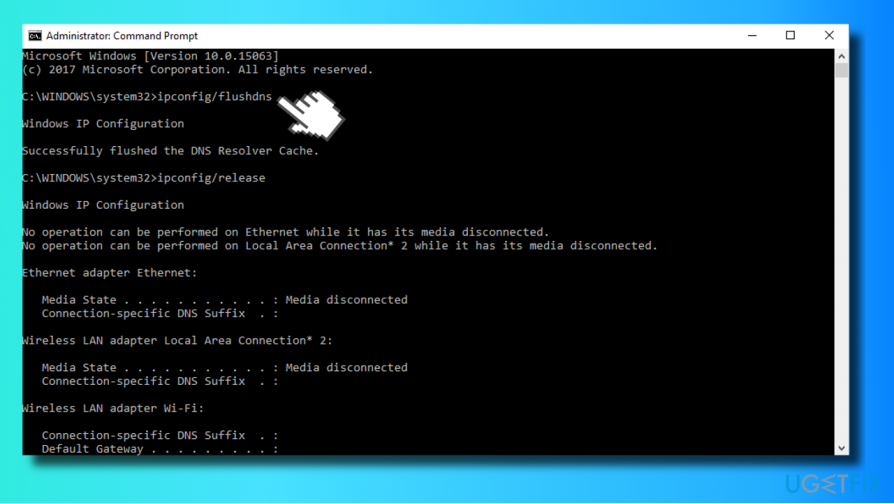
- Right-click on Windows key and select Command Prompt (Admin).
- Copy and paste the following commands one-by-one. Press Enter after each and wait for the command to be executed.
ipconfig/flushdns
ipconfig/release
ipconfig/renew
Reset Google Chrome settings to default
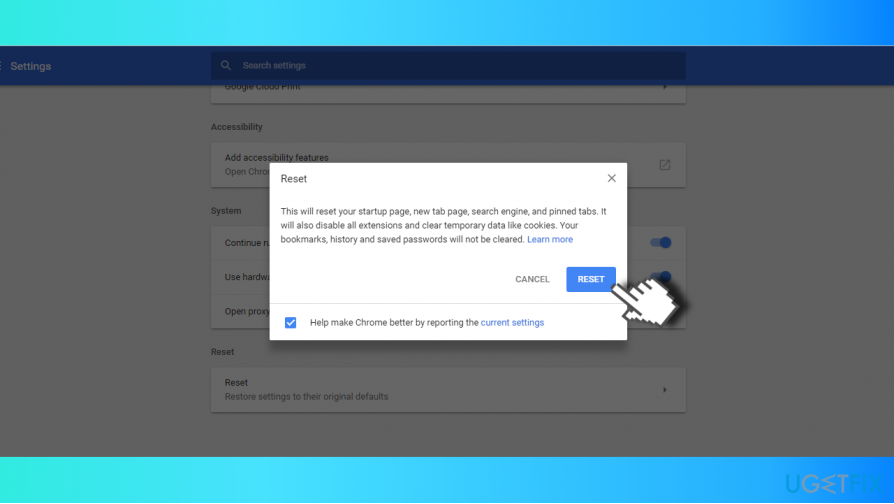
If none of the methods listed above helped, try to reset Google Chrome. For this purpose, you should:
- Open Google Chrome and click on Menu icon (three vertical dots at the top-right corner of the website).
- Open Settings and scroll down to the bottom.
- Expand the Advanced settings section.
- Find the Restore Settings box and click Reset.
- Once done, restart Chrome and check if these steps helped to fix ERR_SPDY_PROTOCOL_ERROR error.
Bottom line
To fix the ERR_SPDY_PROTOCOL_ERROR, you can update Google Chrome to the latest version, check your anti-virus settings for blocked items, and clear your browsing data. If these solutions do not resolve the issue, consider restarting your browser or checking for other underlying problems.
Frequently asked questions
This error is typically caused by issues with your internet connection, outdated browser settings, or server misconfigurations. It can also be related to conflicting extensions or outdated network drivers on Windows 10.
To clear the cache, open Chrome, go to Settings, select Privacy and Security, then choose Clear browsing data. Make sure to check 'Cached images and files' and click 'Clear data' to resolve the error.
Yes, you can reset Chrome settings by going to Settings, scrolling down to 'Advanced', and selecting 'Restore settings to their original defaults'. This can help resolve the ERR_SPDY_PROTOCOL_ERROR on both Windows 10 and Windows 11.




Report an issue
What's wrong with this guide? We review every report and update or remove content.
Report received — thank you. We'll review and fix it.
You need a free account to submit a report.
Be the first to comment