How to fix
Win32kfull.sys BSOD
on Windows
Resolve Win32kfull.sys BSOD errors on Windows 10 quickly and effectively. Follow our expert-tested solutions and get your system running smoothly again!


What causes How to fix Win32kfull.sys BSOD on Windows 10?
- Outdated device drivers
- Corrupted device drivers
- Corrupted registry entries
- Corrupted RAM
- Missing system files
- Conflict between hardware and software
Repairs Windows system files, removes malware, and restores a clean OS state — without reinstalling.
After the installation of Windows 10 Fall Creators Update, I started receiving an BSOD, which says that the Win32kfull.sys file is broken. The error code is SYSTEM_SERVICE_EXCEPTION. I can work around the error by rebooting the system, but during the next reboot it reoccurs. In general, the system is rather sluggish. Could you please help me?
Win32kfull.sys is a SYS file[ref en-1] developed by Microsoft Corporation. It is responsible for the smooth interaction between internal PC hardware or attacked hardware and the third-party software. Therefore, this SYS file belongs to the group of critical system files the corruption of which may result in BSOD[ref en-2] and other fatal crashes.
This file is associated with Windows 10 OS, so problems related to it are not very likely to occur on Windows XP, 7,[ref en-3] 8 or other older versions. Sadly, but with the release of Windows 10 Creators Update, people come across various Win32kfull.sys BSOD errors quite frequently.
Currently, there are several types of Win32kfull.sys BSOD:
- CRITICAL_STRUCTURE_CORRUPTION
- PAGE_FAULT_IN_NONPAGED_AREA
- KMODE_EXCEPTION_NOT_HANDLED
- IRQL_NOT_LESS_EQUAL
- SYSTEM_SERVICE_EXCEPTION.

The latter tends to occur most frequently. All of these error variants usually occur at boot, but that’s not a rule because in some rare cases the SYSTEM_SERVICE_EXCEPTION (Win32kfull.sys) BSOD occur when performing random tasks.
The culprit of the error is closely related to hardware. In most of the cases, Win32kfull.sys error is triggered by outdated or corrupted device drivers, so we would strongly recommend you to update all device drivers. If you would find a malfunctioning driver (marked with a yellow exclamation mark) in Device Manager, the best option would be to reinstall it.
In addition to device drivers, the problem may stem from corrupted registry entries, corrupted RAM, missing system files or conflict between hardware and software. Therefore, since there’s no unique cause of the Win32kfull.sys error, we’ll provide all applicable fixes.
Scan the system with a professional anti-malware
Although the security rating of Win32kfull.sys file reaches only 1, which means that it can hardly be dangerous, the first thing you should do when the BSOD occurs is to run a full system scan with a professional anti-malware. That’s because blue screens are often caused by virus infections. In this case, we would recommend using [d1]. This program is capable of fixing Windows system files, registry entries, log files, etc. and removing malware at the same time.
Update Device Drivers
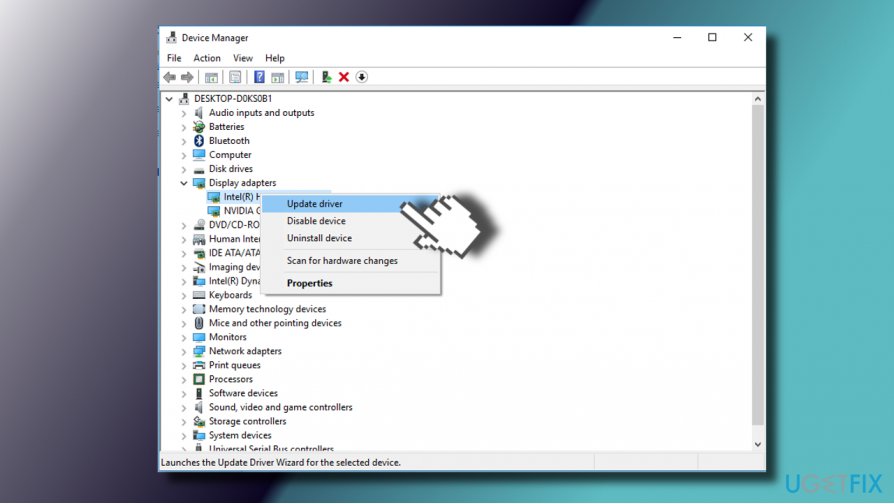
If the scan with antivirus did not help, navigate to Device Driver and check for outdated device drivers. Corrupted, outdated or otherwise damaged device drivers are typically marked with a yellow exclamation mark. If none of them are marked, then the best you can do update all of the drivers.
- Right-click on Windows key and select Device Manager.
- Expand each section of the drivers and check for malfunctioning ones.
- If you did not find drivers marked with a yellow exclamation mark, right-click on each driver and select Update Driver.
- After that, reboot your PC and check if that helped.
Install Windows Updates
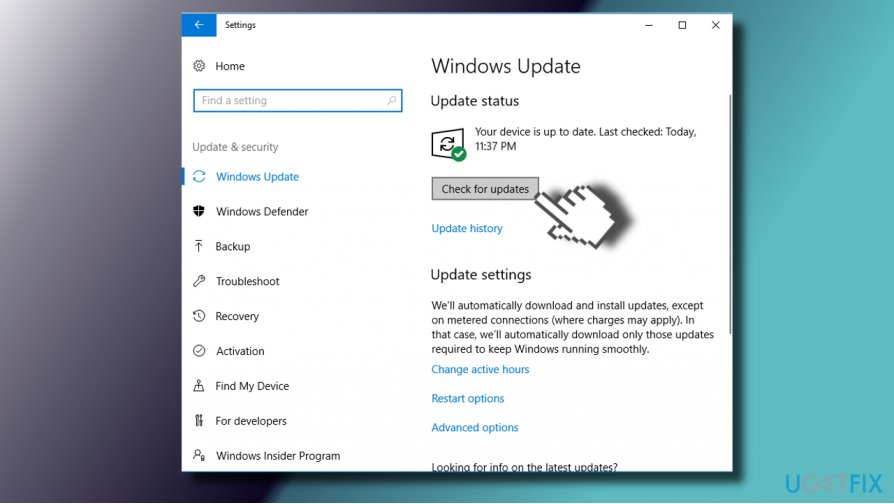
If the two methods above did not work, try installing all available Windows 10 updates.
- Press Windows key + I to open Settings.
- Open Updates & Security section and click Check for updates button.
- Now Windows should automatically download and install the updates. Once done, you’ll get a notification saying “Your device is up to date. Last checked: Today.”
- Reboot your PC.
Run System File Checker
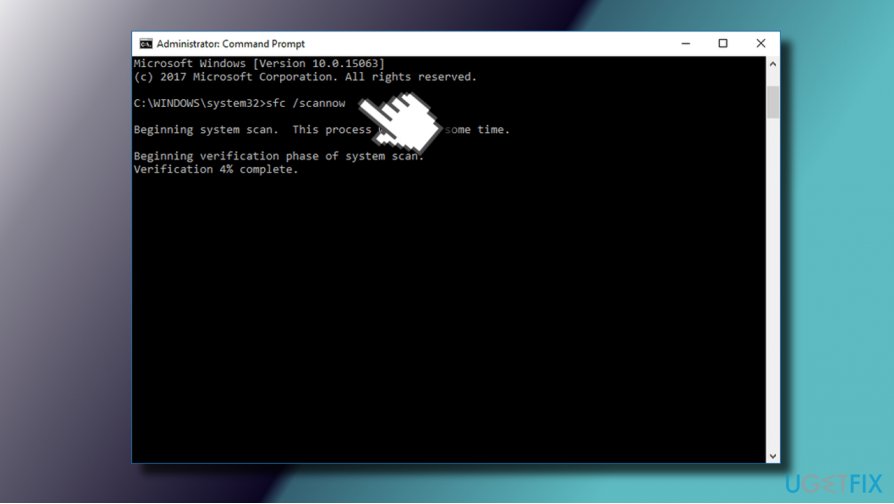
System files on Windows can quite easily be fixed by running sfc /scannow in Command Prompt.
- Right-click on Windows key and select Command Prompt (Admin).
- Copy and paste the sfc /scannow command in Command Prompt window and press Enter.
- You should see a growing percentage of scanned items. Once the process finishes, close Command Prompt and reboot your PC.
Check hard drive
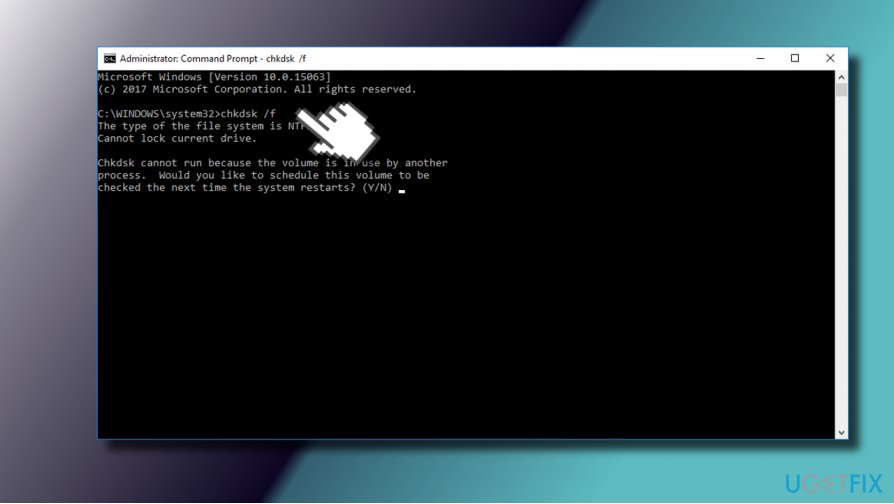
Win32kfull.sys BSOD may be triggered by storage controllers or rather HDD corruption. It may get damaged after wrong system shut down, hardware failure, and similar problems. To check that, please do the following:
- Right-click on Windows key and select Command Prompt (Admin).
- Type chkdsk /f and press Enter.
- Now the system should be scanning your hard disk. After the procedure, you’ll get a report if Windows detected any violations.
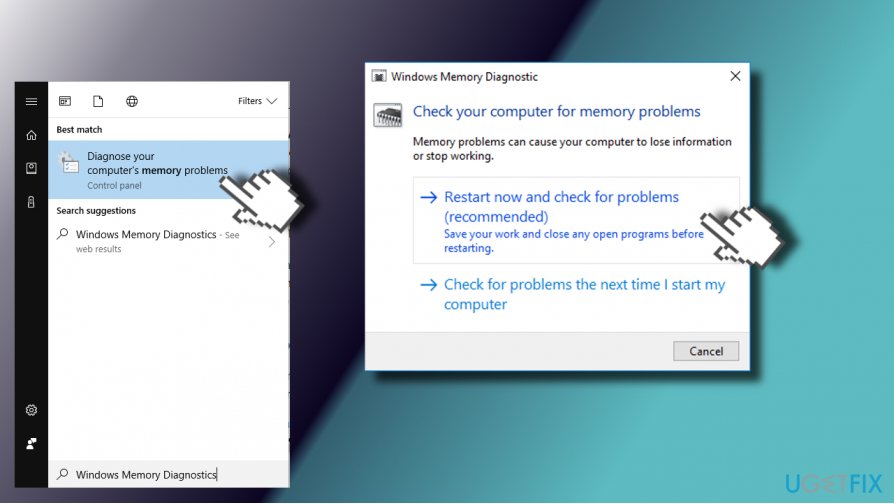
Run Windows Memory Diagnostics
- Open Windows search and type Windows Memory Diagnostics.
- Click on the first option and select Restart Now option on the pop-up.
- Now the system will restart and the problems related to Windows Memory should be fixed.
Use System Restore Point
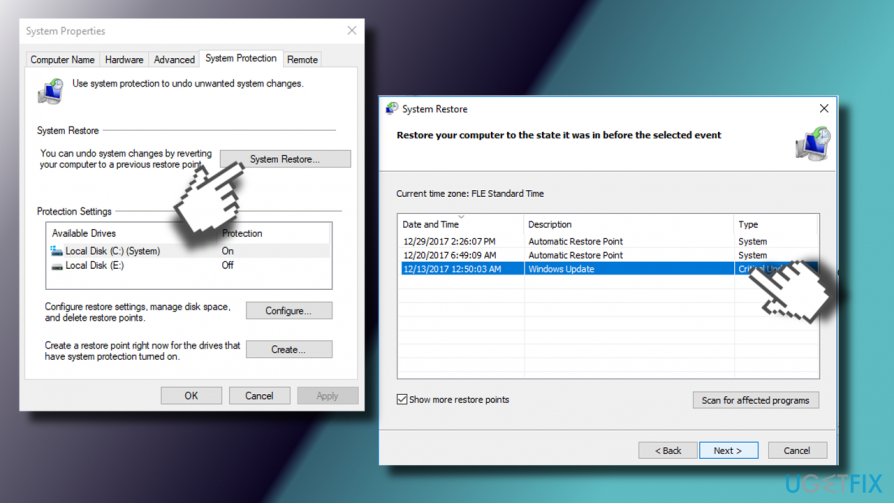
If the problem started after installation of certain software or initiation of important system’s changes, we would recommend using the last created System Restore Point.
- Press Windows key and type System Restore Point.
- Click on Create a System Restore Point.
- Click on System Restore option and hit Next to continue.
- Select the restore point that has been created before the Win32kfull.sys error occurred.
- Click Next and wait for the restore to be completed.
The utmost Win32kfull.sys error fix is to perform a clean Windows 10 install using a bootable installation media.
Bottom line
To fix the Win32kfull.sys BSOD error, you should update all device drivers, scan the system with a professional anti-malware, and check for corrupted registry entries or RAM issues. If these solutions do not resolve the problem, consider reinstalling malfunctioning drivers or seeking further technical assistance.
Frequently asked questions
The Win32kfull.sys BSOD can be caused by incompatible drivers, corrupted system files, or issues with third-party software. It's important to check for recent changes or updates that may have triggered the error.
To troubleshoot, you can start by booting into Safe Mode and uninstalling any recent updates or drivers. Additionally, running the System File Checker tool can help repair corrupted files that might be causing the BSOD.
Yes, updating your drivers, ensuring your Windows 10 is fully updated, and performing a clean boot can help permanently resolve the Win32kfull.sys error. If the issue persists, consider performing a system restore to a point before the problem began.




Report an issue
What's wrong with this guide? We review every report and update or remove content.
Report received — thank you. We'll review and fix it.
You need a free account to submit a report.
Be the first to comment