How to fix
Btmshellex.dll error
on Windows
Resolve the btmshellex.dll error on Windows 10/11 quickly and easily with our expert-tested solutions. Fix it in minutes, with screenshots included.

What causes How to fix btmshellex.dll error on Windows?
- Bluetooth drivers corrupted by Windows update
- Removal of software or driver updates
- Accidental deletion of btmshellex.dll file
- Malware targeting btmshellex.dll
- Duplicate files concealing viruses
Repairs Windows system files, removes malware, and restores a clean OS state — without reinstalling.
Hello, all. After Fall Creators Update, I cannot connect any Bluetooth device to my PC. I’ve checked that the status of the Bluetooth adapter driver reports an error, which says: “This device cannot start. (Code 10) STATUS_DEVICE_POWER_FAILURE.”
I tried updating and uninstalling it, but after that I started getting a message “There was a problem starting C:\\Program Files (x86)\\Intel\\Bluetooth\\btmshellex.dll. The specified module could not be found” on start up. Please tell me what should I do?
Many Windows 8.1 and 10 users came across the btmshellex.dll error. The btmshellex.dll is a standard Windows process developed by Motorola Solutions, Inc.[ref en-1] It’s responsible for running Bluetooth service and normally can be located in C:\\Program Files\\intel\\bluetooth\\btmshellex.dll.
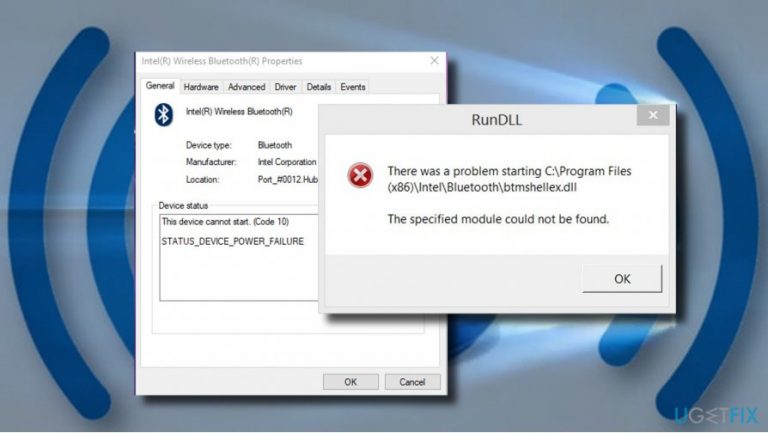
However, sometimes people may get a notification saying that the btmshellex.dll is missing or corrupted while performing some random tasks with a PC or during start up. A full error message says:
There was a problem starting C:\\Program Files (x86)\\Intel\\Bluetooth\\btmshellex.dll. The specified module could not be found.
In most of the cases, it emerges soon after the installation of Windows updates, removal of software or driver updates. Several cases were registered when people removed the btmshellex.dll file accidentally, but these instances are rare.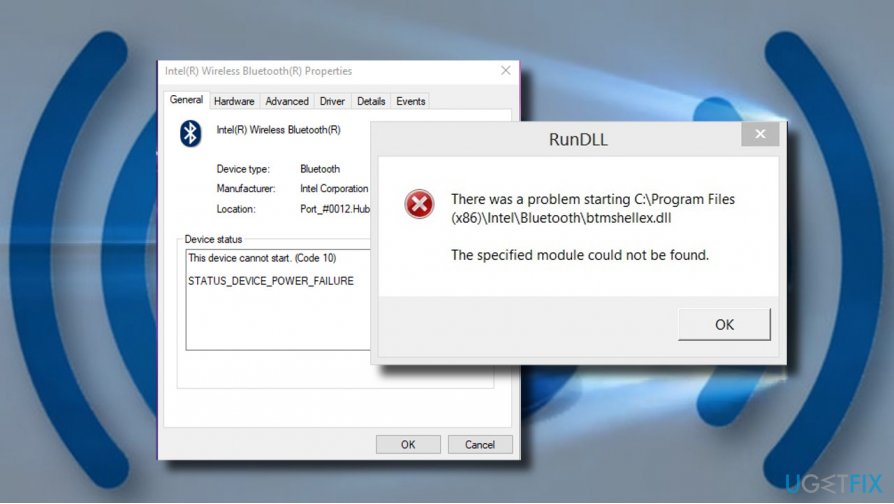
The culprit of the btmshellex.dll error is usually related to Bluetooth drivers, which might got corrupted by Windows update[ref en-2] or other third-party software. Therefore, the most primitive solution would be to update or reinstall Bluetooth drivers. Nevertheless, sometimes driver update won’t do the trick, so we would also recommend checking the system for malware and re-registering the btmshellex.dll file.
Although uncommon, hackers target files[ref en-3] like btmshellex.dll. They duplicate legitimate files and conceal viruses under them. Windows system won’t accept corrupted files and, therefore, errors like Btmshellex.dll “The specified module could not be found” may occur. To prevent time wasting, we would recommend you to run a scan with [d1] all-in-on tool, which will scan the system for malware and optimize it.
If the scan did not fix the btmshellex.dll is missing error, try updating Bluetooth drivers and re-registering the btmshellex.dll file.
Update Bluetooth drivers
- Right-click on Windows key and select Device Manager.
- Alternatively, you can click Windows key + R, type devmgmt.msc in the Run and hit Enter.
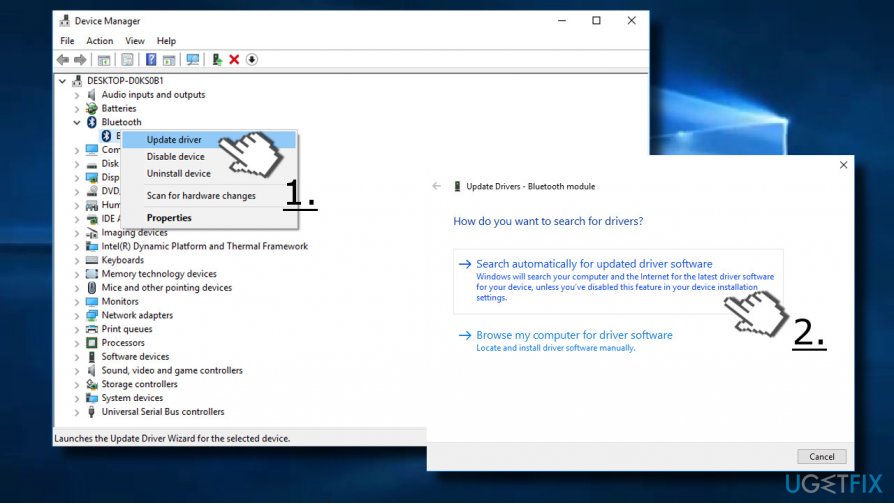
- Find Bluetooth driver, right-click on it, and select Update driver.
- Now select the Search automatically for updated drivers option and let the system to run a scan for updates.
- Eventually, you’ll get a confirmation if the Bluetooth driver has successfully been updated or a report that no updates were found.
If no updates were found for you Bluetooth driver, please try installing the update manually:
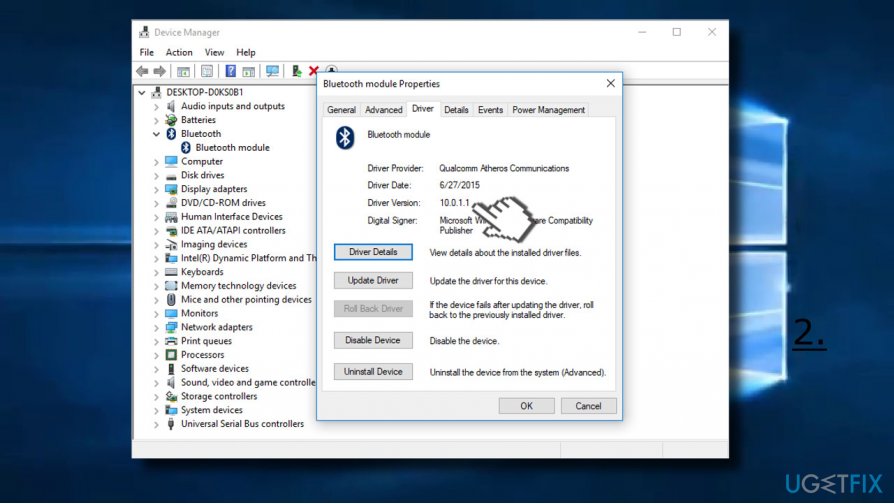
- When in Device Manager, double-click on the Bluetooth driver.
- Open Driver tab and check what is the version of your Bluetooth driver.
- Navigate to the manufacturer’s website and find the latest driver for your device.
- Once installed, reboot the system and check if the problem is gone.
IMPORTANT: before downloading the driver manually, make sure that you opt for the newer driver version, but not the same as installed on your PC.
Re-register btmshellex.dll file
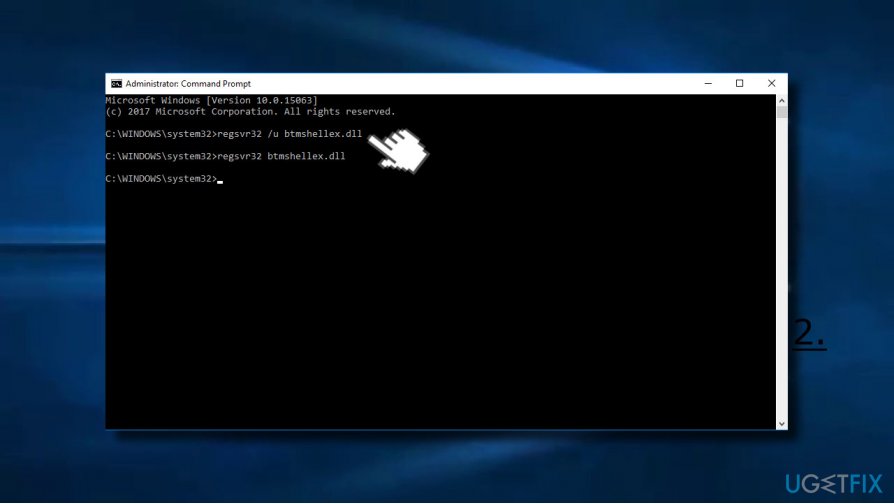
- Right-click on Windows key and select Command Prompt (Admin).
- Type regsvr32 /u btmshellex.dll command and press Enter to execute it.
- Then type regsvr32 btmshellex.dll and press Enter.
- Now restart the system and check if this method worked.
Disable btmshellex.dll
If none of the previous methods helped to fix btmshellex.dll error, disable this dll file to prevent it running at the startup.
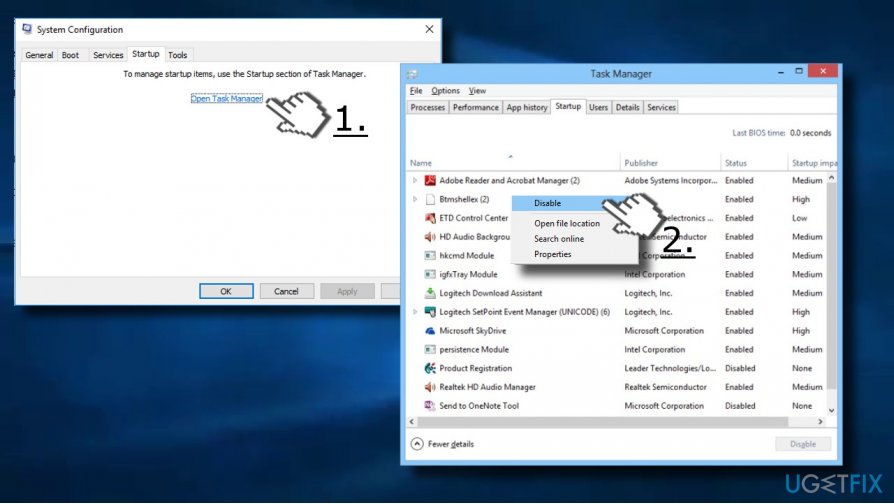
- Press Windows key + R to open Run.
- Type msconfig and press Enter.
- Now open Startup tab and select Open Task Manager.
- Locate the btmshellex entry, select it, and click Disable.
- Close Task Manager and click OK.
- Restart the system and check if the btmshellex.dll “The specified module could not be found” error has been fixed.
Bottom line
To fix the btmshellex.dll error, you should update or reinstall your Bluetooth drivers and check your system for malware. Additionally, re-registering the btmshellex.dll file may help resolve the issue. If these solutions do not work, consider running a comprehensive system scan with an all-in-one tool.
Frequently asked questions
The btmshellex.dll error can be caused by corrupted system files, outdated drivers, or issues with installed software that relies on this DLL file.
You can repair the btmshellex.dll file by running the System File Checker tool via Command Prompt or by reinstalling the application that is associated with the error.
No, downloading DLL files from unverified sources can lead to malware infections; it's safer to use Windows built-in tools or official software to resolve the issue.




Report an issue
What's wrong with this guide? We review every report and update or remove content.
Report received — thank you. We'll review and fix it.
You need a free account to submit a report.
Be the first to comment