How to fix
Disable “Windows Support Alert” pop-up
on Windows
Easily disable the annoying "Windows Support Alert" pop-up on your Windows 10 or 11 device. Follow our expert-tested guide for a hassle-free fix!

What causes How to disable “Windows Support Alert” pop-up?
- Fake alert mimicking official Microsoft alerts
- Triggered by adware
- Installed with legitimate free applications
- Occurs on dubious third-party websites
- Pop-up freezes web browser
Repairs Windows system files, removes malware, and restores a clean OS state — without reinstalling.
Is a “Windows Support Alert” reporting spyware/riskware virus on my PC a genuine alert? Should I call for the given number to report this alert? It keeps reoccurring even if I click “Ignore Alert” button?
Microsoft does NOT distribute “Windows Support Alert,” so if you started getting it on your web browser, it’s about time to scan your PC with a reputable anti-malware[ref en-1] and carefully check the extensions of your web browser.
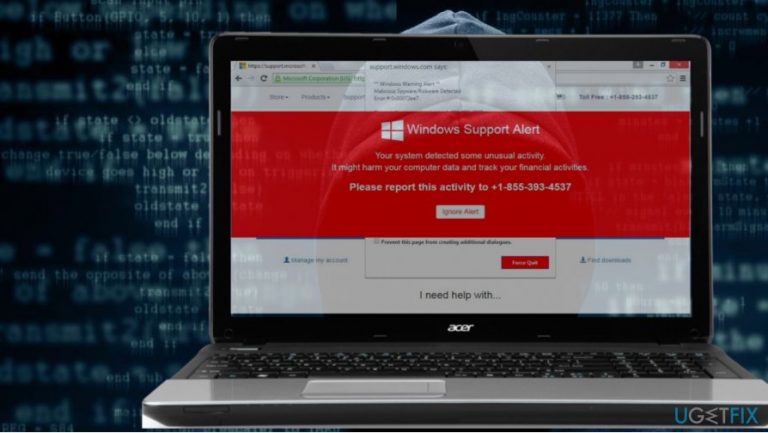
The “Windows Support Alert” pop-up is yet another Tech-Support-Scam[ref en-2] currently circulating on the Internet. It’s one of those fake alerts that try to mimic official Microsoft’s alerts, but don’t get fooled. Microsoft does not send warning about virus infections and unknown error codes. Although there are hundreds of error codes that might be reported to people by Windows operating system, none of them will contain a telephone number.
It’s not yet clear what scammers who developed the “Windows Support Alert” scam are seeking, but judging from previous practice that may want to spread doubtful third-party programs or get remote access to people’s PCs. In the latter case, the consequences may be devastating – data loss, identity theft, money loss, and similar.[ref en-3]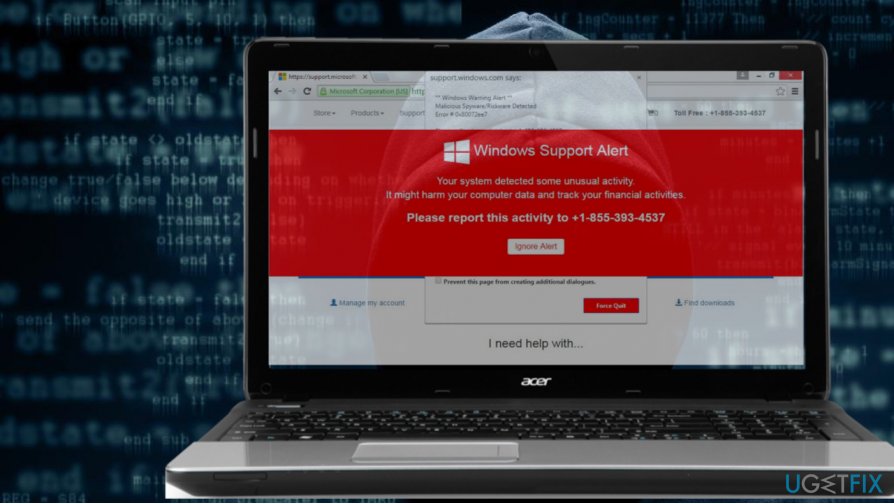
The specifisities of the “Windows Support Alert” scam
“Windows Support Alert” scam can occur on any web browser, be it popular or not. In some cases, it pop-ups when visiting doubtful third-party websites, but typically it’s triggered by adware. It might got installed to your PC along with legitimate free application.
First of all, a pop-up in a blue screen environment occurs. It reports “Windows Warning Alert” and claims that the system detected a malicious spyware/riskware. In less than ten seconds, a second pop-up shows up, which indicates “Windows Support Alert” and provides a supposed Microsoft support number.
Although the Ignore Alert button is provided, it does not work. The “Windows Support Alert” error freezes the web browser, so it has to be closed forcefully using Task Manager.
Despite the fact the “Windows Support Alert” tech-support-scam is not malicious itself, it disrupts web browsing sessions and can cause loss of important work. The most important thing is NOT to call for the provided number and DO NOT trust the scammers on the other side of the handset.
Fixing “Windows Support Alert” error
- Press Ctrl + Alt + Delete and open Windows Task Manager.
- Find the process of your web browser, click on it, and select End Task.
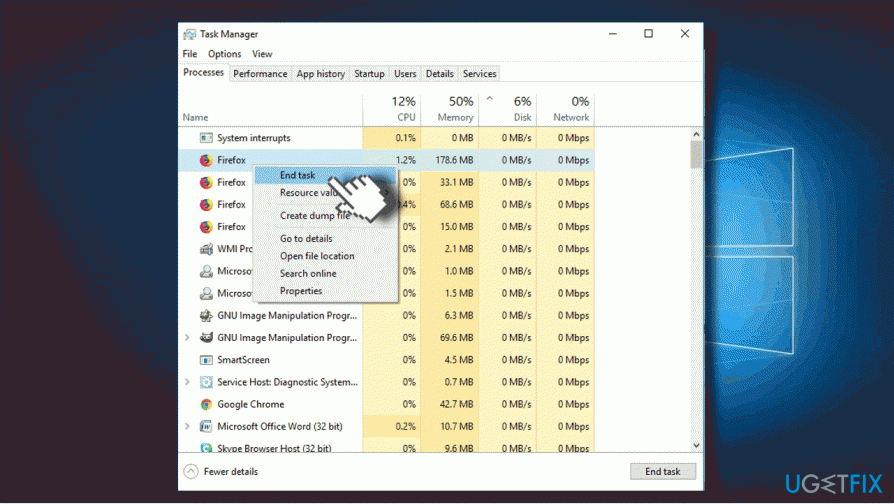
Close web browser
After that, you have two options - either scan your PC with antivirus, say [d1], or uninstall malware manually. Regardless of the method you prefer, reset your web browser's default settings. This is how you should do that:
- Press Windows key + I and open Apps section. (Windows 10)
- In earlier Windows versions you should navigate to Control Panel -> Programs & Features.
- Carefully check the list of installed programs. Uninstall unknown programs or the ones that you did not install purposely.
- Click on the unwanted program and select Uninstall.
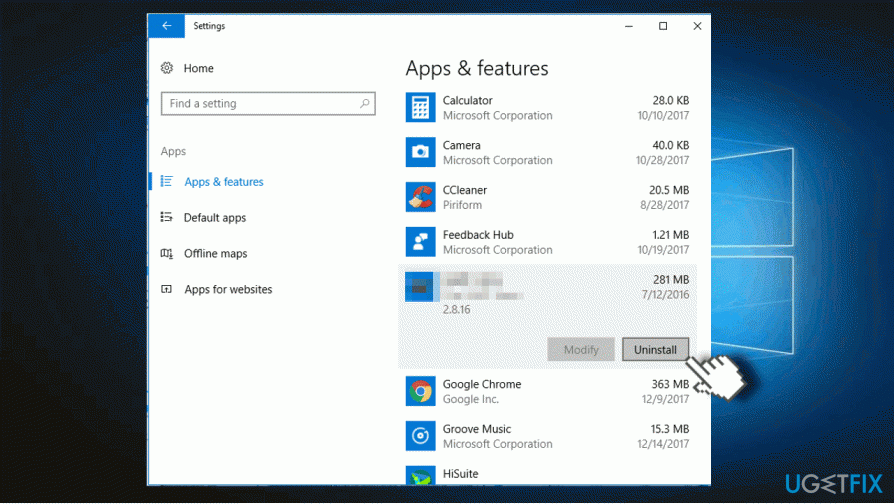
Uninstall adware - Then open your web browser (do not restore the last browsing session).
- Click on Menu icon and open Settings.
- Find Reset or Refresh option and click it.
- To save all the changes, restart your PC and check if the “Windows Support Alert” is gone.
Bottom line
To resolve the issue, scan your PC with a reputable anti-malware program and check your web browser extensions. If the problem persists, consider closing the browser using Task Manager and reviewing your installed applications for any unwanted software.
Frequently asked questions
You can disable the 'Windows Support Alert' pop-up by going to Settings > Privacy > Background apps and turning off the background app for Windows Support.
Yes, you can permanently remove the 'Windows Support Alert' by disabling it in the Task Manager under the Startup tab.
No, disabling the 'Windows Support Alert' will not affect your system performance, as it only prevents the pop-up notification from appearing.




Report an issue
What's wrong with this guide? We review every report and update or remove content.
Report received — thank you. We'll review and fix it.
You need a free account to submit a report.
Be the first to comment