How to fix
Windows Update error 0x80240034
on Windows
Solve the Windows Update error 0x80240034 easily with our expert-tested solutions for Windows 10 and Windows 11. Fixed in minutes!

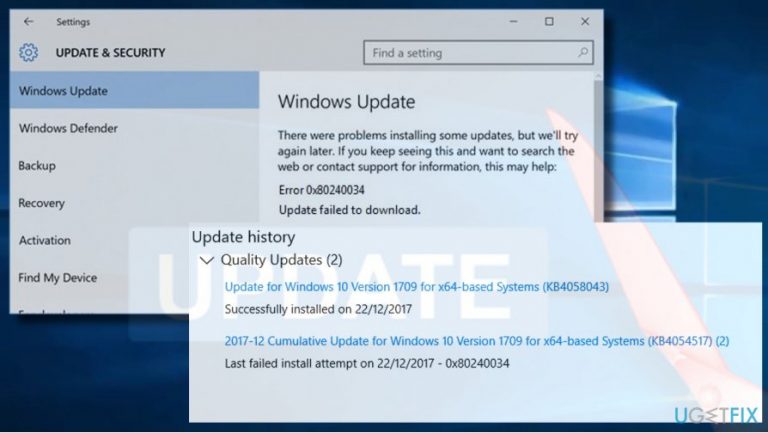
What causes How to fix Windows Update error 0x80240034?
- Corrupted updates
- Damaged update components
- Third-party antivirus interference
- Incorrect configurations
- Missing .NET Framework 3.5
Repairs Windows system files, removes malware, and restores a clean OS state — without reinstalling.
I cannot install cumulative update KB4048955 for Windows 10 V1709. The update gets installed, but the changes are undone when restarting the system. Windows Update shows error code 0x80240034. How can I fix this issue?
0x80240034 is a Windows Update error, which harassed Windows 10 Insider[ref en-1] Preview Build 16226 users a half of the years ago. While it seemed that Microsoft has already fixed it, the truth is that many people are still encountering it, except that it’s not limited to Windows 10 Insiders.
Many people reported the 0x80240034 error when trying to install Cumulative Update KB4048955, but that’s not an exceptional update. Actually, the update gets installed successfully using automatic Windows Update service, but then the final points of the installation process during systems restart fail and all changes are rolled back.
In general, Windows Update problems are very common and they may happen both at Microsoft’s and OS end. Although rarely, Microsoft releases corrupted updates or some update components get damaged during the installation. In this case you should either wait for the patch to be released or install the update manually from the official Microsoft Update Catalog.
Nevertheless, inner system’s problems are the most common triggers of the Windows Update problems. Windows Update components, third-party antivirus,[ref en-2] incorrect configurations, missing .NET Framework 3.5, etc. are just a few examples of the 0x80240034 error causes.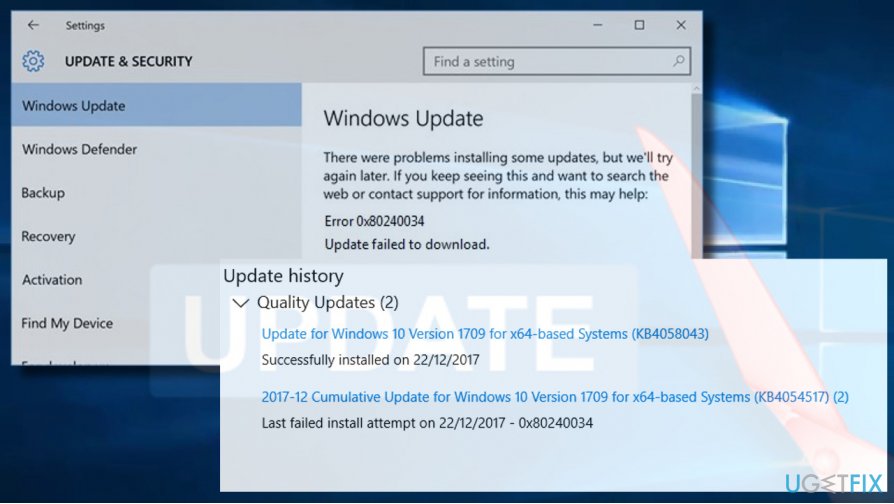
One of the options you have to fix 0x80240034 error is to install a professional PC’s optimization utility and run a scan with it. We would strongly recommend using [d1] as it will check the system for corrupted/damaged/missing files and remove malware[ref en-3] at the same time. If automatic solution don’t work, please try these methods:
Run Windows Update Troubleshooter
- Press Windows key + I and open Update & Security section.
- Select Troubleshoot and find Windows Update.
- Click Windows Update and select Run troubleshooter.
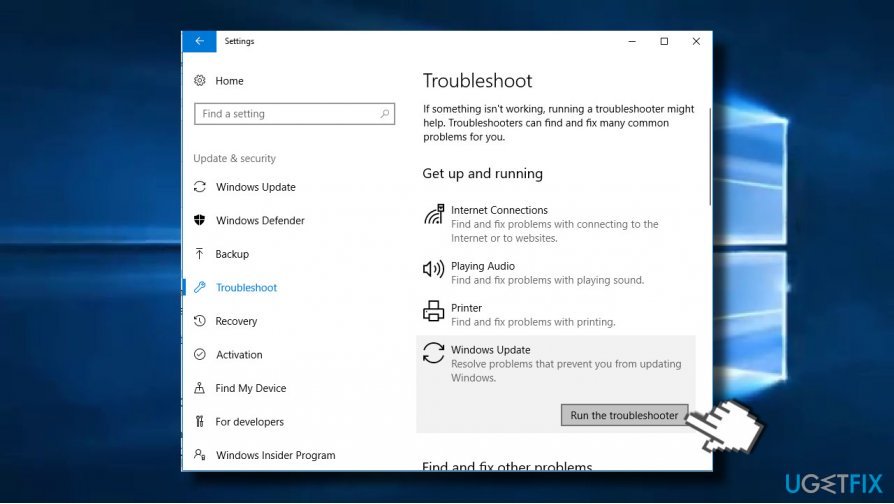
Run troubleshooter 1
The scan normally takes up to 10 minutes. It should report all detected issues and their status - whether troubleshooter managed to fix them or not. Once done, check if the Windows Update error 0x80240034 has been fixed.
Change Windows Update service type
- Right-click on Windows key and select Command Prompt (Admin).
- Type the following commands in Command Prompt window. To execute them, press Enter after each one.
SC config wuauserv start= auto
SC config bits start= auto
SC config cryptsvc start= auto
SC config trustedinstaller start= auto - Finally, restart your PC.
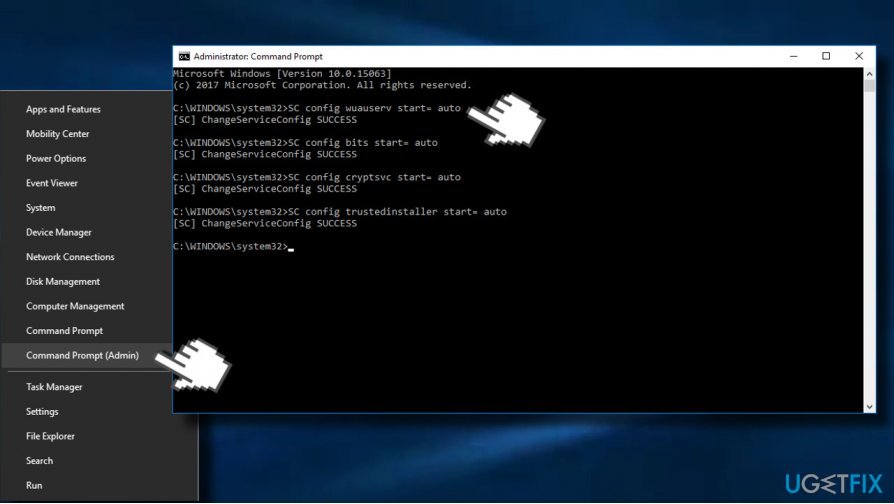
Set services to auto
Re-enable Microsoft .NET Framework 3.5
If you cannot install Windows 10 updates due to the 0x80240034 error and the previous methods did not help, we would strongly recommend you to install or reinstall the .NET Framework 3.5.
Windows 10 contains this framework by default, so it cannot be removed or modified in any way. However, this file can be easily damaged by malware or during some major system's changes. To fix the framework, please try installing all possible Windows 10 updates. If all of them are blocked by 0x80240034 error, try to reinstall,re-enable the .NET framework manually:
- Open Control Panel and click on Programs and Features
- Click Turn Windows features on or off link on the left pane.
- Make sure to mark the .NET Framework 3.5 option. If it has already been marked, unmark it and save the changes.
- Then reopen Turn Windows features on or off window and mark .NET Framework 3.5 option.
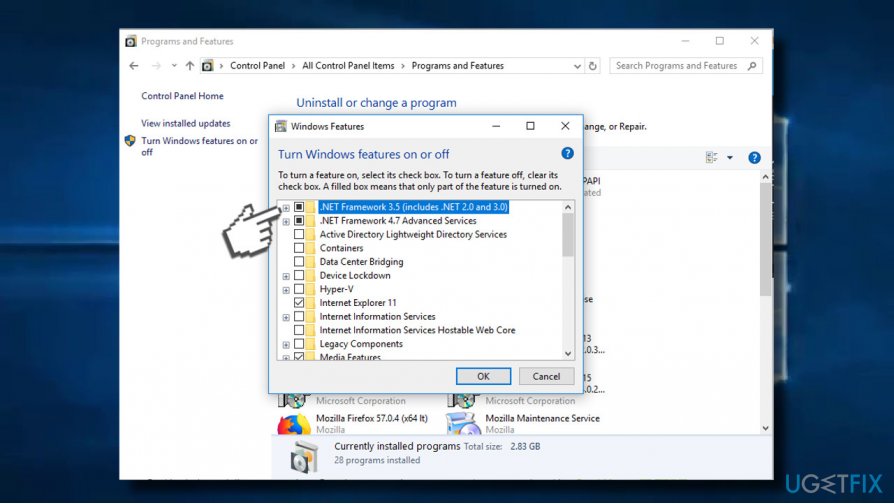
Re enable net framework
Reset Windows Update Components
- Right-click Windows key and select Command Prompt (Admin).
- If a UAC shows up, click OK to proceed.
- By typing the following commands you will stop BITS, Windows Update, Cryptographic, MSI Installer services. Don't forget to press Enter after each of them:
net stop bits
net stop wuauserv
net stop appidsvc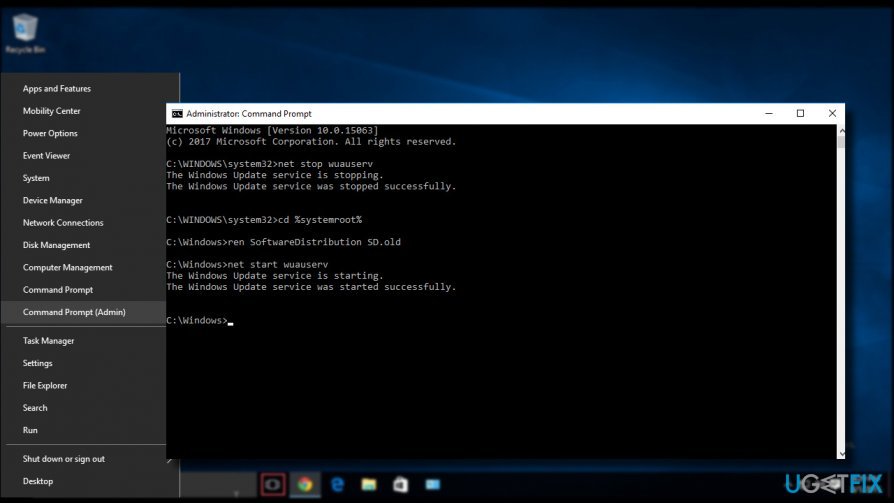
Reset windows update components 3 - Then type Del "%ALLUSERSPROFILE%\\Application Data\\Microsoft\\Network\\Downloader\\qmgr*.dat” command to delete qmgr*.dat files.
- Once done, copy and paste cd /d %windir%\\system32 command and press Enter to execute the command.
- To re-register BITS and Windows Update files, you will have to type all the commands (followed by Enter) provided below:
regsvr32.exe atl.dll
regsvr32.exe urlmon.dll
regsvr32.exe mshtml.dll
regsvr32.exe shdocvw.dll
regsvr32.exe browseui.dll
regsvr32.exe jscript.dll
regsvr32.exe vbscript.dll
regsvr32.exe scrrun.dll
regsvr32.exe msxml.dll
regsvr32.exe msxml3.dll
regsvr32.exe msxml6.dll
regsvr32.exe actxprxy.dll
regsvr32.exe softpub.dll
regsvr32.exe wintrust.dll
regsvr32.exe dssenh.dll
regsvr32.exe rsaenh.dll
regsvr32.exe gpkcsp.dll
regsvr32.exe sccbase.dll
regsvr32.exe slbcsp.dll
regsvr32.exe cryptdlg.dll
regsvr32.exe oleaut32.dll
regsvr32.exe ole32.dll
regsvr32.exe shell32.dll
regsvr32.exe initpki.dll
regsvr32.exe wuapi.dll
regsvr32.exe wuaueng.dll
regsvr32.exe wuaueng1.dll
regsvr32.exe wucltui.dll
regsvr32.exe wups.dll
regsvr32.exe wups2.dll
regsvr32.exe wuweb.dll
regsvr32.exe qmgr.dll
regsvr32.exe qmgrprxy.dll
regsvr32.exe wucltux.dll
regsvr32.exe muweb.dll
regsvr32.exe wuwebv.dll - To reset Winsock, type netsh winsock reset and netsh winhttp reset proxy commands. Press Enter after each of them as usually.
- Finally, restart BITS, Windows Update, Cryptographic, MSI Installer services by entering the following commands each followed by Enter:
net start bits
net start wuauserv
net start appidsvc
net start cryptsvc - Restart your PC.
Bottom line
To fix the Windows Update error 0x80240034, you can run the Windows Update Troubleshooter or install a professional PC optimization utility to check for corrupted files. If these solutions do not resolve the issue, consider waiting for a patch from Microsoft or manually installing the update from the official Microsoft Update Catalog.
Frequently asked questions
The error 0x80240034 typically indicates that there is a problem with the Windows Update service or a network issue preventing updates from being downloaded properly.
To fix the error, try running the Windows Update Troubleshooter, resetting the Windows Update components, or ensuring your internet connection is stable.
Yes, corrupted system files can lead to the 0x80240034 error; using the System File Checker tool (sfc /scannow) may help restore any damaged files.




Report an issue
What's wrong with this guide? We review every report and update or remove content.
Report received — thank you. We'll review and fix it.
You need a free account to submit a report.
Be the first to comment