How to fix
Error Code 022-023-251 on Google Chrome
on Windows
Fix Error Code 022-023-251 on Google Chrome quickly with our expert-tested solutions for Windows 10 and Windows 11. Get your browser running smooth again!


What causes How to fix Error Code 022-023-251 on Google Chrome?
- Adware infiltration
- Technical support scam
- Fake security warning
- Increased ads while browsing
- Redirects to scam websites
Repairs Windows system files, removes malware, and restores a clean OS state — without reinstalling.
My Google Chrome browser often shows me a website delivering Error Code 022-023-251 and tells that my computer was locked because I watched child pornography. However, none of this is true. Is there a way to stop my browser from this activity?
Error Code 022-023-251 is a non-existent error that is created by cyber criminals. It’s an example of technical support scam which is also known as “Chrome Security Warning” scam[ref en-1] because it is mostly targeted at Google Chrome users. Scammers want to trick people into calling a fake phone number to so-called Microsoft technicians:
SECURITY WARNING
Error Code 022-023-251
Do not ignore this critical alert.
If you close this page, your PC access will be disabled to prevent further damage to our network.
Your PC has alerted us that it has been infected with a virus and spyware. The following information is being stolen…
Facebook Login
Credit Card Detail
Microsoft Account Login
Photos stored on this PC.
You must contact us immediately so that our engineers can walk you through the removal process over the phone. Please call Microsoft within the next 5 minutes to prevent your PC from being disabled.
However, we want to stress out that this Error Code 022-023-251scam has nothing in common with Microsoft[ref en-2] or other legitimate company. Therefore, you should not believe in the information provided in the pop-up or the scam website.

Typically redirects to the technical support scam website shows up after adware[ref en-4] infiltration. It’s a type of a potentially unwanted program (PUP) that is designed to display commercial content on the website, such as ads, pop-ups, banners or hyperlinks, or triggering redirects to promotional or scam site.
Thus, in order to stop receiving the 022-023-251 error, you have to find and delete adware from your Windows computer. Additionally, you should reset affected web browser in order to delete third-party or publishers tracking cookies and other invisible entries.
Ways to get rid of 022-023-251 error
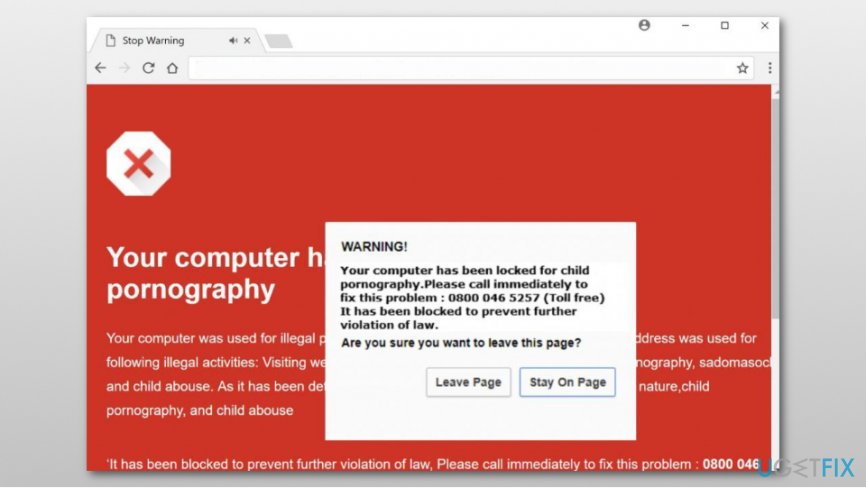
If your Google Chrome frequently opens a scam website and you have noticed an increased amount of ads when browsing the web, your computer seems to have adware infection. You can get rid of it either automatically or manually.
Method 1. Stop redirects to scam website by using anti-malware software
The easiest way to stop seeing error 022-023-251 is to perform a system scan with reputable security software. We highly recommend completing this task with Reimage [rev id=“Reimage"] which is capable of identifying and removing malicious components, as well as fixing computers from the damage.
However, after scanning the system, it is also recommended to reset affected web browsers.[ref en-3] The 022-023-251 scam aims at Google Chrome users. However, you should also check other installed browser in order to make sure that any adware-related components were not installed on the system too.
Method 2. Remove Error Code 022-023-251 manually
Step 1. Find adware which is responsible for displaying 022-023-251 error via Control Panel:
- Access Control Panel via Start menu.
- Navigate to Programs and Features (or Uninstall a Program, or Add/Remove programs - this may differ due to different versions of Windows OS).
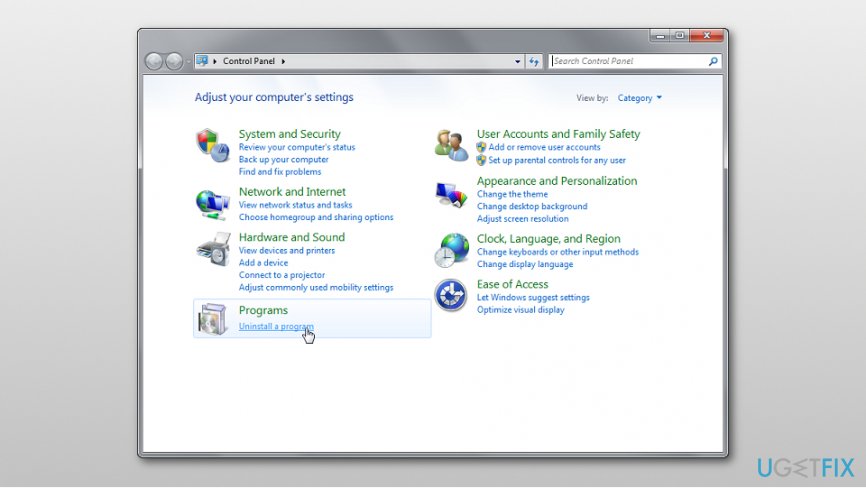
Uninstall adware via control panel - When you see the list of installed programs, look up for the suspicious applications you do not remember installing.
- Click on these entries and choose Uninstall option.
- Click OK to save the changes.
Step 2. Uninstall suspicious browser extensions from Google Chrome
- Open Google Chrome.
- Click on the menu icon and navigate to More tools and access Extensions.
- You will see the list of installed extensions. Uninstall all questionable entries by clicking the trash icon next to it.
Step 3. Reset the browser to fix 022-023-251 error code
- Open Google Chrome.
- Access Settings and click on the Advanced link.
- Scroll down to the end until you see Reset option. Click on it.
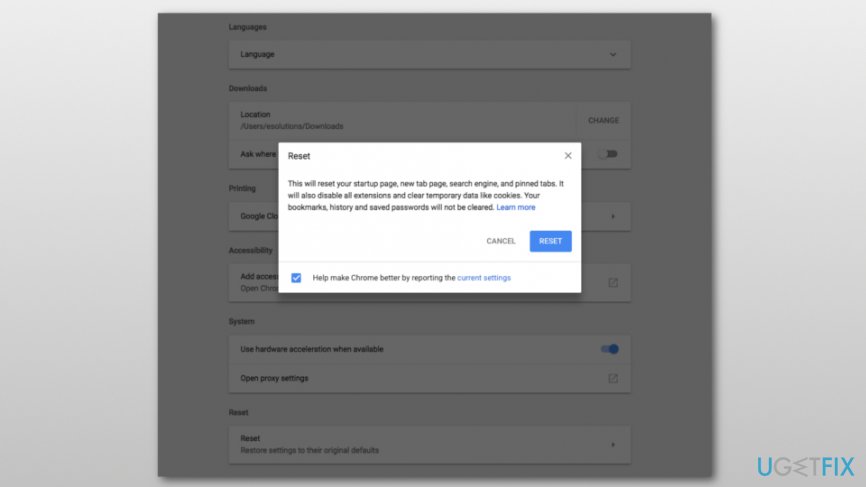
Reset google chrome - In the appeared pop-up window click Reset button.
Bottom line
To resolve Error Code 022-023-251, you should find and delete adware from your Windows computer and reset your affected web browser to remove tracking cookies and other entries. If these steps do not work, consider seeking professional assistance to ensure your system is clean.
Frequently asked questions
This error typically indicates a problem with network connectivity or issues with Chrome's settings that prevent it from loading certain pages. Troubleshooting your internet connection or resetting Chrome can often resolve this issue.
To reset Chrome, go to Settings > Advanced > Reset and clean up, then select 'Restore settings to their original defaults'. This can help eliminate any misconfigurations causing the error.
Yes, ensure that your DNS settings are correctly configured, and consider flushing your DNS cache by running 'ipconfig /flushdns' in the Command Prompt to resolve potential network issues.




Report an issue
What's wrong with this guide? We review every report and update or remove content.
Report received — thank you. We'll review and fix it.
You need a free account to submit a report.
Be the first to comment