How to fix
Login error “The username or password is incorrect”
on Windows
Resolve the "username or password is incorrect" error on Windows 10 and Windows 11 quickly. Expert-tested tips ensure a smooth login experience. Fixed i…

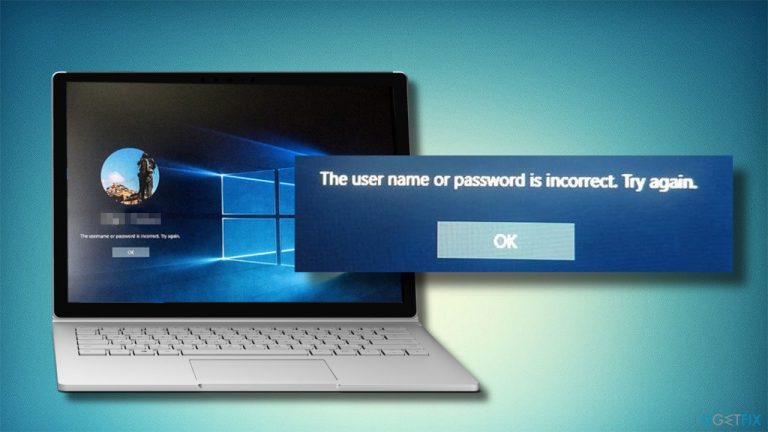
What causes How to fix login error “The username or password is incorrect”?
- Bug in Windows 10 V1709
- Upgrade from earlier versions of Windows 10
- Incorrect handling of user credentials after sleep or reboot
- Automatic login of different user accounts after restart
- Sign-in screen appearing twice
Repairs Windows system files, removes malware, and restores a clean OS state — without reinstalling.
Every time I start my PC, whether after sleep or restart, I get an error message “Other User. The username or password is incorrect”. My correct username is already in the login box, but I have to re-enter it to continue. This is really annoying and I'd like to fix it. Any tips?
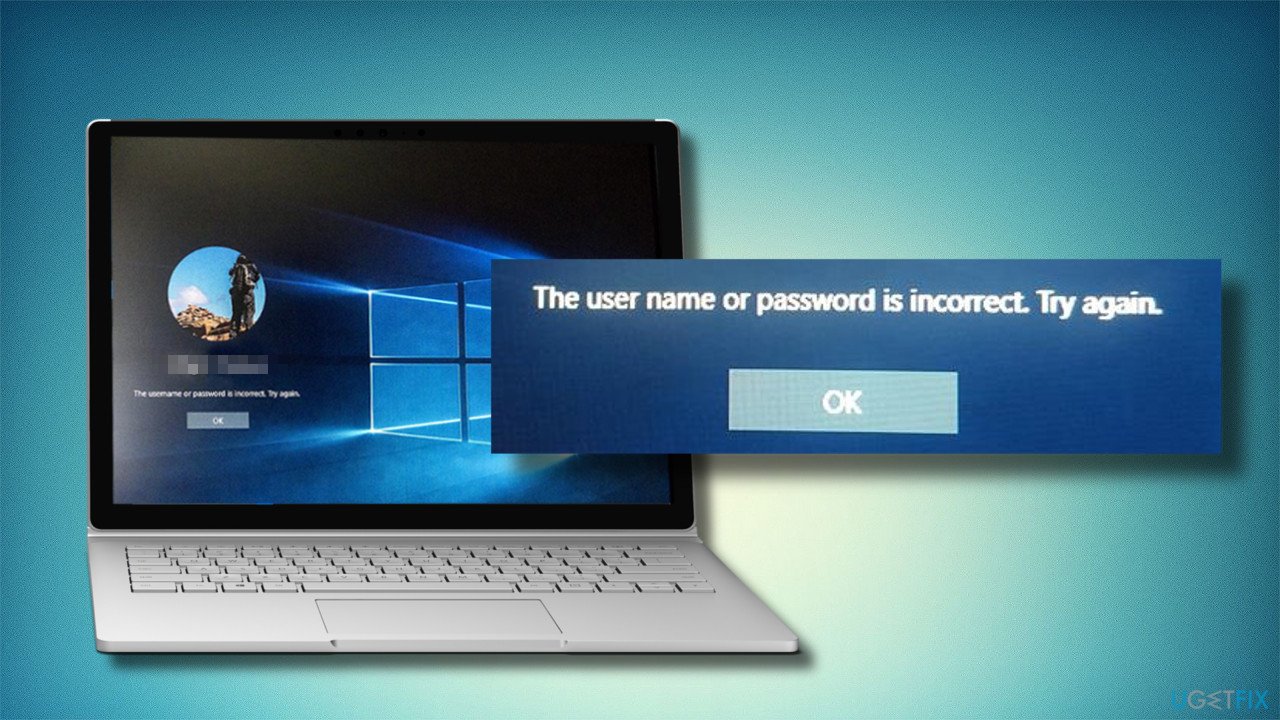
“The username or password is incorrect” is a bug that emerged with the release of Windows 10 V1709, also known as the Fall Creators Update. This problem is also known as the “sign-in twice” error[ref en-1] as it occurs on the log-in screen after waking the system from sleep or rebooting it.
Although the user enters the correct credentials, he/she receives the “The username or password is incorrect” and has to re-enter the username and password once again. This problem occurs on Windows 10 V1709 version exceptionally and most frequently strikes PCs that were upgraded to the latest Windows 10 build from earlier versions.[ref en-2]
While the error is not critical and is not dangerous, it can be particularly frustrating to users, as they have to enter their details anew each time they want to login to Windows. Therefore, it is not surprising that many users are seeking the “The username or password is incorrect” error fix.
People get the notification about allegedly incorrect info before the Welcome screen. It may show up even if the user hasn’t even tried to enter a username or password. Entering the user credentials for the second time or dismissing the “The username or password is incorrect” error and entering the password and username anew usually provide access to the desktop.
Sign-in Screen Appears Twice in Fall Creators Update with “The username or password is incorrect” notification is not the worst Windows 10 bug. Nevertheless, it’s too irritating to be ignored. Many people reported that alongside the login screen showing up twice, Windows 10 automatically logs in users after every system’s restart. In other words, if you are the User1 and reboot your PC as a User1, you may find your User2 as a signed-in user unexpectedly.
Microsoft has been informed about this bug and has already acknowledged it, so we expect that upcoming Cumulative Updates[ref en-3] will patch the “The username or password is incorrect” error completely. Before that happens, you may fix the problem manually.
According to Windows enthusiasts, the “The username or password is incorrect” at the login screen occurs due to the enabled “Use my sign in info to automatically finish setting up my device after an update or restart” option. If it’s disabled on your PC, then you should try to disable Fast Startup[ref en-4] or check the system for malware.
Fix 1. Turn off the “Use my sign in info to automatically finish setting up my device” option
- Press Windows key + I and navigate to the Update & Security.
- Open Windows Update section and click Advanced options.
- Disable the Use my sign-in info setting to fix the problem(s).
- Then open the main window of the Settings and select Accounts.
- Open Sign-in options and click on Privacy on the left pane.
- Turn off Use my sign in info to automatically finish setting up my device after an update or restart setting.
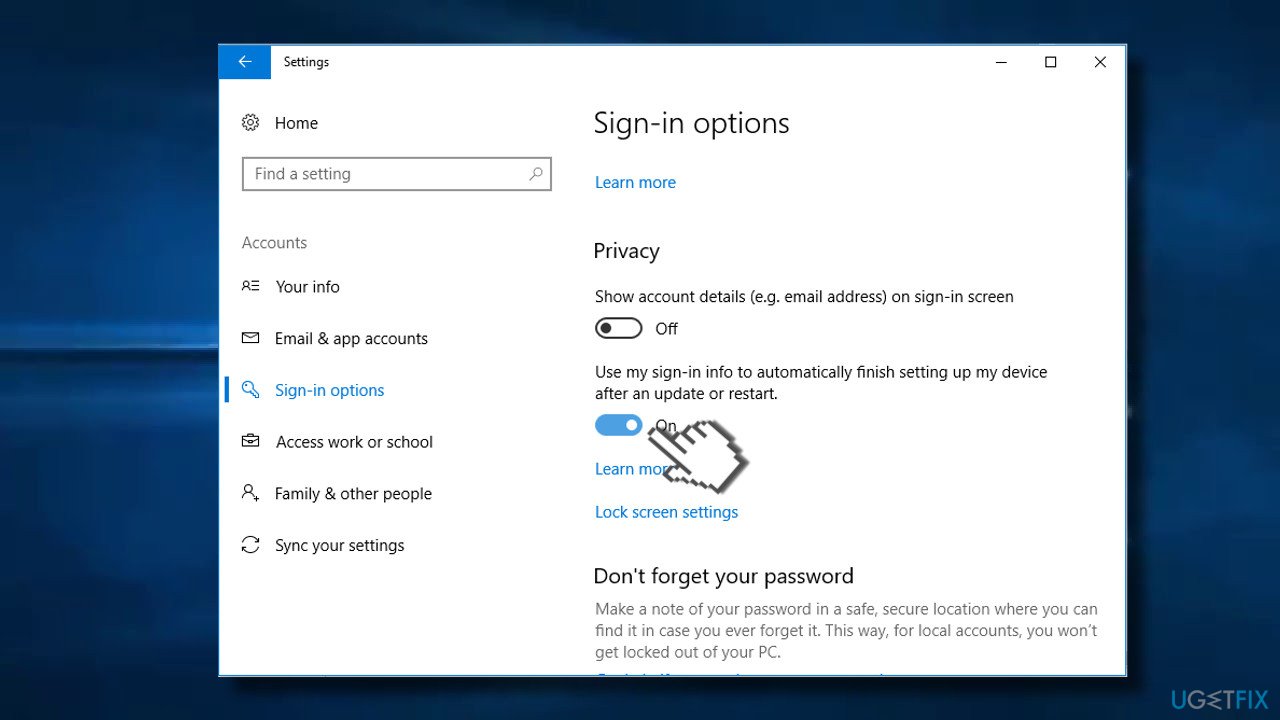
Disable options - Finally, reboot the system.
Fix 2. Disable Fast Startup
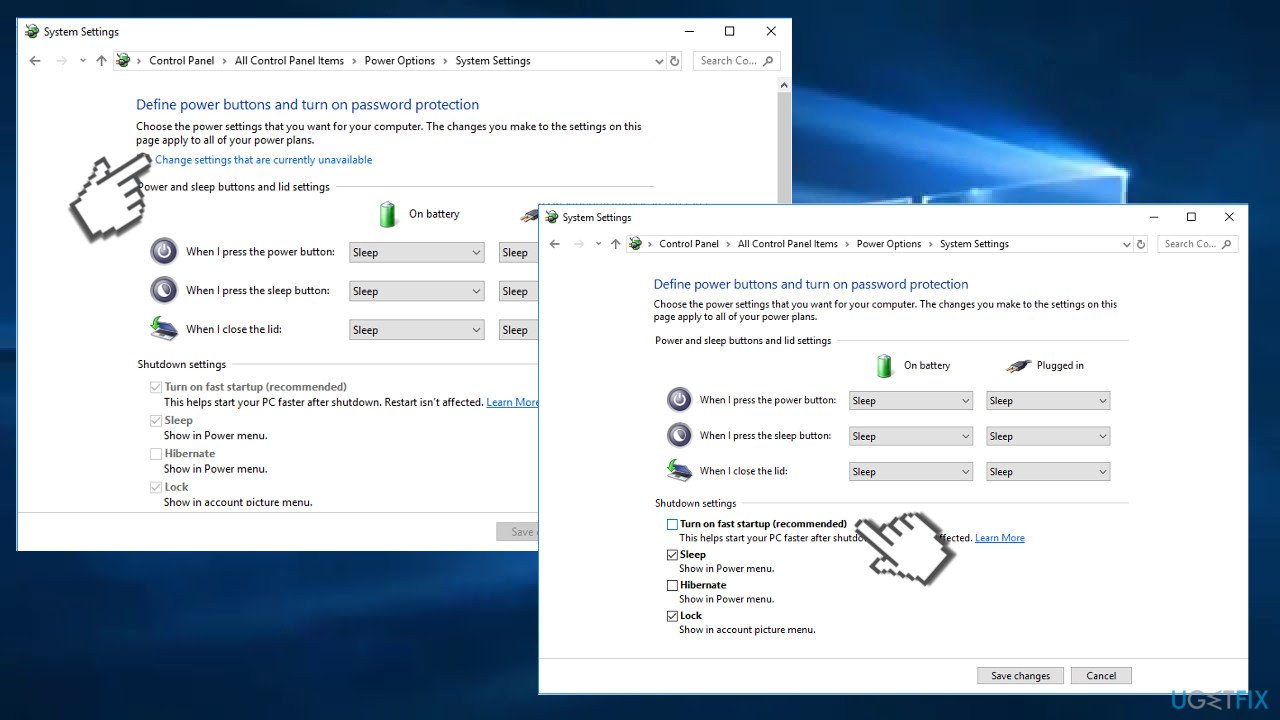
This option reduces the time required by the computer to fully boot the OS. However, frequently, this function causes alternative issues. Disable the function the following way:
- Click on the start button and type power. Enter Power and Sleep settings.
- In the newly opened window, on the right above corner enter Additional power settings.
- Then navigate to the option Change what the power buttons can do.
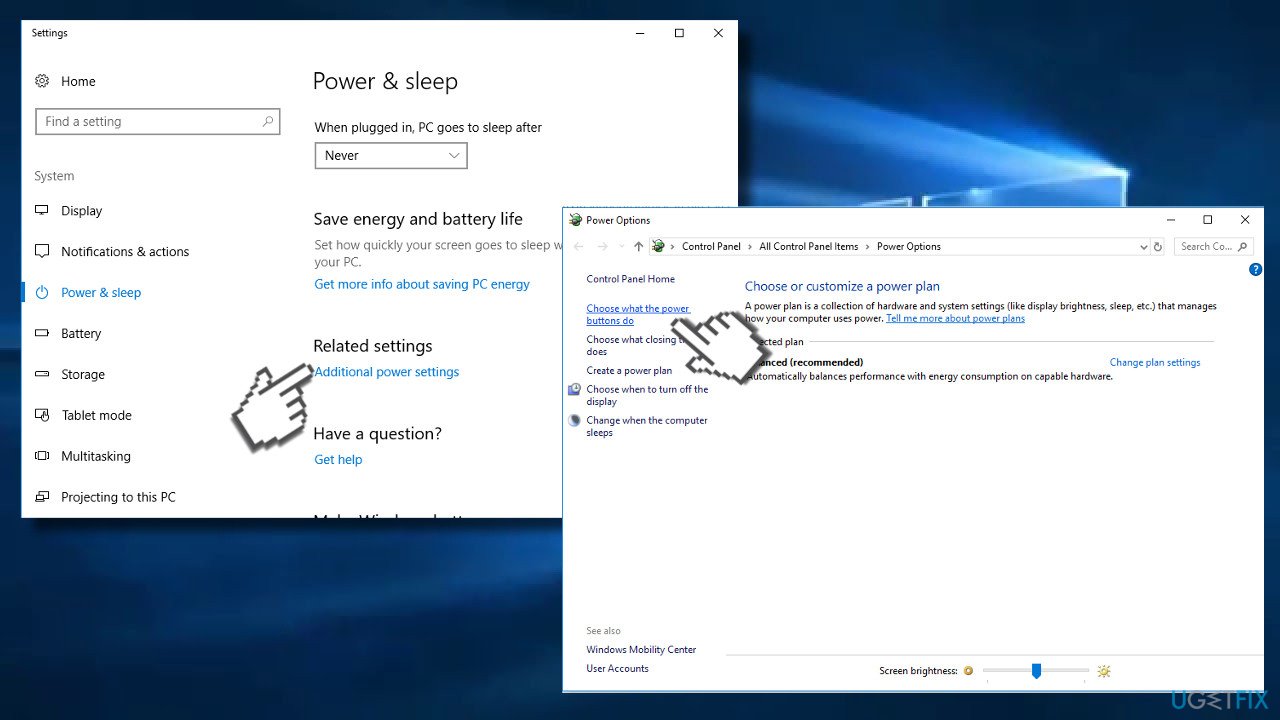
Disable fast startup - Once you get to another window, you will see that Fast Startup option is disabled by default. In order to customize the settings, click on the option Change settings that are currently unavailable.
- Then you will be able to remove the checkmark from the Fast startup. Apply the modification by selecting Save changes.
Disable fast startup2
Fix 3. Check for malware
Sign-in problems may also be triggered by malware. Therefore, if the two methods provided above did not help, run a full system scan with a professional anti-malware tool. Our recommendation is [d1]. This PC optimization utility is capable of fixing various Windows problems. Besides, it has an Avira Antivir scan engine, so it can also find and remove malware and viruses already present on the device.
Fix 4. Enable auto-login option
This solution is perfect for those who are using home computer and don't need to protect it with a password. In other words, you can simply disable the login process altogether:
- Type in netplwiz in Windows search and press Enter.
- Untick the Users must enter user name and password to use this computer.
- Click Apply and OK.
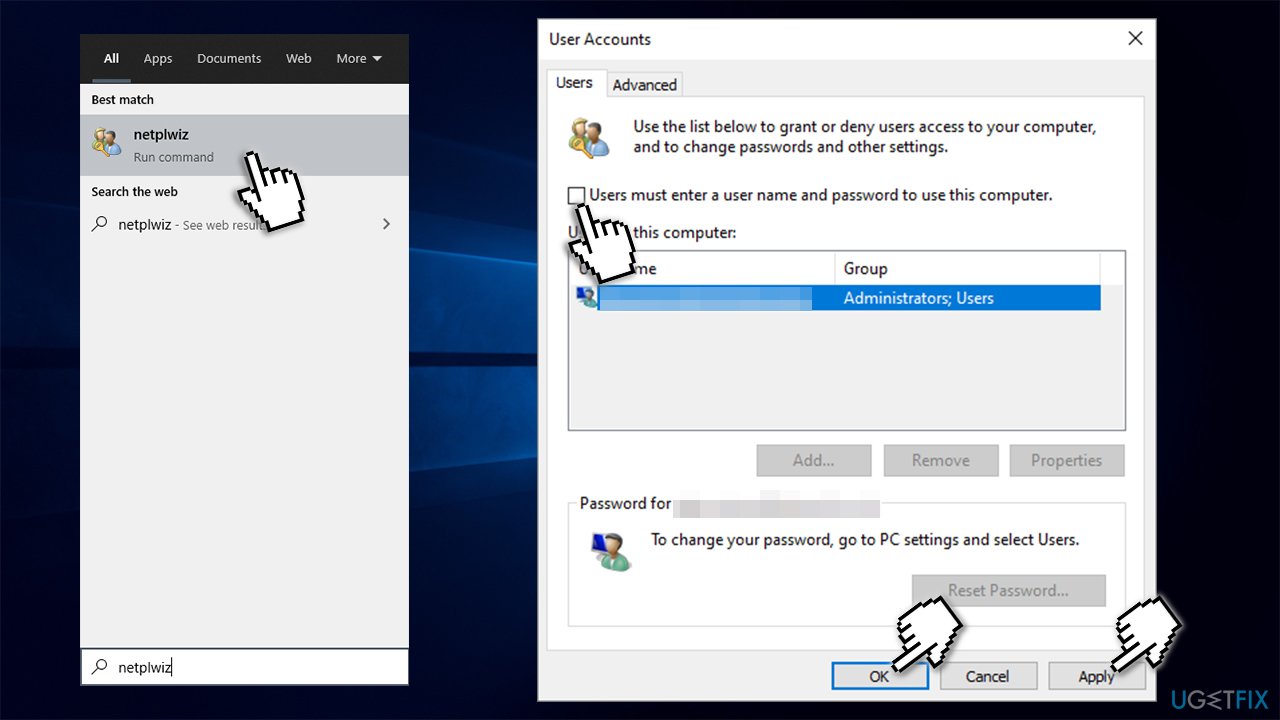
Fix the username or password is incorrect error enable auto login en - Next time you log in, you will not have to enter your password.
Fix 5. Change sign-in options
- Right-click on Start and pick Settings.
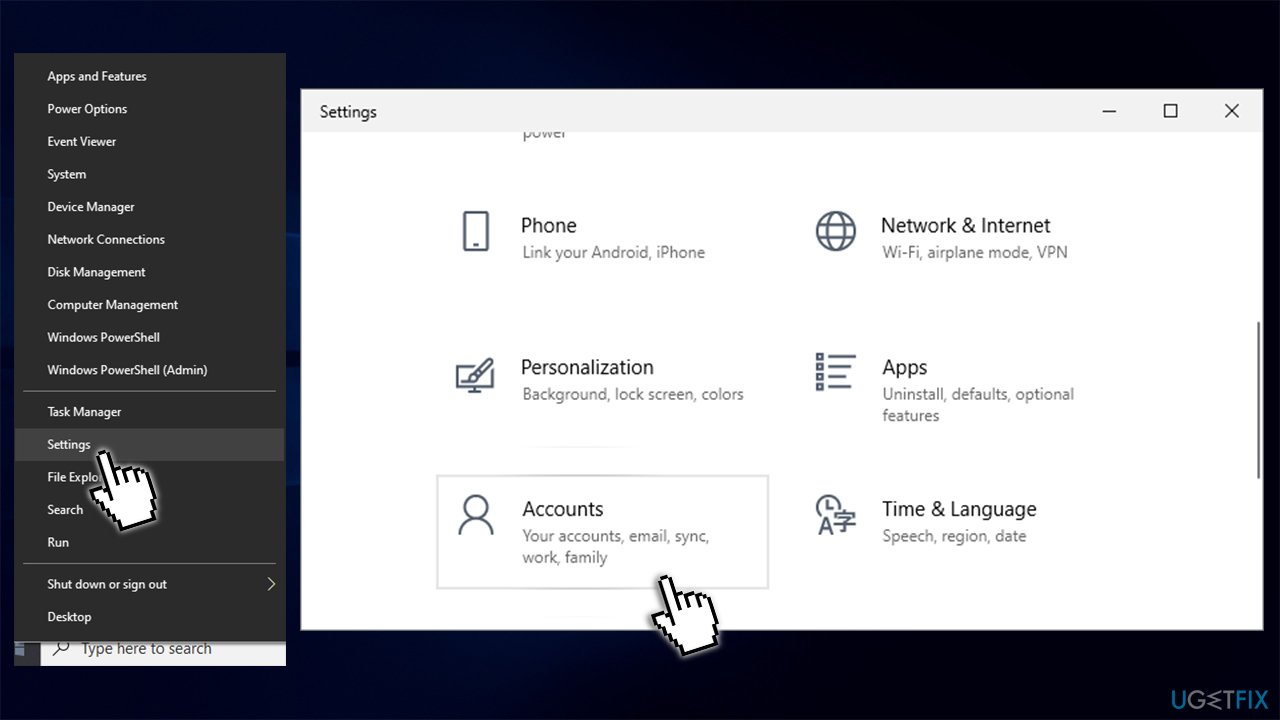
Fix the username or password is incorrect error access settings - Go to Accounts section and pick Sign-in options.
- On the the left side of the window, scroll down until you see Privacy section
- Turn off the option Use my sign-in info to automatically finish setting up my device and reopen my apps after an update or restart.
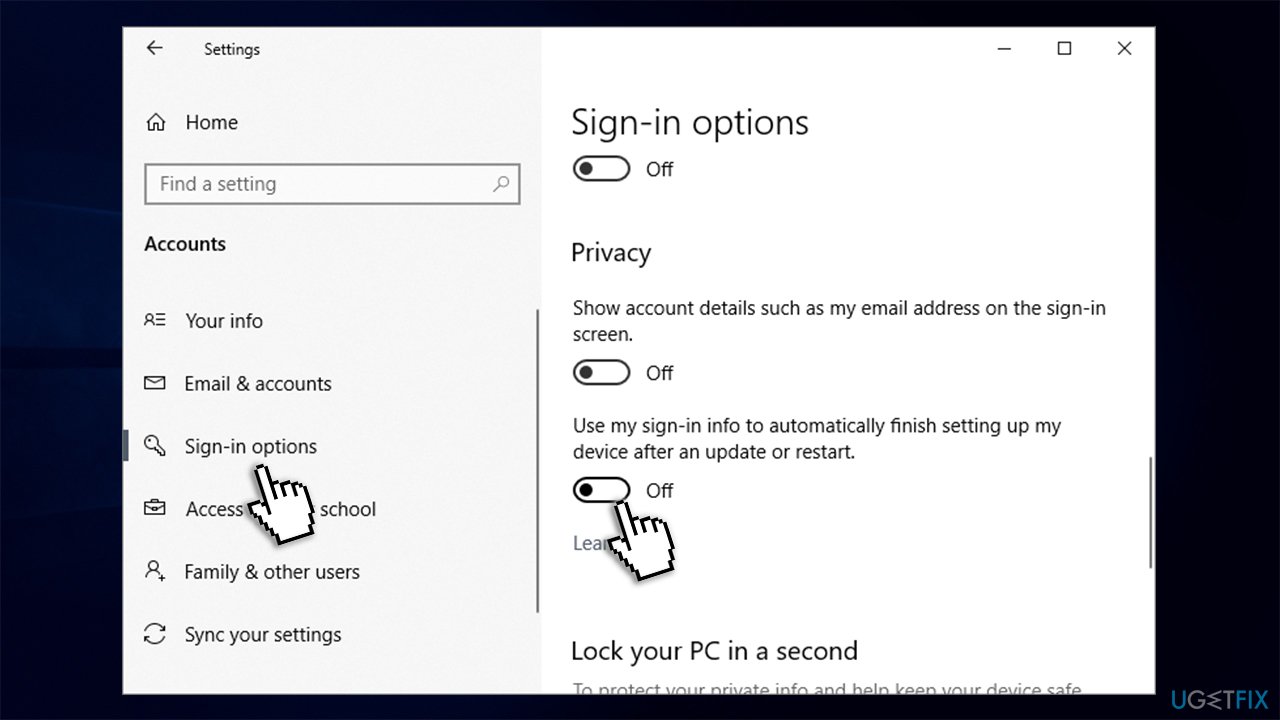
Fix the username or password is incorrect error change sign in options
Bottom line
To fix the login error, users can try re-entering their credentials when prompted, dismissing the error message, or checking for updates to resolve the bug. If these solutions do not work, users may need to consider additional troubleshooting steps or seek further assistance.
Frequently asked questions
First, ensure that you are entering the correct username and password, paying attention to capitalization. If the issue persists, try resetting your password using the 'I forgot my password' link on the login screen.
Yes, you can try booting into Safe Mode and then logging in with your account, which may bypass the error. Additionally, check your keyboard settings to ensure the correct input language is selected.
You can recover your username by selecting the 'I forgot my username' link on the login screen, which will guide you through the recovery process. Alternatively, you may access the Microsoft account recovery page online for further assistance.




Report an issue
What's wrong with this guide? We review every report and update or remove content.
Report received — thank you. We'll review and fix it.
You need a free account to submit a report.
Be the first to comment