How to fix
Mac booting to black screen error
on Windows
Resolve your Windows 10 or 11 black screen issues effortlessly with proven solutions. Reclaim control and get back to work—expert-tested tips inside!

What causes How to fix Mac booting to black screen error?
- Power management issues
- Display lid malfunction
- Battery management problems
- Hardware-related issues
Repairs Windows system files, removes malware, and restores a clean OS state — without reinstalling.
My MacBook Pro boots to black screen, and I have no idea how to get rid of this problem. Can I do something or should I bring it to Apple service?
Seeing a black screen once you turn on your Mac or MacBook is definitely a scary experience. However, just like many other computer-related problems, this one can be solved without bringing your device to the nearest Apple service.
Booting to black screen might seem related to hardware programs. However, it’s not always the case. Actually, it’s quite a rare occasion. Typically, users can do simple troubleshooting and get rid of the problem.
We have provided a couple of methods that might help to fix booting to black screen error on Mac. However, if none of them helps and you still see a black screen, you might need to ask for Apple support’s help.
Methods to fix Mac booting into black screen error
Before you bring your MacBook or Mac computer to the service, you should try four methods to fix booting to black screen error. Only if none of them helps, you should show your device to technicians because it might be a hardware-related problem.
Method 1. Reset System Management Controller (SMC)
System Management Controller[ref en-3] is responsible for various functions on Intel-based Mac computers, including responding to power button pressing or display lid closing or opening, battery management, etc.[ref en-1] Resetting SMC might help to solve booting to black screen error, as well as many other issues.
The instructions differ for Mac Notebooks with removable and non-removable batteries as well as desktop computers. Thus, make sure you are following necessary guide.
Reset SMC on MacBook with non-removable battery:
- Shut down the device.
- When the computer is shut down, click Shift + Control + Option on the left side of the built-in keyboard and power button simultaneously. Hold the keys for about 10 seconds.
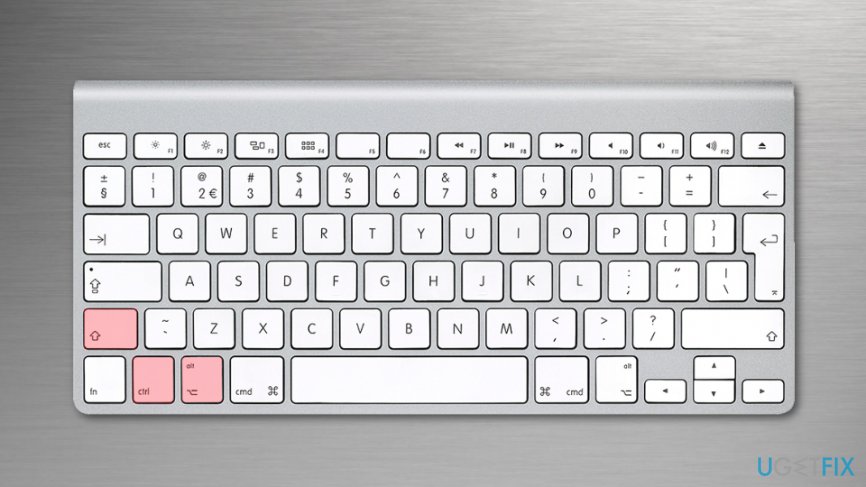
Reset smc on macbook with non removable battery - Release the keys and turn on Mac.
Reset SMC on a notebook with removable battery:
- Shut down the device.
- Remove the battery.
- Press and hold the power button for about 5 seconds.
- Insert the battery.
- Turn on Mac.
Reset System Management Controller on desktop
- Shut down the computer.
- Once it shuts down, unplug the power cable and wait for 15 seconds.
- Pug in the power cord again and wait for 5 seconds.
- Turn on the Mac.
Method 2. Take advantage of keypress sequence to get rid of black screen
This method was introduced on Mac forums as the method that helps to bypass the black screen issue on Mac. Unfortunately, it is not an effective solution for everyone. However, you should still try if the previous method did not work.
- Press Power or Off button. This will trigger a dialog box. However, you cannot see it due to the black screen error.
- Press S key on the keyboard which will turn your Mac into sleep mode.
- Press and hold the Power button to force shut down the computer.
- Wait for about 15 minutes and turn on Mac.
Method 3. Reset Parameter Random Access Memory (PRAM)
Parameter Random Access Memory (PRAM)[ref en-4] is storage unit that includes important system information and settings. However, if it gets corrupted, you might encounter various problems, including Mac black screen error.
- Reboot your device.
- As soon as you hear the boot sound, hold down these keys altogether: Command + Option + P + R.
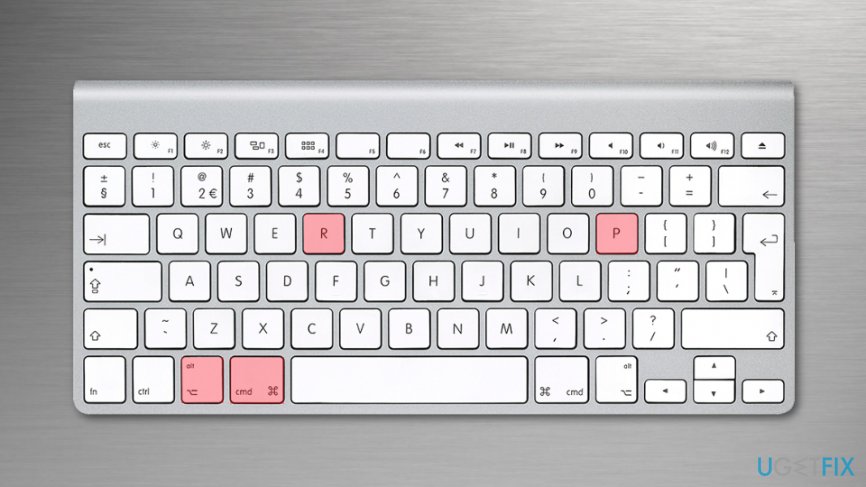
Reset parameter random access memory - Once you hear the boot sound again, you can release the keys. The chime informs that PRAM was reset and Mac can reboot.
NOTE. New Macs do not use PRAM anymore. They use NVRAM (non-volatile RAM) which has the same functionality but is more immune to corruption. However, NVRAM reset is the same as PRAM’s.[ref en-2]
Method 4. Enter the password and click Return
If none of the above methods helped to deal with Mac booting to black screen error, there’s one last option to try out. It may sound odd, but some users report that it really helped. Thus, do not hesitate and follow these steps:
- When your device reboots to the black screen, enter your Mac login password.
- Click Return key.
- You should bypass the black screen and see your computer’s desktop.
Bottom line
To address the Mac booting to a black screen error, you can try resetting the System Management Controller (SMC) for both non-removable and removable battery models. If these methods do not resolve the issue, it may be necessary to seek assistance from Apple support.
Frequently asked questions
Yes, you can troubleshoot the black screen error by adjusting the virtual machine settings or reinstalling the macOS in the virtual environment.
You can try booting the Mac in Target Disk Mode to access its files from another Mac or through a Windows PC using a compatible file system.
You may need to reset the NVRAM or PRAM on your Mac, which can sometimes resolve display issues affecting Boot Camp functionality.




Report an issue
What's wrong with this guide? We review every report and update or remove content.
Report received — thank you. We'll review and fix it.
You need a free account to submit a report.
Be the first to comment