How to fix
“macOS needs to repair your Library to run applications” error on High Sierra
on Windows
Resolve the "macOS needs to repair your Library" error on Windows 10 and 11 easily. Expert-tested solutions ensure your system runs smoothly. Fixed in m…

What causes How to fix “macOS needs to repair your Library to run applications” error on High Sierra?
- Upgrading to macOS High Sierra
- Corrupted library files
- Incorrect permissions on home folder
- Issues with specific applications
- System drive errors
Repairs Windows system files, removes malware, and restores a clean OS state — without reinstalling.
Since I’ve upgraded to High Sierra, I frequently receive an error message telling “macOS needs to repair your library to run applications.” I am not sure what causes it and how to fix it.
Many Mac users reported about annoying “macOS needs to repair your library to run applications” error that shows up on the screen several times per day when they use a computer. The problem occurred soon after upgrading to macOS High Sierra.[ref en-1]
There’s no doubt that using the latest version of the operating system is important for the computer’s security and best experience.[ref en-2] However, such error is annoying. The pop-up might show up when users try to launch a specific application or out of nowhere:
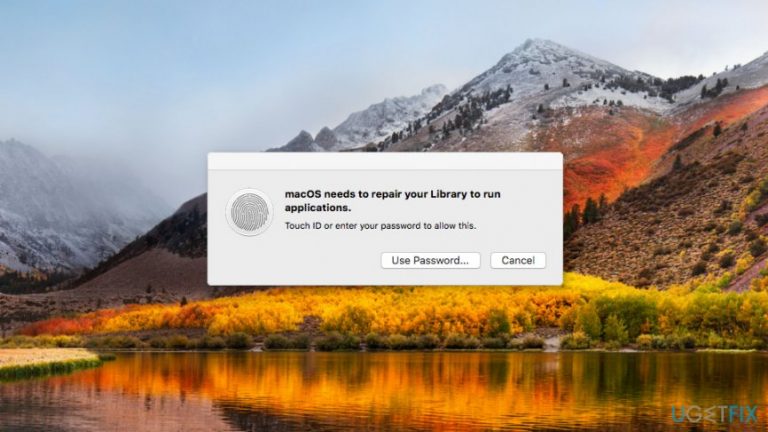
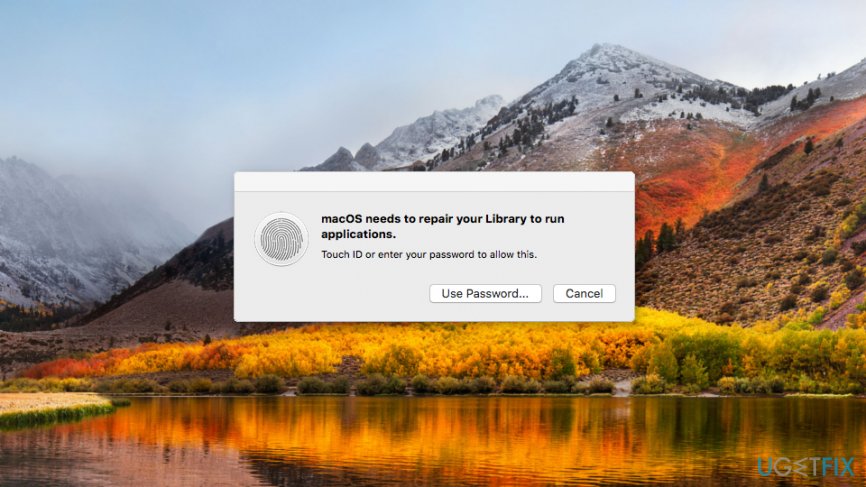
macOS needs to repair your Library to run applications.
Touch ID or enter your password to allow this.
It’s unknown what exactly triggers the error. However, you can still fix “macOS needs to repair your library to run applications” error yourself. Below you can find the most common methods to get rid of this problem.
Methods to fix “macOS needs to repair your library to run applications” after High Sierra upgrade
There are a cpuple of methods that can help to get rid of the error. Try from the easiest ones and finish with downgrading macOS or reinstalling High Sierra.
Method 1. Run First Aid
- Navigate to Utilities.
- Open Disk Utility tool.
- Click on First Aid tab.
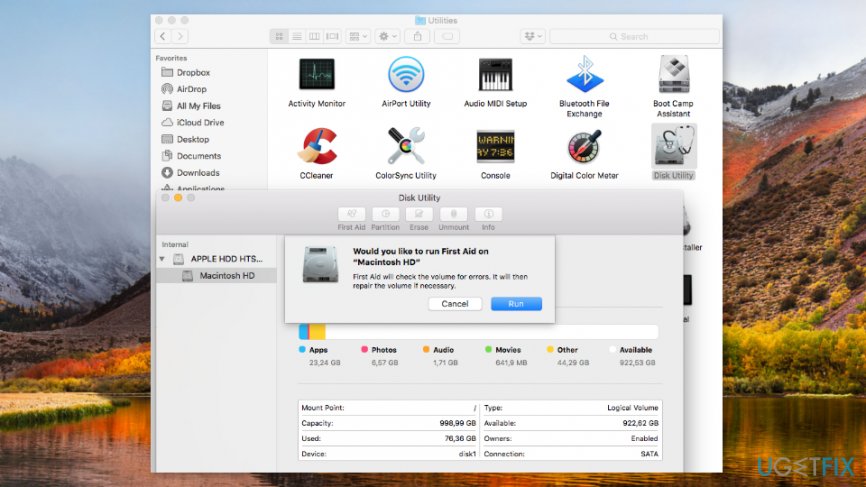
Use first aid - Select Run on the appeared pop-up.
Method 2. Use Terminal to fix the error
If the previous method did not help to fix “macOS needs to repair your library to run applications” error, try to solve the problem by following these steps:
- Restart your Mac and hold Command + R to enter into Recovery Mode.
- When your computer is turned on, go to Utilities and open Terminal.
- In Terminal type resetpassword and click return.
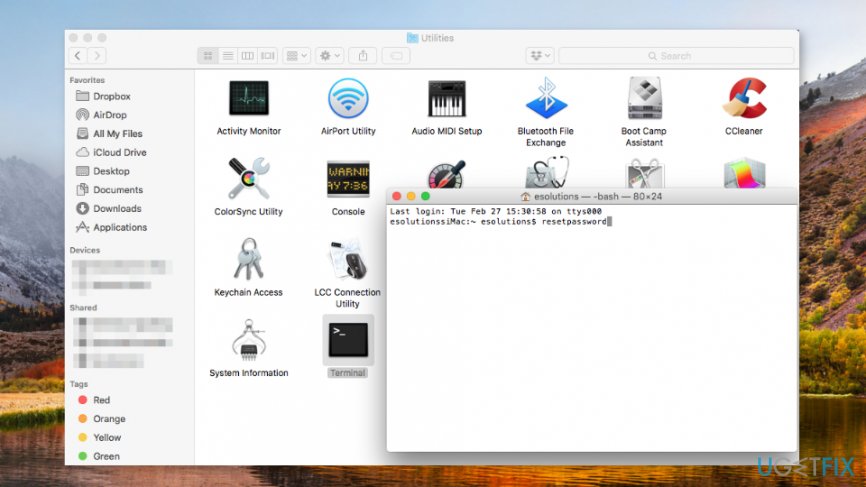
Run terminal - Choose your Systemdrive.
- Select your username from the list.
- Click Reset Home folder Permissions and ACL’s button.
- Reboot the computer and log in to your account.
Method 3. Repair the program that delivers an error
If you receive a "macOS needs to repair your library to run applications” error when trying to open specific programs, there might be something wrong with it. Thus, you should try to repair the program:
- Hold down Option and Command keys when opening the app.
- Click Repair button in the appeared pop-up window.
- Wait until the issues are solved.
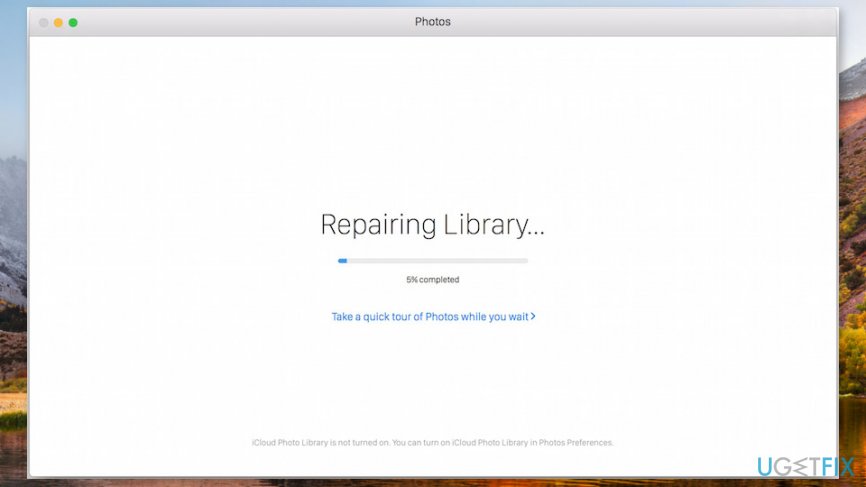
Repair a program
Method 4. Reinstall macOS High Sierra
There might be some problems with upgrading to macOS High Sierra, so you might consider reinstalling[ref en-3] it to fix “macOS needs to repair your library to run applications” error.
- Reboot your Mac and hold Command + R to boot into Recovery Mode.
- Choose Reinstall macOS from the appeared macOS Utility window.
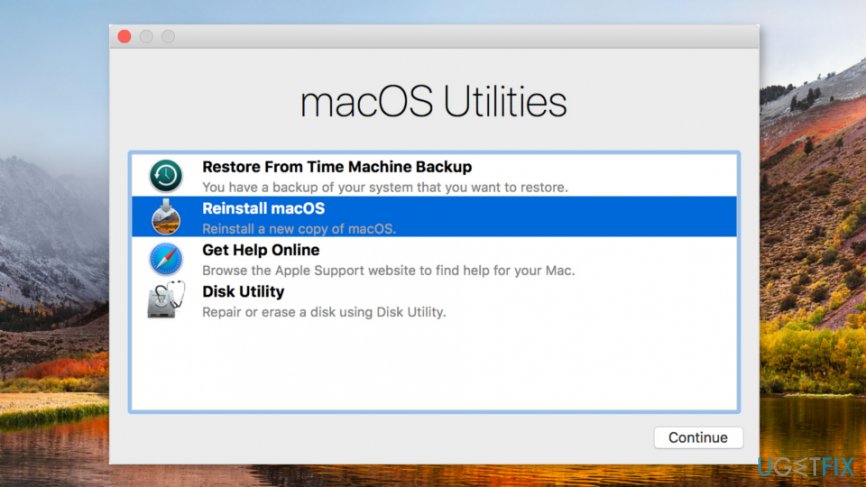
Restall macos - Choose your hard drive (e.g., MacintoshHD).
- Click Install option and follow the instructions on the screen.
Method 5. Downgrade to macOS Sierra
You can also downgrade to the older version of the operating system if you use Time Machine[ref en-4] or other backup tools. Before you proceed, create backups of your files because they will be lost. Once you have backups, follow these steps:
- Reboot to Recovery Mode by restarting your Mac and holding down Command + R keys.
- Choose Restore From The Machine Backup option from the appeared menu.
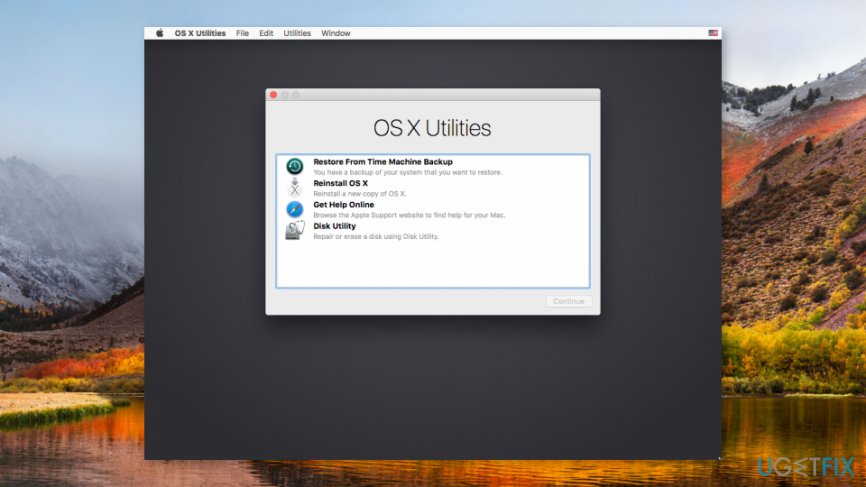
Choose restore from time machine backup - Click Continue and follow the instructions on the screen. You will be asked to choose your Restore Source and available backup dates.
Bottom line
To fix the 'macOS needs to repair your library to run applications' error, you can try running First Aid in Disk Utility, using Terminal to reset permissions, or repairing the specific application causing the issue. If these methods do not resolve the problem, consider downgrading macOS or reinstalling High Sierra.
Frequently asked questions
Yes, if you're using a dual-boot configuration, errors like 'macOS needs to repair your Library' can occur when switching between macOS and Windows. Ensure that both operating systems are maintained separately for optimal performance.
If you can't access your macOS partition, check whether the partition is properly mounted and not corrupted. Use macOS Recovery tools to repair the partition before attempting to access it from Windows.
To prevent macOS errors when switching back to Windows, ensure that macOS is fully updated and perform regular backups. This practice can help minimize issues when accessing macOS from a Windows environment.




Report an issue
What's wrong with this guide? We review every report and update or remove content.
Report received — thank you. We'll review and fix it.
You need a free account to submit a report.
Be the first to comment