How to fix
“Website with harmful software warning”
on Windows
Resolve the "Website with harmful software warning" on Windows 10 or 11 effortlessly. Get back to browsing safely with expert-tested solutions.

What causes How to fix “Website with harmful software warning”?
- Malicious or phishing website accessed
- Malicious content shared via a link
- Direct download link clicked
- Legitimate website compromised by cyber criminals
Repairs Windows system files, removes malware, and restores a clean OS state — without reinstalling.
Safari shows me "website with harmful software warning” error when I try to access a few websites. The alert tells that the website might trick me into installing some malicious software. Why do I see this error? Can I remove it?
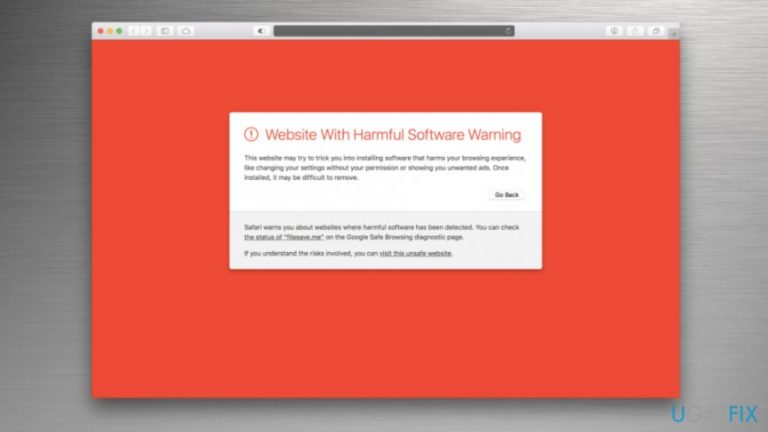
"Website with harmful software warning” is a security alert delivered by Safari web browser.[ref en-1] Typically, when you try to access malicious or phishing website,[ref en-2] the browser delivers the following message:
Website With Harmful Software Warning
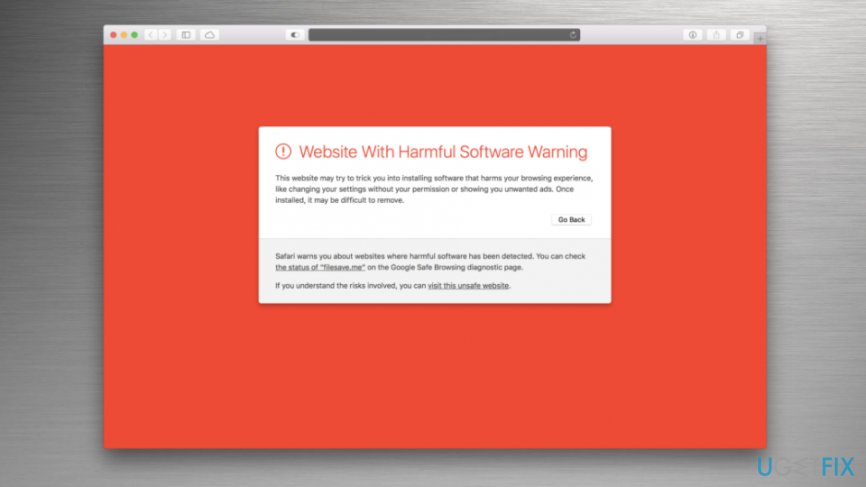
This website may try to trick you into installing software that harms your browsing experience, like changing your settings without your permission or showing you unwanted ads. Once installed, it may be difficult to remove.
The reason why you receive Harmful software warning might be that someone shared malicious content using a share link. Hence, this security alert can appear on the screen when you click on a direct download link. In this way, Safari protects from the instant installation of potentially dangerous software.
However, some users report that browser delivers “Website with harmful software warning” when they are accessing a familiar domain. We want to remind that even legitimate and popular websites can be compromised by cyber criminals any minutes. Therefore, Safari might deliver a reasonable alert and actually protect your machine from cyber infection.
Though, if you are certain that the link is absolutely safe and the website does not include malware, you can click “visit this unsafe website” link and fix "Website with harmful software warning” problem. However, we still recommend checking the link first.[ref en-3] Taking precautions requires less time than malware removal.
Steps to take after receiving Harmful Software Warning error
You can bypass "Website with harmful software warning” by clicking “visit this unsafe website” link at the end of the notification. However, before that, you should check if the link is actually safe and clicking it won’t lead to malware attack.
Step 1. Use online scanners to check the link
There are many link scanners online that offer to test questionable links for free. You can test questionable links with free Symantec, Trend Micro, VirusTotal and many other tools. If they give the same information about harmful and potentially dangerous content, you should not ignore it.
If someone sent a link and you need to download content from it, you should ask them to use different share link or make sure that the content they sent is not infected. Maybe that person does not even know that her or his computer is infected!
Step 2. Turn off warnings about fraudulent websites on Safari
If you think that Safari stops you from browsing the web freely by displaying security alerts, you can alter browser settings. Turning off Safari warnings about fraudulent websites can help to fix "Website with harmful software warning” error. Follow these steps:
- Open Safari.
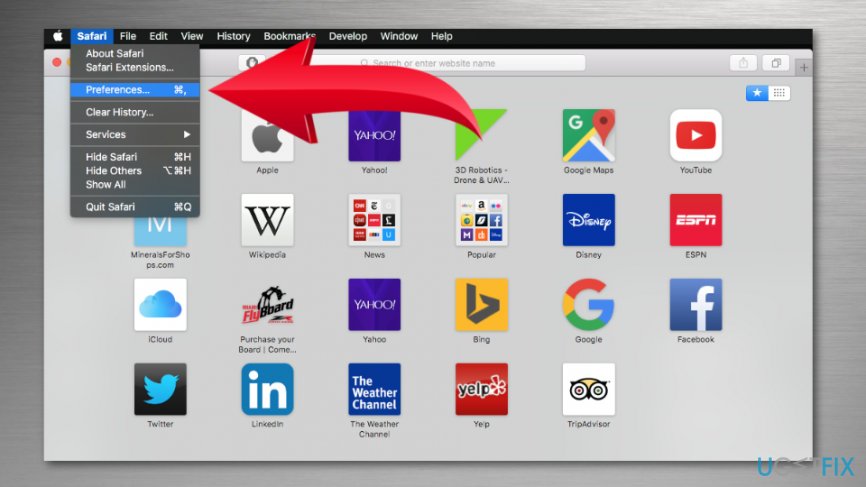
- Navigate to Preferences.
Open safari preferences - Open Security tab.
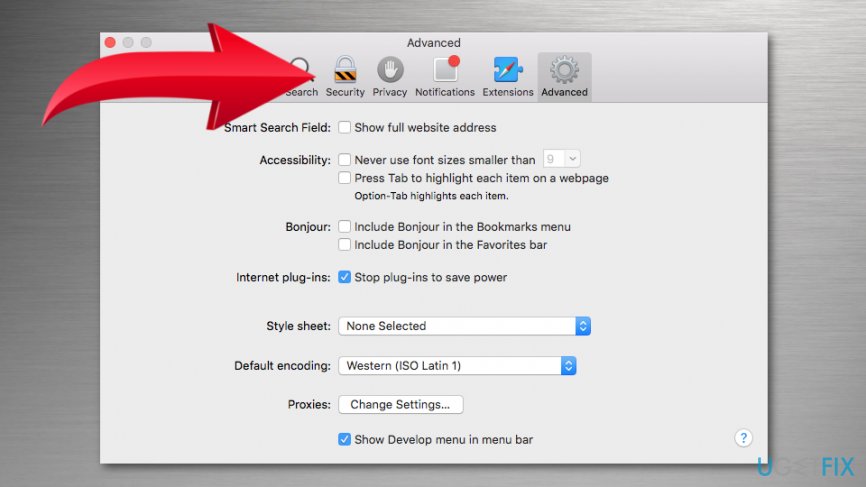
Access safari security settings - Remove the tick from Warn when visiting a fraudulent website option.
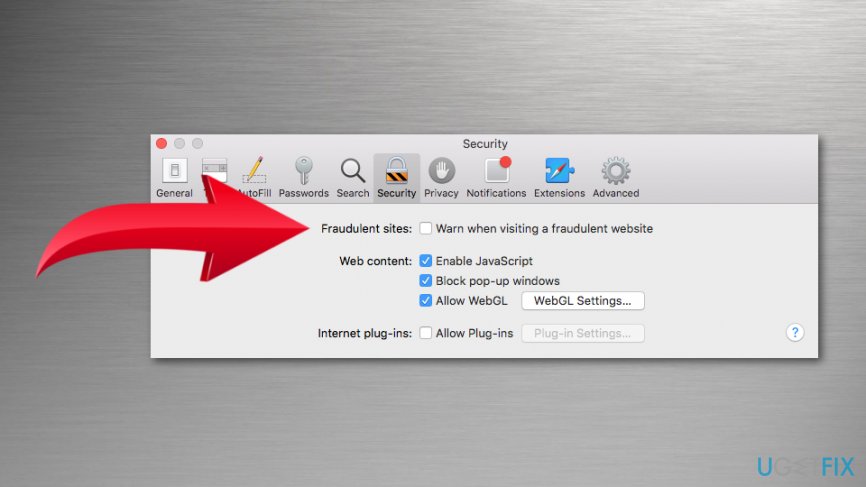
Turn off warn when visiting a fraudulent website feature
Once it’s done, access the website or click on a link again. However, if you noticed that your computer started acting oddly after downloading something from that domain, you should check the system with anti-malware software like [rev id=“Reimage"] or [rev id=”MacKeeper”].
Bottom line
To fix the 'Website with harmful software warning', you can bypass the warning by clicking 'visit this unsafe website' after ensuring the link is safe. It's advisable to use online scanners like Symantec, Trend Micro, or VirusTotal to check questionable links. If none of these solutions work, consider further security measures or consult a professional.
Frequently asked questions
You can try clearing your browser cache and cookies, or check your browser settings to ensure that security levels are not set too high. If the warning persists, consider running a malware scan using Windows Defender or another antivirus program to check for harmful software.
Disabling this warning is not recommended, but if necessary, you can adjust your browser's security settings or add specific sites to the trusted list. Keep in mind that this may expose your system to potential risks.
Not necessarily; this warning can appear even if your system is clean, as it is a precautionary measure against potentially harmful sites. However, it's wise to run a full virus scan with Windows Defender to ensure your computer is secure.




Report an issue
What's wrong with this guide? We review every report and update or remove content.
Report received — thank you. We'll review and fix it.
You need a free account to submit a report.
Be the first to comment