How to fix
“Unfortunately, Package Access Helper has stopped” error
on Windows
Resolve the "Unfortunately, Package Access Helper has stopped" error on Windows 10 and 11 with quick, effective solutions. Expert-tested for reliability.

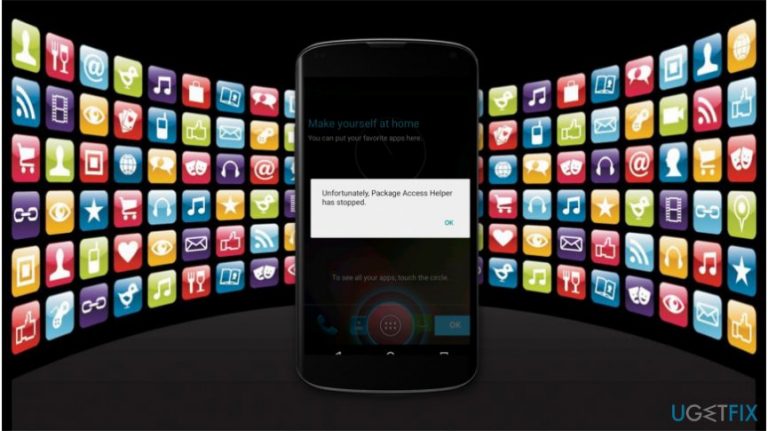
What causes How to fix “Unfortunately, Package Access Helper has stopped” error?
- Corrupted smartphone due to an unsuccessful update
- Significant problems related to Wi-Fi
- Application exceeding its RAM usage
- Issues with specific applications requiring Package Access Helper
Repairs Windows system files, removes malware, and restores a clean OS state — without reinstalling.
Hi. I am unable to open any of my apps since "Unfortunately, Package Access Helper has stopped" error pops up. Could you help me fix it?
"Unfortunately, Package Access Helper has stopped" error is a common issue which might appear once the user tries to open a specific application that requires Package Access Helper[ref en-1]. This problem is linked to Android devices only, including Nexus, Samsung, etc.
Unfortunately, "Unfortunately, Package Access Helper has stopped" alert cannot only block you from using and upgrading the existing apps but also prevent from downloading them from the Android Play Store via Wi-Fi[ref en-2]. Also, people report that they are unable to open apps menu in settings due to this issue.
Sadly, but currently, the experts have no reliable explanation why users keep receiving "Unfortunately, Package Access Helper has stopped" error on Android phones. Although, it is evident that either the smartphone was corrupted by an unsuccessful update or there are significant problems related to the Wi-Fi.
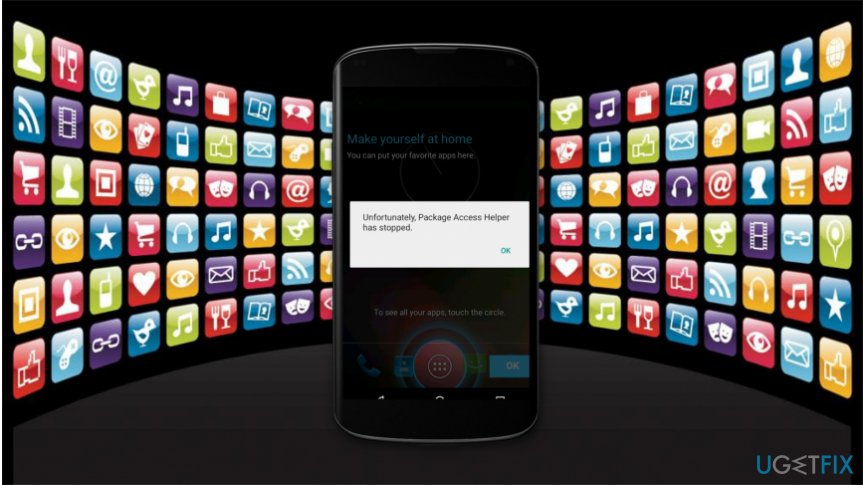
However, some IT professionals argue that Unfortunately, Package Access Helper has stopped error might pop up when the application is exceeding its RAM[ref en-3] usage on the phone. Even though the cause of this problem cannot be validated, there are several steps you might take before heading to the smartphone technician.
The list of ways to fix "Unfortunately, Package Access Helper has stopped" error
Below you will find ways how to fix "Unfortunately, Package Access Helper has stopped" error on Android. Since it is hard to determine the source of the issue, we advise you try all presented methods. This way you will increase the possibility of successful elimination of the error.
Method 1. Reset your phone to the factory state
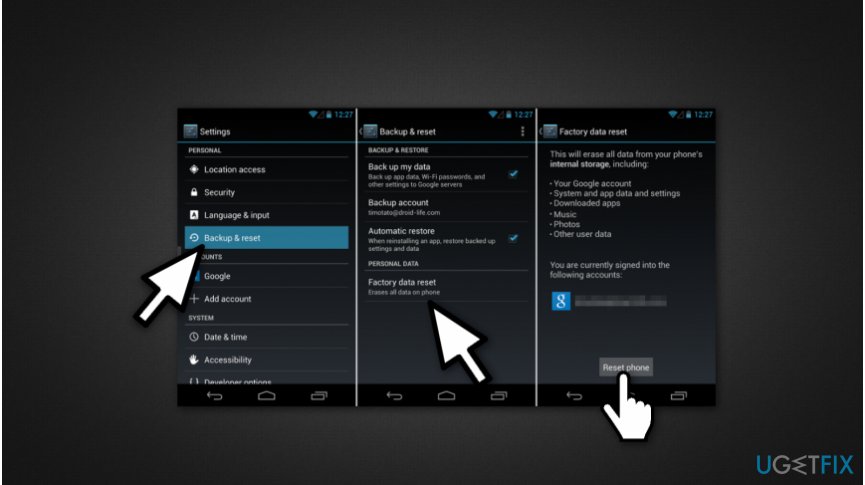
- Go to settings menu;
- Scroll down until you find Backup&Reset and click on it;
- Select Factory Data Reset;
- Press Reset Phone.
Method 2. Upgrade your smartphone's software
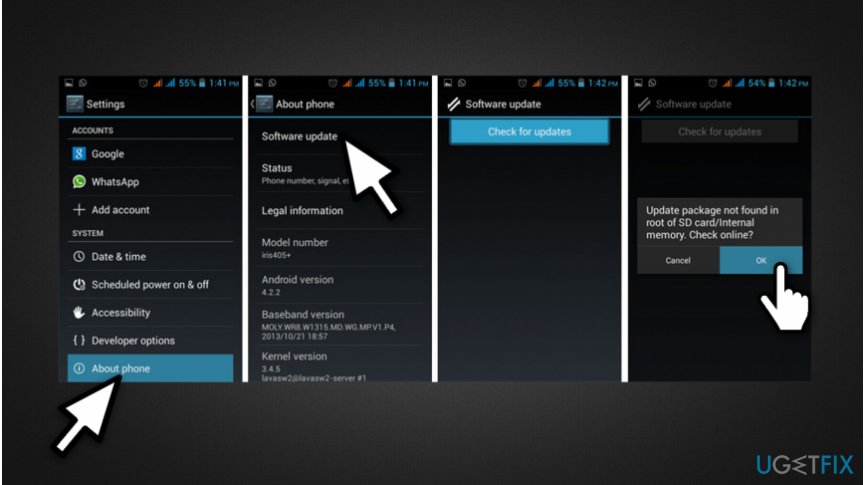
- Open settings menu;
- Search for About Phone section and click on it;
- Select Software Update;
- Press Check for Updates;
- If the update is not found, agree to check it online by pressing OK.
- Install the software update.
Method 3. Clear cache from the applications that won't open
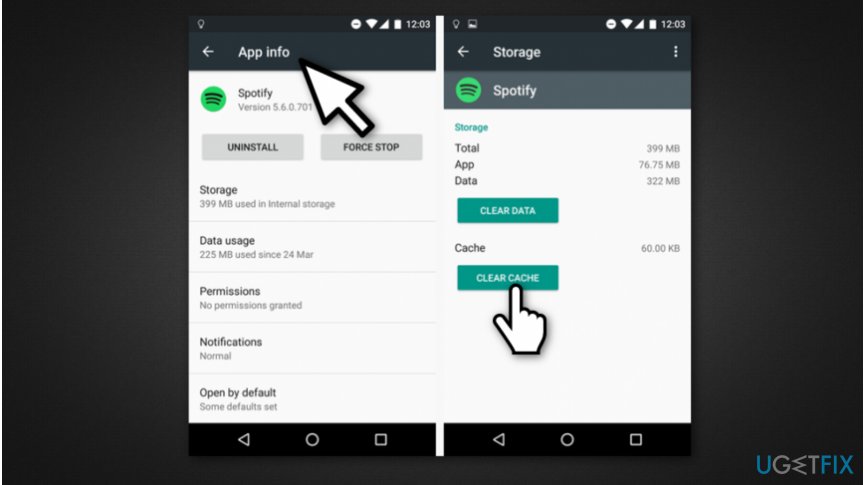
- Navigate to the settings menu;
- Open Application and press Manage Application;
- Go to Downloaded or all find the application which displays the error message;
- Select it and click Clear the cache.
Method 4. Flash the factory image
If none of the ways mentioned above helped, you might need to contact your service provider or go to a certified IT technician. Flashing the factory image is a complicated procedure, but it might help fix "Unfortunately, Package Access Helper has stopped" error on Android.
Bottom line
To fix the 'Unfortunately, Package Access Helper has stopped' error, you can try resetting your phone to factory settings, upgrading your smartphone's software, or clearing the cache from the applications. If none of these methods work, consider seeking assistance from a smartphone technician.
Frequently asked questions
This error can occur due to corrupted app data or conflicts with system updates in Windows 10. It may also be triggered by issues within the Windows Store or specific applications.
To reset the Package Access Helper, go to Settings > Apps > Apps & features, find the app causing the issue, and select 'Advanced options' to reset it. This can help resolve the error by clearing any corrupted data.
Yes, uninstalling and then reinstalling the app can often resolve the 'Package Access Helper has stopped' error on Windows 10 by ensuring you have the latest version and correct files.




Report an issue
What's wrong with this guide? We review every report and update or remove content.
Report received — thank you. We'll review and fix it.
You need a free account to submit a report.
Be the first to comment