How to fix
304 Not modified error
on Windows
Resolve the 304 Not Modified error on Windows 10 or 11 effortlessly. Follow our expert-tested solutions for quick fixes and seamless browsing.


What causes How to fix 304 Not modified error?
- Cached version of the resource is being used
- HTTP status code indicates no modification
- Server-side issues
- Malware presence
- Problems with DNS server
- Incompatible web browser plug-ins
Repairs Windows system files, removes malware, and restores a clean OS state — without reinstalling.
Does someone know why am I receiving the error "(304) Not Modified" when I try to open many websites? Those websites don't seem to have anything in common...
304 Not modified is an HTTP error, which indicates the fact that the HTTP[ref en-1] status of the requested resource hasn't been altered and that the user is currently being redirected to a cached version of the source. In other words, the 304 HTTP Error (Not Modified) means that the URL you are trying to access, and all its content haven't been modified in any way since the last time you visited it.
HTTP response status: 304 Not modified error might be difficult to address since HTTP status codes are implicit and do not point out to the provocative. Usually, the such and similar problem is at the servers end. Unlike "403 Forbidden Error" and similar 4xx-based errors, the 304 Not modified error belongs to the 3xx category and indicates the fact that the problem is related to the web server hosting your application.
Therefore, you might not be able to do anything except to wait for the web server to be renewed. Experts recommend Windows users who encountered the 304 Not modified error recently to be patient and visit the required domain after some time.
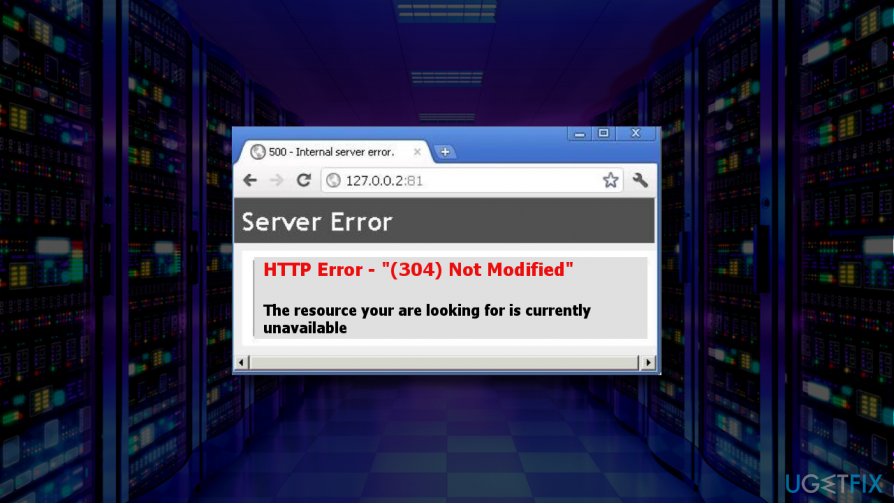
In a nutshell, the 304 Not modified can hardly be called an error message since it serves as an informative notification.
BUT: The 304 Not modified HTTP error may sometimes be triggered by malware or some problems with DNS server,[ref en-2] web browser's cache or incompatible web browser's plug-ins.
Therefore, if you cannot access multiple URLs due to the "(304) Not modified" error, we would also recommend you to scan the system with [d1] or any other reputable anti-spyware and, in case, a virus/malware is not the culprit, try the following methods:
Clear browser's cache and cookies
The steps to clear cache and cookies[ref en-3] are slightly different on each web browser's type. Therefore, we will explain how to clear cache in Chrome, Firefox, IE, and Safari since the prevalence of these types of web browsers is the biggest.
Google Chrome
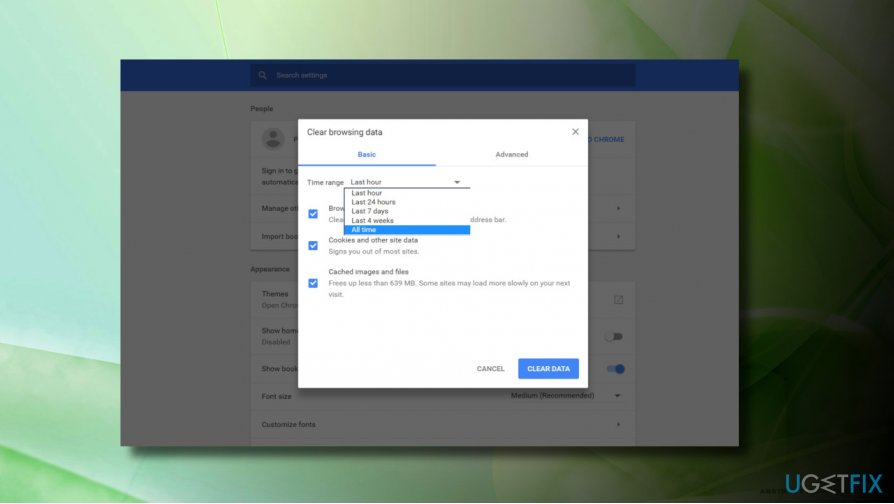
- Open Google Chrome and click on the Settings icon.
- Open More Tools and select Clear browsing data.
- Mark the Cookies and other site and plug-in data and Cached images and files options. (The other options are not necessary, but can be).
- Now expand the drop-down menu at the top of the window and select the beginning of the time option.
- Finally, click Clear browsing data.
Mozilla Firefox
- Open Mozilla Firefox and click Menu icon.
- Open Preferences section and select Advanced.
- Now select Network option and click Clear Now button.
- Finally, close the about: preferences page and restart the browser.
Internet Explorer
- Open Internet Explorer and click the Tools.
- Open Safety tab and select Delete browsing history.
- Remove check marks from all pre-selected options except Temporary Internet files and website files.
- Finally, click Delete button and restart the browser.
Safari
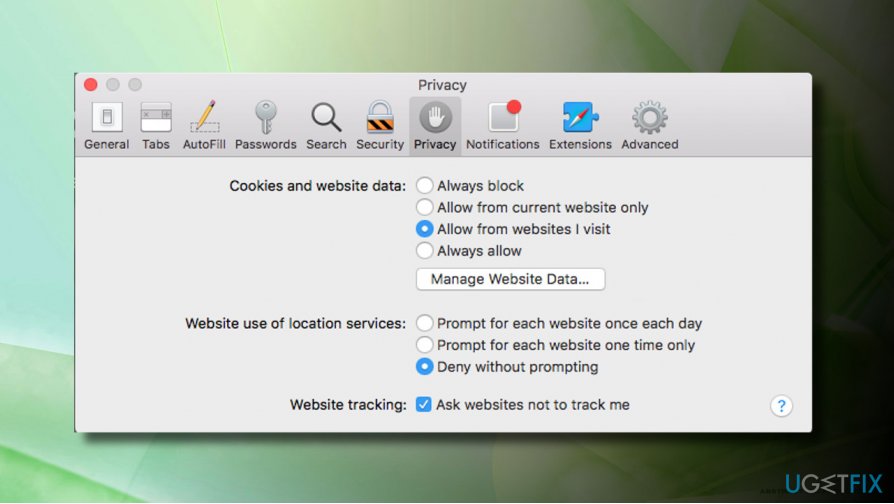
- Launch Safari and open Preferences.
- Go to Advanced tab and select Show Develop Menu option.
- Now at the top of menu bar find Develop option and click on it.
- Finally, select Empty Caches and restart your web browser.
Change the DNS Servers
If clearing cache did not help and you are still encountering a problem with 304 error, try to fix 304 Not modified by switching to another DNS server temporarily:
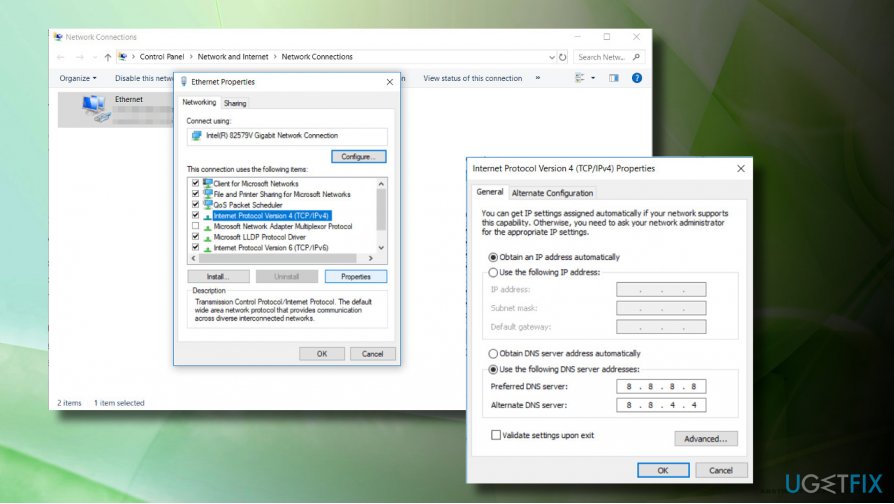
- Press Windows key + R, type ncpa.cpl, and hit Enter.
- Right-click on the Ethernet or Wi-Fi connection depending on which you are currently using.
- Select Properties and select the Internet Protocol Version 4 (TCP/IPv4).
- Click Properties.
- At the bottom of the window, click the Use the following DNS server addresses.
- Now enter 8.8.8.8 as Preferred DNS server and 8.8.4.4 as Alternate DNS server.
- Finally, click OK to save the changes and check if the DNS problems have been resolved.
Bottom line
To resolve the 304 Not Modified error, users can clear their browser's cache and cookies, scan their system for malware, and check for issues with DNS servers or browser plug-ins. If these methods do not work, it is advisable to wait and try accessing the website later.
Frequently asked questions
The 304 Not Modified error typically occurs when the browser's cache is up-to-date, and the server indicates that the requested resource has not changed since the last request. This often happens due to improper cache settings or issues with the server's configuration.
To resolve the error, try clearing your browser's cache and cookies, then reload the page. If the issue persists, consider checking your network settings or the server configuration.
You can prevent this error by ensuring that your browser's cache settings are correctly configured and by regularly clearing the cache. Additionally, keeping your Windows 10 system and web browsers updated can help reduce such issues.




Report an issue
What's wrong with this guide? We review every report and update or remove content.
Report received — thank you. We'll review and fix it.
You need a free account to submit a report.
Be the first to comment