How to fix
ERR_INTERNET_DISCONNECTED error
on Windows
Resolve the ERR_INTERNET_DISCONNECTED error on Windows 10 or 11 effortlessly with expert-tested solutions. Get connected again in minutes!

What causes How to fix ERR_INTERNET_DISCONNECTED error?
- Computer disconnected from the Internet
- Issues with connectivity settings
- Problems with internet settings
- Cookies and cache causing conflicts
Repairs Windows system files, removes malware, and restores a clean OS state — without reinstalling.
I received ERR_INTERNET_DISCONNECTED error on Google Chrome which prevents accessing websites. It tells that my computer is offline, but I can clearly see that it’s connected to home Wi-Fi. How to fix this problem?
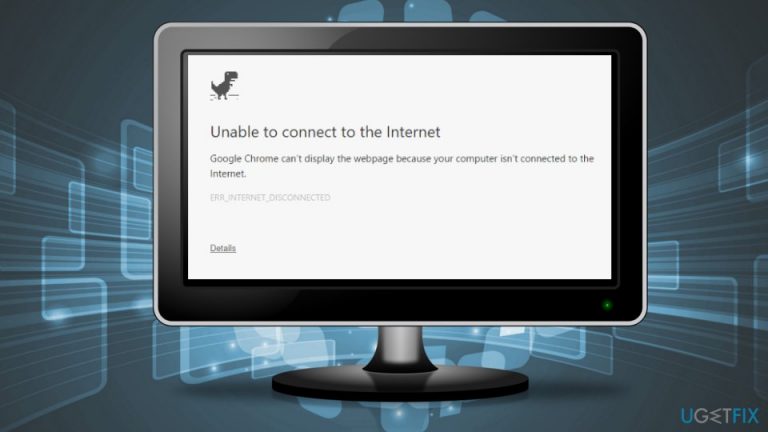
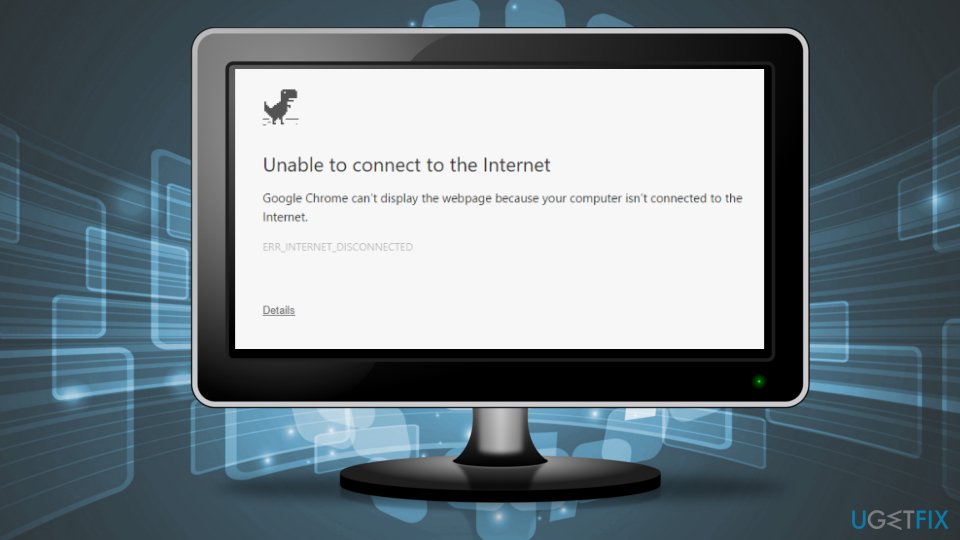
ERR_INTERNET_DISCONNECTED is a connectivity error which can appear in Google Chrome[ref en-1] web browser. When users try to open specific website, they receive a grey Chrome’s window with T-Rex[ref en-2] which includes the following message:
Unable to connect to the Internet
Google Chrome can’t display the webpage because your computer isn’t connected to the Internet.
ERR_INTERNET_DISCONNECTED
Sometimes the ERR_INTERNET_DISCONNECTED error on Chrome appears when your computer gets disconnected from the Internet. Hence, the first thing you need to do is to check if there are no problems with the connection.
However, the error might be caused by other problems with connectivity or internet settings. But all of these issues can be solved. You can fix ERR_INTERNET_DISCONNECTED error on Chrome by configuring Internet settings, clearing browsing data, and a couple of other methods which are explained in the second part of the article.
Instructions how to fix ERR_INTERNET_DISCONNECTED error on Google Chrome
First of all, you have to make sure that your computer is connected to the Internet.[ref en-3] If you are using Wi-Fi, check if you can browse the web using your smartphone which is connected to the same Wi-FI. Additionally, you can connect using cable. If the problem still exists, you should contact your Internet service provider and check if there are any technical issues.
However, if your internet connection is smooth, but ERR INTERNET DISCONNECTED error still greets you on the browser, you should try out the following methods to get rid of the problem.
Method 1. Clear browsing cookies and cache
- Open Google Chrome’s settings.
- Navigate to My Tools and choose Clear browsing data option.
- In the appeared pop-up window, make sure that you check Cookies and other site and plug-in data and Cached images and files options. If you want, you can clear other information too.
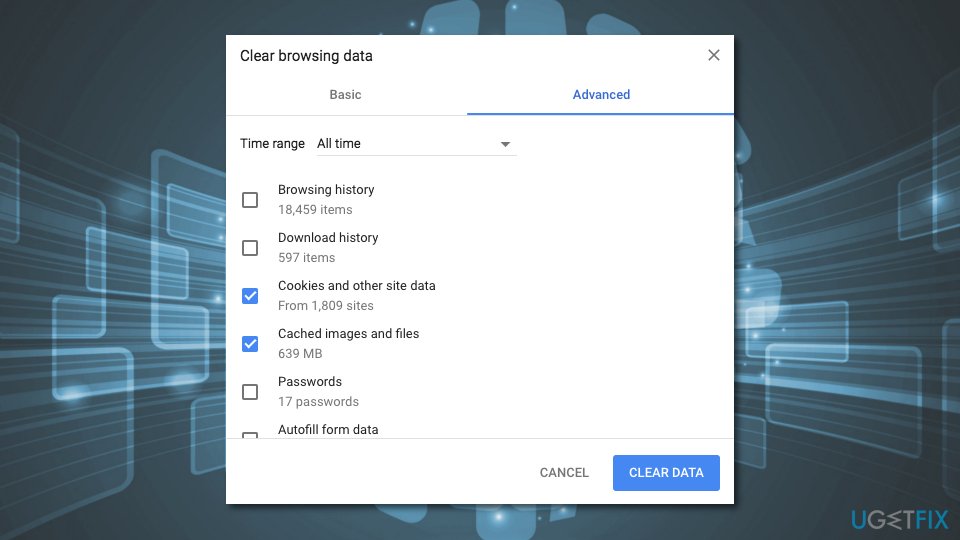
Clear browsing data on chrome - Set Time range to All time.
- Click Clear Data button.
Check if the ERR_INTERNET_DISCONNECTED error shows up again. If you still cannot access the Internet, try another method.
Method 2. Configure your Internet settings on Windows
- In the Windows search box type internet options.
- Open Internet Options and navigate to Connections tab.
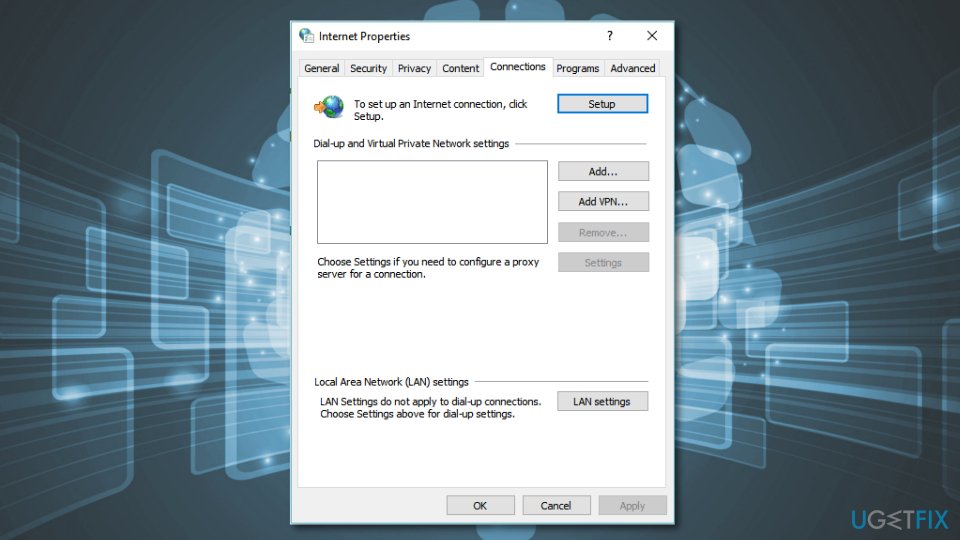
Open internet settings - Click LAN settings button.
- Make sure that Automatically detect settings and Use a proxy server for your LAN are not selected. If they are, remove the ticks from checkboxes.
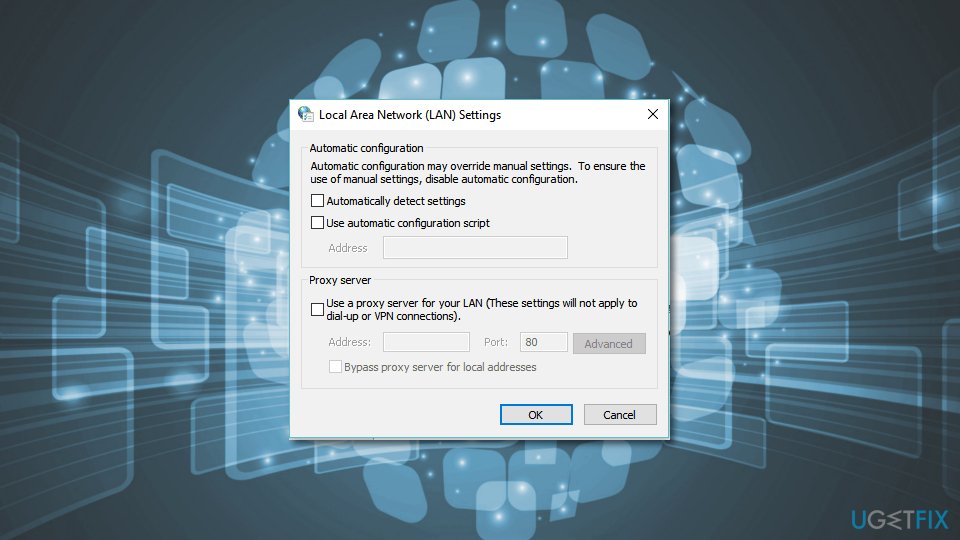
Check lan settings
The configuration of Internet settings should help to fix ERR INTERNET DISCONNECTED Chrome error. If not, try the third option.
Method 3. Reset network settings and flush DNS
- In the Windows search box type cmd.
- Right-click Command Prompt once it appears in the results list and choose Run as administrator option.
- Type the following commands and click Enter after each of them:
pconfig /flushdns
ipconfig /renew
netsh int ip set dns
netsh winsock reset - Restart the computer and launch Chrome to check if it helped to fix ERR_INTERNET_DISCONNECTED error.
Method 4. Update network adapter
If none of the first three methods helped to get rid of ERR_INTERNET_DISCONNECTED error, you should try updating your network adapter.
- Type Device Manager in Windows search box to find and open Device Manager.
- Then expand Network adapters section.
- Right-click on your network adapter and choose Update Driver Software option.
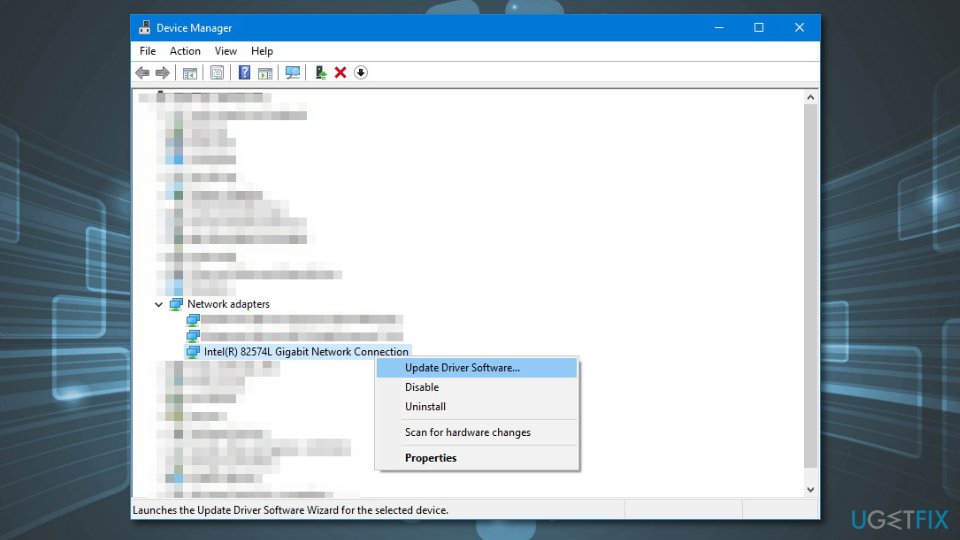
Update network driver - Click on Search automatically for updated driver software option in the appeared window.
- Follow the instructions on the screen.
Note. If Windows update cannot find recent version of your network adapter, you should visit your computer manufacturer support site and download the latest driver from there.
Bottom line
To fix the ERR_INTERNET_DISCONNECTED error, you can check your internet connection, clear browsing cookies and cache, and configure your internet settings. If these methods do not resolve the issue, consider contacting your Internet service provider for further assistance.
Frequently asked questions
You can try resetting your network adapter by executing 'netsh int ip reset' in the Command Prompt, or simply restarting your router to re-establish the connection.
Yes, Windows 11 users may encounter the ERR_INTERNET_DISCONNECTED error as well, and the troubleshooting steps are similar, including checking network settings and drivers.
You can update your network drivers through Device Manager by right-clicking on your network adapter and selecting 'Update driver' to ensure compatibility with Windows 10 or Windows 11.




Report an issue
What's wrong with this guide? We review every report and update or remove content.
Report received — thank you. We'll review and fix it.
You need a free account to submit a report.
Be the first to comment