How to fix
WdFilter.sys BSOD
on Windows
Resolve the WdFilter.sys BSOD error on Windows 10 and 11 effortlessly with our expert-tested solutions. Fixed in minutes and easy to follow!


What causes How to fix WdFilter.sys BSOD on Windows?
- Windows Defender bug
- Corruption of display drivers
- Corrupted or unsigned device drivers
- Issues with Windows updates
- Real-time protection feature causing conflicts
Repairs Windows system files, removes malware, and restores a clean OS state — without reinstalling.
I'm using Windows 10 for quite a long time. As far as I can remember, I did not initiate any important changes nor upgraded the system. However, each time I boot up my laptop and attempt using it, it encounters a BSOD pointing to a WdFilter.sys file. Is there something I could do by myself?
WdFilter.sys is original stems from the Windows 8 Pro OS, but it is used in each of the Windows 10 OS builds as well. It's one of the Sys files[ref en-1] that are related to the Windows Defender Mini-Filter Driver. It's original location is %WinDir%\\system32\\drivers\\WdFilter.sys.
This file does not manifest itself as dangerous or problematic. Its security rating is one meaning that it's not malicious on its own and is a rare target for hackers. However, this file seems to be causing Windows Blue Screen of Death (BSOD)[ref en-2] that indicate the WdFilter.sys file as a reason. The WdFilter.sys BSOD might show up on one of the following stop codes:
KMODE EXCEPTION NOT HANDLED
PAGE_FAULT_IN_NONPAGED_AREA
SYSTEM_SERVICE_EXCEPTION
REGISTRY_FILTER_DRIVER_EXCEPTION
DRIVER_OVERRAN_STACK_BUFFER
BOOTLOG_NOT_LOADED
In most of the cases, the culprit of the WdFilter.sys BSOD is related to Windows Defender's bug or corruption of display drivers. According to experts, one of the solutions is to update Windows Defender's security definitions[ref en-3] or disable it completely. Turn off a Real-time protection feature might also help.
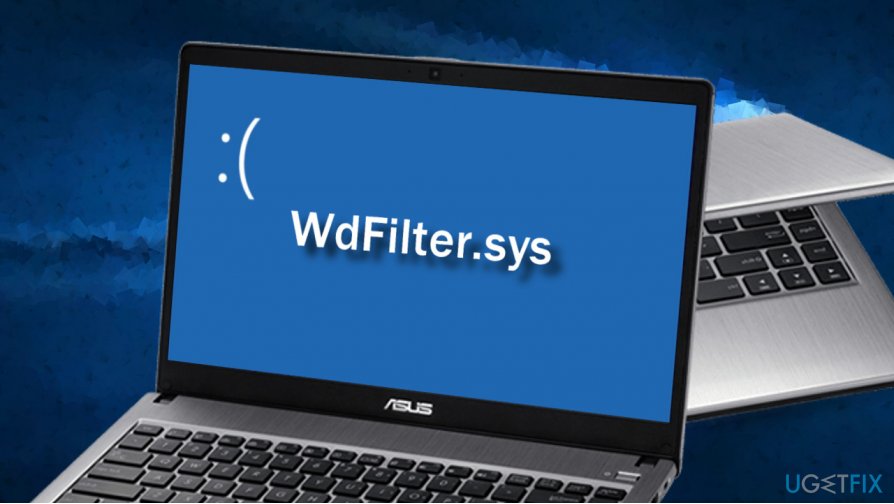
However, if Windows Defender does not seem to be the reason why WdFilter.sys not loaded on the system, you should run Driver Verifier and check for corrupted or unsigned devices drivers. If some drivers appear to be corrupted, make sure to update or reinstall them. You can find step-by-step instructions on how to fix WdFilter.sys BSOD down below.
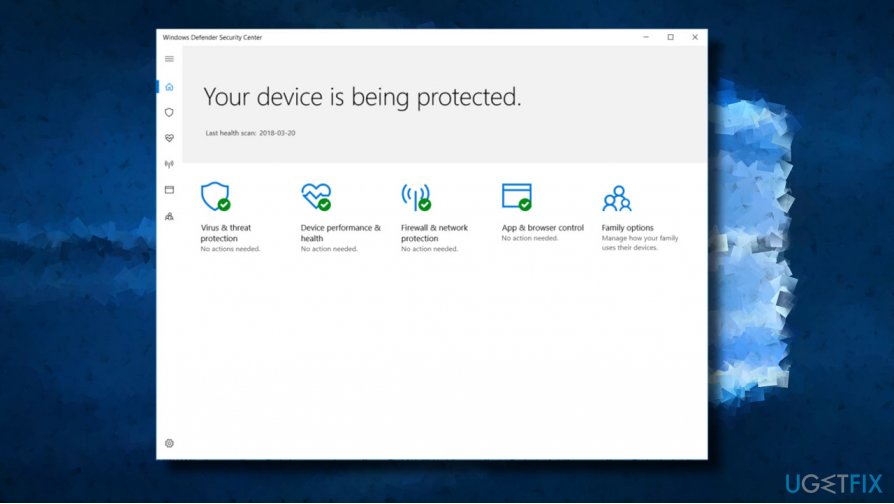
Update Windows Defender
- Open Windows Search and type Windows Defender.
- Open the Windows Defender's panel and select Virus & Threat Protection.
- You should see the state of your antivirus. You should be automatically informed about any updates available.
- Alternatively, you can press Windows key + I to open Settings.
- Open Update & Security section and click Check for updates.
- The system should automatically download all available updates.
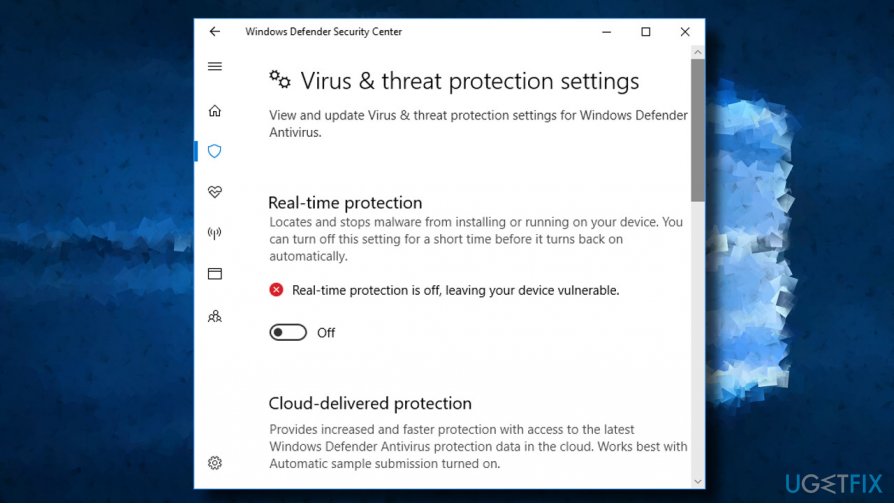
Disable Windows Defender and Turn Off Real-Time Protection
- In the menu tray, click on a button that looks like a small arrow pointing upwards. Locate a Shield icon.
- If you couldn’t find this icon, just type Windows Defender in Windows search (click on Start Menu and type that phrase into the search box at the bottom of the menu).
- Once you open the Windows Defender, navigate to its Settings.
- What you have to do is to turn Real-time protection off.
Restore the Default Startup Configuration for Windows Defender Antivirus Mini-Filter Driver
- Right-click on Windows key and select Command Prompt (Admin).
- Copy and paste the following commands into the elevated Command Prompt environment. Click Enter after each of them:
sc config WdFilter start= boot
sc start WdFilter - Close Comand Prompt and restart your PC.
Boot into Safe Mode with Networking
- Press and hold the Shift key while clicking on the Restart button on the login screen.
- Select Troubleshoot and click on Advanced Options.
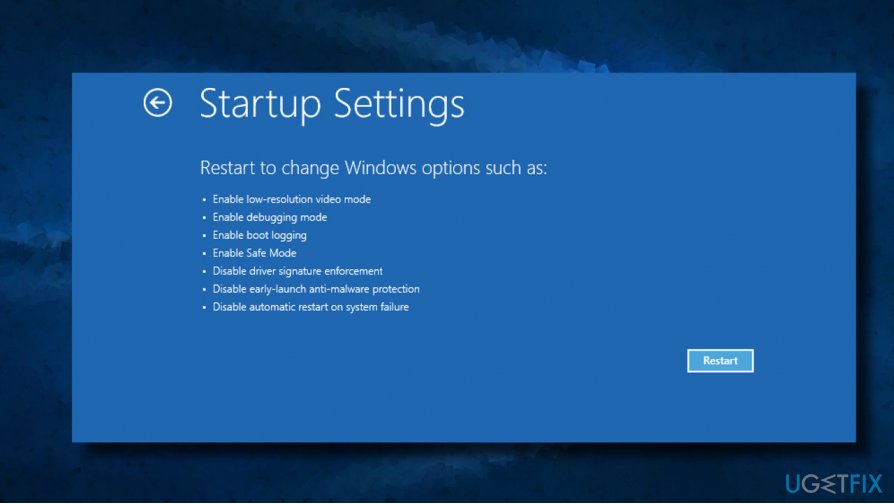
- Select Startup Settings and click on Restart.
- After restarting, select Enable Safe Mode with Networking or Low-Resolution Video mode.
Update/reinstall graphics card drivers
- Right-click on Windows key and select Device Manager.
- Double-click on the Display adapters section.
- Click once on your video card driver and select Update driver.
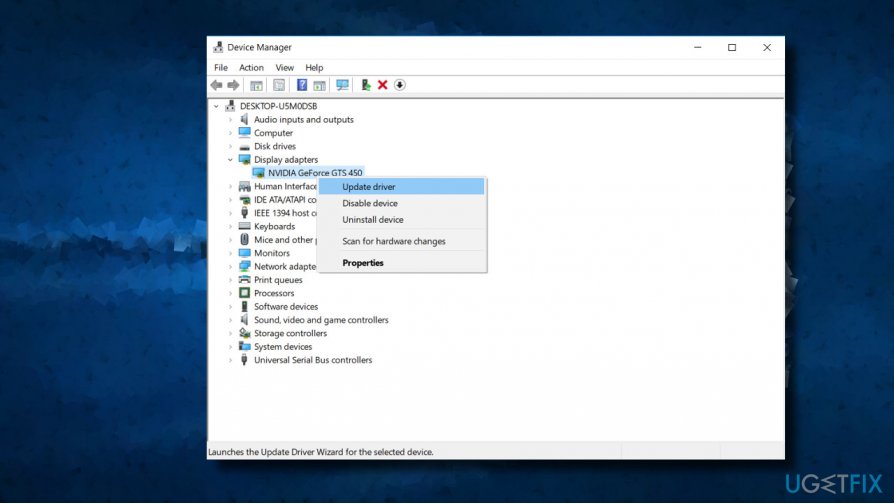
In case that did not help, we would recommend you to uninstall the driver completely and then download its latest version from the manufacture manually. Once downloaded, you should:
- Right-click on the driver's setup file and select Properties.
- Select Compatibility tab and mark a box next to Compatibility mode.
- Select a previous version of Windows supported by the software, from the drop-down list.
- Click Apply and OK to save the changes.
- After the installation of a driver, restart your PC.
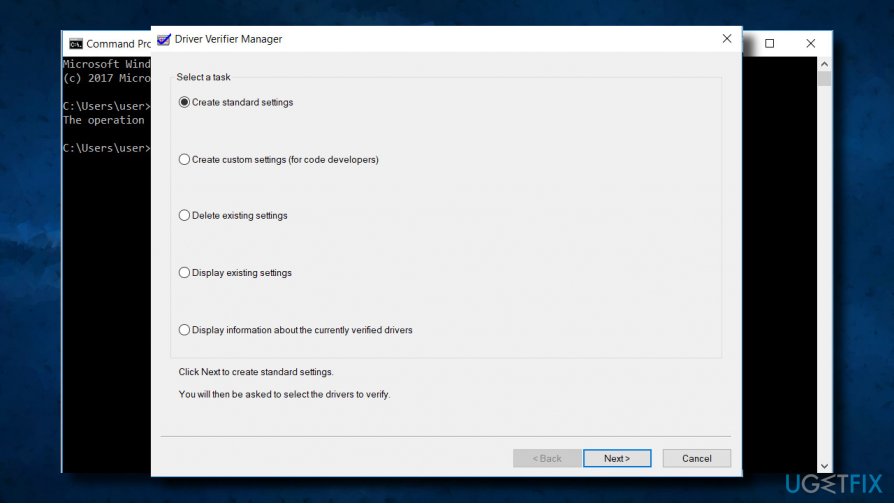
Run Driver Verifier
- Press Windows key + X and select Command Prompt (Admin).
- Click Yes on the UAC.
- Type verifier and press Enter to execute the command.
- On the new window, select Create standard settings and then click Next.
- Click Automatically select all drivers installed on this computer.
- Finally, click Finish button to start the verification process. You should get a report on the status of each driver, so follow the instructions to fix all problems.
If these methods did not work and you are still looking for a way to fix WdFilter.sys blue screen, we would recommend running a full system scan with [d1] or another professional software optimization utility. We prefer Reimage as it contains an inbuilt antivirus engine and kills two birds with one stone.
Bottom line
To fix the WdFilter.sys BSOD, you can update Windows Defender's security definitions, disable Windows Defender completely, or turn off the Real-time protection feature. Additionally, running Driver Verifier to check for corrupted or unsigned device drivers and updating or reinstalling them may help. If none of these solutions work, further investigation into system files or hardware issues may be necessary.
Frequently asked questions
The WdFilter.sys BSOD error is often caused by corrupted system files, conflicting software, or issues with Windows Defender. It can also occur due to outdated drivers or malware infections.
To troubleshoot the WdFilter.sys BSOD on Windows 11, you can run the System File Checker tool and check for corrupted files by executing 'sfc /scannow' in the Command Prompt. Additionally, updating your drivers and temporarily disabling Windows Defender may help resolve the issue.
While disabling Windows Defender can temporarily resolve the WdFilter.sys error, it is not recommended as a long-term solution due to security risks. Make sure to enable it again after troubleshooting.




Report an issue
What's wrong with this guide? We review every report and update or remove content.
Report received — thank you. We'll review and fix it.
You need a free account to submit a report.
Be the first to comment