How to fix
“Error applying transforms” error
on Windows
Resolve the "Error applying transforms" issue on Windows 10 effortlessly. Follow expert-tested solutions for a seamless fix in minutes.

What causes How to fix “Error applying transforms” error on Windows 10?
- Corrupted Windows Installer
- Wrong transform registry path of the app
- Problems with Windows Install and Update service
- A broken software update
Repairs Windows system files, removes malware, and restores a clean OS state — without reinstalling.
I cannot update Java on my Windows 10 laptop. It delivers "Error applying transforms” error. What does it mean and how to fix it?
"Error applying transforms” is an error that might show up on Windows 10, as well as older versions of the operating system. The error might be displayed when installing or updating[ref en-2] programs. There are a couple of reasons why it might occur:
- corrupted Windows Installer;[ref en-1]
- wrong transform registry path of the app;
- problems with Windows Install and Update service;
- a broken software update.[ref en-4]
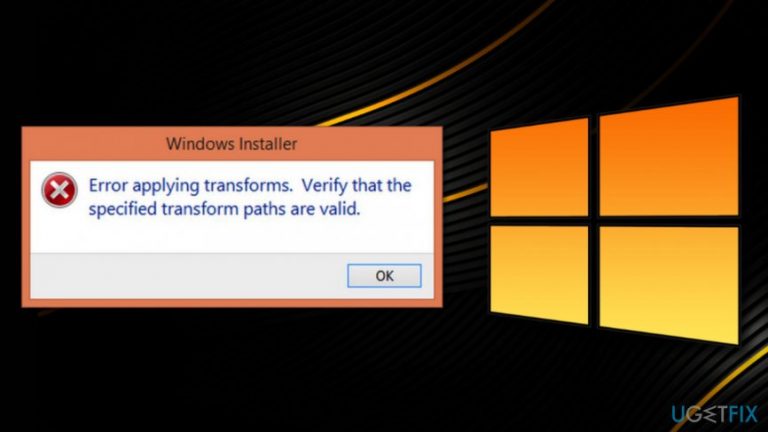
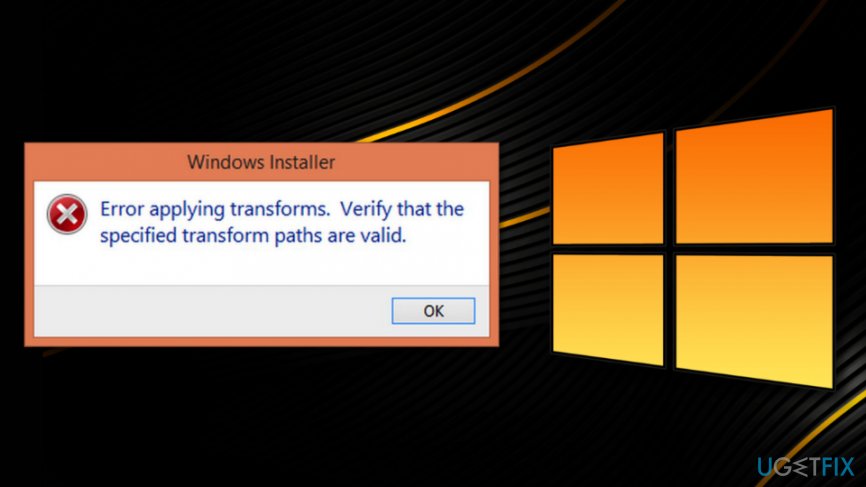
When one of these issues occur, users receive a pop-up alert that states:
Error applying transforms. Verify that the specified transform paths are valid.
In rare occasions this problem is temporary. However, typically the "Error applying transforms” error requires taking some measures to fix it. One of the simplest solutions is to uninstall and then reinstall the program (if the error shows up during software update).
However, if the error popped up when installing the program, you should try other methods to fix "Error applying transforms” error. You can find a few of them presented below.
Methods to fix "Error applying transforms” problem on Windows
Usually, the error is associated with some corrupted registry entries or issues with install/update features. However, you can get rid of the issue by following the steps below.
Option 1. Reregister Windows Installer
- Click Windows key + R to open the Run box.
- Type msiexec /unregister and click OK.
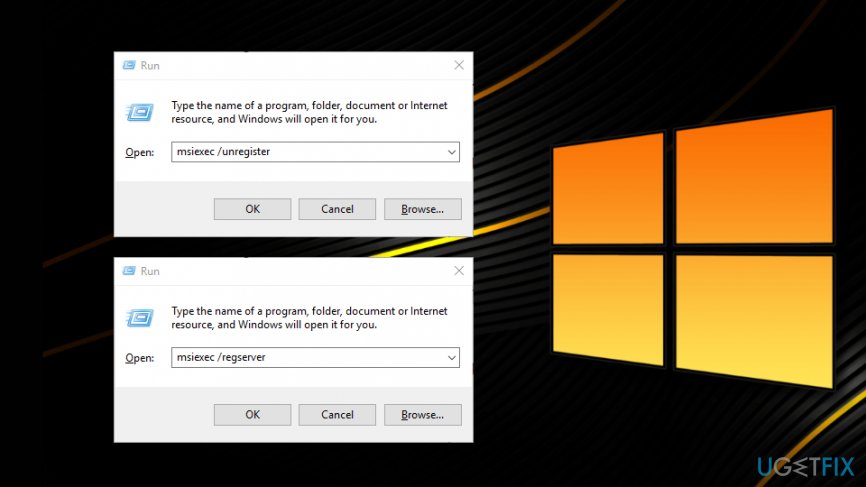
Reregister windows installer - Type msiexec /regserver in the Run box and click OK again.
Windows Installer should be reregistered. Hence, you should check if it helped to fix "Error applying transforms.” If not, follow the second method.
Option 2. Run “Program Install and Uninstall Troubleshooter”
- Download Program Install and Uninstall Troubleshooter[ref en-3] from the official Windows support page here.
- Click on MicrosoftProgram_Install_and_Uninstall.meta file to run Program Install and Uninstall Troubleshooter.
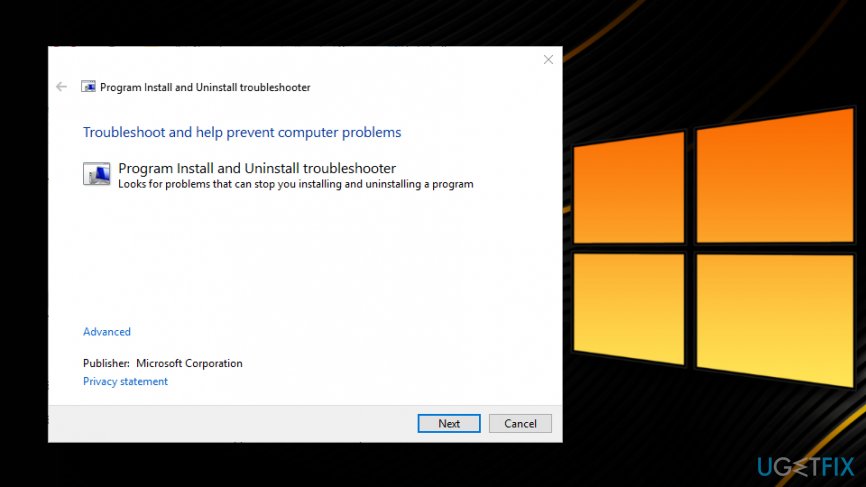
Run program install and uninstall troubleshooter - Follow the instructions presented on the screen.
Option 3. Uninstall the previous version of the program that triggered the error
- Click Start and click Settings.
- Navigate to System from the Settings menu.
- Click Apps & features in the left pane.
- In the appeared list of installed apps on the right find the troublesome program and click on it.
- You will see the grey Uninstall button. Click on it.
- In the appeared uninstall confirmation button click Uninstall again.
Option 4. Fix transform registry path
Follow these steps if the error was delivered during software update:
- Click Windows key + R to open the Run window.
- Type regedit and click OK.
- You will end up in the Registry Editor. Navigate to this key:
HKEY_CLASSES_ROOT\\Installer\\Products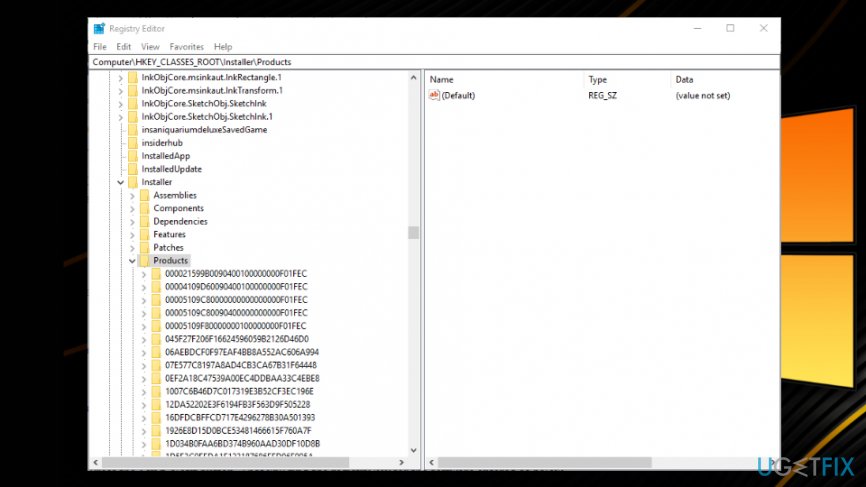
Fix transform registry path - Right-click Products in the Registry Editor and click on Find option.
- Tick checkboxes next to Keys, Values, and Data.
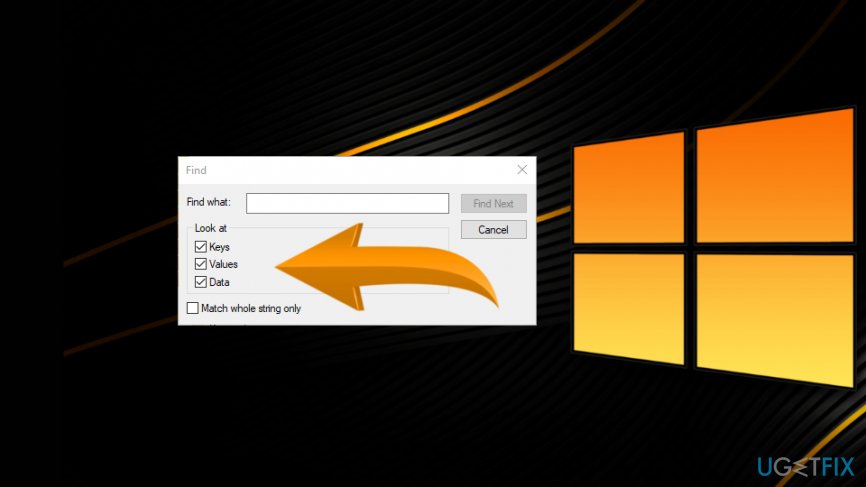
Check checkboxes - Type the name of the software that delivered an error in the Find what box.
- Click Find Next button to find the registry key for the software.
- Open Edit String window by double-clicking Transforms option.
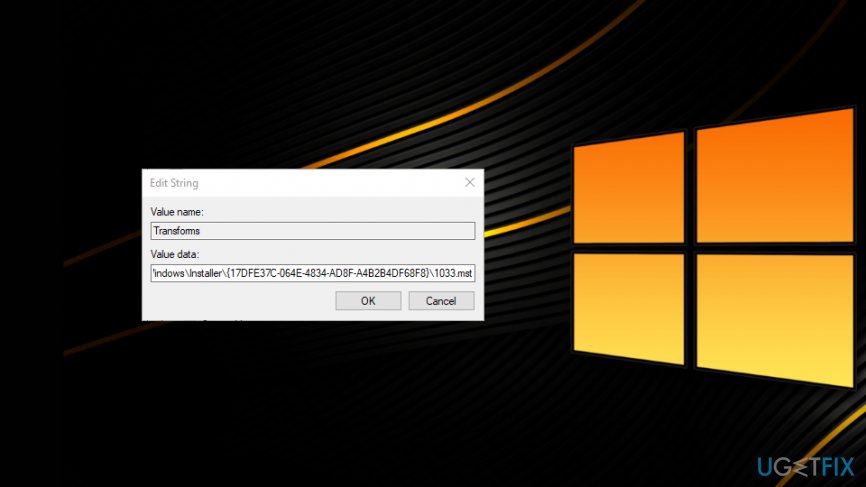
Edit string box - Delete everything from Value data box and click OK.
- Close the registry.
Note. If "Error applying transforms" error appeared when uninstalling a program, you have to delete Transforms.
Bottom line
To fix the 'Error applying transforms' error, you can try reregistering the Windows Installer, running the Program Install and Uninstall Troubleshooter, or uninstalling the previous version of the program that triggered the error. If none of these methods work, consider seeking further assistance or exploring additional troubleshooting options.
Frequently asked questions
This error typically occurs when there are issues with the installation package or if the MSI file is corrupted. It can also be triggered by missing or incorrect transform files used during the installation process.
To fix this error, try reinstalling the software with the correct installation package or running the installer as an administrator. Additionally, ensure that any previous versions of the software are fully uninstalled.
Yes, you can use the Windows Installer Troubleshooter or the DISM command to repair the Windows image and fix any corrupted files that may be causing the error.




Report an issue
What's wrong with this guide? We review every report and update or remove content.
Report received — thank you. We'll review and fix it.
You need a free account to submit a report.
Be the first to comment