How to fix
“There is insufficient disk space to complete operation” error
on Windows
Resolve the "insufficient disk space" error on Windows 10 and 11 effortlessly. Follow our expert-tested tips for quick fixes and gain more storage today!

What causes How to fix “There is insufficient disk space to complete operation” error?
- Actual lack of space on the drive
- File corruption
- Problems with device drivers
- Antivirus program interference
- Running too many programs or windows
Repairs Windows system files, removes malware, and restores a clean OS state — without reinstalling.
I cannot save Word document on my computer because it gives an error “There is insufficient disk space to complete an operation.” But I can see about 10 GB available on my disk, and this file is not that big. So, what’s wrong with my PC?
“There is insufficient disk space to complete operation” error on Windows generally means one of the three things: actual lack of space on the drive, file corruption or problems with device drivers. Fortunately, these programs can be solved quite easily.
Sometimes, it’s enough just to close other programs or windows. For instance, close the browser or music player and try to save your Word file. Moreover, “There is insufficient disk space to complete operation” error might be caused by antivirus program installed on the PC. Though, temporarily disable it to see if it was the issue.
However, if these simple solutions cannot help you, we have prepared a guide how to fix “There is insufficient disk space to complete operation” error which will explain how to fix corrupted files or disk.
Available methods to fix “There is insufficient disk space to complete operation” error on Windows
Many Windows can be solved by rebooting a computer. Hence, you should save information on Google Drive or other cloud storage platform, and restart your PC. If it does not solve the issue, try the following methods.
Option 1. Reboot the computer to Safe Mode
When you boot a computer to Safe Mode,[ref en-1] you will be able to see if some computer drivers are causing the problem. This mode runs computer only by using most important files and drivers.
- Click the Start button and navigate to Settings.
- Choose Update & Security.
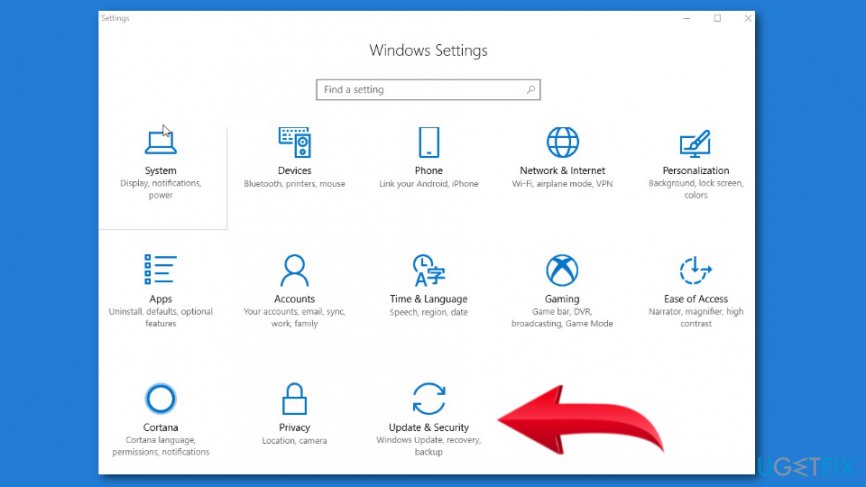
Update and security settings - Click Recovery from the left menu.
- Click Restart now button under Advanced startup section.
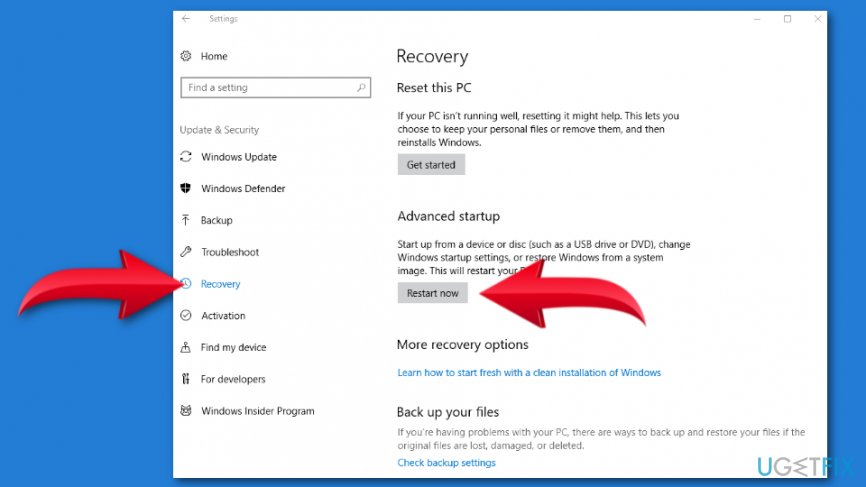
Boot in safe mode - In the appeared Choose an option screen. Click on Troubleshoot option.
- Click Advanced options and navigate to Startup Settings.
- Click Restart.
- When your computer boots up, you will see the list of available options. Click 4 or F4 to boot in Safe Mode.
If the “There is insufficient disk space to complete operation” error does not come up, it means that the problem is not related to computer’s default settings or basic drivers.
Booting to Safe Mode also helps to delete enabled add-ins,[ref en-2] but you can also delete them from the registry. Before proceeding, please back up the registry[ref en-3] in case something goes wrong:
- Type run in the Windows search box.
- Open Run program and type regedit and then click OK.
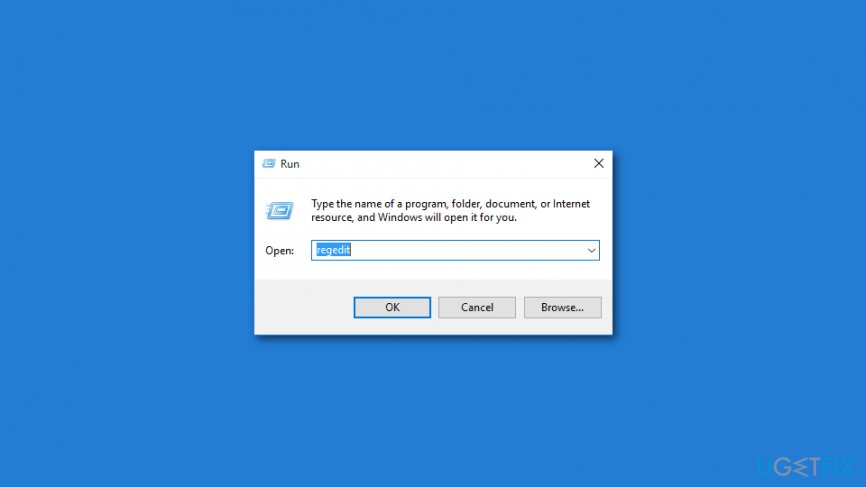
Type regedit in run - Find and delete add-in keys in the following locations:
HKEY_CURRENT_USER\\Software\\Microsoft\\Office\\14.0\\Word\\Addins
HKEY_CURRENT_USER\\Software\\Microsoft\\Office\\Word\\Addins
HKEY_LOCAL_MACHINE\\SOFTWARE\\Microsoft\\Office\\14.0\\Word\\Addins
HKEY_LOCAL_MACHINE\\SOFTWARE\\Microsoft\\Office\\Word\\Addins
Option 2. Try a clean boot
This method helps to fix issues with apps and services that are launched during Windows startup that might be the source of “There is insufficient disk space to complete operation” error.
- Log in to a computer as admin.
- In Windows search box type msconfig.
- Open System Configuration.
- Navigate to Services tab and mark the checkbox near Hide all Microsoft services option at the end of the window.
- Click Disable all option.
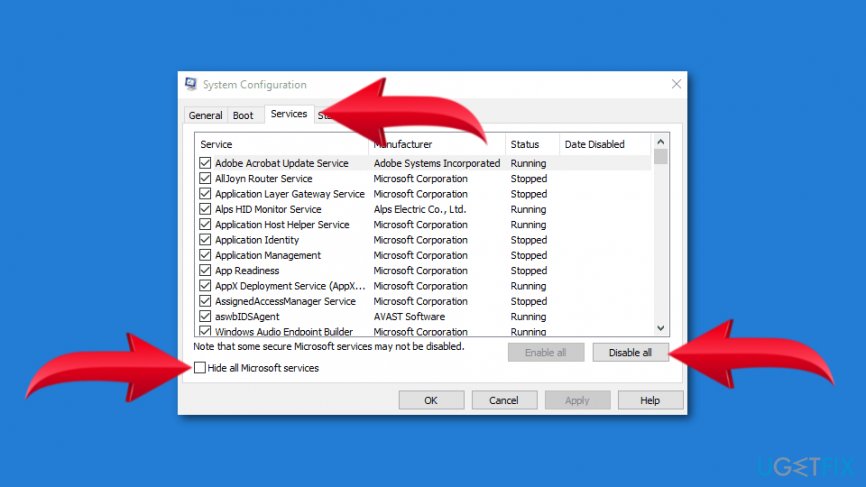
Clean boot your computer - Open Startup tab and click Open Task Manager link.
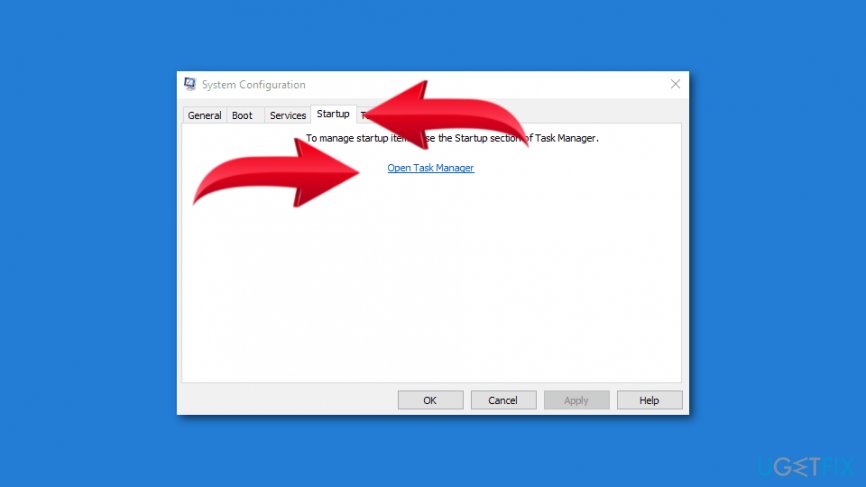
System configuration startup settings - Close Task Manager and click OK.
- Restart the computer and check if it helped to fix “There is insufficient disk space to complete operation” error.
Option 3. Modify the normal.dot template
Corrupted normal.dot template[ref en-4] is one of the common reasons for insufficient disk space error.
- In the Windows search box enter normal.dot. However, it’s a hidden file, so you have to check Search hidden files option if available. If not, go to Folder options and make sure that show hidden files option is enabled, or try searching for *.dot.
- Once you find normal.dot, rename it to old.dot.
- Restart the computer.
- Open a program/file. It should create a new normal.dot template.
Option 4. Run Disk Cleanup
If your computer actually runs out of space, run Disk Cleanup tool and delete files or programs you do not need:
- Open Start.
- Navigate to All Apps > Accessories > System Tools > Disk Cleanup.
- In the appeared Select Drive pop-up, choose the drive you want to clean up and click OK.
- Mark entries you want to clean in the Disk Cleanup tab.
- Click OK.
Option 5. Clean %temp% folder
- Open Run by right-clicking Start and choosing it from the menu.
- Type %temp% in the Run window and click OK.
- When in File Explorer in the TEMP folder, select all files by pressing Ctrl + A keys.
- Click Delete.
Note. If you receive an error that some files cannot be deleted because they are in use, skip them.
Once it’s done, try to save a file. Hopefully, it helped to fix "There is insufficient disk space to complete operation” error on Windows.
Bottom line
To fix the 'There is insufficient disk space to complete operation' error, you can try rebooting your computer, closing unnecessary programs, disabling your antivirus temporarily, or booting into Safe Mode to check for driver issues. If these methods do not resolve the problem, consider checking for corrupted files or disk issues.
Frequently asked questions
First, try clearing temporary files using the Disk Cleanup tool. If that doesn't work, consider uninstalling unused applications to free up space.
Yes, you can use the Storage Sense feature in Windows 11 to automatically free up space by removing unnecessary files without manually deleting your personal data.
Absolutely, you can check disk space by going to Settings > System > Storage, which will show you how much space is used and what can be cleared.




Report an issue
What's wrong with this guide? We review every report and update or remove content.
Report received — thank you. We'll review and fix it.
You need a free account to submit a report.
Be the first to comment