How to fix
Windows Store error 0x000001F7
on Windows
Resolve Windows Store error 0x000001F7 quickly with our expert-tested solutions. Get back to enjoying your apps in no time, fixed in minutes!

What causes How to fix Windows Store error 0x000001F7?
- Server downtime
- Malfunctioning apps
- System errors
- Malware infection
Repairs Windows system files, removes malware, and restores a clean OS state — without reinstalling.
Hey, I ran into a problem with Windows Store recently and wondered if you guys could help me. Every time I start up Windows store, it comes up with Error code: 0x000001F7. Therefore, I cannot access and download new apps. Help!
Windows Store error 0x000001F7 is a glitch[ref en-1] affecting Windows 10 operating systems exclusively. This bug prevents users from accessing and downloading new apps, as well as updating existing applications.
Some users reported that they could not access Windows Store entirely, while others do have access. However, the loading speeds are lengthy, and users are then disappointed by the 0x000001F7 error once they try to search for apps.
It is yet unknown what is causing these type of issues. There could be many reasons, including server downtime, malfunctioning apps, system errors or even malware infection.[ref en-2] To make sure it is not the latter, we advise installing and running a full scan with [rev id=“Reimage”]. Don’t forget that viruses can make multiple applications malfunction, including Windows Store.
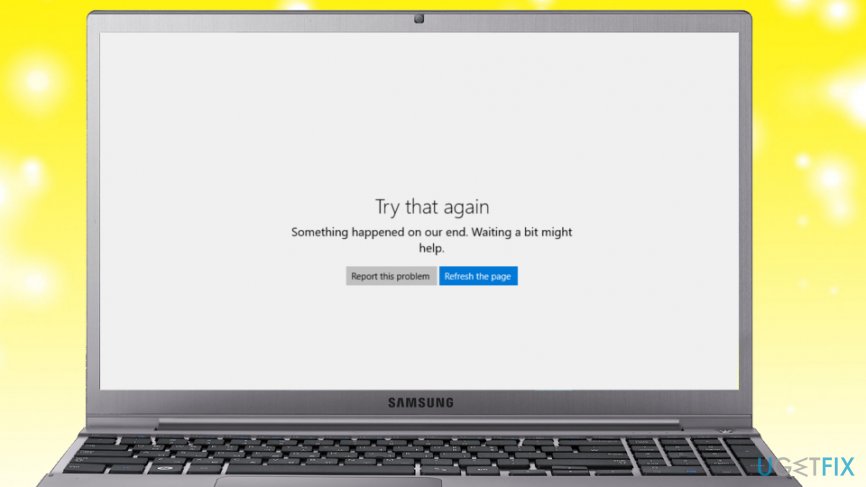
To help with the error 0x000001F7 fix, we compiled variety methods that could be useful. Before you proceed with those, we advise you to reboot the PC and see if it works. Another simple solution would be to wait a little while and problem might be fixed itself. If you do not want to wait - proceed with the following solutions.
We prepared a video for your convenience:
[youtube 1r8nRyRsPfw]
Tip 1. Change your date and time
Sometimes, issues like that can be fixed by setting the date back a few days. To do that, follow these steps:
- Find the date and time on the bottom-right of your screen and right-click it.
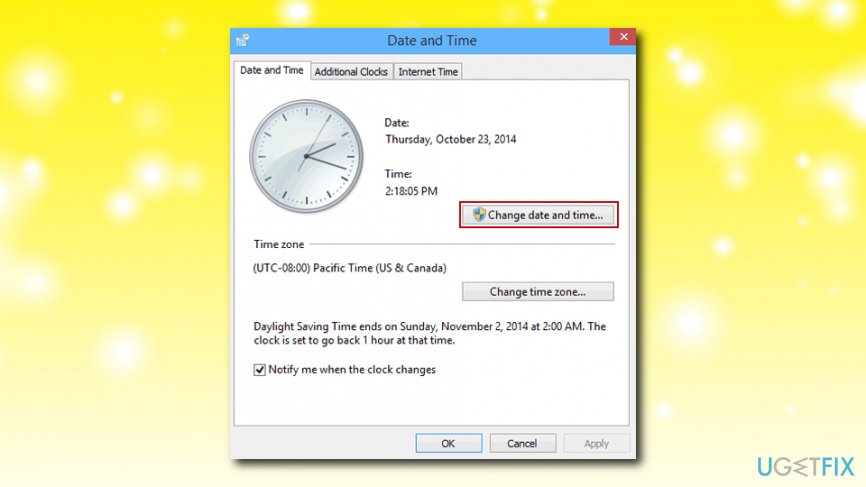
- When the pop-up window appears, click on Change date and time settings
- The Date and Time Window will open
- Click on Change date and time once again
- In the Date and time settings, set the date from the past and press OK to save changes
- Reboot your PC and check if your Windows Store works
Tip 2. Run Windows Troubleshooter
If something is not working correctly on your PC, the troubleshooter[ref en-3] might find the error and fix it automatically. Therefore, you should run it for Windows Store Apps and see if it fixes the problem.
- Click on Start and pick Settings
- On the right side of the screen, find Troubleshoot
- Pick the Windows Store Troubleshooter and click Run Troubleshooter
Tip 3. Reset or reinstall your apps
You can try resetting your apps first and see if it leads to error 0x000001F7 fix:
- Click on Start and pick Settings
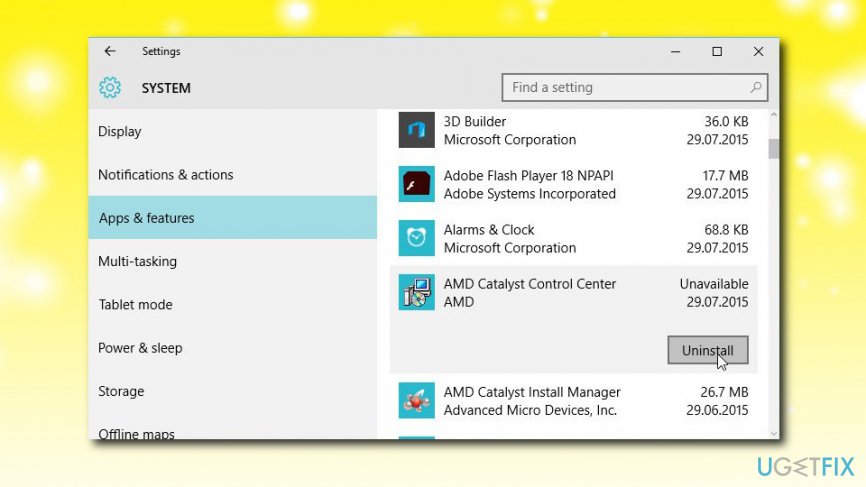
- Select Apps & Features and select the app
- Once expanded, you will be able to see Advanced Options, click on that
- A new window will pop-up. Click the Reset button
Otherwise, you can follow same steps but instead of going to Advanced Options, select the
Uninstall button and proceed with on-screen instructions.
Tip 4. Reinstall Windows Store using PowerShell
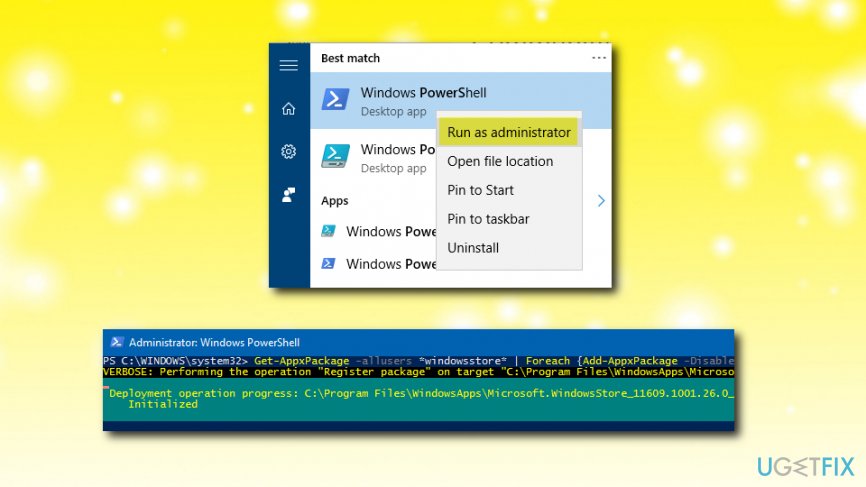
PowerShell[ref en-4] allows users to modify built-in applications. Therefore, follow these steps to reset Windows Store:
- Click on Start and type in PowerShell into the search box
- Find Windows PowerShell in the list, right-click it and select Run as administrator
- Once PowerShell opens, type in the following command: Get-AppxPackage -allusers Microsoft.WindowsStore | Foreach {Add-AppxPackage -DisableDevelopmentMode -Register “$($_.InstallLocation)\\AppXManifest.xml"}
Tip 5. Clear and reset Windows Store cache using WSReset.exe
If you are having issues with installing or updating apps, the problem might be caused by Store cache. To clear it, follow these steps:
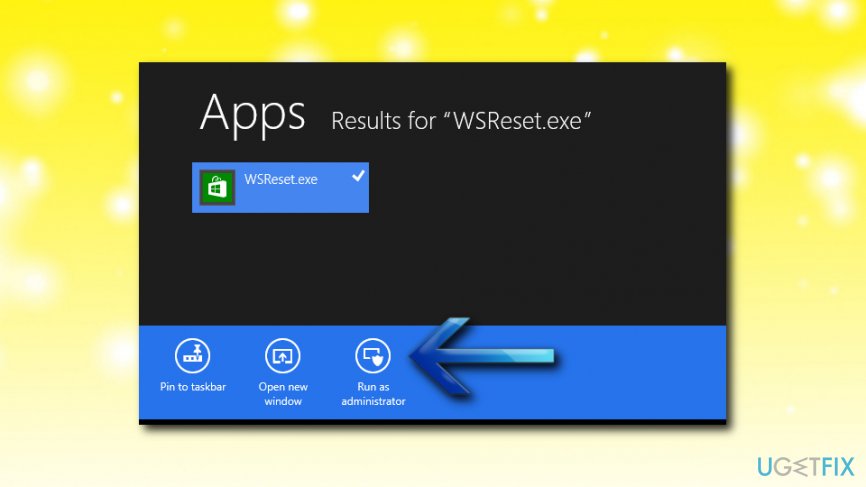
- Open search window through the Start button
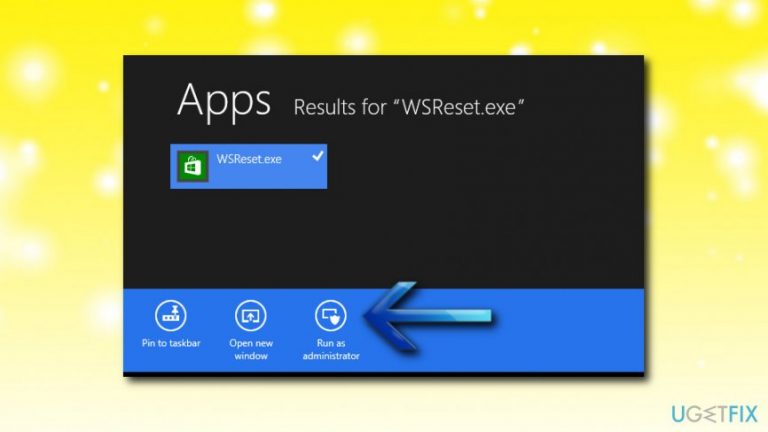
- Type in WSReset.exe
- The new window will open. Select Run as administrator
- Windows Store should then open with the following message: The cache for the Store was cleared. You can now browse the Store for apps.
Bottom line
To fix the Windows Store error 0x000001F7, you can try rebooting your PC, changing your date and time settings, or running the Windows Troubleshooter. If these solutions do not resolve the issue, consider waiting a while for the problem to potentially fix itself.
Frequently asked questions
The error 0x000001F7 can occur due to corrupted system files, issues with the Windows Store cache, or problems with your internet connection. Ensuring your system is updated and performing a cache reset can often resolve this issue.
To reset the Windows Store cache in Windows 11, press Win + R, type 'wsreset.exe', and hit Enter. This will clear the cache and may fix the error.
Yes, ensuring that your Windows 10 or Windows 11 is up to date with the latest patches can help resolve the 0x000001F7 error, as updates often include fixes for known issues.




Report an issue
What's wrong with this guide? We review every report and update or remove content.
Report received — thank you. We'll review and fix it.
You need a free account to submit a report.
Be the first to comment