How to fix
Tcpip.sys blue screen
on Windows
Resolve the tcpip.sys blue screen error on Windows 10 and 11 quickly with our expert-tested solutions. Get your PC running smoothly again, fixed in minu…


What causes How to fix tcpip.sys blue screen on Windows?
- Faulty hardware
- Corrupt drivers
- Third-party drivers conflicts
- Pre-installed components causing conflicts
- Malfunctioning system files
Repairs Windows system files, removes malware, and restores a clean OS state — without reinstalling.
Hello. I looked everywhere for an answer, but I could not find it.
The problem first started last weekend with a BSOD while Hitman Absolution stopped responding. I tried opening task manager to quit the program, and the blue screen tcpip.sys popped up.
Fast forward, with random blue screens every day. The surest way to reproduce the blue screen is by opening up Task Manager immediately after logging in to the account. The task manager will "hang" with a loading circle for about 2 seconds, before blue screening. Help me!
Tcpip.sys is a system file created by Microsoft for Windows operating systems. System files allow internal hardware components to communicate with third-party software programs and the OS itself.
Tcpip.sys is a critical component of Windows operating system and therefore when problems arise with faulty hardware or corrupt drivers,[ref en-1] users can experience multiple error messages, typically occurring as a BSoD.[ref en-2]
Error messages can vary, including:
STOP 0x0000000A: IRQL_NOT_LESS_EQUAL – tcpip.sys
STOP 0x0000001E: KMODE_EXCEPTION_NOT_HANDLED – tcpip.sys
STOP 0×00000050: PAGE_FAULT_IN_NONPAGED_AREA – tcpip.sys
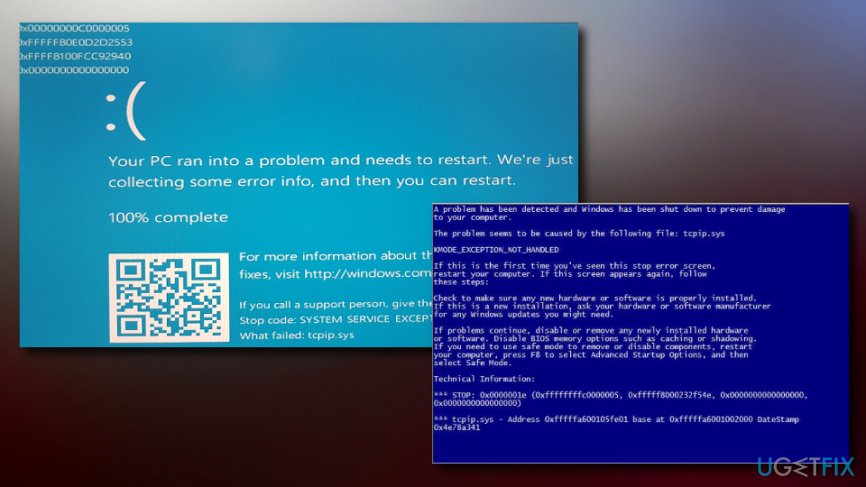
:( Your PC ran into a problem and needs to restart. We’re just collecting some info, and then we’ll restart for you. If you would like to know more, you can search online later for this error: tcpip.sys.
A problem has been detected and Windows has been shut down to prevent damage to your computer. The problem seems to be caused by the following file: Tcpip.sys.
This error can also be connected to third-party drivers, for example, Asus drivers such as AsInsHelp64.sys, ASUSFILTER.sys, AsIO.sys. Quite often, pre-installed components are present within the operating after the purchase of the new machine (software bundling[ref en-3]).
These additional features are not necessary for computer operation and might cause conflicts with certain system files, such as Tcpip.sys. Thus, it is recommended to uninstall all the additional components of such kind (note: you should be careful not to remove essential programs that are run by Windows).
BSoD occurs when some of the system files are malfunctioning. To prevent further damage to the system, Windows shuts itself, resulting in the blue screen. After the restart, the computer tries to regain normal operation.
These crashes might also be caused by a variety of viruses (such as trojan horses[ref en-4]). Therefore, before you proceed with the following tcpip.sys blue screen fix, make sure you scan your computer with reputable security software, such as [rev id=“Reimage”].
Fix 1. Fix tcpip.sys blue screen error by resetting TCP/IP drivers
TCP/IP or Transmission Control Protocol/Internet Protocol is a suite of communication protocols used to interconnect network devices on the internet. In some rare cases, TCP segments are received on different processors, which causes the BSoD. Thus, you need to rest your TCP/IP drivers to bring them back to normal operation.
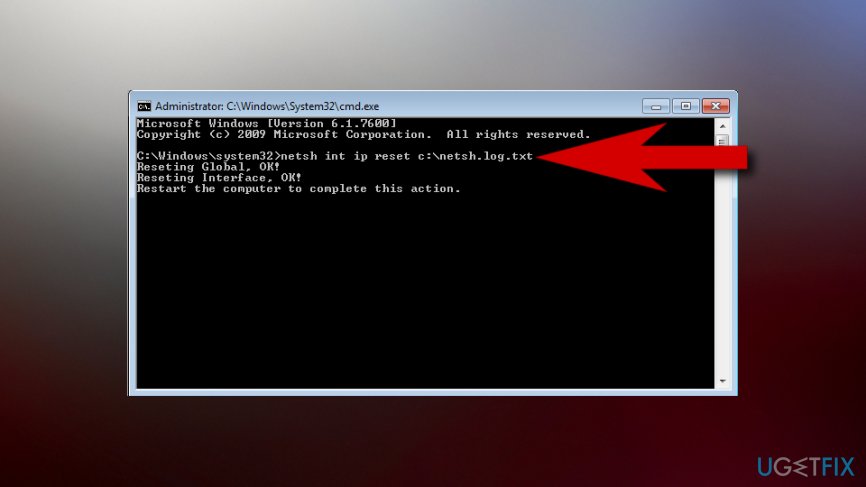
- Press Start, type in cmd into the search box and tap Enter
- From the list, right click on Command Prompt and select Run as administrator
- Windows will most likely issue a warning in the user account control - click Yes
- Type in the following command into the window:
netsh int ip reset c:\\resetlog.txt
- Hit Enter and restart your PC
Fix 2. Update your network drivers
A network card connects your computer to a computer network and all of the modern PCs have this piece of hardware. To be able to operate properly, NIC users drivers. Sometimes, these drivers might get outdated or corrupt, resulting in system crashes. Therefore you should update your network card drivers:
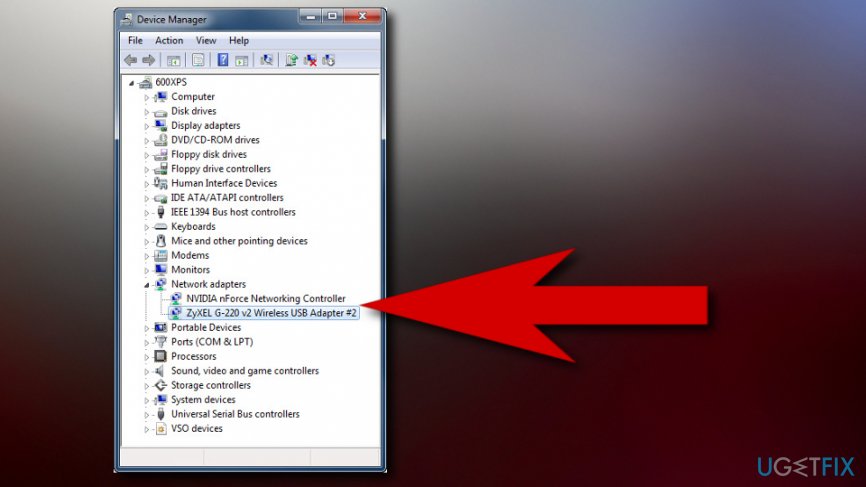
- Click on Start button and type in Device Manager into the search box
- Expand the Network adapters category and select the relevant network card
- Right-click and then press Update Driver
- Then, select Search automatically for updated driver software
- Restart your PC
Fix 3. Disable web protection in your security program
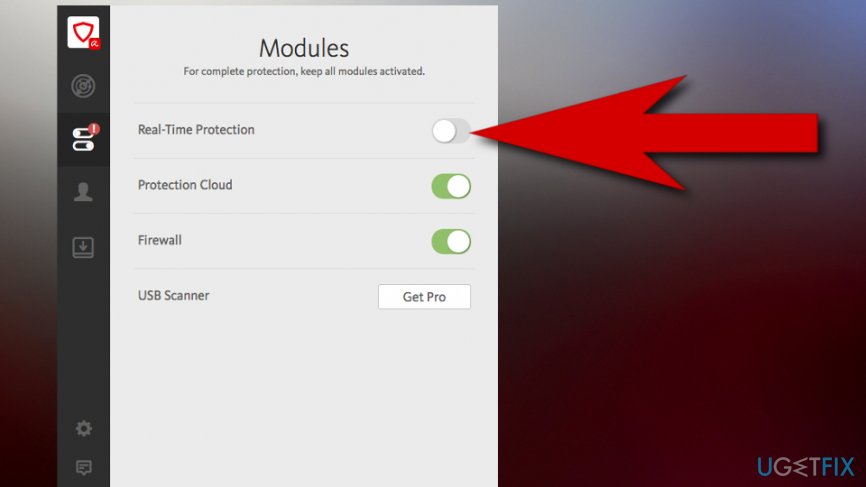
It might seem strange but users reported that disabling Real-Time protection feature helped to fix tcpip.sys blue screen error.
All modern security programs have this feature, so try switching it off and see if it helps.
Bottom line
To fix the tcpip.sys blue screen issue, consider uninstalling unnecessary third-party drivers and components, as well as ensuring all system files are functioning correctly. If the problem persists after these steps, further investigation into hardware issues may be necessary.
Frequently asked questions
The tcpip.sys blue screen error is often caused by corrupted drivers, incompatible software, or issues with the network configuration in Windows 10 or Windows 11.
To troubleshoot the tcpip.sys blue screen error on Windows 10, you can update your network drivers, run the built-in Windows Troubleshooter, and check for system file corruption using the SFC scan.
To prevent the tcpip.sys blue screen error on Windows 11, ensure that all your device drivers are up to date, avoid installing conflicting software, and regularly check for Windows updates.




Report an issue
What's wrong with this guide? We review every report and update or remove content.
Report received — thank you. We'll review and fix it.
You need a free account to submit a report.
Be the first to comment