How to remove
Deactivate Facebook Messenger
from Windows
Easily deactivate Facebook Messenger on Windows 10 or 11 with our expert-tested guide. Enjoy a clutter-free experience—fixed in minutes!

How does How to deactivate Facebook Messenger end up on your PC?
- Deactivating or removing Facebook account does not stop Messenger from working
- Users may not have deactivated their Facebook account correctly
- Constant virus threats associated with Messenger
- Desire to switch to other messaging apps due to Facebook's declining popularity
- Concerns over privacy issues following the Cambridge Analytica scandal
Repairs Windows system files, removes malware, and restores a clean OS state — without reinstalling.
Hi. I have recently decided to leave Facebook permanently. I did delete my account, but I keep getting messages through Messenger app. Did I not delete my account correctly? What is going on?
We already discussed ways to deactivate or remove your Facebook account in this post. It does without saying, that these two options result in two different outcomes. Thus, in case you did not eliminate your account correctly, please read it.
Nevertheless, most users forget that deactivating or removing Facebook account does not stop Messenger from working. They are two separate apps and should be dealt with accordingly. Please remember that before you can disable Messenger app, you have to deactivate a Facebook account.
With the rise of social media,[ref en-1] messaging apps became extremely common, and almost every single person is using them on a daily basis. However, because social media is so dominant at the moment, it creates a lot of space for competition, and some users prefer other messaging apps, such as Skype, Viber or others.
Some users might also get critical about Facebook because of a recent Cambridge Analytica scandal.[ref en-2] The data of over 80million Facebook users was leaked and illegally shared. Thus, the popularity of Facebook is in decline.[ref en-3] Nevertheless, Facebook updated its privacy policies right after the incident.
Some individuals might also want to delete Messenger because of constant virus threats.[ref en-4] Bad actors are known to deliver contaminated attachments or malicious links which might result in stolen money or data leakage. In this case, Messenger removal is not necessary, and only the virus can be eliminated separately. You can use [d1] fro safe virus removal.
Regardless what your view on Facebook privacy is, here are few simple methods you can use to either deactivate Messenger or completely remove conversations from the app.
Option 1. Turn off Facebook Messenger notifications
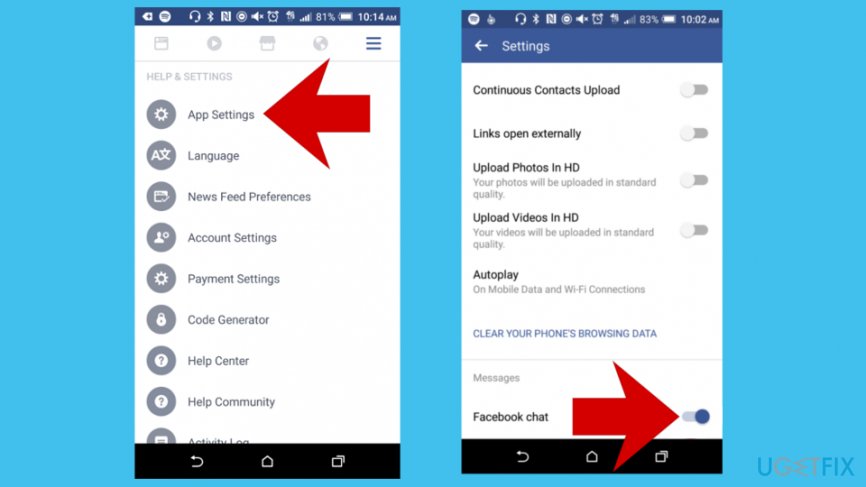
The easiest way to turn the Messenger off is by doing it on the application on your phone or tablet. If you deactivate the feature of messaging in this way, it will not prevent messages being posted to you. However, it will stop you receiving notifications.
- Go to Menu and then find App Settings
- Under the Messages menu, turn the Facebook chat toggle off
Option 2. Mute a conversation
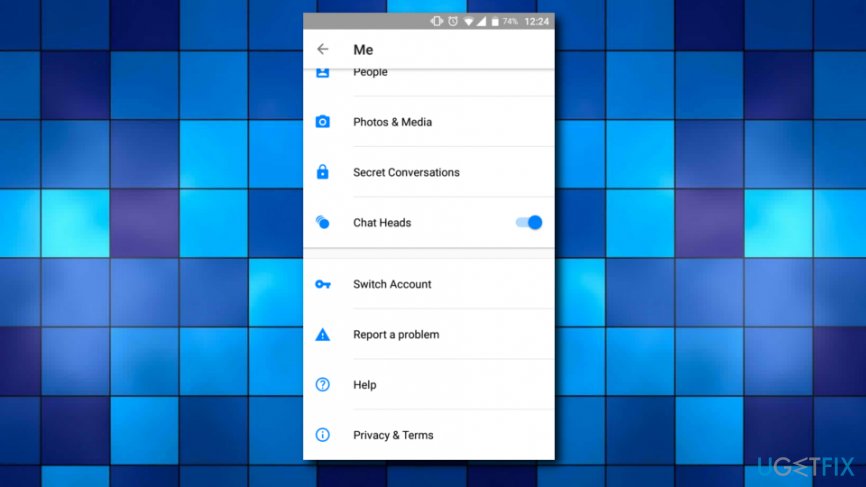
You can mute Facebook Messenger and avoid the annoying group chat notifications that continually spam your device. Simply follow these steps:
- Select the conversation you want to mute
- Press on the Information button
- Select Mute
Option 3. Deactivate Facebook Messenger
Don't forget that you have to deactivate Facebook account before the following procedure.
- Grab your device and open Messenger
- Select your profile picture on the top right
- Scroll down and find Privacy and Terms
- Then, choose to Deactivate Messenger
- You will be prompted to enter a password
- Then, tap Deactivate again
Bottom line
To deactivate Messenger, you must first deactivate your Facebook account. You can also turn off Messenger notifications on your device. If these methods do not work, consider using a safe virus removal tool to address any security concerns.
Frequently asked questions
To uninstall Facebook Messenger from Windows 10, go to Settings > Apps > Apps & features, find Facebook Messenger in the list, and click 'Uninstall.' Follow the prompts to complete the removal.
Yes, you can deactivate your Facebook Messenger account by opening the app, tapping your profile picture, then selecting 'Legal & Policies' and 'Deactivate Messenger.' This does not require uninstallation on Windows 11.
If Facebook Messenger is not listed in the Apps list on Windows, it may have been installed as a standalone app from the Microsoft Store; try searching for it in the Start menu and right-clicking to uninstall.




Report an issue
What's wrong with this guide? We review every report and update or remove content.
Report received — thank you. We'll review and fix it.
You need a free account to submit a report.
Be the first to comment