How to fix
Windows 10 Update error code 0xc1900204
on Windows
Resolve Windows 10 Update error code 0xc1900204 swiftly with our expert-tested solutions. Get your system running smoothly again in no time!

What causes How to fix Windows 10 Update error code 0xc1900204?
- Misconfigured system files
- Improper installation or uninstallation of software
- Accidental deletion of essential operating system files
- Potential damage from a malicious program
- Altered or incompatible OS data
Repairs Windows system files, removes malware, and restores a clean OS state — without reinstalling.
Hello. I have tried to update Windows 10, and I came across the problem. After the download of an update has finished, I received an error. Can you help me to fix error code 0xc1900204?
Windows 10 Update error code 0xc1900204 might show up when the windows setup fails to install the right version of the Windows OS. The message can be encountered when the particular components of the Windows upgrading setup fail. You need proper troubleshooting and system checks to see what happens deeper in the OS what the error shows up.
Error 0xc1900204 is a code that indicates that there are misconfigured system files on your Windows operating system. We have received several reports, and most people encountered it during the attempt to update Windows 10[ref en-1].
If error 0xc1900204 blocks Windows 10 Updates, there might be numerous different reasons why this system failure has occurred. Unfortunately, only a professional evaluation of an IT specialist can indicate a specific cause for this error code to appear.
However, the most common reason why you receive a 0xc1900204 upgrade error is that you might have completed installation or uninstallation of software improperly, accidentally deleted essential operating system files that are vital for your computer to function well[ref en-2].
As we have already mentioned, there are numerous reasons why your Windows setup failed with hexadecimal exit code 0xc1900204 (decimal 3247440388) and only IT professionals can indicate a particular one. Likewise, the best solution to get rid of this error is an automatic repair with a reliable antivirus. We have a few manual solutions for you to try.
How to fix Windows 10 Update error 0xc1900204
Even though this Windows 10 Update 0xc1900204 error does not particularly indicate that your computer is infected, there is a high risk that a malicious program[ref en-3] damaged the files. Likewise, we strongly advise you to immediately employ professional security/ optimization software and run a full system scan. File issues can get fixed with [d1] or similar tools that find altered or incompatible OS data.
However, if you are an advanced computer, you can try to fix Windows upgrade error code 0xc1900204 manually. For that, we have prepared multiple ways that might help you. Although, keep in mind that some of them might not work due to the multitude of different reasons why the problem occurs. Likewise, we advise you to try them all.
Tweak the Registry to fix Windows 10 update error code: 0xc1900204
- Search for the regedit command on the Run dialog box that can be launched with Win + R.
- Navigate to HKEY_LOCAL_MACHINE\\SOFTWARE\\Microsoft\\Windows\\CurrentVersion.
- Look for ProgramFilesDir and right-click the value.
- Change the pats to another folder where you want to install your programs.
- Save by clicking OK.
- Restart the PC.
Run the Troubleshooter
- Open Windows Search Menu;
- Type Troubleshooting and click on it;
- In the panel on the left, select View All;
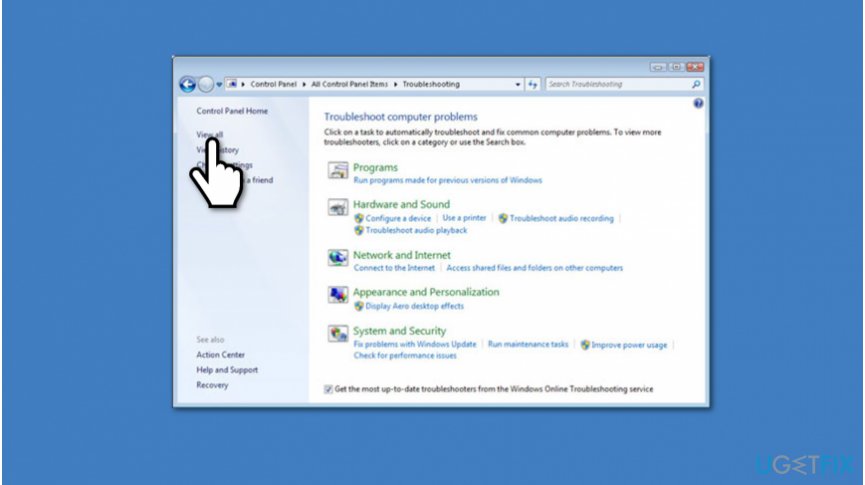
Run troubleshooter on windows - Run Windows Update Troubleshooter.
Run SFC scan to fix Windows 10 Update error code 0xc1900204
- Start the Command Prompt with administrator rights.
- Then enter sfc /scannow and press Enter.
- Allow the process to happen and once the check is done SFC should fix issues.
Reset Windows Update elements to fix the 0xc1900204 error
- Open Command Prompt (Admin);
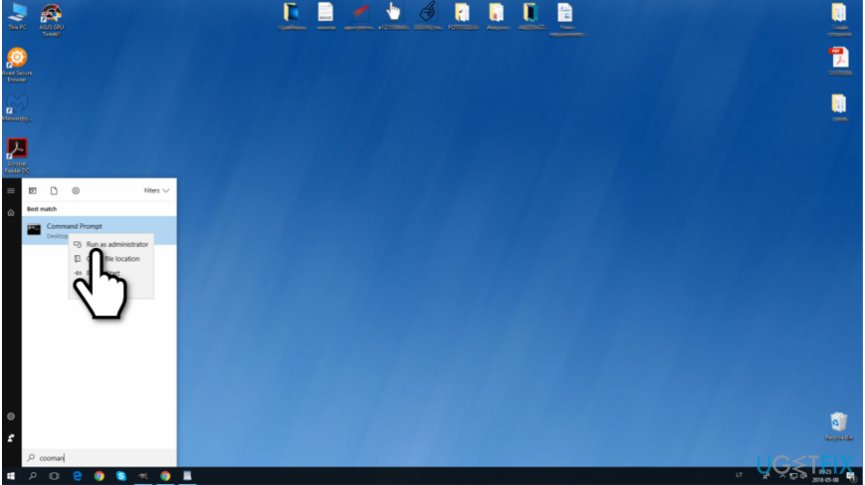
Open command prompt - Type the following commands and press Enter after each:
- net stop bits
- net stop cryptSvc
- net stop msiserver
- net stop wuauserv
- Type the next two commands and press Enter after each one:
- ren C:\\Windows\\SoftwareDistribution SoftwareDistribution.old
- ren C:\\Windows\\System32\\catroot2 Catroot2.old
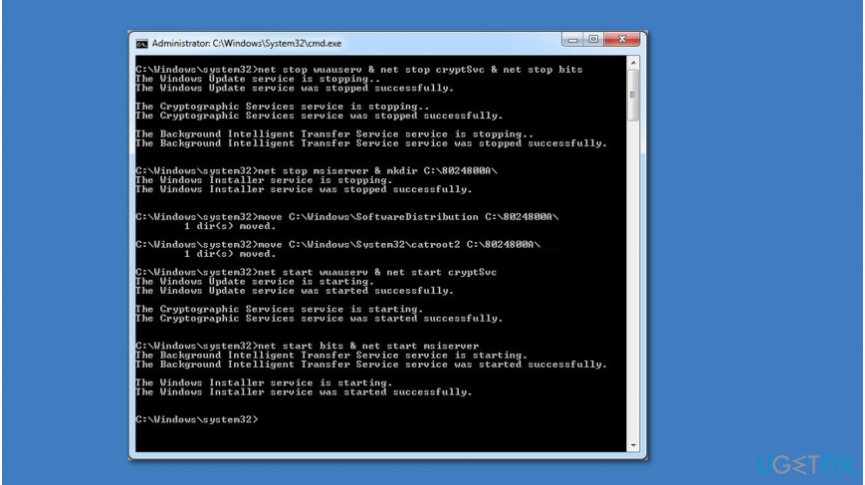
Command prompt commands
- Finish the procedure by typing the final commands and pressing Enter after each:
- net start bits
- net start cryptSvc
- net start msiserver
- net start wuauserv
- Enter Exit and restart your computer.
Bottom line
To fix the Windows 10 Update error code 0xc1900204, you can run a full system scan with professional security or optimization software, and use tools that find altered or incompatible OS data. If these solutions do not resolve the issue, consider seeking assistance from an IT professional.
Frequently asked questions
The error code 0xc1900204 typically indicates a problem with the Windows Update process, often related to issues with system files or update components.
To fix this error, you can try running the Windows Update Troubleshooter and checking for any corrupted system files using the System File Checker tool.
Yes, you can use the command 'DISM /Online /Cleanup-Image /RestoreHealth' in the Command Prompt to repair the Windows image and potentially resolve the error.




Report an issue
What's wrong with this guide? We review every report and update or remove content.
Report received — thank you. We'll review and fix it.
You need a free account to submit a report.
Be the first to comment