How to fix
0x800703f9 Windows 10 update error
on Windows
Resolve the 0x800703f9 update error on Windows 10 with our expert-tested solutions. Fix it in minutes and enjoy a seamless update experience!

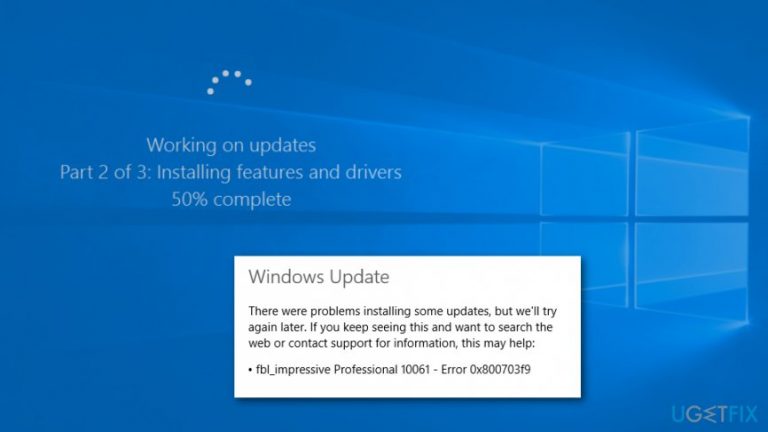
What causes How to fix 0x800703f9 Windows 10 update error?
- Antivirus software blocks Windows Update service
- Issues with Windows Update
- Corrupted system files
- Issues with Windows registry
Repairs Windows system files, removes malware, and restores a clean OS state — without reinstalling.
Hey, I cannot upgrade to Windows 10 from Windows 8.1. I receive 0x800703f9 Windows 10. I have almost 29 GB free space on my PC, so I think it’s some issue with Windows Update Service. How can I fix it?
0x800703f9 Windows 10 update error might occur when upgrading from old version of the operating system to the newest one. Also, it might be delivered during the installation of software updates. In some cases, the source of the problem is the lack of space. However, if you have plenty of free space on C drive, the problem hides elsewhere.
The most common sources of the 0x800703f9 error are:
- antivirus software blocks Windows Update service;[ref en-1]
- issues with Windows Update;
- corrupted system files;
- issues with Windows registry.[ref en-2]
Due to these reasons, you can encounter the 0x800703f9 error which prevents from installing important Windows updates. Typically, the error code is followed by these identified problems:
- Windows 10 not updating. In this case, you can fix the 0x800703f9 error by resetting Windows Update components.
- Windows Update failed. This issue can be solved by running Window Update troubleshooter (explanation given in the method 2 below).
- Windows Update problems. The right solution for this problem is SFC[ref en-3] and DISM[ref en-4] scans that are explained in the method 4 below.
- Windows fails to update. You should be able to leave this annoying situation and fix 0x800703f9 Windows 10 update error with the help of one of our suggested methods below.
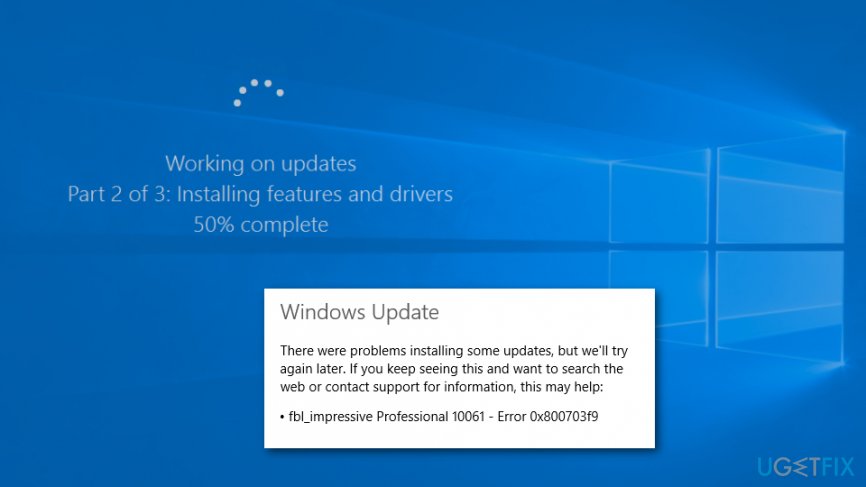
Possible ways to fix 0x800703f9 error on Windows 10
In the first part of the article, we have briefly explained that 0x800703f9 error might be caused by several issues with Windows Update service or other components. However, all of the problems can be solved. Try the following methods:
Method 1. Check antivirus settings or disable it temporarily
Some antivirus programs can block Windows Update. This method should be helpful especially if you just obtained a new security program and hadn’t checked its settings yet. Therefore, you should have a look through antivirus settings and make sure that Windows updates are not blocked.
However, if this does not help, you should try disabling the program entirely. Then try to install updates and check if the error code 0x800703f9 shows up again.
Method 2. Run Windows Update Troubleshooter
If you suspect that the error 0x800703f9 is caused by problems with Windows Update service, you should take advantage of Windows Update Troubleshooter:
- Download it from the Microsoft website.
- Open the program and follow instructions on the screen.
- After that try to install updates agains.
Method 3. Reset Windows Update components
The problem can be corrupted Windows Update components. Hence, you have to stop this service and remove them:
- Press Windows Key + K.
- Choose Command Prompt (Admin) from the list.
- Type the following commands and click Enter after each of them to stop BITS, Cryptographic, MSI Installer and the Windows Update Services:
net stop wuauserv
net stop cryptSvc
net stop bits
net stop msiserver - Type the following two commands and click Enter after each of them to rename the SoftwareDistribution and Catroot2 folder:
ren C:\\Windows\\SoftwareDistribution SoftwareDistribution.old
ren C:\\Windows\\System32\\catroot2 Catroot2.old - Type the following commands and hit Enter after each of them to enable BITS, Cryptographic, MSI Installer and the Windows Update Services that you have disabled in the second step:
net start wuauserv
net start cryptSvc
net start bits
net start msiserver - Type exit in the Command Prompt.
- Navigate to Windows updates and try to install them again.
Method 4. Run SFC and DISM scan
If none of the previous methods helped to fix 0x800703f9 Windows 10 update error, try running SFC and DISM scans to fix corrupted system files:
- Run Command Prompt as administrator.
- Type sfc /scannow and click Enter.
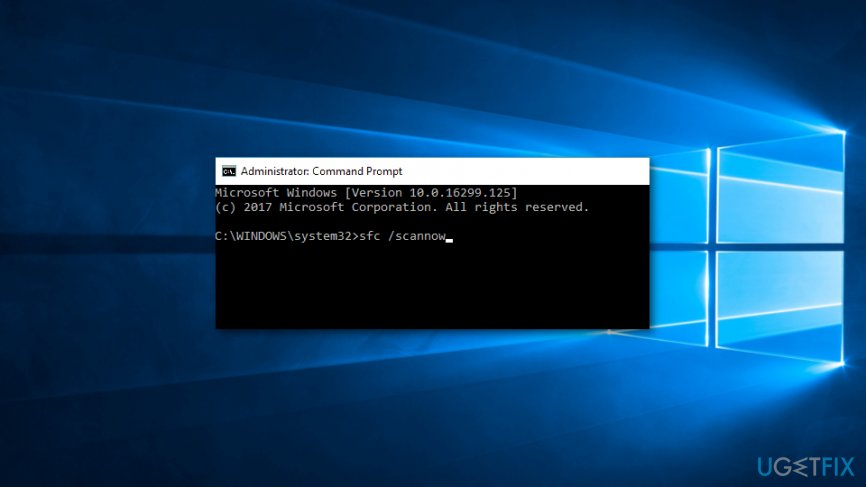
Run sfc scannow command - Wait until the scan is over and check if some issues were detected and fixed. Keep in mind that the procedure takes about 15 minutes, so do not stop it.
If SFC scam did not give results, run DISM scan:
- Open Command Prompt as administrator.
- Type the following command and click Enter: DISM /Online /Cleanup-Image /RestoreHealth
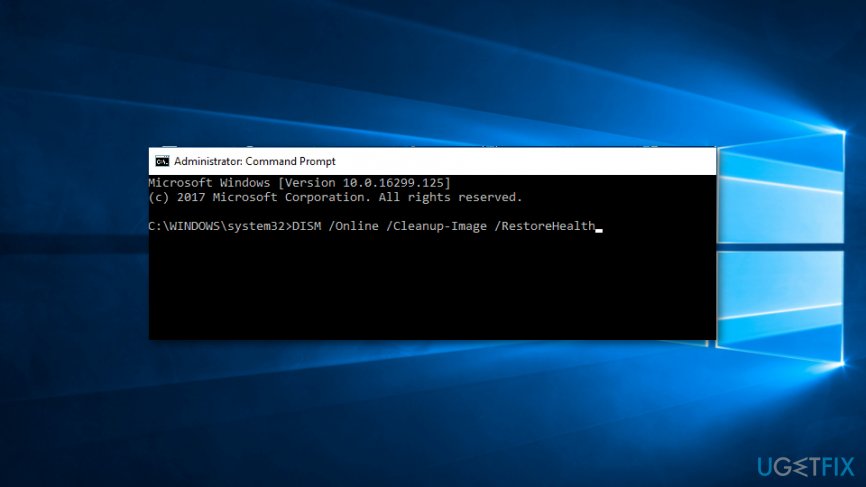
Run dism scan - DISM scan might take more than 20 minutes. After that check, if you can install an update.
Method 5. Modify Windows Update settings
- Navigate to Settings app by clicking Windows Key + I.
- Go to Update & Security.
- In the left pane, you will see Update settings category options where you should find and open Advanced options.
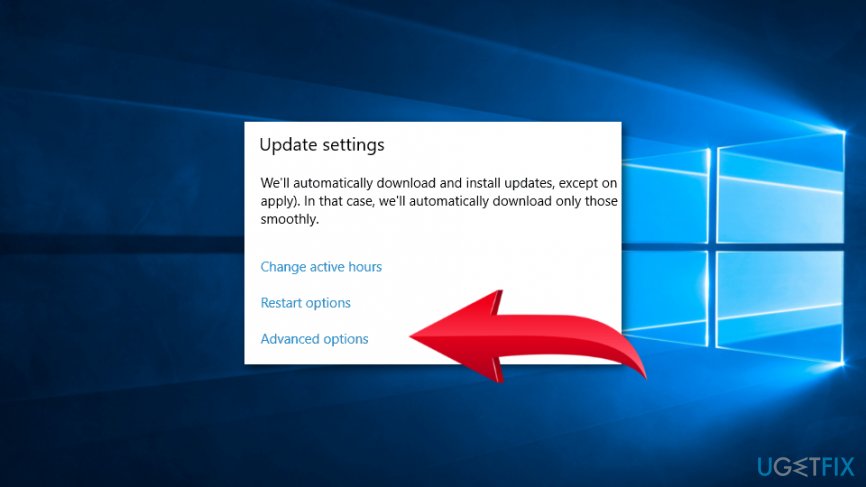
Open advanced options - Find Give me updates for other Microsoft products when I update Windows option and remove the tick.
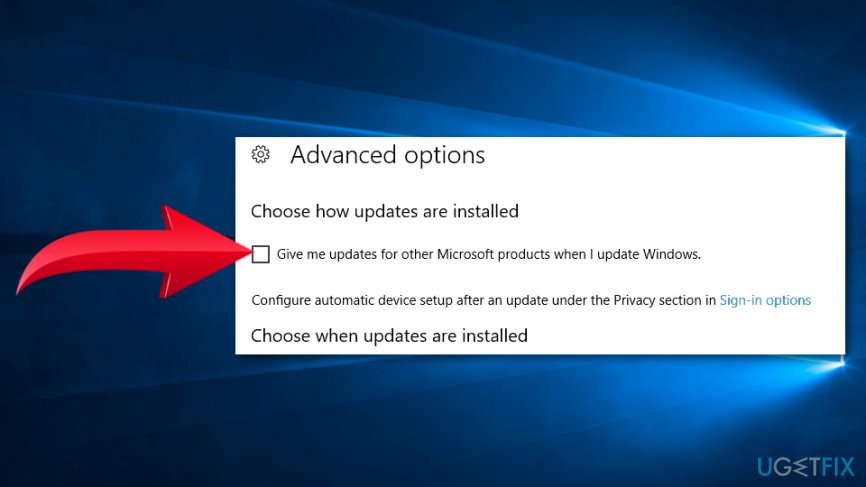
Remove the tick
Try installing updates. However, if 0x800703f9 Windows 10 update error shows up again, you might need to clean the registry.
Method 6. Clean Windows registry
Corrupted Windows registry entries might cause many problems, including this Windows update error. Therefore, you might fix those entries. We do not recommend trying to find what’s wrong manually. Please take advantage of such tools like [rev id=“Reimage"] to fix errors and avoid the damage.
Bottom line
To fix the 0x800703f9 error, you can reset Windows Update components, run the Windows Update troubleshooter, or perform SFC and DISM scans. If none of these methods work, consider checking your antivirus settings or temporarily disabling it.
Frequently asked questions
The 0x800703f9 error often occurs due to corrupted system files, issues with Windows Update components, or conflicts with third-party software. Ensuring your system files are intact and that no external programs are interfering can help resolve this error.
To run the Windows Update Troubleshooter, go to Settings > Update & Security > Troubleshoot > Additional troubleshooters and select Windows Update. Follow the on-screen instructions to detect and fix issues related to the error.
Yes, resetting the Windows Update components can help resolve the 0x800703f9 error safely, but it may require administrative access. This process involves stopping services, renaming folders, and restarting services, which can restore the update functionality in Windows 10.




Report an issue
What's wrong with this guide? We review every report and update or remove content.
Report received — thank you. We'll review and fix it.
You need a free account to submit a report.
Be the first to comment