How to fix
Remove a hidden recovery drive
on Windows
Easily eliminate a hidden recovery drive on Windows 10 April Update. Follow our expert-tested guide for quick and effective solutions, fixed in minutes!

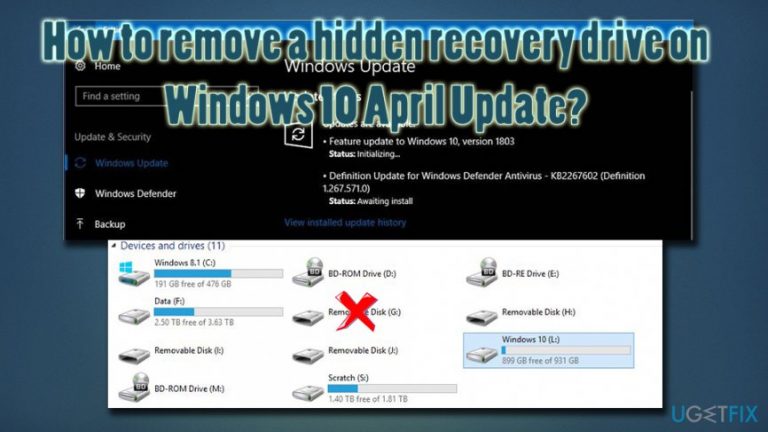
What causes How to remove a hidden recovery drive on Windows 10 April Update?
- Windows 10 recovery drive visibility issue after update
- New virtual drive appearing due to April 2018 update
- Backup data of recovery drive becoming visible
- System settings allowing hidden drives to show
- Changes in Windows update affecting drive visibility
Repairs Windows system files, removes malware, and restores a clean OS state — without reinstalling.
I just applied the newest Windows update (1804) for Windows 10 and everything seemed to be fine. However, when i flicked through my drives I noticed that there is an additional drive I have never seen before. It is located in the new H drive and has a capacity of 449 GB, of which 49 GB is free space. What is this drive? Should I delete it? Thanks in advance.
The new drive you are talking about is Windows 10 recovery drive[ref en-1], and you are not supposed to see it. Windows system repair disc has been around since Windows 7 times. It allows users to create a bootable CD/DVD which can later be used to troubleshoot problems and recover from them.
In Windows 10, you can create a bootable USB drive which allows you to access different recovery and troubleshooting[ref en-2] tools. Additionally, you can also reinstall Windows using it if your system is still not booting correctly. Therefore, what you are seeing in your H drive is all the backup data of a recovery drive. It usually hides within the system and should not be visible to users. However, with the 1804 Windows update, quite few users complained about the new virtual drive appearing.
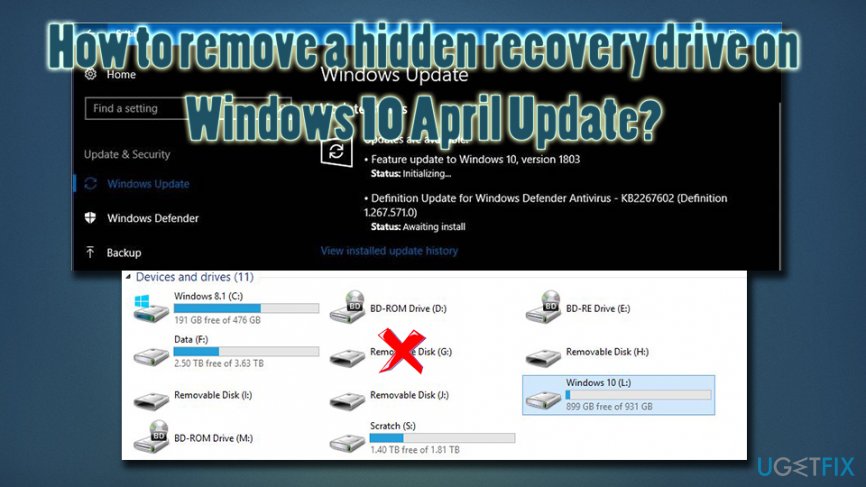
The April Windows 10 update[ref en-3] was first made available on 30th of April 2018 and was originally meant to be called "Spring Creators Update" but later Microsoft changed their minds and decided to go for "Redstone 4." The update implemented quite a few new features, including:
- The timeline on your desktop shows activity on all your devices;
- "Nearby Sharing" feature introduced which allows you to access your wireless devices easily;
- New progressive apps added to Windows store;
- Future updates will be installed quicker;
- Fonts management and download directly from the store
- Various MS Edge improvements and many more.
As we already mentioned, however, this update also brought the unwanted drive. It is not a huge problem, however, and our security team provided you with the quick hidden recovery drive visible after April updates fix.
Before you proceed with the solution, we advise users to scan their machine with [d1] as additional drives might also be created by malware[ref en-4] which might have slipped into your machine without you noticing.
Quick solution: remove the drive letter
You should not delete the contents of the drive. However, as soon as you will eliminate the H drive, everything should go back to normal. Here is the instructions how to do it:
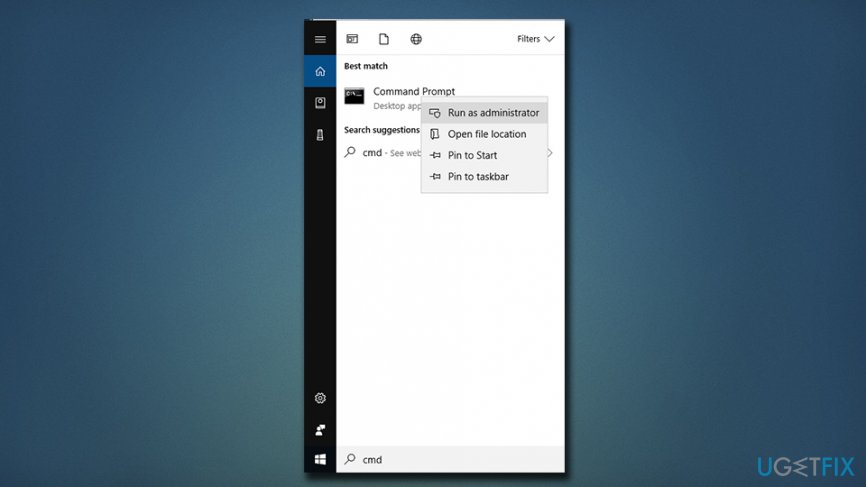
- Click on Start button and ten type cmd into the search box
- Command Prompt should appear - open it with administrative privileges (right-click and select Run as Administrator)
- Type in diskpart and press Enter
- Then, type list volume and press Enter again
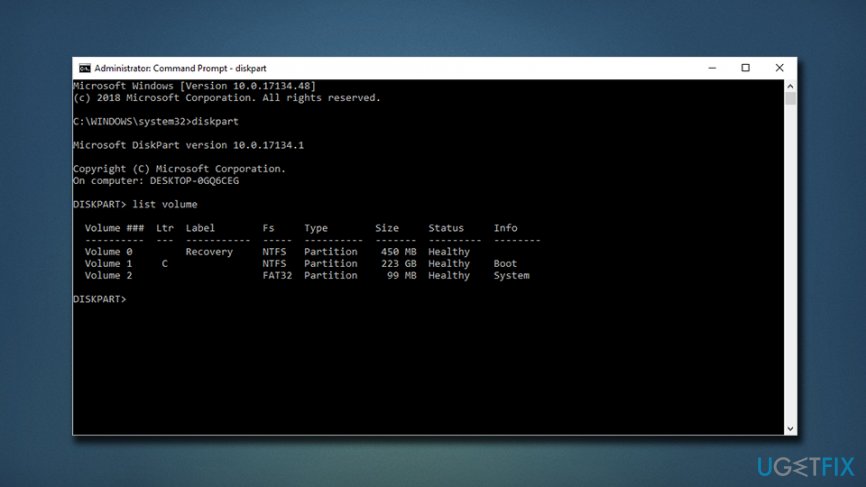
- Remember the letter of the additional virtual drive
- Now type in select volume [the correct drive letter] and press Enter
- Finally, type in the following: remove letter=[the correct drive letter] and hit Enter
- Restart your machine
Bottom line
The unwanted drive can be hidden using a quick fix provided by the security team. If the issue persists after applying the fix, users may need to explore additional troubleshooting methods or seek further assistance.
Frequently asked questions
To remove a hidden recovery drive, go to 'Disk Management', locate the recovery partition, right-click it, and select 'Delete Volume'. Make sure to back up any important data before proceeding.
Yes, the process is similar; access 'Disk Management', find the recovery partition, and delete it, but ensure you have a recovery solution in place before doing so.
Yes, deleting the recovery drive can limit your options for system recovery, so it's recommended to create a recovery USB drive before proceeding.




Report an issue
What's wrong with this guide? We review every report and update or remove content.
Report received — thank you. We'll review and fix it.
You need a free account to submit a report.
Be the first to comment