How to fix
Cast to Device not working error
on Windows
Resolve the Cast to Device issue on Windows 10 effortlessly. Get expert-tested solutions to enjoy seamless streaming today! Fixed in minutes.

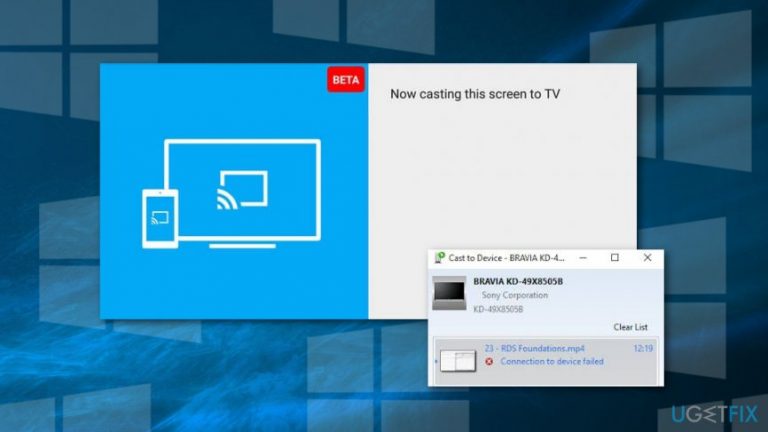
What causes How to fix Cast to Device not working error on Windows 10?
- Issues with hardware
- Network Discovery option is turned off
- Issues with Stream Permissions on Windows Media Player
- Antivirus or Firewall blocks Cast to Device
- Deselected Microsoft LLDP Protocol Driver Setting
- Outdated Network Card Driver
Repairs Windows system files, removes malware, and restores a clean OS state — without reinstalling.
Cast to Device desktop context menu is not working on Windows 10. How can I fix it?
Cast to Device is a useful Windows 10 feature[ref en-1] that allows streaming movies, videos, pictures and other media directly from your PC to TV or other DLNA supported devices. It’s an improved version of Play To Device which was used on previous Windows OS versions.
In some cases, users cannot share their holiday pictures on the big screen or binge-watch their favorite TV serious because of Cast to Device not working error. There are many reasons why this error might occur. Among the most popular are:
- Issues with hardware;
- Network Discovery option is turned off;
- Issues with Stream Permissions on Windows Media Player;
- Antivirus or Firewall blocks Cast to Device;
- Deselected Microsoft LLDP Protocol Driver Setting;
- Outdated Network Card Driver.[ref en-2]
Therefore, in order to use this Windows 10 feature again, you should check which of the following issues are causing the problem. Follow the seven methods presented below that should help to fix Cast to Device not working error.
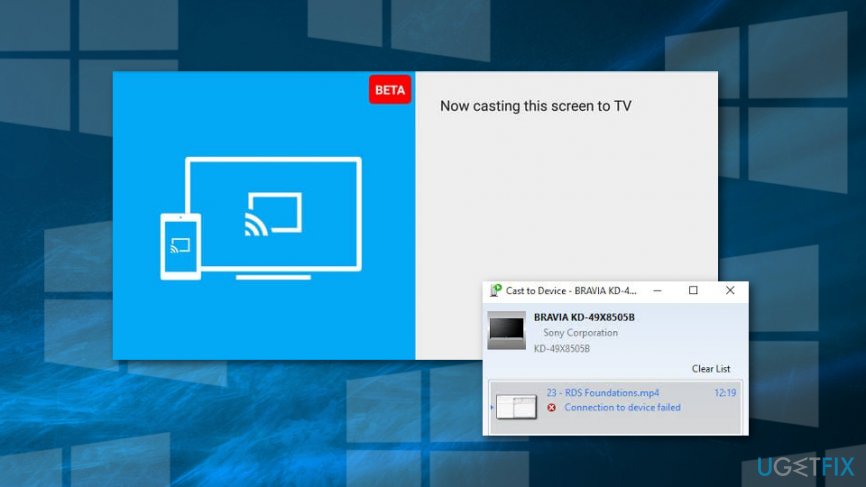
Fix Cast to Device not working error on Windows 10
Probably, you have rebooted your computer hundreds of times and installed all available updates in order to get rid of Cast to Device not working error. However, these solutions do not help. You should check the following options.
Method 1. Run Hardware and Devices troubleshooter
- In the Cortana search box[ref en-3] type troubleshoot and click Enter.
- You will end up in the Settings app.
- Navigate to Troubleshoot section.
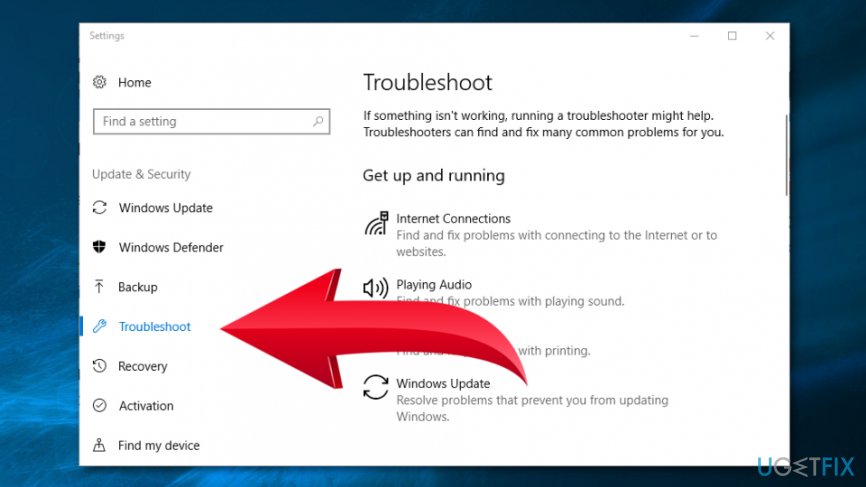
Open the hardware and devices troubleshooter - Choose Hardware and Devices.
- Click Run the troubleshooter.
- Wait until troubleshooter detects issues. When click Apply this Fix option.
After that, check if Cast to Device not working error still appears. If the first method did not help to fix it, try the second option.
Method 2. Turn on Network Discovery feature
- Type network in the Windows search and click Enter.
- Choose Satus in the Settings app.
- Click Network and Sharing Center.
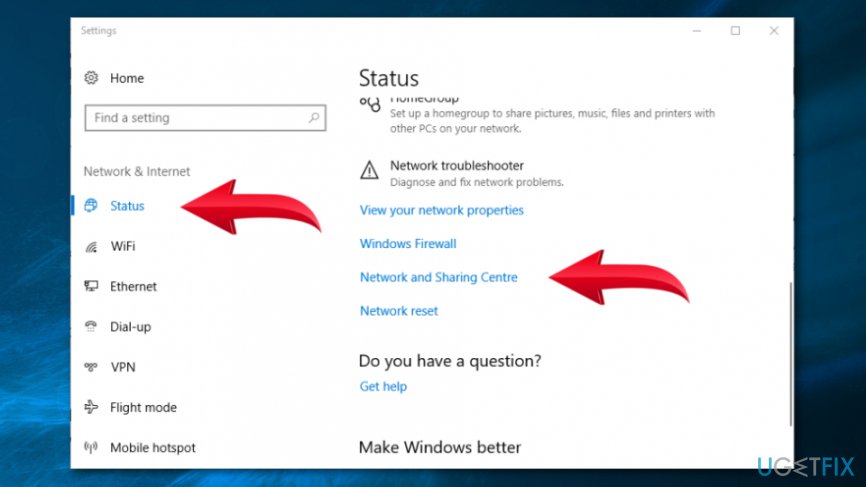
Open network and sharing centre - Click Change advanced sharing settings in the left pane.
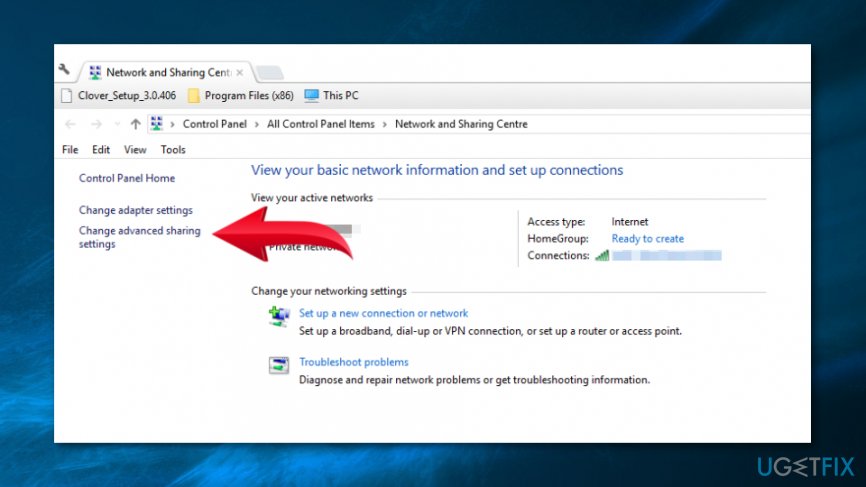
Click change advanced sharing settings - Select Turn on network discovery under Network discovery.
- Then select Turn on file and printer sharing option.
- Click Save Changes button.
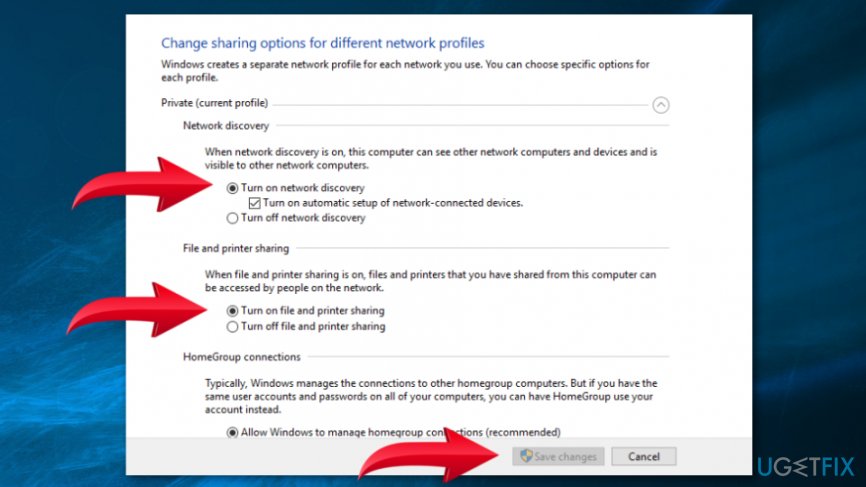
Change sharing options
If the option in step 4 and 5 are already selected, this method won’t help you to fix Cast to Device error.
Method 3. Reset Windows Media Player’s stream permissions
- Search for Windows Media Player by using Cortana or Windows search box.
- When in Media Player, click on the Stream button.
- Choose Turn on media streaming option.
- You will end up in Turn on media options window where you have to turn on Turn on media streaming button.
- Click OK.
- Click on Stream button in Windows Media Player again.
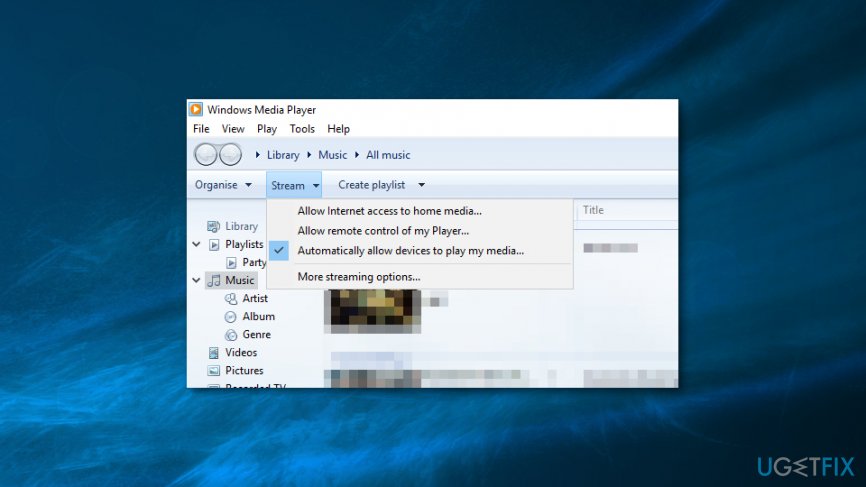
Click stream button - Choose Allow Internet access to home media and Automatically allow devices to play my media options if they were not already selected.
- Close Windows Media Player and check if the error still exists.
Method 4. Check Firewall settings for Cast to Device
Windows Defender Firewall might be blocking Cast to Device services, so you should check its settings:
- In the Windows search enter Windows Firewall.
- Choose Allow an app through Windows Defender Firewall option.
- Click on Change settings button.
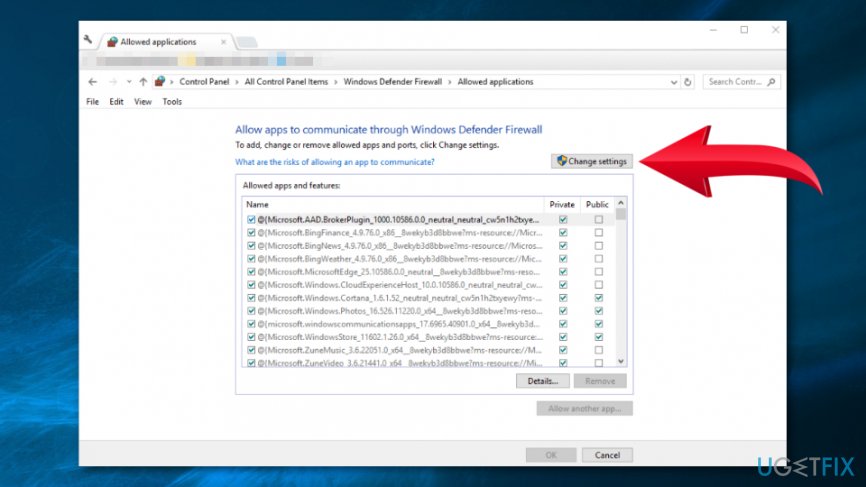
Click change settings - In the Allowed apps and features list, find Cast to Device functionality and make sure that there ticks in both Private and Public sections.
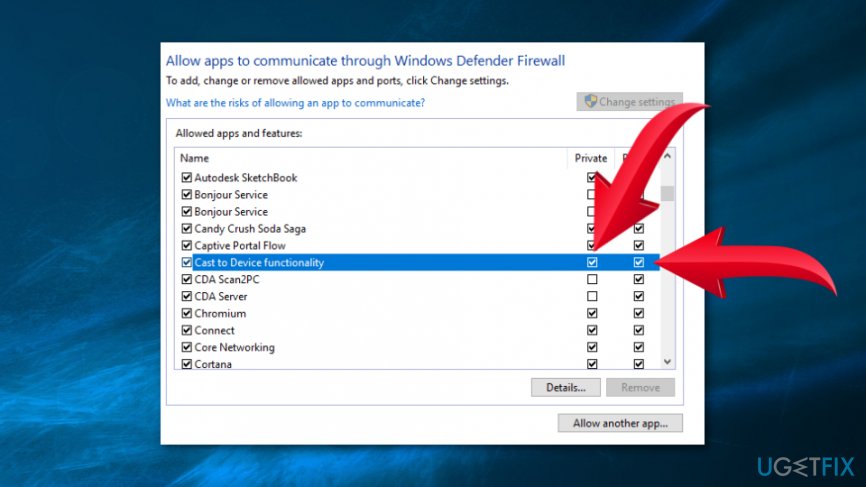
Click cast to device functionality - Click OK to save the changes and close the window.
Method 5. Temporarily disable antivirus
Security programs might block Cast to Device feature because it requires a public network connection. You should check if your antivirus is not the source of the problem, you can temporarily disable it. If it helps to get rid of Cast to Device not working error, you should consider switching to another anti-malware program.
Method 6. Enable Microsoft LLDP Protocol Driver Setting
- Type network in Windows search box.
- Open Network status.
- Choose Network and Sharing Center.
- Click on Change adapter settings on the left pane.
- You will see a list of connections where you have to right-click on your adapter and choose Properties.
- Put the tick next to Microsoft LLDP Protocol Driver option.
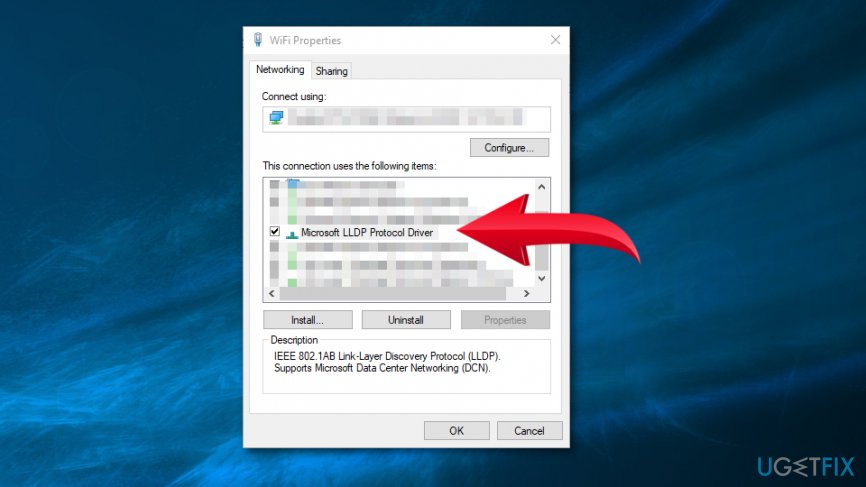
Enable microsoft lldp protocol driver setting - Click OK to save changes and check if it helped to fix Cast to Device not working error.
Method 7. Install available updates for Network Card Driver
- Click Windows + X keys on the keyboard.
- Choose Device Manager from the menu.
- When in Device Manager, open Network adapters.
- Right-click your network adapter and choose Properties.
- Open General tab and copy details about your driver.
- Visit network adapter manufacturer’s website and download a compatible driver with your machine.
- Open the setup wizard.
- Additionally, open Device Manager again, find your driver, right-click it and choose Update driver option.
- Choose Browse my computer for driver software option.
- Click Browse button and search for the driver you have previously downloaded.
- Click Next and follow the onscreen instructions.
Bottom line
To fix the Cast to Device not working error on Windows 10, you can try running the Hardware and Devices troubleshooter, turning on the Network Discovery feature, and checking Stream Permissions on Windows Media Player. If these methods do not resolve the issue, further investigation into your system settings and configurations may be necessary.
Frequently asked questions
First, ensure that both your PC and the device you are casting to are connected to the same Wi-Fi network, as this is essential for the feature to function properly.
You can reset your network settings by going to Settings > Network & Internet > Status, then scroll down and click on 'Network reset' to restore default settings.
Yes, ensuring that your Windows 10 is up to date can often fix bugs related to Cast to Device by installing the latest patches and improvements.




Report an issue
What's wrong with this guide? We review every report and update or remove content.
Report received — thank you. We'll review and fix it.
You need a free account to submit a report.
Be the first to comment