How to fix
Runtime Error 203
on Windows
Resolve Runtime Error 203 on Windows 10 and 11 effortlessly with our expert-tested solutions. Get back to smooth computing in minutes!

What causes How to fix Runtime Error 203 on Windows?
- Missing or compromised registry keys
- Two incompatible software running
- Memory issues
- System infection with a virus
Repairs Windows system files, removes malware, and restores a clean OS state — without reinstalling.
I have recently encountered error 203 on my Windows PC. Now I'm unable to install new software! What should I do? Can you help me fix runtime error 203?
Runtime Error 203 is a code designed to show that your computer has encountered a problem. Once you receive this message, it indicated that software could not run correctly unless appropriate actions are taken. Likewise, you shouldn't ignore this alert.
Common symptoms of error code 203 are that Windows programs are compromised, the user is unable to install or update software, and the computer starts to freeze or even crash. Therefore, users are no longer able to take the full advantage of the PC.
Usually, error 203 can occur if there missing or compromised registry keys[ref en-1], two incompatible software running, memory issues or the system might be infected with a virus[ref en-3]. In this case, the user should immediately download a professional malware removal tool to clean the computer.
If the cause of error 203 is not that highly dangerous, you can quickly get rid of it by installing a registry key cleaner. Modifying registries is a complicated process which requires specific skills[ref en-2]. Otherwise, it might lead to permanent computer damage. Thus, we recommend getting [d1].
However, there are also other ways how you can fix runtime error 203. You will find the methods showing how to do so at the end of this article. Although, it is crucial that you would follow them attentively or the problem might persist in the long-run.
Learn how to fix Runtime Error 203
As we have already mentioned, it is hard to determine the specific cause of runtime error 203. Due to the complexity of this problem, there might even be multiple causes that should be taken into consideration. Likewise, automatic method to fix this error would be a better option.
Despite that, if you want to try to fix Runtime Error 203 manually, check the instructions below. Make sure that you try all the listed methods since some of them might only work for specific causes of this problem. Please, be very attentive to avoid any damage to your system.
Make sure that your OS and software is updated
- Press Start button;
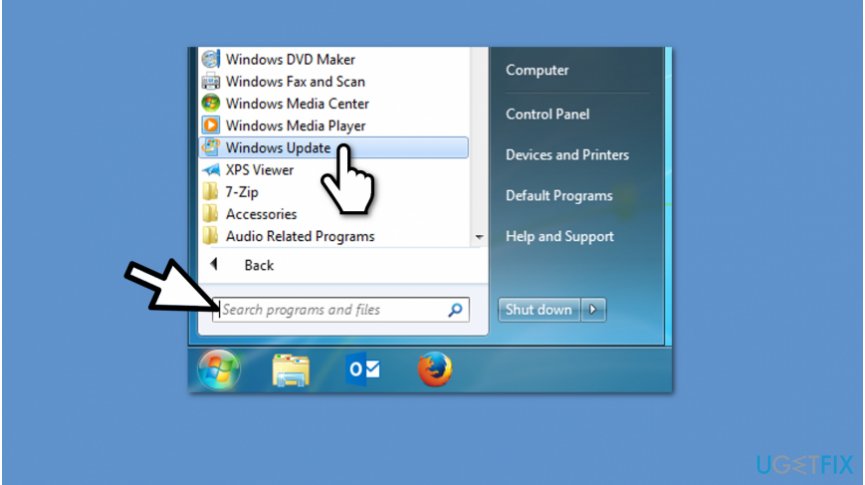
Update windows to fix error - Submit Windows Update in the search box and hit enter;
- Click on Windows Update and follow the instructions.
Get a professional malware removal software
This is a generic solution since malware infection might cause error 203. If you believe that your computer's system might be compromised by a virus, immediately get a robust antivirus.
Also, if you have one, do not forget to update it regularly. This way its database will be upgraded with new types of potentially dangerous programs that might be damaging your system.
Stop software that might be causing the error 203 to pop up
- Hit Ctrl + Alt + Del at once;
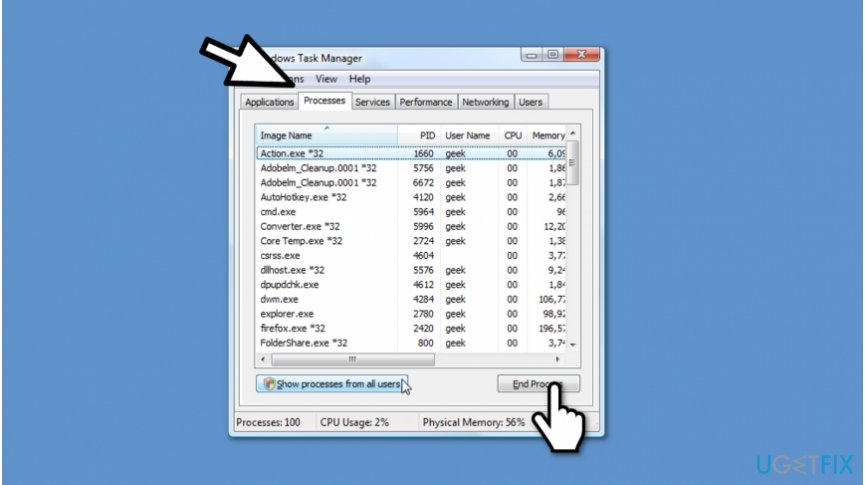
End conflicting processes to fix runtime error - When the Task Manager is opened, identify the programs that might be conflicting;
- You can end those processes by right-clicking on the name and selecting End Process.
Bottom line
To fix Runtime Error 203, you can download a professional malware removal tool, install a registry key cleaner, or follow the provided methods in the article. It is important to follow the instructions carefully to avoid persistent issues. If none of these solutions work, further investigation may be necessary.
Frequently asked questions
Runtime Error 203 is often caused by issues with outdated drivers, corrupted system files, or conflicts with third-party applications on Windows 10 or Windows 11.
You can try updating your drivers, running a System File Checker scan, or reinstalling the affected application to resolve Runtime Error 203 on Windows 10 or Windows 11.
To prevent Runtime Error 203, ensure that your Windows 10 or Windows 11 system is regularly updated, and avoid installing unverified software that may conflict with system processes.




Report an issue
What's wrong with this guide? We review every report and update or remove content.
Report received — thank you. We'll review and fix it.
You need a free account to submit a report.
Be the first to comment