How to fix
Physxloader.dll is missing error
on Windows
Resolve the Physxloader.dll missing error on Windows 10 and 11 quickly with our expert-tested solutions and clear screenshots for easy guidance.

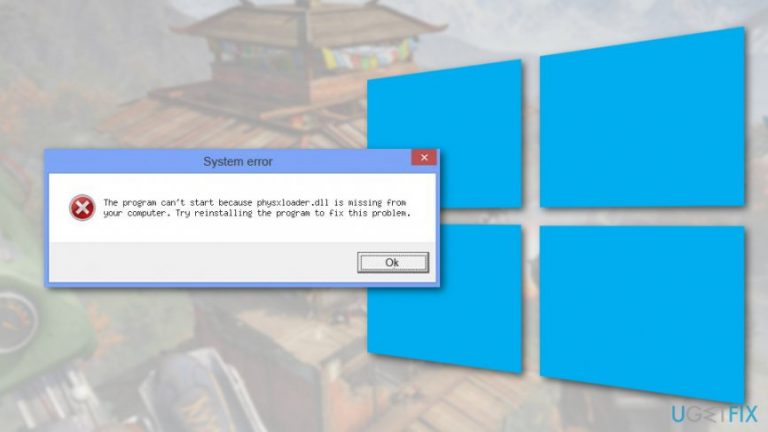
What causes How to fix Physxloader.dll is missing error on Windows?
- Physxloader.dll file is corrupted
- Physxloader.dll file is missing
- Uninstallation of a program may have deleted the file
- Incorrect installation of the game
- Issues with the NVIDIA video card component
Repairs Windows system files, removes malware, and restores a clean OS state — without reinstalling.
I cannot launch Dragon Age game because of the Physxloader.dll is missing error. I have restarted my computer a couple of times and reinstalled the game, but it did not help. What can I do?
Physxloader.dll is missing error usually appears when something is wrong with this DLL file[ref en-1] needed for a game to start on Windows operating system. PhysX[ref en-3] is a component of NVIDIA[ref en-2] video card that is needed to play games. Therefore, if this .dll file is corrupted or missing, the game cannot be launched and Windows display an error message.
There are a couple of variants of the error message that might show up on the screen, for instance:
- Cannot start [GAME]. A required component is missing: physxloader.dll. Please install [GAME] again.
- The file physxloader.dll is missing.
- This program can't continue because physxloader.dll is missing from your computer
- This application failed to start because physxloader.dll was not found. Re-installing the application may fix this problem.
- Physxloader.dll Not Found
Despite different error messages, the main problem is the same - something is wrong with Dynamic Link Library (DLL) file. This file includes specific tasks or commands that can be used by several programs that need the same functionality. For this reason, the file might be corrupted or deleted if you uninstall a program.
However, we do not recommend installing a missing DLL file manually. This file is a component of a program and spreads along with it. Installing a single file might be dangerous and do not give long-term results. There are many sources online that offer to download these files, but you cannot be sure whether it’s a safe and the latest version of the file you need.
Thus, we highly recommend you to fix Physxloader.dll is missing error using safe methods. We have provided a couple of possible ways below.
Methods to fix Physxloader.dll is missing error on Windows computers
We want to repeat ourselves one more time - do not look up for the Physxloader.dll file on the internet. This is not a solution to the problem. You might even cause yourself even more troubles if you manage to install malware instead of DLL file. Indeed, this unpleasant things might happen.
Method 1. Install NVIDIA PhysX
One of the main reasons why Physxloader.dll is missing error occurs is missing NVIDIA PhysX. Thus, you should download NVIDIA PhysX system software again from the official website here. After that, restart your computer and try to run a game. If this does not help to fix an error, opt for the second method.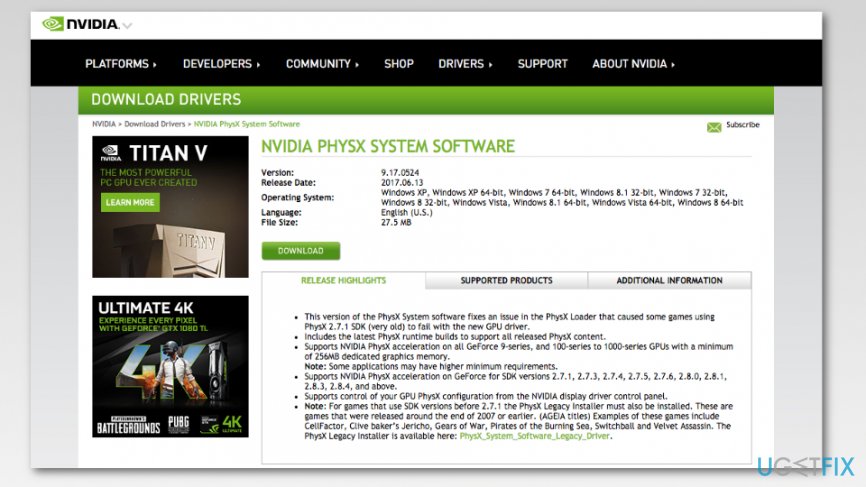
Method 2. Update video driver
Outdated video drivers might also cause the error message. Therefore, you should open Device Manager and let Windows to install available updates:
- Click Start and type Device Manager in the search box.
- Select it from the search results list.
- Once in Device Manager, find Display adapters drivers' category and expand it.
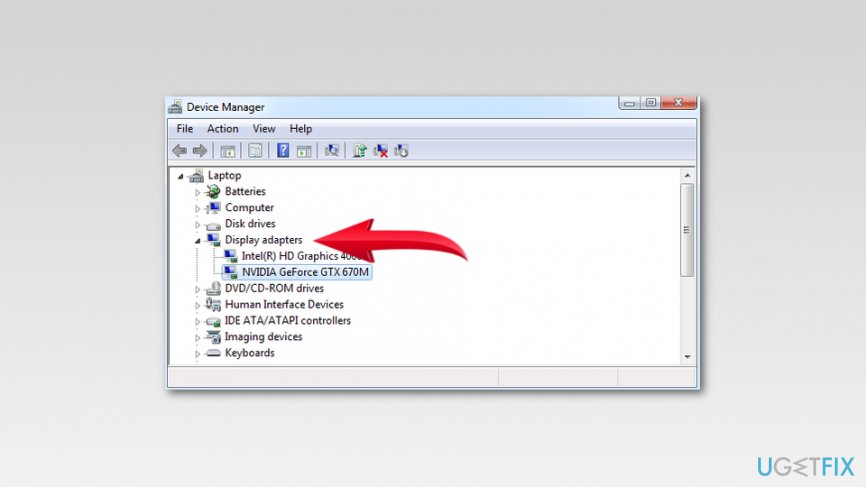
Expand display adapters - Right-click your video driver and choose Update Driver option.
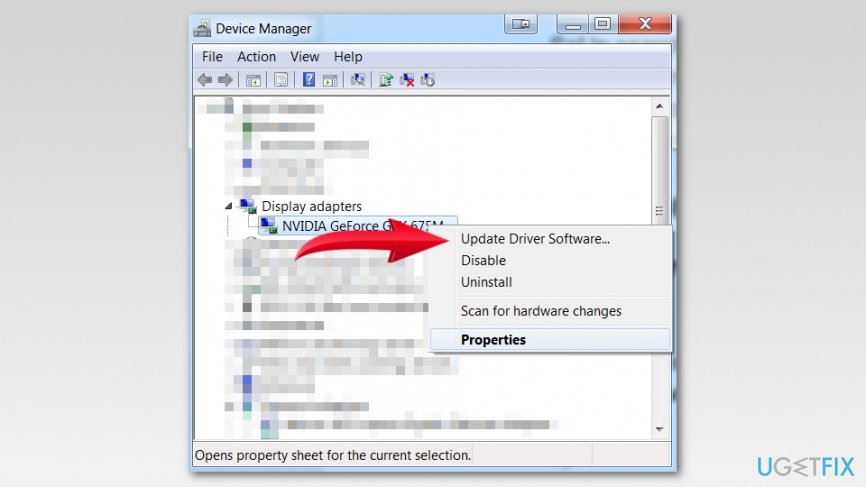
Update driver software - Click Search automatically for updated driver software in the appeared window.
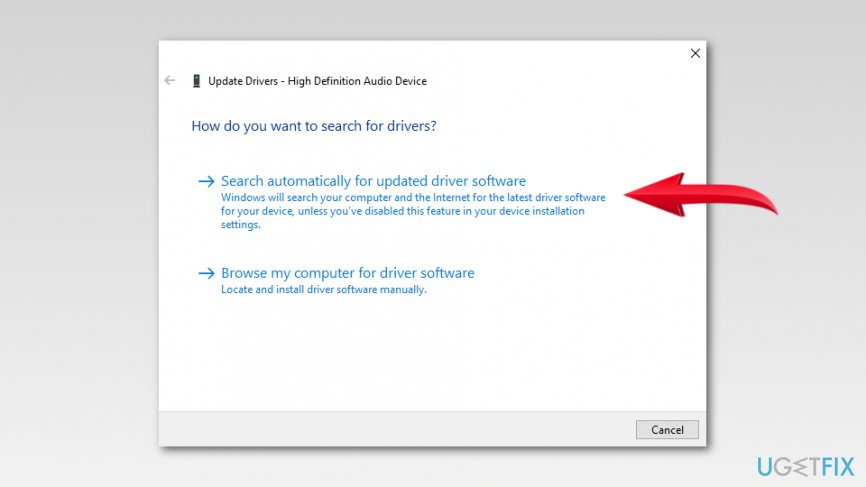
Click search automatically for updated driver software - Wait until Windows find available updates and install them by following onscreen instructions. However, sometimes the OS cannot find any available updates. The, you have to access manufacturer’s website and install updated from their website.
If updating video driver did not help, you can try to uninstall it. Follow the same steps, but instead of Update, you have to choose Uninstall. Then restart your computer and a missing driver should be reinstalled automatically. Then check if it helped to fix Physxloader.dll is missing error.
Method 3. Run PhysX software
The last way to fix Physxloader.dll error is to run PhysX software by following these steps:
- Go to: C:\\Program Files (x86)\\Steam\\SteamApps\\common\\Dragon Age Ultimate Edition\\redist
- Find PhysX software .exe file and double-click it.
- Launch the game and check if it helped to solve the problem.
Bottom line
To fix the Physxloader.dll is missing error, you can try reinstalling the game, checking for updates for your NVIDIA drivers, or using system restore. If none of these methods work, consider seeking further assistance or contacting support.
Frequently asked questions
This error is often caused by a corrupted or missing Physxloader.dll file, which can occur after a failed installation or update of a game or application that relies on NVIDIA PhysX technology.
You can restore the Physxloader.dll file by reinstalling the NVIDIA PhysX software or the application that requires it, which usually includes the necessary DLL files.
Downloading Physxloader.dll from third-party websites is not recommended, as it can lead to further issues or malware; always obtain it through official software installations.




Report an issue
What's wrong with this guide? We review every report and update or remove content.
Report received — thank you. We'll review and fix it.
You need a free account to submit a report.
Be the first to comment