How to fix
Force empty trash
on Windows
Discover effective methods to resolve empty trash issues on Windows 10 and Windows 11. Expert-tested solutions ensure your system runs smoothly.

What causes How to force empty trash on Mac?
- The item might be still in use
- The file may be locked
- The filename might contain a unique character
- Background processes may be active
- Potentially unwanted programs or malware may be present
Repairs Windows system files, removes malware, and restores a clean OS state — without reinstalling.
Hello. I have recently encountered a problem with my Mac. While trying to empty the trash, I receive an error saying that the file is in use and can't empty Trash on Mac. How to solve this problem? Thanks!
Trying to move the file into the Trash doesn't permanently delete it. Unless you decide to empty Trash and get rid of the unnecessary data for good. However, we have received multiple reports stating that some people cannot complete this task on their Mac computers.
There might be several reasons why you can't empty Trash on Mac:
- The item might be still in use;
- The file may be locked;
- The filename might contain a unique character which indicates the importance of the item and Mac refuses to delete it.
Whatever the reason it is, note that at some point you will need to empty your Trash as you will need free space for other programs that are necessary. Likewise, you should not only identify why you can't empty Trash on MacOS[ref en-1] but also fix the problem.
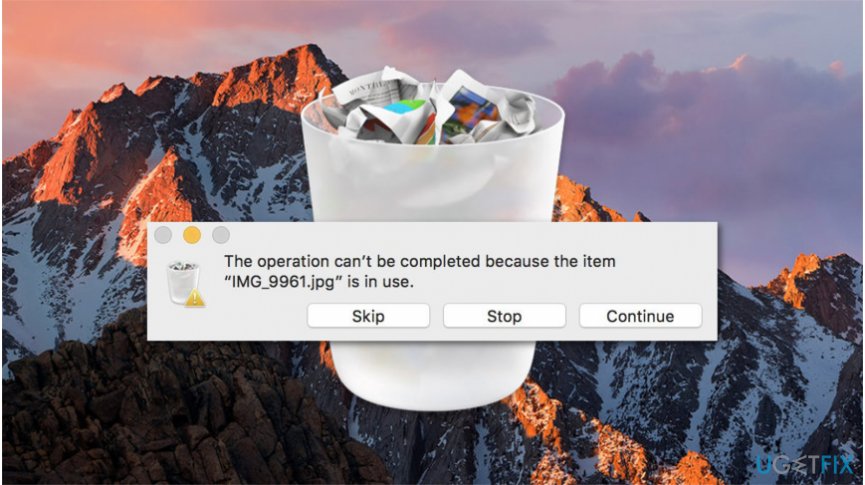
Below you will find methods how to force empty Trash on Mac which are designed to eliminate all different factors that might cause this error to appear. However, please, be attentive during the procedure as some of the techniques include altering settings that might harm your operating system.
Ways to force empty Trash on Mac computer
The given methods are only effective if your operating system is not infected with various potentially unwanted programs (PUPs)[ref en-2] or even malware[ref en-3]. Thus, experts highly advise you to scan your computer files with a professional security software before heading to the guidelines. Our top choice is [d1].
Method 1. Can't empty Trash because the Item is still in use
- You must quit all applications that are using the file you are trying to delete;
- Try to empty the Trash;
- If that doesn't work, there is a substantial risk that some background processes are still active. So, restart your
- computer and then empty the Trash;
- If it is the item that starts automatically every time you turn on your computer, you can temporarily stop it. You should
- start up in Safe Mode by holding the shift key while the Mac loads;
- Try to empty the Trash and restart your PC regularly.
Method 2. Empty Trash cannot be completed because the item is locked
- If you can't empty Trash on Mac, because the file is locked, you should hold down the Option key;
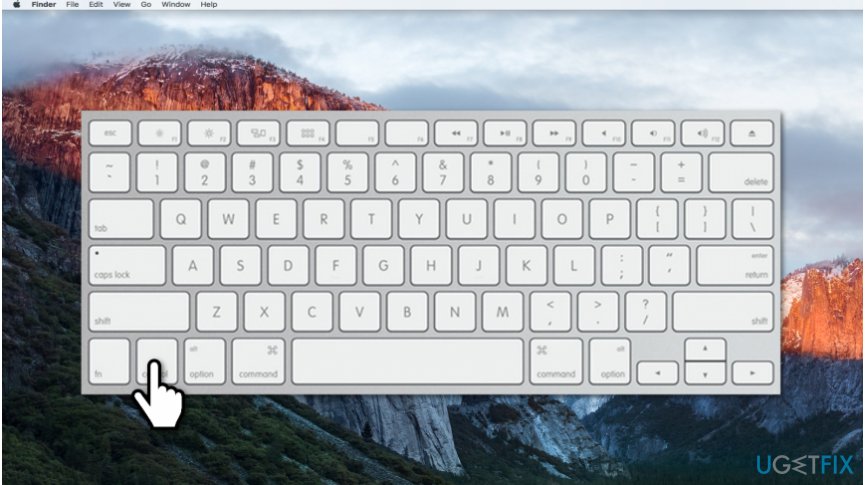
Delete locked files on mac - Then empty Trash as now the locked files will be overridden.
Method 3. Use Terminal to force empty Trash on Mac
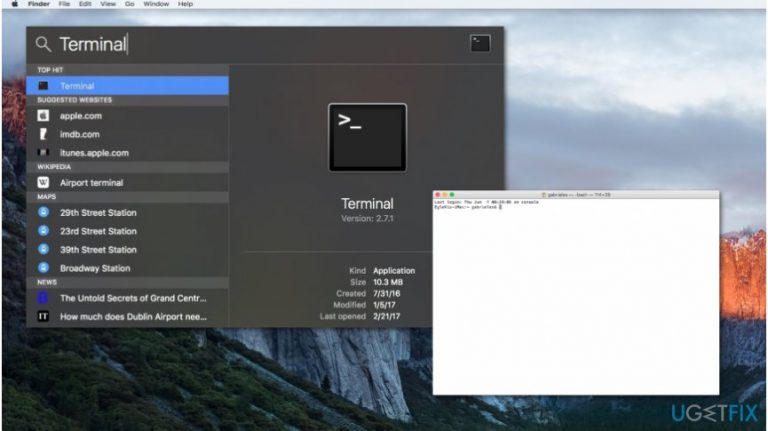
- Open Terminal;
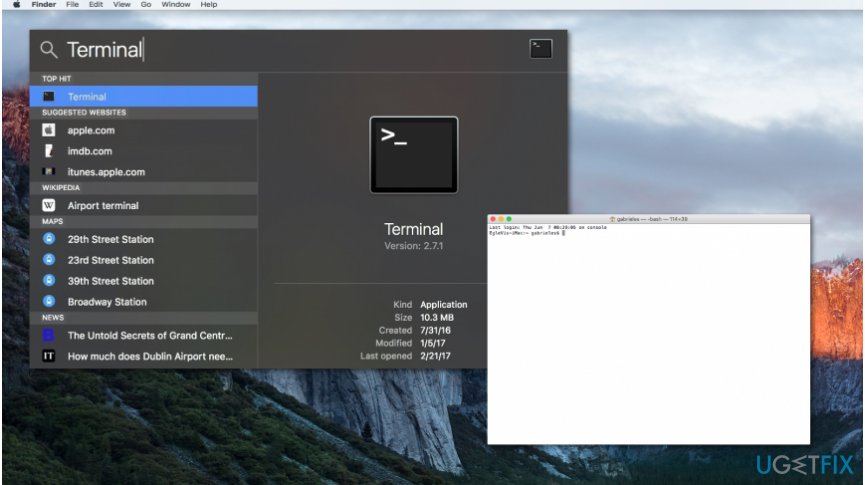
Terminal empty trash mac - Enter the following command WITHOUT hitting enter afterward:
- sudo rm -R
- Double-click on the Trash icon;
- Once it is opened, select all files and drag them to the Terminal window;
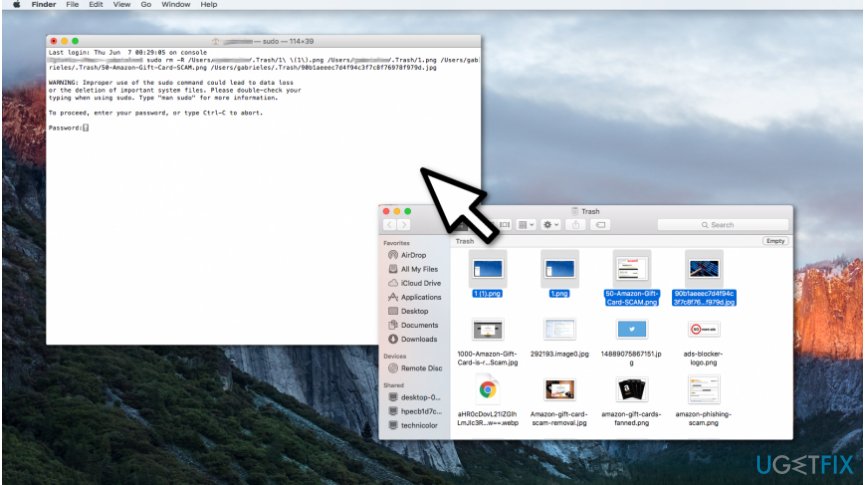
Force empty trash on mac with terminal - Press enter and submit the Administrator password;
- Hit enter.
NOTE: If the command didn't work, make sure that there is a space after R. Otherwise, this method will be ineffective.
Bottom line
To resolve the issue of not being able to empty Trash on Mac, you can quit applications using the file, restart your computer, or check for any background processes. If these methods do not work, it is advisable to scan your computer for malware or potentially unwanted programs.
Frequently asked questions
No, Windows 10 and Windows 11 cannot directly manage files on a Mac's trash since they are different operating systems.
You will need to access the Mac directly to empty the trash, as remote access via Windows does not provide full control over Mac features.
While you can't troubleshoot Mac issues directly from Windows, you can suggest using Safe Mode or checking for file permissions on the Mac itself.




Report an issue
What's wrong with this guide? We review every report and update or remove content.
Report received — thank you. We'll review and fix it.
You need a free account to submit a report.
Be the first to comment