How to fix
ERR_SSL_PROTOCOL_ERROR on Google Chrome
on Windows
Resolve the ERR_SSL_PROTOCOL_ERROR on Google Chrome with our easy troubleshooting tips for Windows 10 and 11. Expert-tested solutions await!

What causes How to fix ERR_SSL_PROTOCOL_ERROR on Google Chrome?
- Firewall or antivirus blocks access to the website
- Incorrect date/time on your computer
- Enabled QUICK protocol on Chrome
- Issues with SSL state
- Problems with system hosts file
Repairs Windows system files, removes malware, and restores a clean OS state — without reinstalling.
I cannot access a website with Google Chrome. It gives ERR_SSL_PROTOCOL_ERROR error and tells that this site can’t provide a secure connection. But everything was just fine yesterday. Is this site hacked or my Chrome just broke?
ERR_SSL_PROTOCOL_ERROR is one of the security errors that can occur when Google Chrome stops from visiting a potentially dangerous website. The site you are willing to access might be indeed compromised or affected, but usually, this error indicated issues with SSL certificate[ref en-1] of the website.
However, there are many other reasons why Google Chrome shows for instance:
- Firewall or antivirus blocks access to this website;
- Incorrect date/time on your computer;
- Enabled QUICK protocol[ref en-2] on Chrome;
- Issues with SSL state;
- Problems with system hosts file.
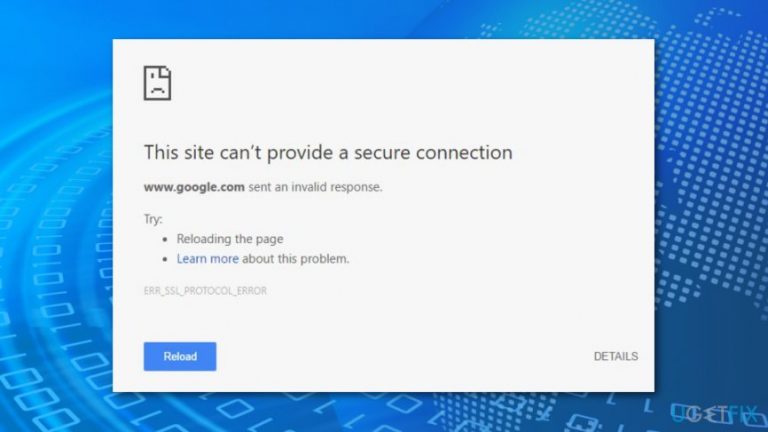
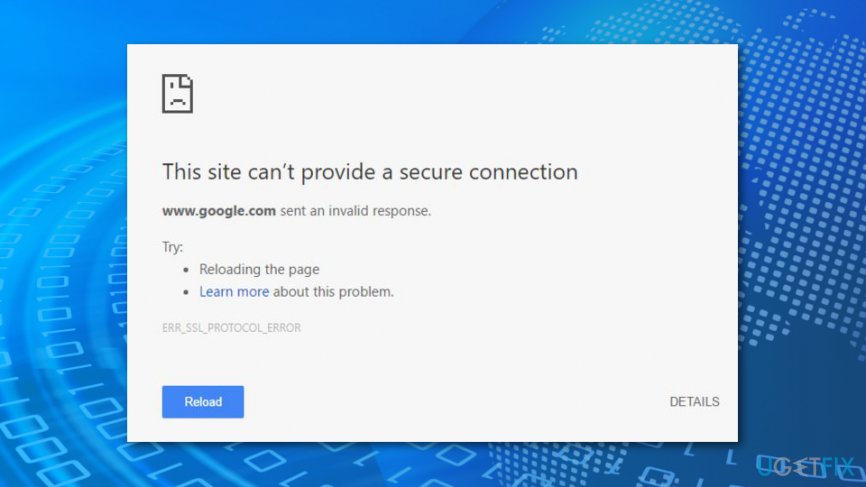
When you access a potentially dangerous website, or some of the above-mentioned problems occur, Google Chrome displays a grey window that states the following information:
This site can’t provide a secure connection
www.example.com sent an invalid response.
Try:
- Reloading the page.
- Learn more about this problem
ERR_SSL_PROTOCOL_ERROR
If reloading or refreshing the website does not help to access the desired website, you have to make sure that you are not trying to open invalid site. If you are certain that the website you want to access is secure and not malicious, please follow the instructions below that will help to fix ERR_SSL_PROTOCOL_ERROR on Google Chrome.
Steps to fix ERR_SSL_PROTOCOL_ERROR on Google Chrome
First of all, we suggest checking if you can access a site that displayed ERR_SSL_PROTOCOL_ERROR using another device, for instance, your smartphone. If you cannot see the error, you should try the methods presented below.
Method 1. Check if the website is secure
Usually, ERR SSL PROTOCOL ERROR Chrome error shows up when you try to access a potentially dangerous website that does not have trustworthy SSL certificates. You may have mistyped the domain’s name and try to enter a spoofed website:
- check if the address bar begins with https;[ref en-3]
- check if the green “Secure” status is on the left of the website address;
- check if you typed the address correctly.
If you are 100% sure that the site is secure, proceed with the method 2.
Method 2. Check Firewall and antivirus settings
Sometimes Firewall or security programs can block particular sites and mark them as malicious. Therefore, open security settings and have a look at the blocked websites. If you find the site that gives you ERR_SSL_PROTOCOL_ERROR, remove it from the list. Then relaunch Google Chrome and check if it helped to solve the problem.
Method 3. Check your computer’s date and time
Incorrect date or time might be the reason for this Google Chrome error. Even one minute might matter:
- Open Settings.
- Go to Time and Language > Time.
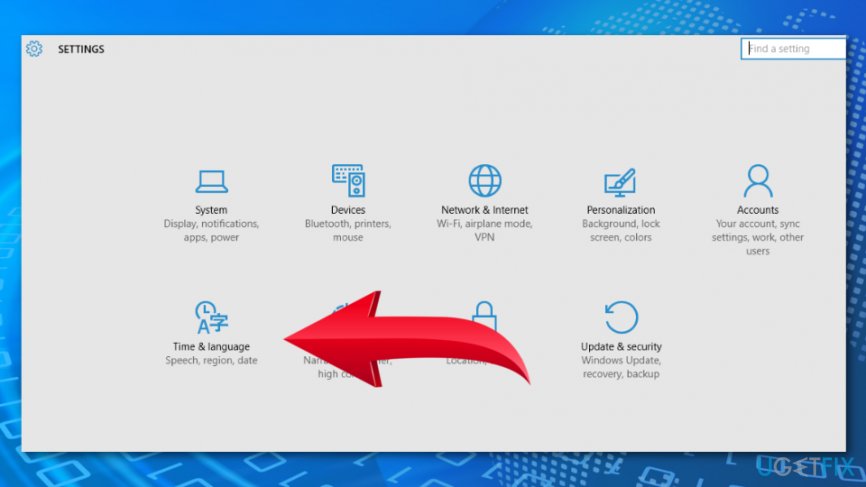
Time and language settings - Turn off Set time automatically option in the right pane.
- Click Change button under Change date and time section.
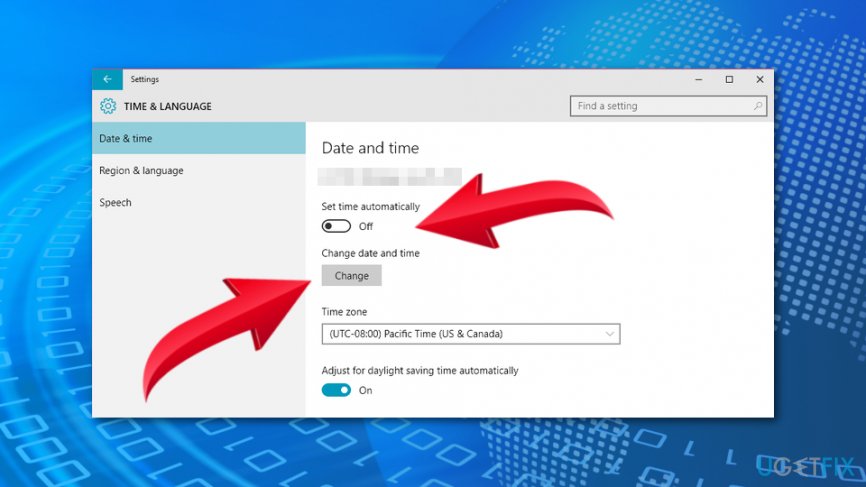
Date and time settings - In the appeared Change date and time window, set the correct date and click Change.
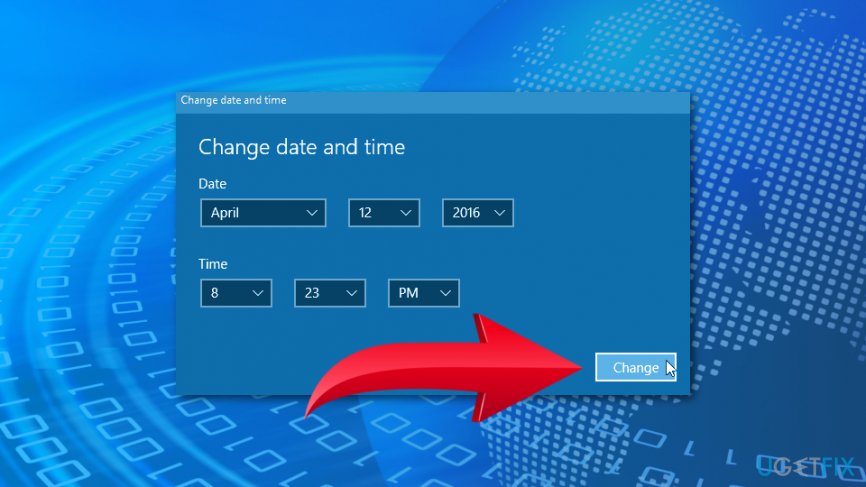
Set date and time
Open Google Chrome and check if it helped to fix ERR_SSL_PROTOCOL_ERROR. If not, try method 4.
Method 4. Disable QUIC protocol on Chrome
- Open Google Chrome and access the following path: chrome://flags/#enable-quic
- You should see highlighted Experimental QUIC protocol on the top. Click Disabled from the drop-down menu.
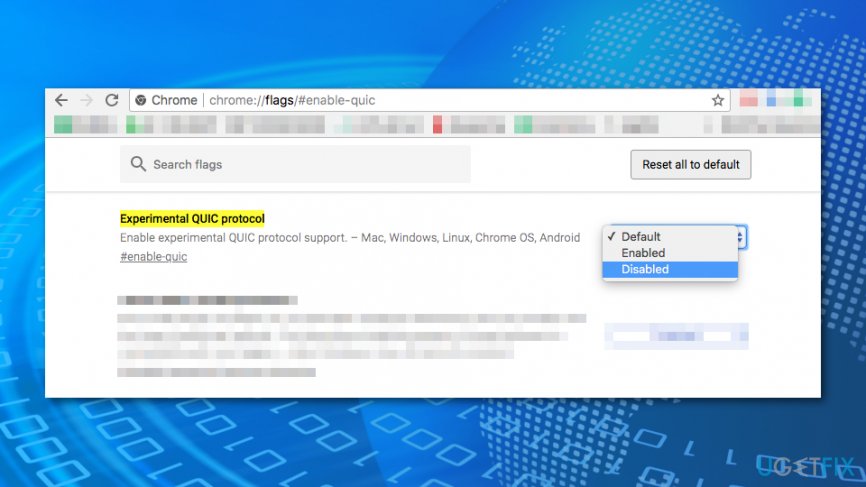
Disable quic protocol on chrome - Restart the browser to check if the error is gone.
Method 5. Remove system hosts file
- Click Windows key + R on a keyboard to open the Run window.
- Type C:\\Windows\\System32\\drivers\\etc and click Enter.
- In the appeared folder, right-click hosts file and choose Delete.
- Confirm deletion if asked and restart the browser to see if the ERR SSL PROTOCOL ERROR is fixed.
Method 6. Clear SSL state
- Open Run program again by pressing Windows key + R.
- Type control in the box and click OK.
- You will end up in Control Panel where you have to access Network and Internet. Make sure that View by type is set to Category.
- Then click Network and Sharing Center.
- Click Internet Options.
- In the appeared Internet Properties window, open Content tab.
- Click Clear SSL state button.
- Click OK in the SSL Cache Cleared Successfully prompt.
- Click OK to save the changes and close Internet Properties window.
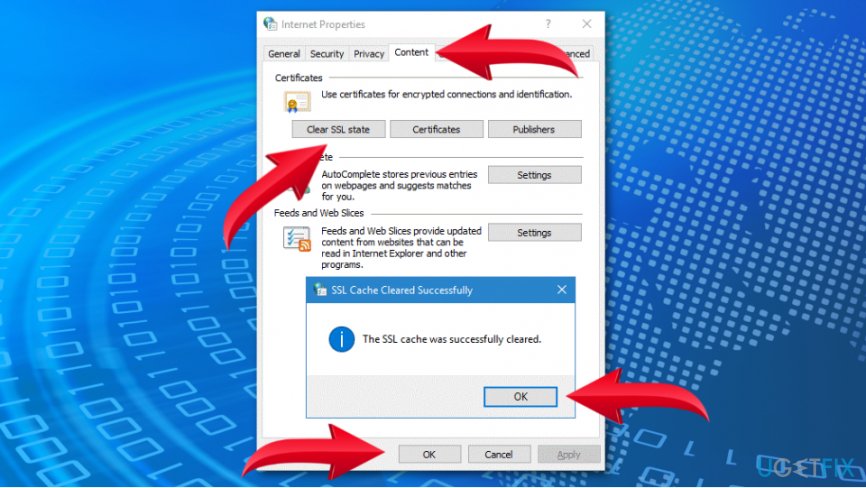
Clear ssl state - Restart the browser and check if it helped to fix ERR_SSL_PROTOCOL_ERROR on Chrome.
Bottom line
To fix the ERR_SSL_PROTOCOL_ERROR, check if the website is secure, ensure the correct date and time on your computer, and verify that your firewall or antivirus is not blocking access. If these methods do not resolve the issue, consider trying to access the site from another device or checking the SSL certificate of the website.
Frequently asked questions
This error often occurs due to incorrect system date and time settings, outdated browser versions, or issues with SSL certificates on the website you're trying to access.
You can clear the SSL state by going to Control Panel > Network and Internet > Internet Options, then clicking on the 'Content' tab and selecting 'Clear SSL State'.
Yes, temporarily disabling your antivirus software or firewall can help identify if they are blocking the SSL connection, which may resolve the ERR_SSL_PROTOCOL_ERROR.




Report an issue
What's wrong with this guide? We review every report and update or remove content.
Report received — thank you. We'll review and fix it.
You need a free account to submit a report.
Be the first to comment