How to fix
QUOTA_UNDERFLOW (0x00000021) error
on Windows
Resolve the QUOTA_UNDERFLOW (0x00000021) error on Windows 10 quickly and efficiently with expert-tested solutions. Fixed in minutes!


What causes How To Fix QUOTA_UNDERFLOW (0x00000021) error on Windows 10?
- Incorrect, outdated or corrupted drivers
- Driver conflict after installing new hardware
- Damaged RAM
- Hard disk malfunction
- Malware infections
- Outdated or corrupt registry entries
Repairs Windows system files, removes malware, and restores a clean OS state — without reinstalling.
Every time I start to play an Unreal Engine game, the computer crashes and I see an error which says that my PC ran into a problem and needs to restart. The stop code displayed: QUOTA_UNDERFLOW. Computer usually runs OK otherwise. Is anything broken? I am worried - pries help!
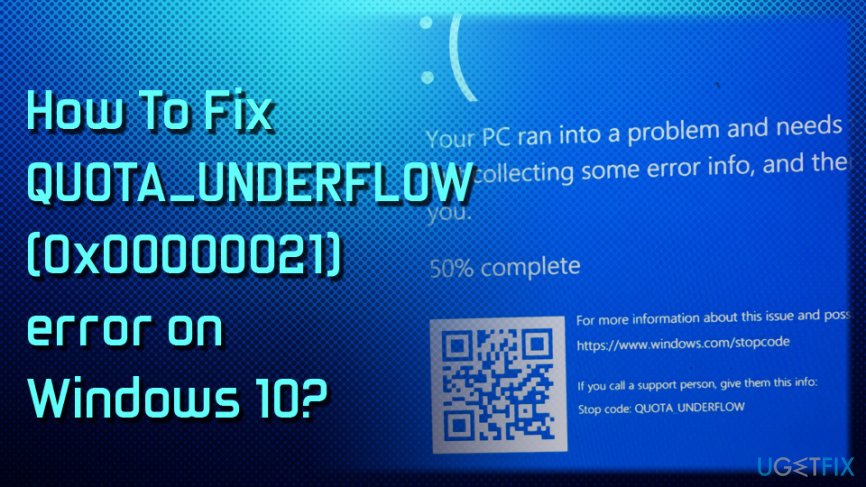
Blue Screen of Death[ref en-1] (BSoD or Blue Screen) is a stop error which occurs after a fatal system crash. Windows operating system shuts itself down to prevent damage which would otherwise be inflicted. It typically consists of description of the problem, as well as the error code name which can later be researched (that's why you are here!).
QUOTA_UNDERFLOW blue screen error usually appears after the installation of new software of hardware. It can occur during the startup or shut down of the program (including games), or when the application is running. In addition to frequent BSoDs, users also reported sluggish operation of the machine, as well slow response time of keyboard and mouse inputs.
QUOTA_UNDERFLOW error can occur due to several reasons, including:
- Incorrect, outdated or corrupted drivers;[ref en-2]
- Driver conflict after installing new hardware;
- Damaged RAM;[ref en-3]
- Hard disk malfunction;
- Malware infections;
- Outdated or corrupt registry entries;
- Damaged system files, etc.
Before you proceed with QUOTA_UNDERFLOW fix, we suggest you perform an actions which can clear out the problem instantaneously.
We suggest you to run a full system scan using [d1]. Frequent BSoD errors, as well software crashes, slowdowns of the system, increased CPU/GPU usage may indicate virus infections. Cyber threats are capable of downloading and installing more malware on your machine, stealing personal data, abusing computer's resources for malicious deeds (in the case of crypto-miner[ref en-4]), locking up personal files, as well as damaging system's components. Thus, malware should be caught early on, before it can inflict major damage to the PC.
If the scan did not return anything, use the following solutions to fix QUOTA_UNDERFLOW error.
This is a video for your convenience:
[youtube tZzZqCw1ILY]
Step 1. Make sure Windows is up to date
Another important step is to make sure that the operating system is up to date. Microsoft often releases patches that not only fix vulnerabilities, but also improves performance and compatibility issues with software and hardware. Many users reported that simply updating the operating system to the latest version fixed the problem (don't forget that you need to restart your machine for the update to be effective):
- Type in update in the search box located in the task bar
- Click on Check on updates
- If new updates are available, they will be offered
- After updates are installed, make sure you restart your computer
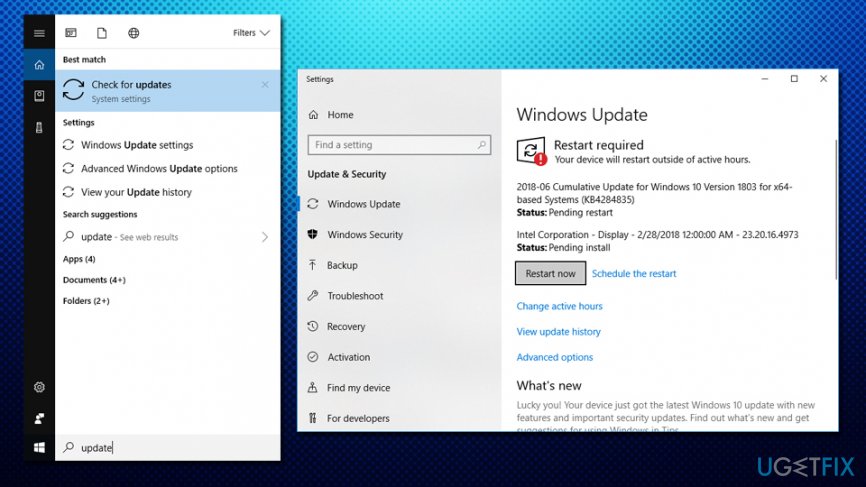
Quota underflow check for updates
Step 2. Update your drivers
Outdated or corrupt drivers might cause QUOTA_UNDERFLOW BSoD. Thus,make sure that you have latest drivers installed. You can either download them manually using Device Manager, or by installing software that can install all newest drivers automatically without any hassle (we suggest using a trusted [rev id=”Smart Driver Updater”]). To update drivers manually, follow these steps:
- Right-click on the Start button and pick Device Manager
- Expand the category you want to update and select the device (for example - graphics card)
- Right-click on it and pick Update Driver
- Pick Search automatically for updated driver software and let Windows install newest driver version
- Restart your PC
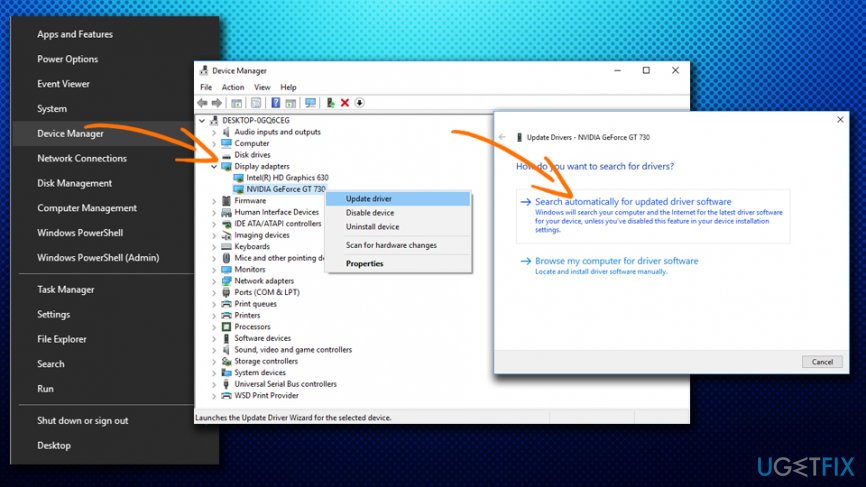
Quota underflow update drivers
Step 3. Run system file checker
System file checker is an effective built-in Windows tool that can detect problems within the system and automatically repair them. You can run the file checker in the following way:
- Type in Command Prompt into the search box
- Right-click on it an pick Run as administrator
- User account control window will show up. Click Yes
- In Command Prompt Window, type in sfc /scannow and press Enter
- Let Windows finish the scan and fix all issues automatically
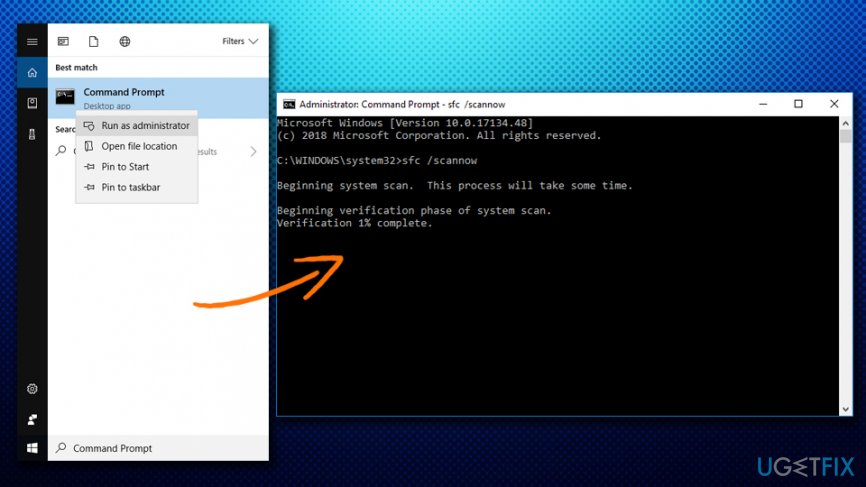
Quota underflow run system file checker
Step 4. Uninstall all recently installed programs
Some software is not wholly compatible with Windows and may cause stop errors. If you remember when system crashes started, sort programs by date and remove all the recently installed software:
- Type in Apps & Features into the search box
- Then pick Install date option under Sort by
- Click on the recently installed apps and select Uninstall
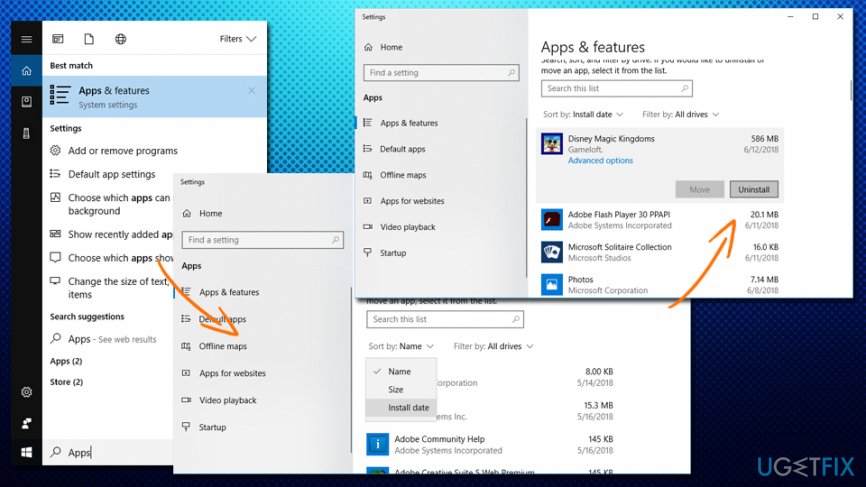
Quota underflow uninstall software
Even recently installed drivers can cause the QUOTA_UNDERFLOW error. Thus, you need to uninstall by following instructions in step 2 (instead of selecting Update Driver pick Uninstall option and see if that fixed the problem for you).
Step 5. Remove recently added hardware
Many users reported that replacing a broken piece of hardware instantly fixed the problem. Certain components can be easily removed manually, such as graphics card, or an SSD. Nevertheless, some hardware removal might prevent Windows from starting entirely - such as computer RAM.
Thus, firstly try removing separate components one by one, booting your system and using the machine without the recently taken off hardware. Still, the problematic device might be not that easily detectable, as the BSoD may only appear at certain times.
Therefore, if you want to diagnose your RAM, you should download MemTest86+ and run a test for few hours (which may be exhausting).
Step 6. Check your Hard Disk
Fortunately, there is an easy way to check your hard disk for any malfunction:
- Type in Command Prompt into the search box
- Right-click on it an pick Run as administrator
- When a new window opens, type in chkdsk /c and press Enter
- Let the scan run and see if Windows detects any errors
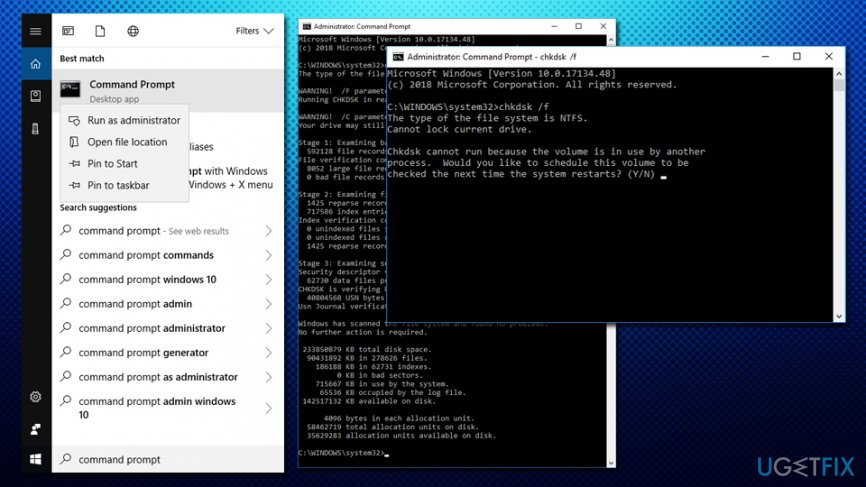
Quota underflow check harddisk
Bottom line
To fix the QUOTA_UNDERFLOW error, ensure that Windows is up to date, run a full system scan to check for malware, and consider updating or reinstalling drivers. If these solutions do not resolve the issue, further investigation into hardware components may be necessary.
Frequently asked questions
The QUOTA_UNDERFLOW error typically occurs due to corrupt system files, faulty hardware, or issues with the system's memory. It can also be triggered by specific software conflicts or outdated drivers.
To fix the QUOTA_UNDERFLOW error, you can run the System File Checker (SFC) tool and perform a memory diagnostic. Additionally, updating your drivers and checking for hardware issues can help resolve the problem.
To prevent the QUOTA_UNDERFLOW error, ensure that your Windows 10 system is regularly updated and that you maintain your hardware components. Running periodic system scans and keeping your drivers updated can also help mitigate the risk.




Report an issue
What's wrong with this guide? We review every report and update or remove content.
Report received — thank you. We'll review and fix it.
You need a free account to submit a report.
Be the first to comment