How to fix
“Macbook camera not working”
on Windows
Discover effective solutions to troubleshoot camera issues on Windows 10 and Windows 11. Get your device working perfectly again—expert-tested.


What causes How to fix “Macbook camera not working”?
- Misconfigured Macbook camera settings
- Application-specific issues with camera access
- Interference from potentially unwanted programs (PUPs)
- Virus infection damaging system files
- Hardware issues with the camera
Repairs Windows system files, removes malware, and restores a clean OS state — without reinstalling.
Suddenly, my camera stopped working. I'm using Macbook and tried to restart the computer. Unfortunately, I continue to receive "Macbook camera not working" error. Do you have any solutions? Thanks!
Macbook camera not working error might be a frustrating problem which prevents accessing the camera. Usually, in-built gadgets do not cause any problems. However, users who try to access their front cameras on Mac computers can encounter a black screen with "There is no connected camera" message.
Unfortunately, it is hard to identify the only cause why you might receive notifications about "Macbook camera not connected" issue. First, it is essential to check whether this problem is related to applications or hardware[ref en-1] itself. Experts suggest trying to turn Macbook camera on multiple different applications, like iMovie, PhotoBooth, or FaceTime.
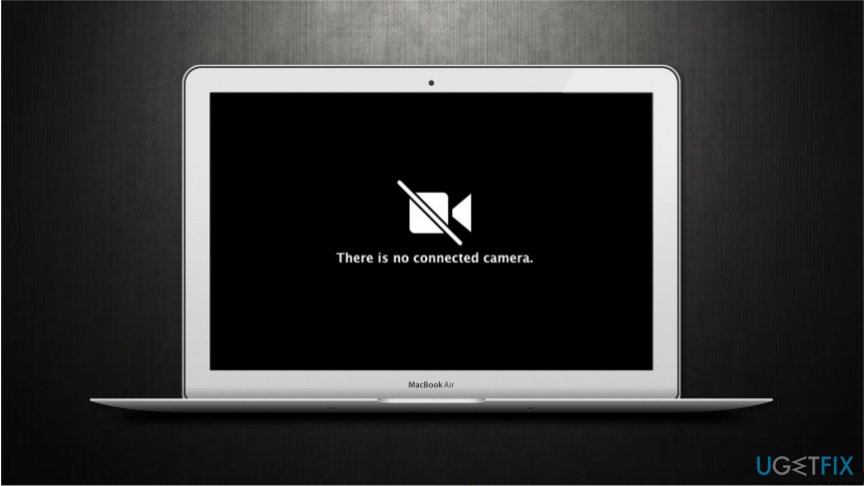
In most cases, Macbook camera settings might be misconfigured and deliver Macbook camera not working error. If some programs successfully access camera while others don't, then there is a problem with the Macbook camera app. Fortunately, there are ways how you can modify system settings and fix this error.
Otherwise, if Macbook camera won't turn-on on any apps, this might indicate a hardware issue, and you must contact your local IT technician. Despite that, it is advisable to try fixing your camera manually by following the guidelines listed below. Please, follow them attentively.
Learn how to fix Macbook camera not working error
Additionally, experts recommend you to check your system for potentially unwanted programs (PUPs)[ref en-2] which might be interfering with the camera. Also, if a virus[ref en-3] has infected your computer, it might have damaged some system files and cause Macbook camera not working issue. Thus, run a full system scan with [rev id="MacKeeper"] to eliminate all cyber threats.
Method 1. Force quit AppleCammeraAssistant and VDCAssistant
- Open Terminal via Spotlight search;
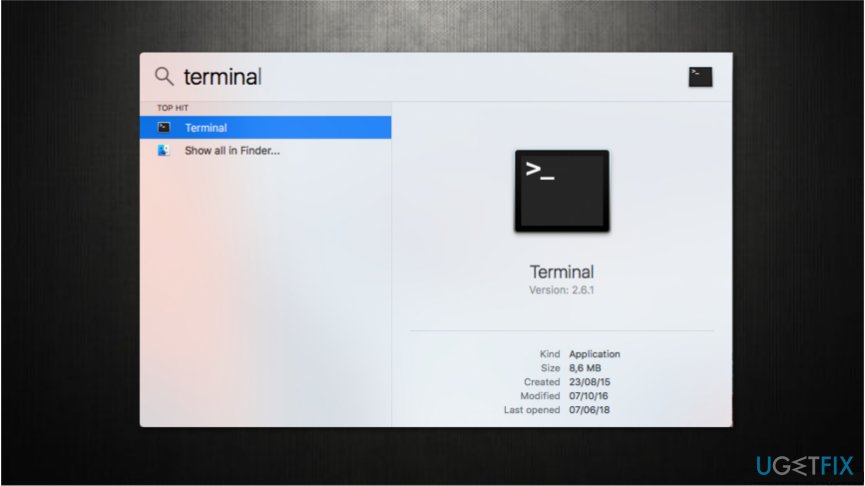
Open terminal - Submit sudo killall VDCAssistant command and hit enter;
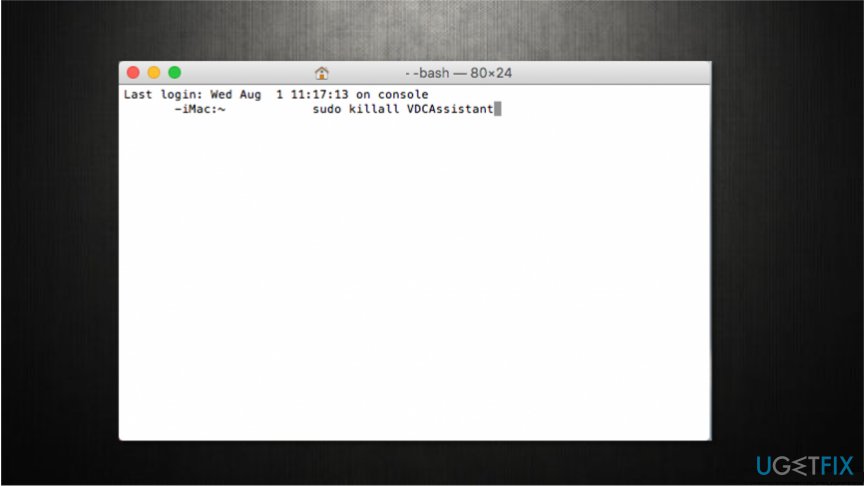
Kill vdcassistant - Afterward, type sudo killall AppleCameraAssistant and press enter again;
- Try to access the camera.
Method 2. Close VDCAssistant via Activity Monitor
- Open Activity Monitor via Spotlight search;
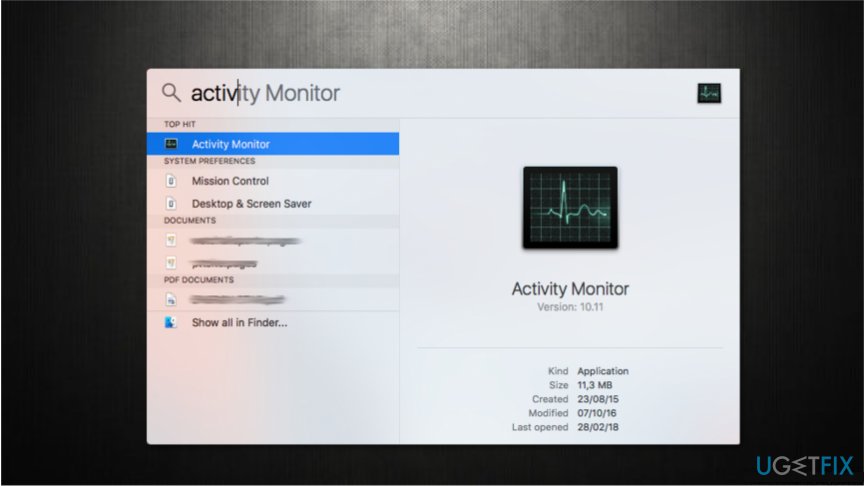
Open activity monitor - Search for VDCAssistant;
- Select it and press the X button in the top-left corner of the window;
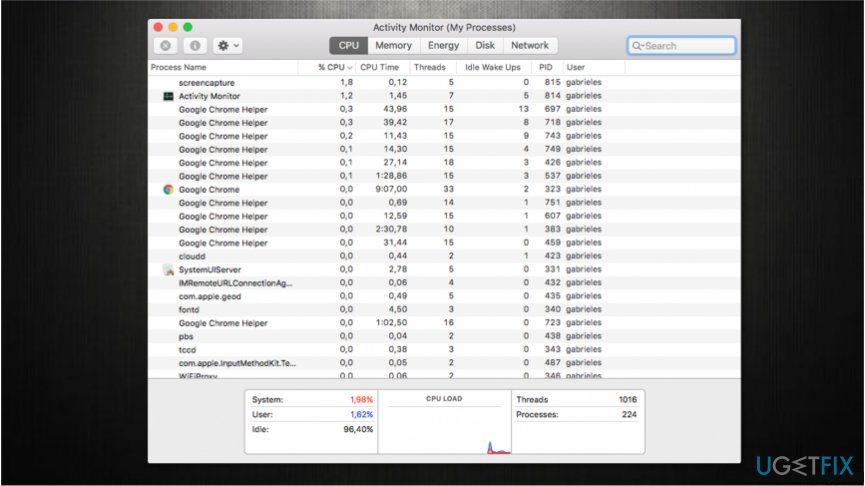
Force quit vdcassistant - Hit Force Quit;
- Try to use your Macbook camera.
Method 3. Update your MacOS
In some cases, the applications might crash if the operating system is out-of-date. Likewise, it is important to check whether all your programs and OS are updated to the latest version.
Bottom line
To fix the Macbook camera not working error, you can try force quitting AppleCameraAssistant and VDCAssistant using Terminal, or closing VDCAssistant via Activity Monitor. If these methods do not resolve the issue, it may be necessary to contact a local IT technician for further assistance.
Frequently asked questions
Yes, you can use a MacBook camera with Windows 10 or Windows 11, but you may need to install specific drivers or use Boot Camp for proper functionality.
If your MacBook camera works in macOS but not in Windows, try reinstalling the camera drivers from Device Manager or check your privacy settings in Windows.
Yes, there are third-party applications like OBS Studio or ManyCam that can help you utilize the MacBook camera on Windows, but ensure compatibility with your system.




Report an issue
What's wrong with this guide? We review every report and update or remove content.
Report received — thank you. We'll review and fix it.
You need a free account to submit a report.
Be the first to comment