How to fix
Ctrl + Alt + Del not working
on Windows
Resolve Ctrl + Alt + Del issues on Windows 10 quickly and effectively. Get expert-tested solutions to regain control of your system in minutes!

What causes How to fix Ctrl + Alt + Del not working on Windows 10?
- Updating Windows with unofficial firmware
- Installing dubious applications
- Changes to Windows Registry values
- Malware disabling functionality
- Viruses preventing access to Task Manager
Repairs Windows system files, removes malware, and restores a clean OS state — without reinstalling.
Whenever the program crashes in Windows 10, I press Ctrl + Alt + Del to access Task Manager and shut down the program from there. Recently, when I press this combination, I find that Ctrl + Alt + Del is not working. The mouse disappears and is only visible over the taskbar. The Task Manager is nowhere to be found. What is wrong? Can you please help me?
Ctrl + Alt + Del is a combination of keys that are frequently used by IT professionals, as well as regular users. The combination allows users to open Task Manager. From there, users can shut down or restart processes, monitor CPU[ref en-1] performance, view Windows Services[ref en-2] and Startup programs, etc. Additionally, the system can be shut down using Ctrl + Alt + Del.
Therefore, this combination is handy and when it does not work it cause frustration. However, our team prepared a detailed guide which will help you with Ctrl + Alt + Del not working fix. You will find the instructions below. You need to make sure you execute each step one after another, in case the previous one does not work for you.
There are several reasons why Ctrl + Alt + Del might be not working. The problem usually appears after updating Windows with unofficial firmware or installing dubious applications. All these actions can result in Windows Registry changes that can modify values of Ctrl + Alt + Del function.
In some cases, the functionality of Ctrl + Alt + Del might be disabled by malware.[ref en-3] Hackers might program viruses so that shutting down the malicious processes manually would be impossible. For that reason, they disable the combination to prevent victims entering Task Manager and observing running processes.
For that reason, it is essential to perform system scan using reputable anti-malware software like [d1] or any other program of your liking. In general, any malfunction of the system that comes unexpectedly could be tied to malware. Thus, do not wait and viruses can inflict tremendous damage to your PC.
If you performed a full system scan and no viruses were detected, please follow the guide below to fix Ctrl + Alt + Del not working on Windows 10.
This video will provide you with all information you need to fix this problem:
[youtube 5PI3OOsATtE]
Fix 1. Make sure your keyboard is working
Although quite obvious, this reason might be overlooked by many. Hardware problems can result in certain keys not working correctly, failing to execute the command. Therefore, connect another keyboard to your device and check if the problem persists.
Fix 2. Make sure Windows is up to date
Although Windows updates should install automatically by default, some users might have this feature off. Therefore, make sure that your Windows is using the latest version:
- Type in Update into the search box located in the taskbar and press Enter
- In the Settings window, click on Check for updates
- Windows will automatically check if any updates are missing
- As soon as updates are installed, restart your computer
Fix 3. Update your keyboard drivers
Drivers[ref en-4] are an essential part of a computer system. They ensure the proper operation and cooperation between hardware and software. In case drivers are incorrectly installed or outdated, equipment might malfunction, including the Ctrl + Alt + Del combination. Therefore, update your keyboard driver via the Device Manager:
- Right-click on Start button and select Device manager
- Expand your Keyboard section and select the one that is having problems
- Right-click on the device and pick Update Driver
- Select Search automatically for updated software and wait till newest drivers are installed
- Reboot your PC
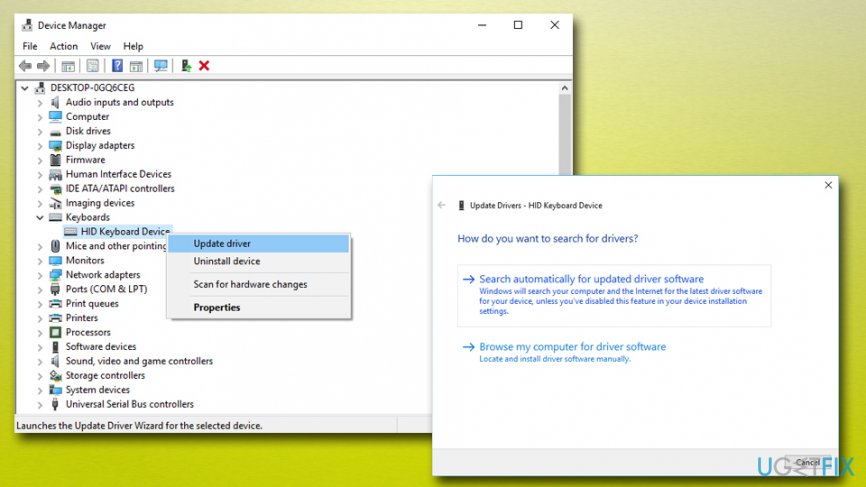
How to fix ctrl alt del not working update driver
Fix 4. Run System File Checker
System File Checker is a built-in tool which is capable of finding and fixing malfunctioning system files. By running the scan, you might be able to fix Ctrl + Alt + Del not working on Windows 10:
- Type in cmd into the search box located in the taskbar
- Right-click on the search results and pick Run as administrator
- User account control will pop up, click Yes
- Type in sfc /scannow into the Command Prompt window
- Press Enter
Fix 5. Use Windows Registry Editor to fix Ctrl + Alt + Del function
Tampering with Windows registry can be quite dangerous, as deleting certain keys might result in program malfunction or even system corruption. Therefore, please be cautious when proceeding with the following steps:
- Type in regedit into the Windows search box and press Enter
- When User Account Control appears, press Yes
- In the left pane, navigate to KEY_CURRENT_USER\\Software\\Microsoft\\Windows\\CurrentVersion\\Policies\\System
- If it does not exist, go to HKEY_CURRENT_USER\\Software\\Microsoft\\Windows\\CurrentVersion\\Policies
- In the left pane, right-click Policies and pick New > Key. Rename the folder to System (skip this step if system folder already exists)
- In the right pane, double-click DisableTaskMgr to enter its properties
- In case it does not exist, right-click on System > New > DWORD(32-bit) Value
- Rename the DWORD to DisableTaskMgr and click twice to enter its properties
- See if the value data is set to 1. If yes, you need to change it to 0 and press OK
- Reboot your computer
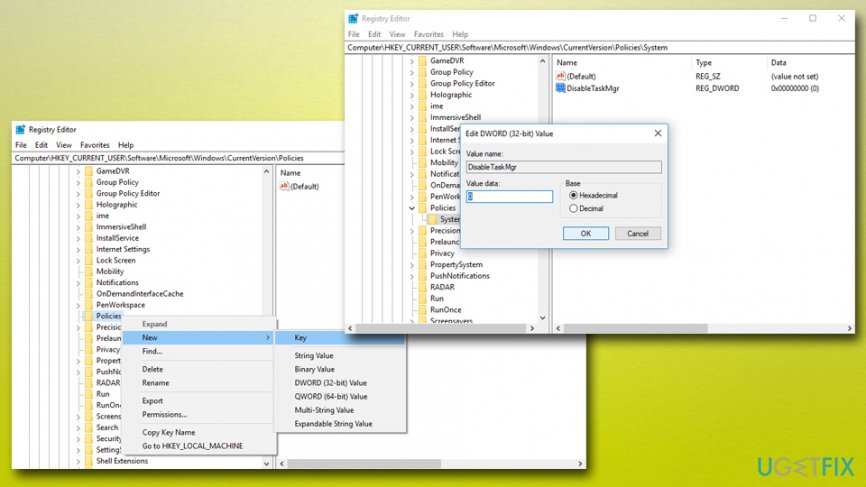
How to fix ctrl alt del not working modify windows registry
Fix 6. Uninstall Microsoft HPC Pack
Some users who complained about Ctrl + Alt + Del not working due to problems with LogonUI.exe which is a process related to HPC pack. In order to uninstall the program, follow these steps:
- Right-click on the Start button and select Settings
- Go to Apps and locate HPC Pack from the list
- Click on it and select Uninstall
- Follow the on-screen instructions
Bottom line
To fix the Ctrl + Alt + Del not working issue, perform a full system scan using reputable anti-malware software and ensure that you follow the detailed guide provided. If the problem persists after these steps, consider checking for further system malfunctions or seeking professional assistance.
Frequently asked questions
Try restarting your computer in Safe Mode to see if the issue persists; if it works there, it may be a software conflict. Additionally, check for any pending Windows updates that might address this problem.
Yes, certain third-party applications, especially those that modify keyboard shortcuts or system behavior, can interfere with the Ctrl + Alt + Del function. Uninstalling or disabling such software may resolve the issue.
You can enable it again by running the Group Policy Editor and navigating to User Configuration > Administrative Templates > System, then setting 'Remove Task Manager' to Not Configured or Disabled. This should restore the functionality.




Report an issue
What's wrong with this guide? We review every report and update or remove content.
Report received — thank you. We'll review and fix it.
You need a free account to submit a report.
Be the first to comment