How to fix
Code 43 error
on Windows
Resolve the Code 43 error on Windows 10 effortlessly with our expert-tested solutions. Get your device running smoothly again in minutes!

What causes How to fix Code 43 error on Windows 10?
- Device failure
- Driver issues
- Incompatible hardware
- Corrupted system files
- USB port malfunction
Repairs Windows system files, removes malware, and restores a clean OS state — without reinstalling.
Hello. I have several USB slots in the front f my PC. A couple of those are the USB 3.0, and I used them often to transfer large amounts of data onto the USB stick. I did reinstall Windows, however, and now only the USB 2.0 slots are working. Is there any way of fixing this issue? Thanks in advance.
The USB file transferring speed was always important to users, and over the years it has been drastically improved. USB 3.0 was designed in 2008 and introduced speeds as many as 10x times faster (645 MB/s)[ref en-1] than the USB 2.0. It is unfortunate when such a useful device does not work.
In such case, users can see the error in the Device Manager's General tab (note that Code 43 error is a Device Manager error,[ref en-2] and is something entirely different from Windows System error codes). The message states:
Windows has stopped this device because it has reported problems. (Code 43)
The Code 43 error is extremely generic and can affect all devices on the computer, although most prevalent ones are graphics cards and USB devices, such as printers, webcams, and similar. The issue can affect all Windows operating system, including Windows XP, Windows Vista, Windows 7, Windows 8, and Windows 10. In this article, we will concentrate on how to fix Code 43 error on Windows 10 operating systems.

The Code 43 appearance might indicate that the device showing the error is failing, or there might be a problem with the driver.[ref en-3] Therefore, there are several steps that users need to perform in order to fix Code 43 error on Windows 10. Below you will see numerous solutions to the problem, make sure you try them out.
For those of you who are not that computer savvy we would like to recommend an automatic an automatic solution to computer problems (including Code 42 error) - [d1]. However, the full license of the program needs to be purchased. For those who are comfortable with operating the computer, please follow steps below.
Step 1. Run Hardware and Devices Troubleshooter
A Troubleshooter is a built-in tool that can scan and detect problems. To fix Code 43 error using Troubleshooter, follow these steps:
- Click on Start button and type in Troubleshoot
- Hit Enter
- When Settings window opens, scroll down to find Hardware and Devices
- Click on Run the troubleshooter
- Let Windows detect the problems and suggest the solutions
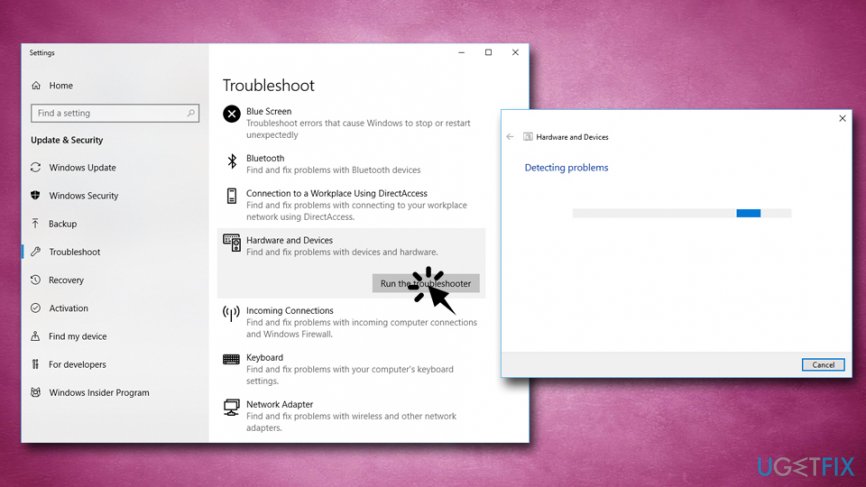
Code 43 error use troubleshooter
Step 2. Update driver of the problematic device
Note: if you are having any doubles about how to install or modify drivers in other ways, you can pick an automatic tool that can do it for you. We recommend using [rev id=”Smart Driver Updater”] - it will bring all your drivers to the working order)
It is highly likely that corrupt, outdated or broken drivers are causing the Code 43 error. Therefore, locate the problematic device in the Task Manager:
- Right-click on the Start button and pick Device Manager
- Expand the category of the problematic device (for example, Video card is located under Display adapters, and the the USB device can be found under Universal Serial Bus controllers)
Once located, you can perform several actions: update/rollback driver or uninstall the device. To update the driver, please follow these steps:
- Right-click on the device and pick Update driver
- Then, select Search automatically for updated driver software
- Once complete, Windows needs to be restarted
Step 3. Roll back the installed drivers
In some cases drivers might be installed incorrectly and hinder proper operation of the device. To fix this, roll back the driver:
- Select the problematic device in the Task Manager and right-click it
- Pick Properties
- Go to Driver tab and pick Roll Back Driver
- Pick the reason and click Yes
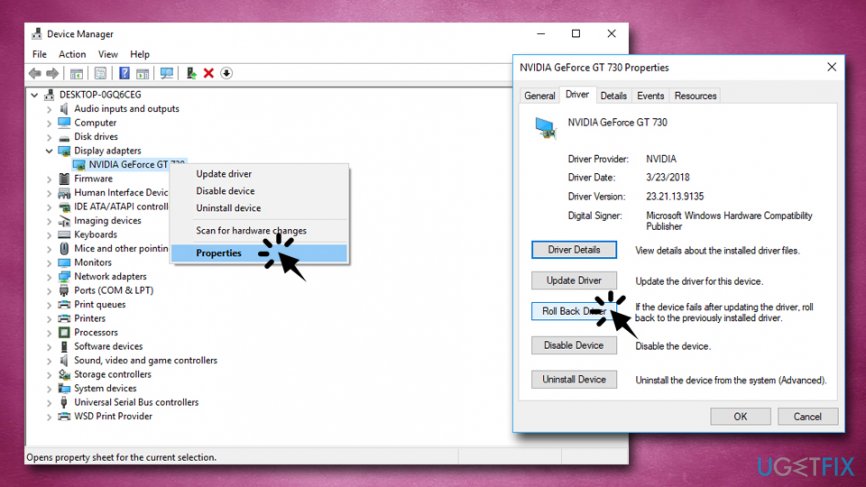
Code 43 error roll back driver
Step 4. Reinstall the problematic device
- Go to the Task Manager again and right-click on the problematic device
- Pick Uninstall Device
- Next, tick Delete the driver software for this device
- Click Uninstall and reboot your PC
- Once rebooted, go to the Task manager again and click on Scan for driver changes
- Windows will install everything automatically
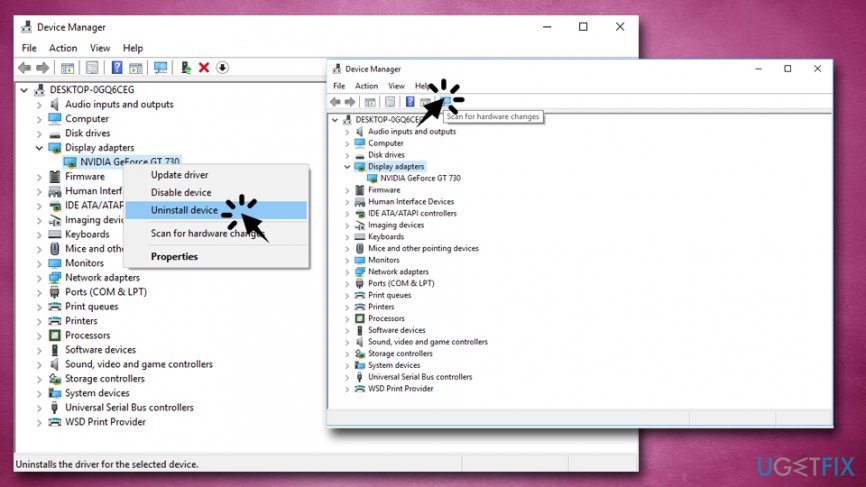
Code 43 error reinstall the device
Step 5. Replace the compromised device
If none of the steps helped you to fix Code 43 error, it is highly likely that the hardware is faulty. To make sure, try replacing it with an alternative device. If the newly connected device works perfectly, it is time to buy a new one.
Bottom line
To fix the Code 43 error on Windows 10, users can try running the Hardware and Devices Troubleshooter, updating drivers, or checking for hardware compatibility. If these solutions do not resolve the issue, consider seeking an automatic solution or professional assistance.
Frequently asked questions
The Code 43 error usually occurs due to hardware issues, driver problems, or conflicts with the device manager in Windows 10.
To update drivers, go to Device Manager, right-click on the problematic device, select 'Update driver', and follow the prompts to search for updates automatically.
Yes, you can troubleshoot hardware by checking physical connections, testing the device on another computer, or using the Windows 10 Hardware Troubleshooter.




Report an issue
What's wrong with this guide? We review every report and update or remove content.
Report received — thank you. We'll review and fix it.
You need a free account to submit a report.
Be the first to comment