How to fix
403 Forbidden Error
on Windows
Resolve the 403 Forbidden Error on Windows 10 or 11 easily. Follow our expert-tested tips to regain access to your favorite sites today!


What causes How to fix 403 Forbidden Error?
- Access denied by the website owner
- Website misconfiguration regarding permissions
- Incorrect URL specified by the user
- Malware affecting the system
- Temporary server issues
Repairs Windows system files, removes malware, and restores a clean OS state — without reinstalling.
Hi, I was wondering if you could help me with the 403 Forbidden error? I sometimes encounter it when I browse the internet, and I was always wondering what it means? It is annoying how I can't enter some websites sometimes. Thanks!
403 Forbidden is a typical HTTP[ref en-1] status code which indicates that the access to the web page you are trying to reach is forbidden for some reason. While in most cases there is nothing that could be done to enter the desired site, sometimes the problem lies on the user's end. Thus, we suggest you use the solutions below on how to fix 403 Forbidden error.
You can encounter the 403 Forbidden error on any operating system, as well as on all browsers, including Google Chrome, Internet Explorer, Mozilla Firefox, MS Edge, Safari, etc. The issue is usually worded differently, but here are a few examples of the error:
- 403 Forbidden
- HTTP 403
- Error 403
- Error 403 – Forbidden
- HTTP Error 403 – Forbidden
These are the typical examples of the error, but website moderators can alternate the text if they would like so. However, they rarely do so, simply to let visitors' know what the reason for denial is.

403 Forbidden error can be caused by the website owner denying the access to (certain) users, while in some cases the website itself can be misconfigured when it comes to permissions. Nevertheless, users reported that the problem does go away on its own sometimes, which makes it worth merely waiting some time before trying to access the site again.
Additionally, users reported that they get HTTP 403 error while trying to download the most recent Windows updates, but they are also provided with the 0x80244018 WU_E_PT_HTTP_STATUS_FORBIDDEN error code.
Before you proceed with the solutions of 403 Forbidden error, we recommend scanning your machine using anti-virus software like [d1]. Various errors might be caused by malware,[ref en-2] and it is better to be safe than sorry.
Solution 1. Check the address for errors
The most common reason for the 403 Forbidden error is that the URL users specify is incorrect. For example, the web page file name and the extension should be correct, as most sites do not allow directory browsing. Additionally, users often mistype .html and .htm, www and wwww, and similar.
Solution 2. Refresh the web page
In some cases, the 403 Forbidden error is only temporary, and refreshing the site would help fixing it. While this method does not always work, pressing F5 does not take too long, so it is worth trying.
Solution 3. Clear Cookies and Cache
Cache[ref en-3] is a storage for the web addresses you previously visited. Therefore, next time you re-visit the page, it will load the content from the cache, which includes HTML, Images, JavaScript, etc. In some cases, the actual link might be changed on the website you are trying to access, thus failing to load it. To fix 403 Forbidden Error and to clear your cookies and cache, follow these steps:
Google Chrome
- Click on the Chrome Menu located at the top-right corner and select Settings
- Scroll down and find Clear browsing data
- Select Cookies and Cached images and files and press Clear Data
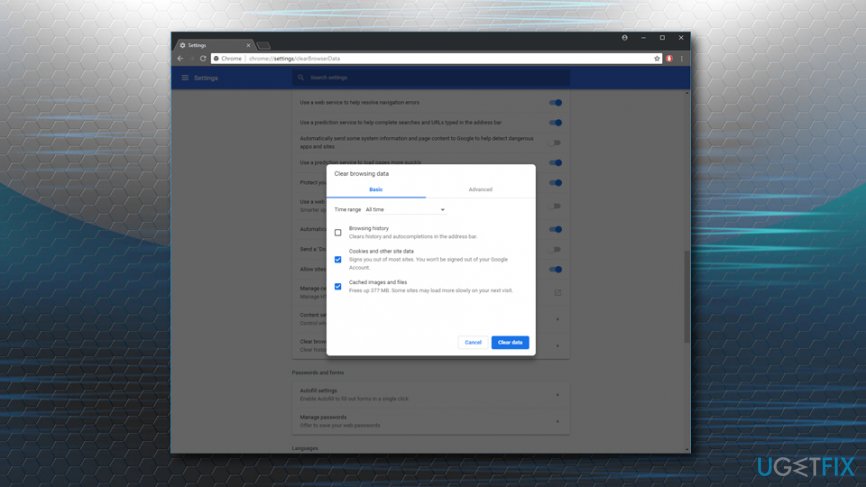
403 forbidden error clear chrome chache
Mozilla Firefox
- Click on Firefox Menu and select Options
- Go to Privacy & Security
- Under Cookies and Site Data, click Clear Data
- Tick Cookies and Cached Web content and press Clear
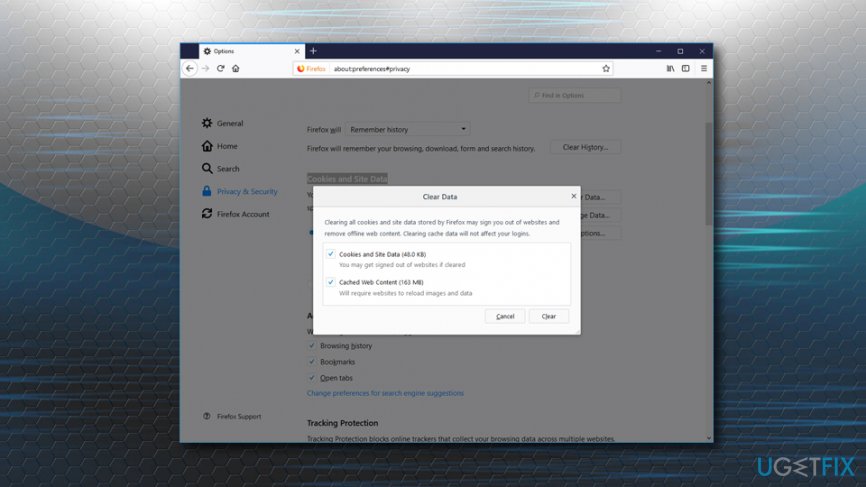
403 forbidden error clear firefox chache
Microsoft Edge
- Click on MS Edge Menu and pick Settings
- Click on Choose what to clear under Clear Browsing data
- Select Cookies and Cached data and file and click on Clear
Other solutions
If the above-mentioned steps did not help, you can try the following:
- Contact the website administrator
- Contact your ISP
- Try again later
Bottom line
To fix the 403 Forbidden error, you can check the URL for errors, scan your machine for malware, and wait some time before trying to access the site again. If none of these solutions work, consider reaching out to the website owner for further assistance.
Frequently asked questions
The 403 Forbidden Error indicates that the server is refusing to fulfill the request due to insufficient permissions. This can occur due to incorrect file permissions or access restrictions set by the server.
You can try clearing your browser cache, disabling any VPN or proxy settings, or checking your firewall configurations to ensure they are not blocking access.
Yes, ensure that your user account has the necessary permissions to access the files, and verify that the security settings of your web browser are not overly restrictive.




Report an issue
What's wrong with this guide? We review every report and update or remove content.
Report received — thank you. We'll review and fix it.
You need a free account to submit a report.
Be the first to comment