How to fix
XPSSVCS.DLL is missing error
on Windows
Resolve the XPSSVCS.DLL missing error on Windows 10 easily. Follow expert-tested methods and get your system running smoothly again in no time!

What causes How to fix XPSSVCS.DLL is missing error on Windows 10?
- Windows cannot load the XPSSVCS.DLL file
- Print driver is already uninstalled
- File is missing: XPSSVCS.DLL
- Malware infection may replace executable files
- Updates may be required to fix the issue
Repairs Windows system files, removes malware, and restores a clean OS state — without reinstalling.
Yesterday I was trying to print some pages from my university work and I was a little bit surprised when the process failed. I checked the printer, and everything was same as usual. However, an error occurred on my desktop screen and it was announcing "XPSSVCS.DLL is missing". How do I fix such issue on Windows 10?
XPSSVCS.DLL is a DLL file[ref en-2] which was created by Microsoft[ref en-1] to suit the Windows Operating System. The latest variant of XPSSVCS.DLL is named 1.0.0.0 and is also developed for Windows OS. DLL files are very similar to executable ones which share the same procedures through several software programs. An example would be printing.
As we know, this problem occurred when you managed to start the printing process and it just did not run. You might have faced various error messages including:
Unable to open printer [1103/184546:WARNING:setup.cc(320)] Print driver is already uninstalled
or
[1103/184546:WARNING:setup.cc(263)] File is missing: XPSSVCS.DLL
This problem usually occurs when users try to activate the "Print" function for some documents and Windows can not load the XPSSVCS.DLL file which is responsible for this kind of activity. However, do not worry such errors are not that rare and there are some methods that might let you fix the problem. Read the below-given instructions.

However, we recommend scanning your PC with [d1] in case this type of issue might be caused by a computer infection. Essentially, every executable file on the Windows machine can be replaced by malware.[ref en-3] Nevertheless, if the file is not corrupt and simply missing, it is not advisable downloading it from third-party sources, as these domains might contain viruses.
This video will help you with this issue:
[youtube OKCbucKwBBc]
Solution No. 1: Update your Windows OS to fix XPSSVCS.DLL is missing error
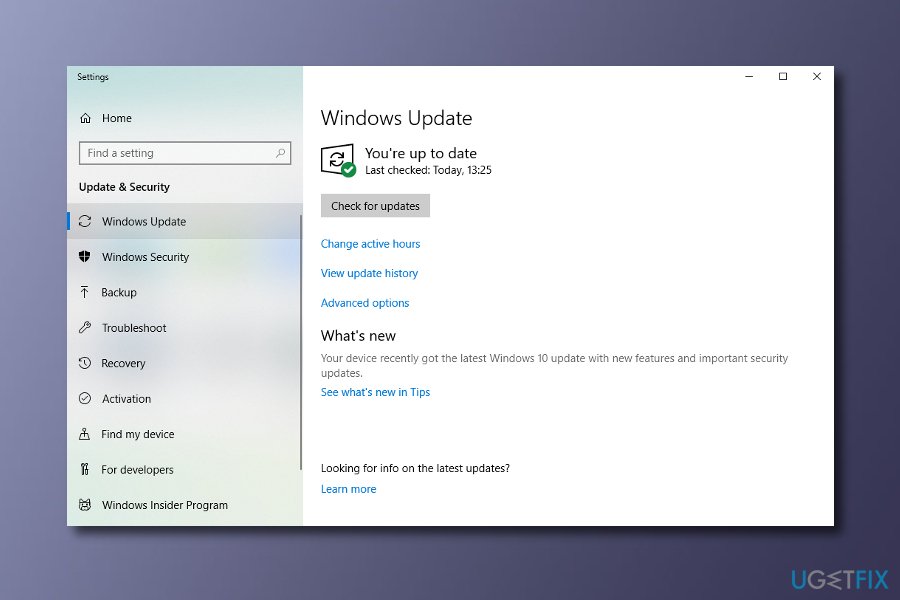
Windows has released some latest updates which are capable of solving this problem. Perform the below-given guiding steps cautiously to reach the best results.
- Click on CTRL and I and you will open Windows Settings;
- Choose Update & Security ----> Press Check for updates ----> Install updates.
Fix error
Solution No. 2: Uninstall some updates for XPSSVCS.DLL is missing fix
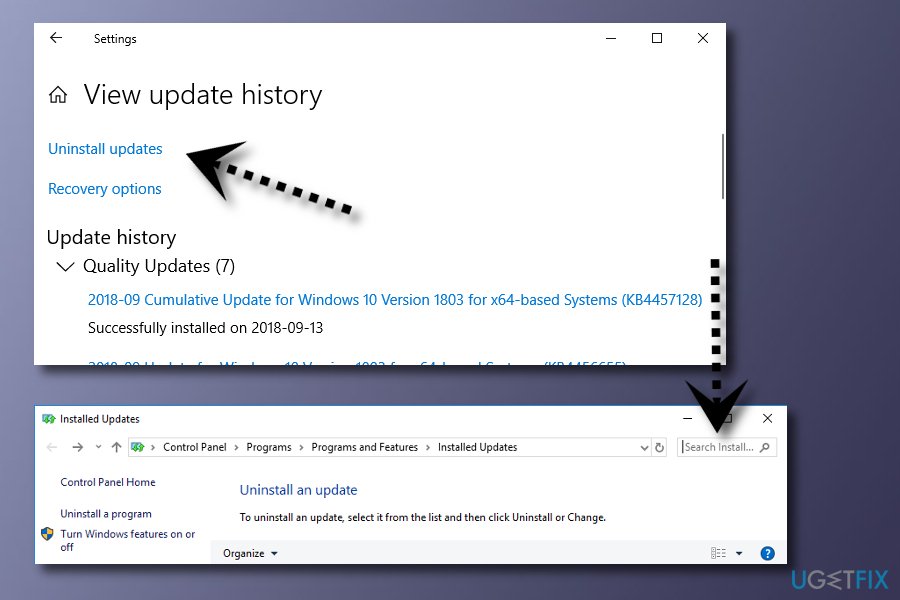
- Click CTRL + I and the Windows Settings will appear;
- Press on the Search Installed Updates section and type in KB3177725 and KB3176493 codes;
- Click two times on the provided result and press OK to uninstall the updates.
Error fix
Solution No. 3: Register the XPSSVCS.DLL file by using Microsoft Register Server
In some cases, you might be receiving errors if the XPSSVCS.DLL file is not registered properly. If this is the reason for such type of errors, perform these steps as required and you might solve the problem.
- Press Start;
- Type in "command" but DO NOT enter;
- Hold the CTRL and Shift keys and then press ENTER;
- When a permission dialog box appears, click Yes;
- After that, type in this text: regsvr32 /u XPSSVCS.DLL;
- Press ENTER to unregister the file;
- Then, write in: regsvr32 /i XPSSVCS.DLL;
- Click ENTER and your file will be re-registered;
- Once you accomplish such actions, refresh the program that is related to the XPSSVCS.DLL error.
Solution nr. 4: Print the files you want by using the web browser
If you are out of luck and you cannot perform any important printings with your device, you should try completing the printing process via a web browser.
- Go to https://www.google.com/cloudprint in your used web browser;
- Click the Print function and then choose Upload file to print;
- Upload the file you are likely to print but did not succeed to;
- Choose the printer that you want to use and then activate the Print function.

Fix xpssvcs dll is missing error
Bottom line
To fix the XPSSVCS.DLL is missing error, you can update your Windows OS or uninstall recent updates that may have caused the issue. If these solutions do not resolve the problem, consider scanning your PC for malware or seeking further assistance.
Frequently asked questions
The XPSSVCS.DLL missing error on Windows 10 is typically caused by corrupted system files, improper software installation, or malware infections affecting the print spooler service.
You can restore the missing XPSSVCS.DLL file by running the System File Checker tool or by reinstalling the printer drivers associated with the printing services.
Upgrading to Windows 11 may resolve the XPSSVCS.DLL error if the issue is related to compatibility, but it's recommended to fix the error on Windows 10 first before considering an upgrade.




Report an issue
What's wrong with this guide? We review every report and update or remove content.
Report received — thank you. We'll review and fix it.
You need a free account to submit a report.
Be the first to comment